The combination of the “MultipleNatFound” indication and the reported router external (WAN side) ip address of 100.kkkk.aaa.lll strongly suggests that your ISP is employing Carrier Grade Network Address Translation (CG-NAT) to provide you with a service.
With CG-NAT in place, you will not be able to get ARC connectivity working using port forwarding (which is what the error text quoted above is all about).
Thus you have two (typically) or three options:
Contact your ISP and ask if they can supply you with an ip address that supports port forwarding (often static). If they can, then you should, thereafter be able to get port forwarding to work either using uPnP (supported on most routers) or a manual port forwarding rule.
(The nuclear option ) Change to a different ISP that does not employ CG-NAT and then configure port forwarding as in (1) above.
Use Tailscale to avoid the need for port forwarding. Note: If you configure Tailscale successfully, you will be able to connect your ARC device wherever you are but the ‘Not Ready’ indication and the error text above will still be present because they relate only to connectivity using port forwarding.
A description of the use of Tailscale can be found here:
Instructions for setting up Tailscale on a RoonOS device (Like your Rock but also including the Nucleus One and Nucleus Titan) Running RoonOs 2.1 or above can be found at:
However, you should note that if your ROCK server is stuck on RoonOs 1.0 build 259, then it is probable that your NUC (or whatever hardware platform you run ROCK on) is configured to use BIOS boot. If this is the case, you will not be able to easily update to RoonOS 2.1 and the Nucleus/ROCK install instructions linked above will not work.
In this case, you have two options:
Connect a USB keyboard and an HDMI monitor/TV to your NUC and change the BIOS to employ a UEFI boot mechanism and then re-install from scratch using the ROCK install procedure making sure to select the ‘Re-install’ options immediately after installation (and before restoring a backup) so that both the OS (RoonOS) and the Roon Server application will be brought up to date (RoonOS version 3.0 and Roon Server version 2.74). Be warned: This will entirely re-format the system SSD in your ROCK server and will require you to restore a database backup. Also: The latest release of RoonOS (version 3.0) has an issue with some NUCs whereby it continually reboots if nothing if plugged into the HDMI port so you may want to hold off going down this route just at the moment (see: ROCK/RoonOS crashes every few minutes on NUC8i5BE(X) after update to RoonOS 3.0 (ref#J94EQG) [Ticket In]). You can work around this issue either be leaving the TV/monitor connected on the HDMI port or using a dummy HDMI device (availble a quite low prices) permenantly connected to your NUC.
Use a second always on device (e.g. a NAS or a RaspberryPi or equivalent) to run Tailscale as a subnet router. Instructions for this can be found at: Subnet routers · Tailscale Docs
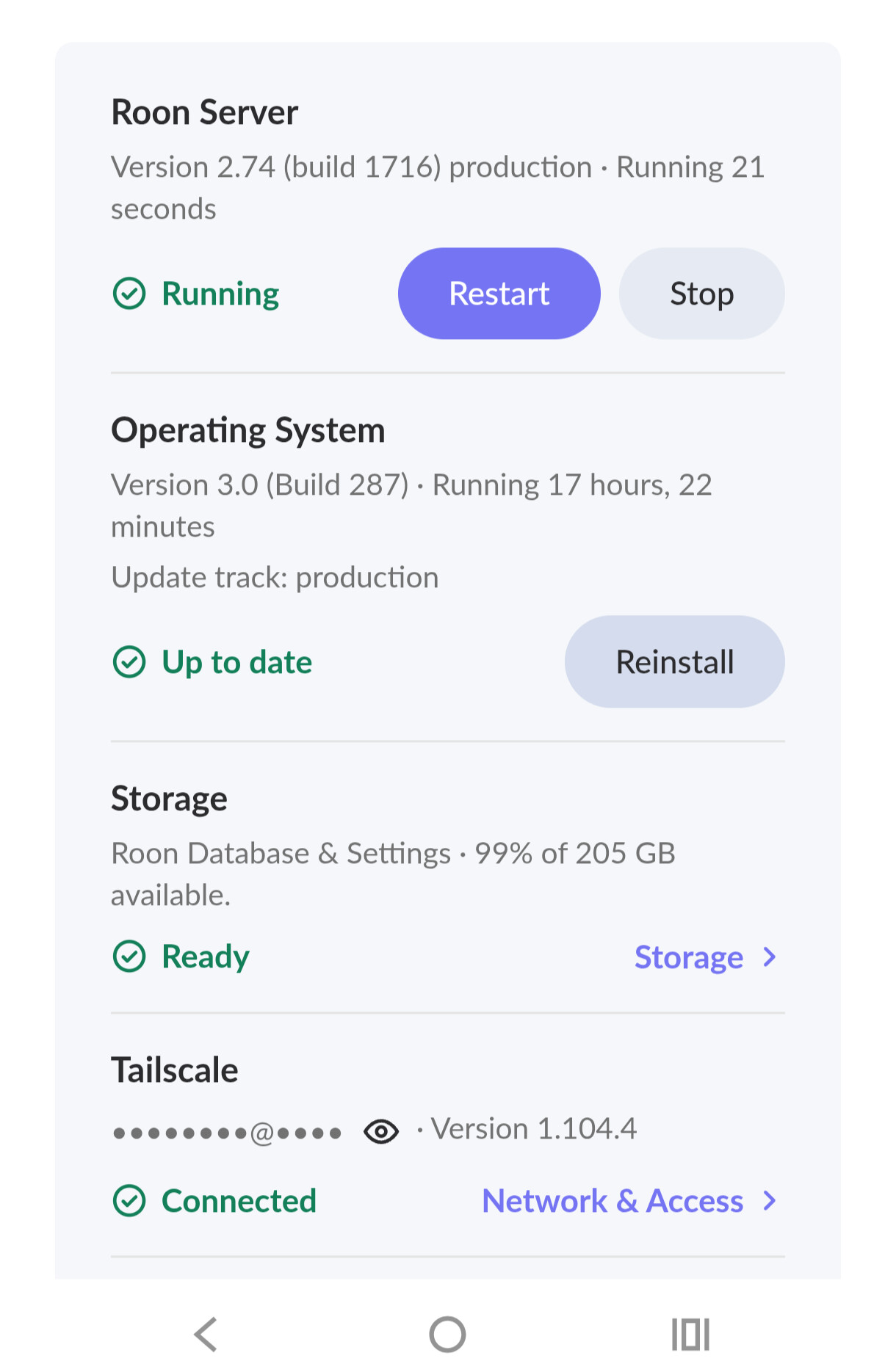
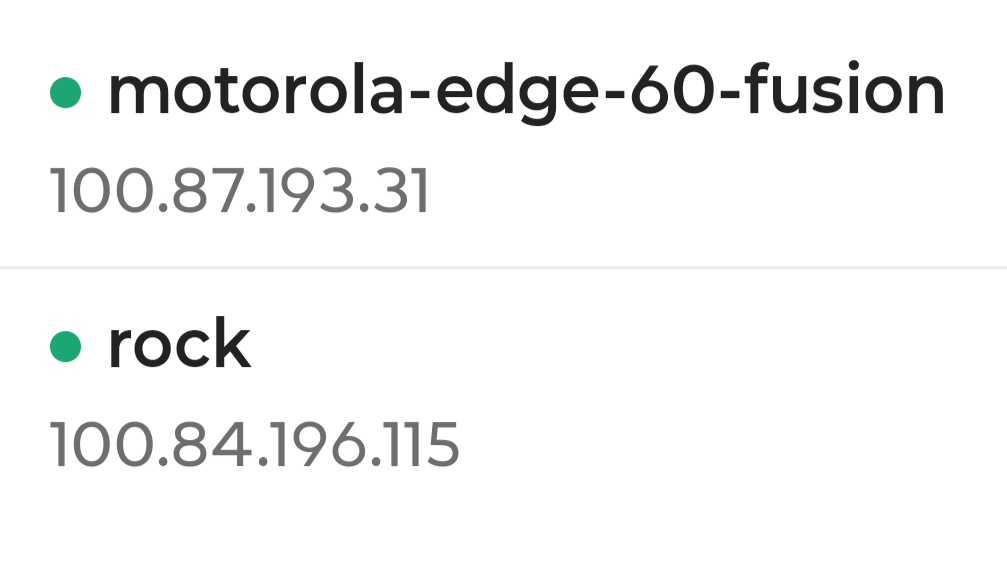
Hi Wade. Thanks for this reply. I do have both devices on Tailscale and I do have RoonOS 3.0 and Roon Server 2.74 (see screen shots). Is it still possible this is a BIOS vs UEFI issue, and if so how can I tell?
Ok. I’m not familiar with the detail of Tailscale setup because I have never had to use it. Nor am I familiar with RoonOS 3.0.
Having said that, if Tailscale is correctly setup, all of the diagnostic text that you posted in your first post is totally irrelevant.
If you still have a working ARC device when either turning WiFi off or using a public WiFi hotspot, then Tailscale is correctly setup and there is nothing else you need to do.
By contrast if ARC does not work with a Tailscale setup, then there are really only two possibilities:
The Tailscale setup is not correct (most likely).
The internet connection of either the server or the mobile device is not good enough to support ARC.
Assuming the issue is the Tailscale setup, I’m afraid I shall have to defer to someone with more relevant experience.
If you are using Tailscale, you can disregard the Ready/Not Ready diagnostic text, since that applies to port forwarding. If ARC is working over Tailscale, this is not pointing to a BIOS versus UEFI problem.
At that point, this is most likely a configuration issue somewhere along the line in Tailscale. Please review all the setup documentation carefully and make sure your configuration matches the instructions. Let us know what you find.
 ) Change to a different ISP that does not employ CG-NAT and then configure port forwarding as in (1) above.