I also noticed that my Roon is still disconnected to the server. When I clicked the “view account info”, it is not connecting to the account info page.
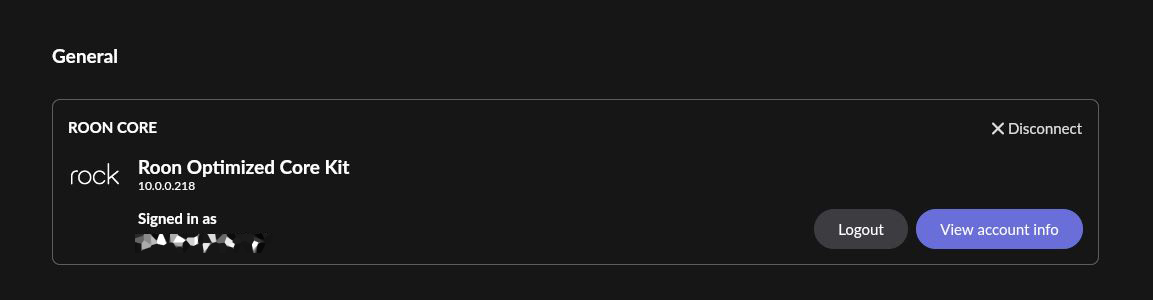
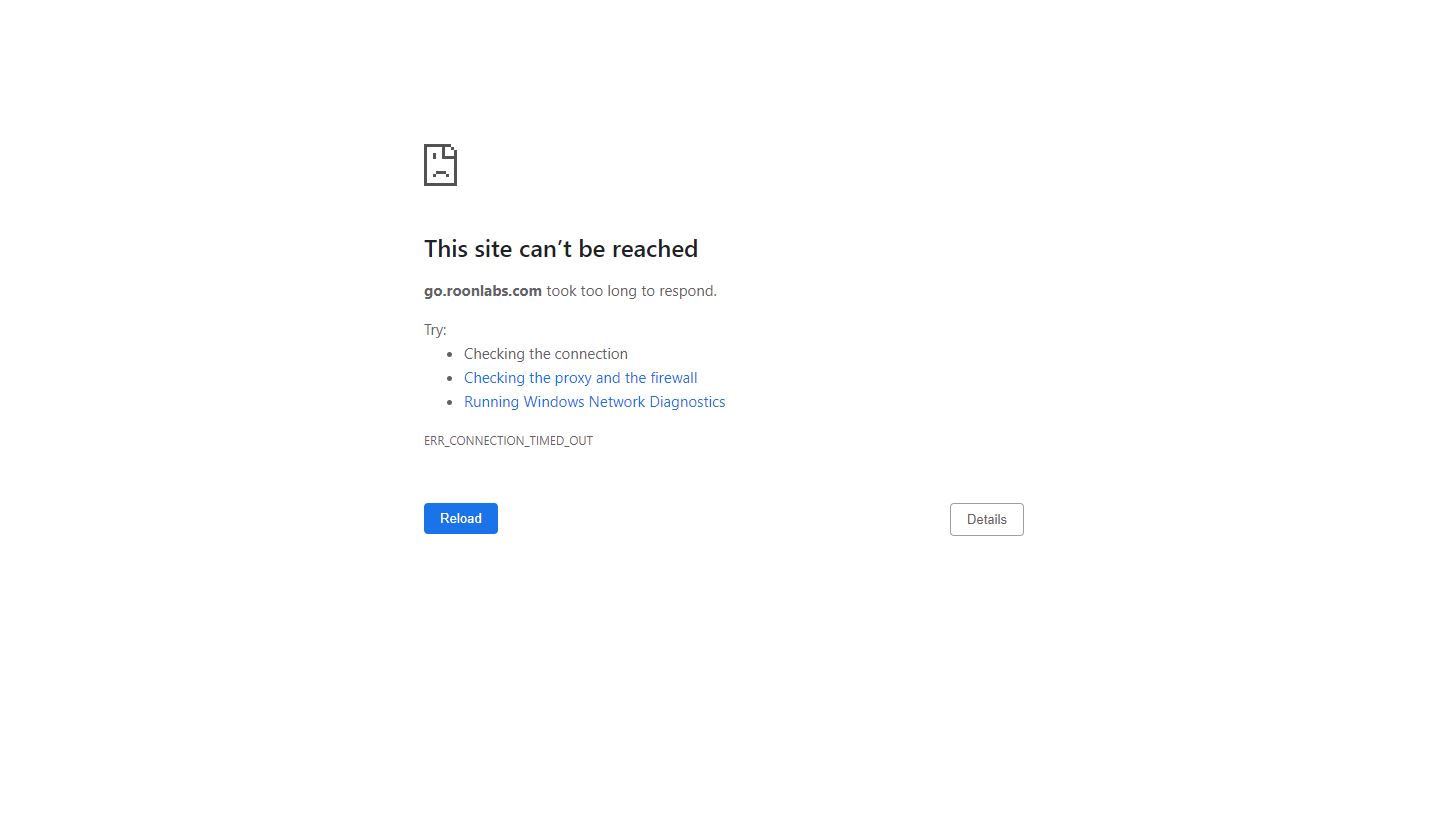
This may be related to how your Core’s DNS is configured. If the Core’s DNS is not working, then the Core cannot communicate with Roon’s authentication servers.
Can you show us a screenshot of the Web administration page of your ROCK Core? You should be able to reach it by putting 10.0.0.218 into your web browser of your PC, Mac, or iPad.
In particular, what are the network settings on that page?
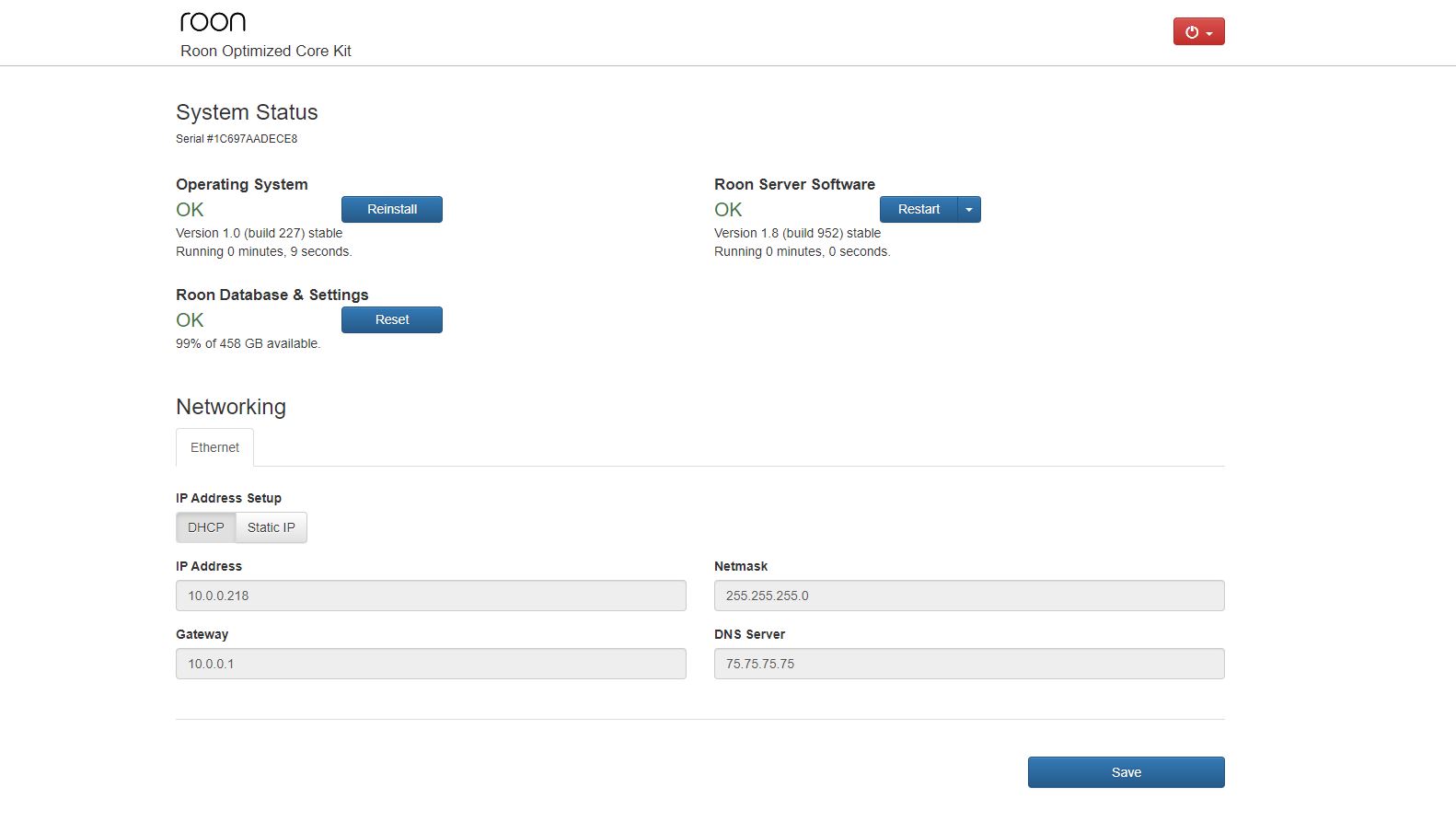
Had you literally just booted it manually? If not it is resetting, run time of 0 and 9 seconds.
No I think it’s been on quite some time, hours, maybe at least 7 hours. I am not sure why it shows 9 seconds…. Perhaps because I just opened Roon on my desktop. The ROCK has been on at least 7 hours.
Look again and look at the times. It might be resetting continually, what you see is what the server is reporting.
Yes that is very strange. Is that normal?
No, as Ged notes, your Core is rebooting constantly it seems. May indicate a hardware issue or a configuration issue (most likely hardware with the NUC, potentially a drive failure from what I have seen recently here in the forum).
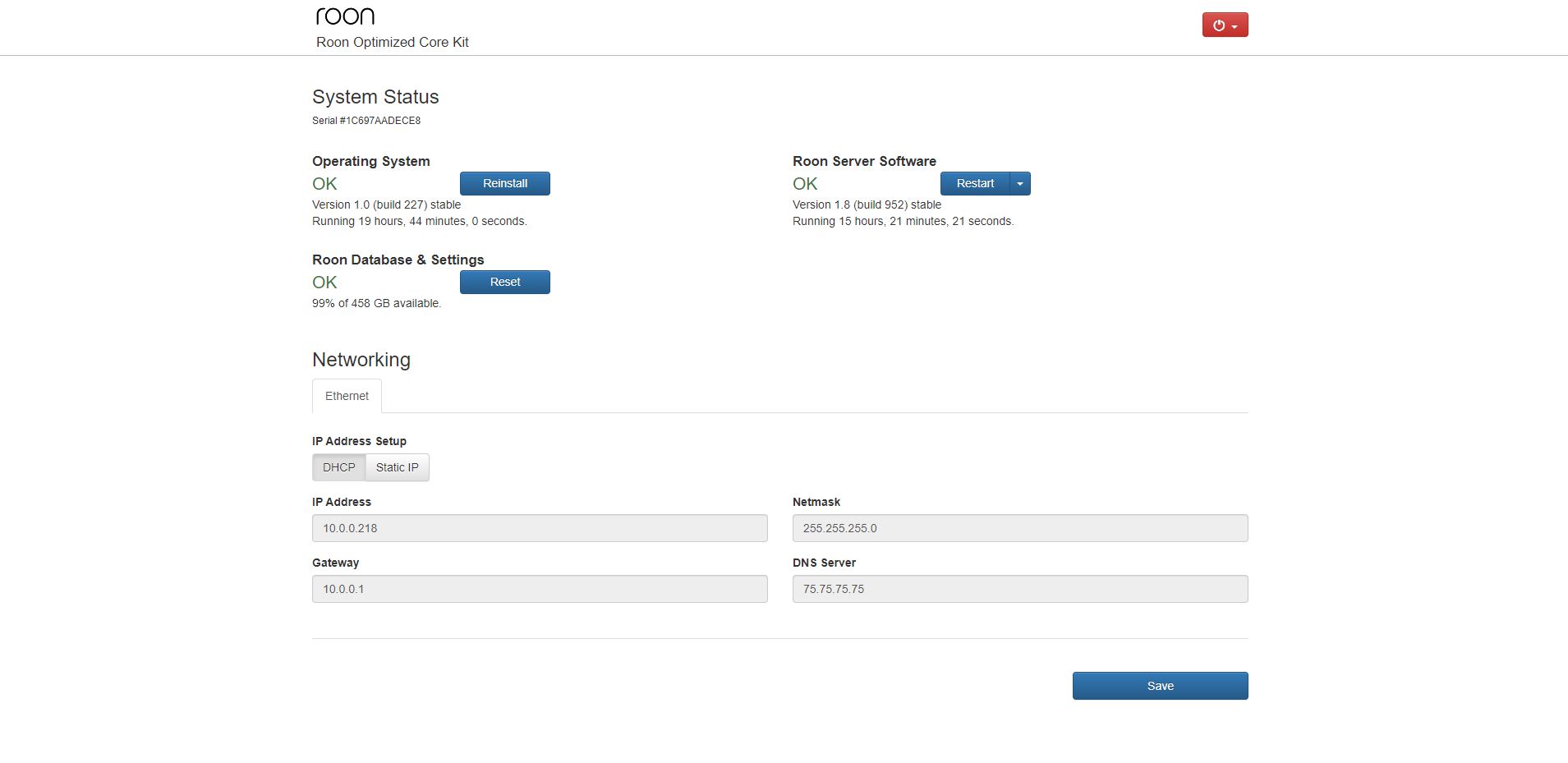
`Well, still, while the OS has been running for 19+ hours, your Roon Server has been running for just 15+ hours. Normally, these should be almost exactly the same times, if you haven’t restarted the Roon Server. It does look as though your Roon Server is restarting by itself, which is a sign that something is not right.
Should I try the approach suggested by @Robert_F above, also recommended by @benjamin? - creating a new Roon database?
- Create a Backup of your current database
- Exit out of Roon
- Navigate to your Roon Database Location
- Find the folder that says “Roon”
- Rename the “Roon” folder to “Roon_old”
- Reinstall the Roon App from our Downloads Page to generate a new Roon folder
- Verify if the issue persists on a fresh database before restoring the backup
I think that’s because I restarted Roon server software a few hours after the operating system started running. I do that seldomly when Roon wasn’t synching with Tidal or Qobuz properly. That explains the difference between the two timestamps.
@Robert_F @Geoff_Coupe @benjamin @ged_hickman1
I tried the following steps:
- Exit out of Roon
- Navigate to Roon Database Location
- Find the folder that says Roon Server
- Rename the Roon Server folder to Roon Server_old
- Reinstall the Roon App from the downloads page
- Restart the Roon Server Software from WebUI
- Open Roon
- Connect to ROCK within Roon
- Restore a backup
- After the restore, relaunch Roon
- Log-in
- I get the following screen
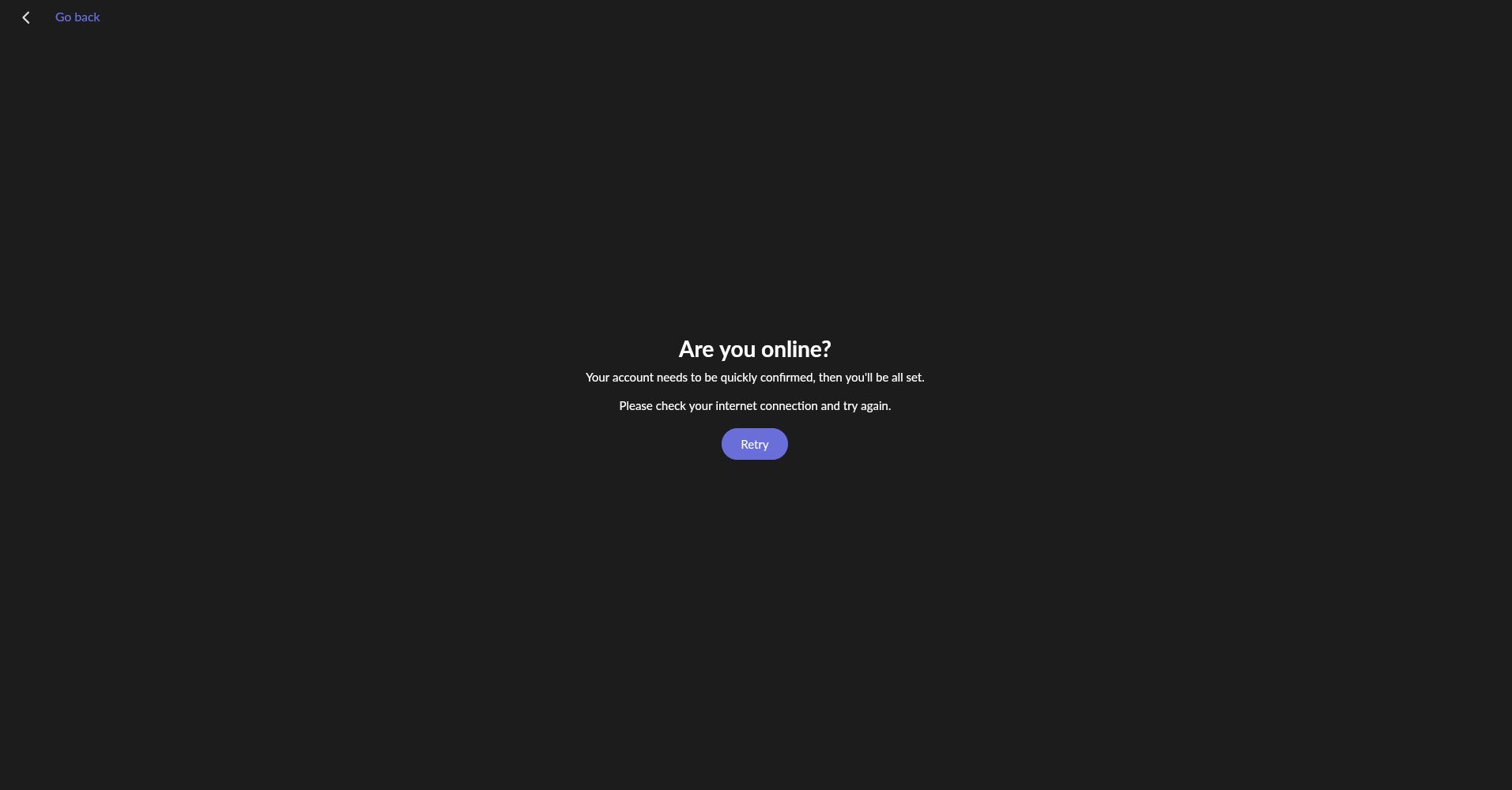
The difference with the steps I followed before was that I restored a backup this time. Without restoring a backup, I was, at least, able to log in despite synching with Tidal and Qobuz wasn’t working propertly. After restoring a backup, I am getting the “Are you online?” screen.
I am almost giving up on Roon. Started listening to my LPs. Having been depressed without my favourite toy.
David, I am tagging @support again for you.
Thank you, Robert.
Have you tried disabling the firewall on your router? I’ve read through this thread a couple of times now, and the fact that you can’t reach oauthcb.roonlabs.net from a browser indicates, to my mind at least, a networking issue rather than a problem with Roon per se.
Roon was working without this problem until four days ago, so I didn’t think it was an issue with the firewall. However, I did try disabling the firewalls but the problem still persisted.
According to your suggestion, I should try this again by disabling the firewall on " the router". Maybe this is something I tried on my desktop level. I will call Xfinity to see if they can walk me through this.
I tried disabling the firewalls on the router: Ipv6 and Ipv4. Neither helped. The problems still persist but much appreciate your suggestion.