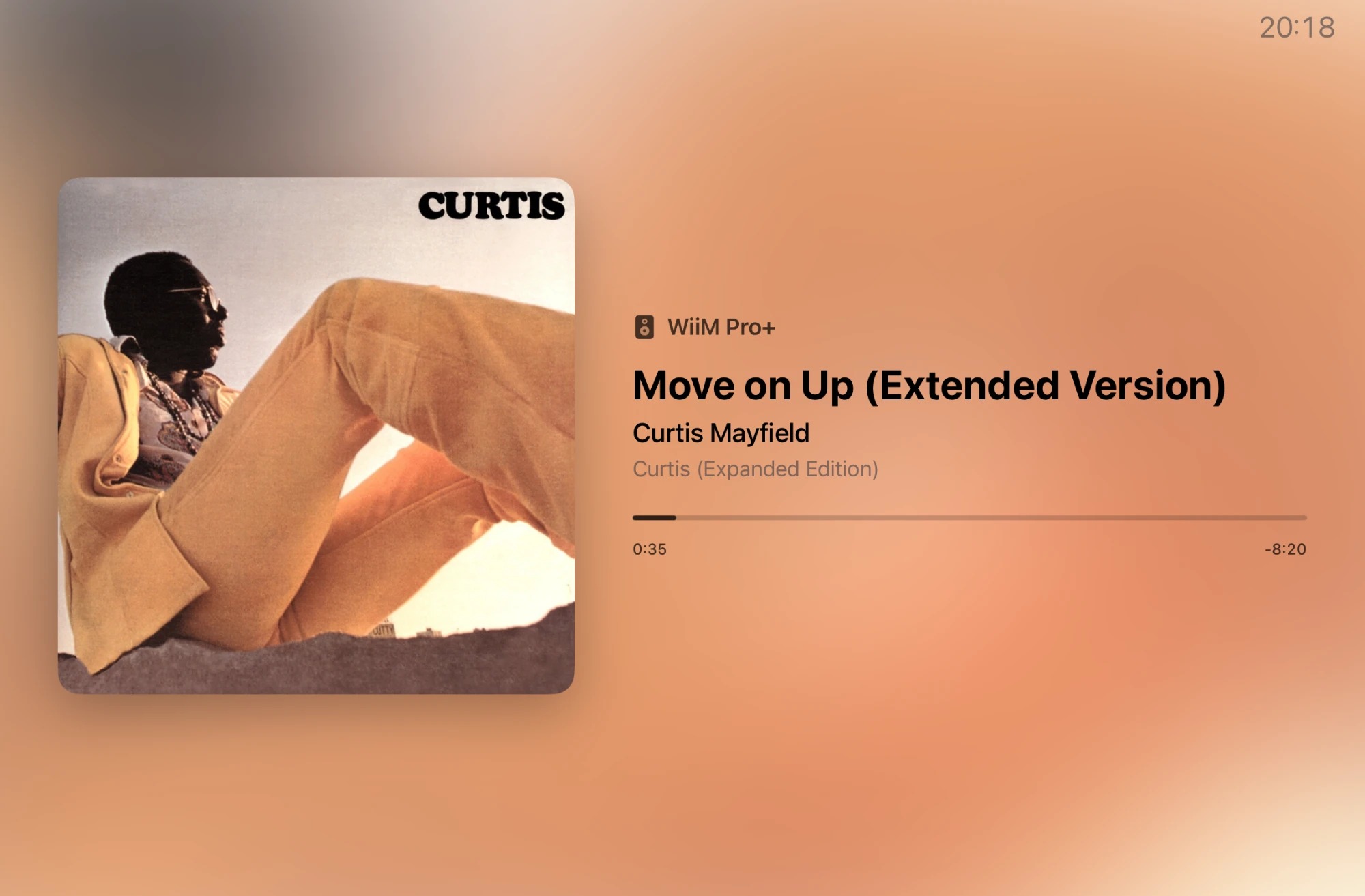
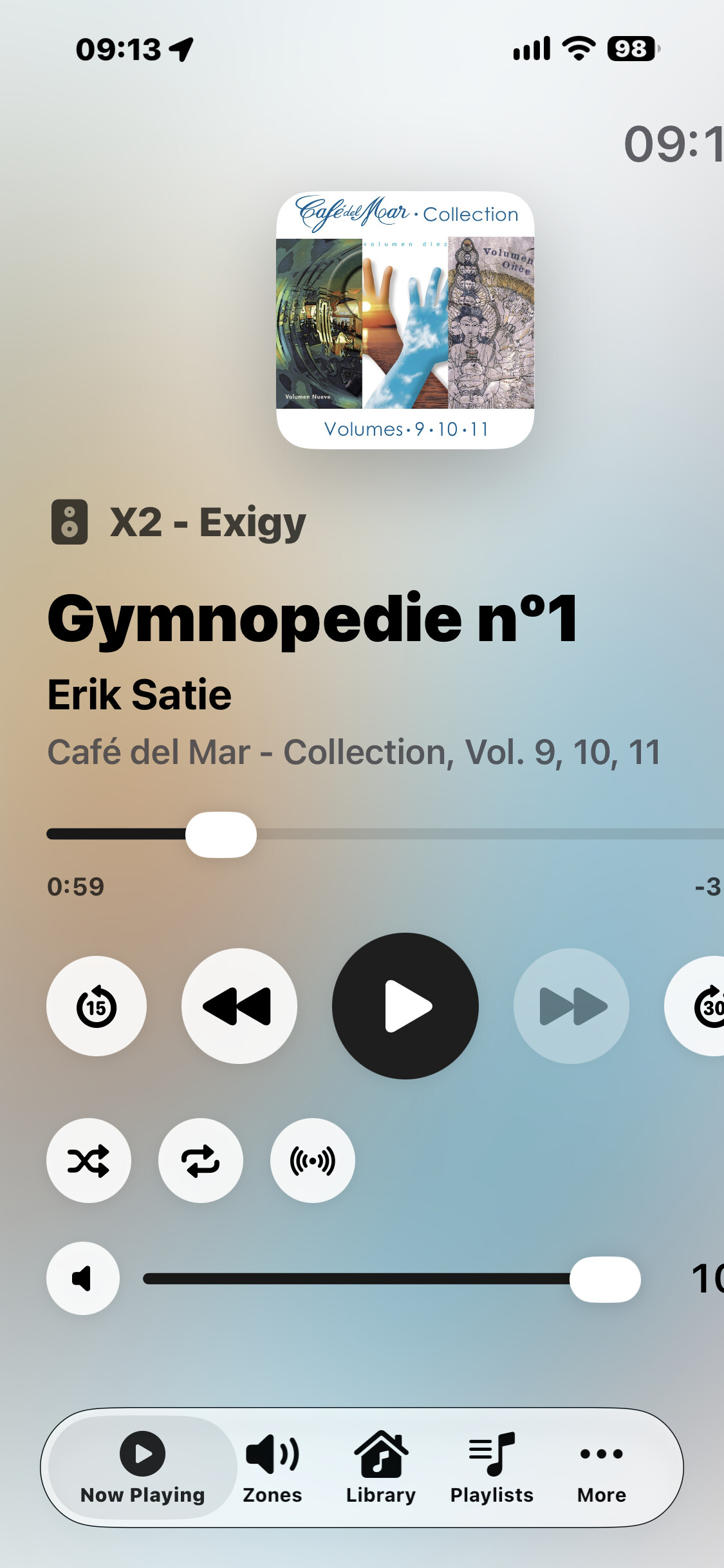
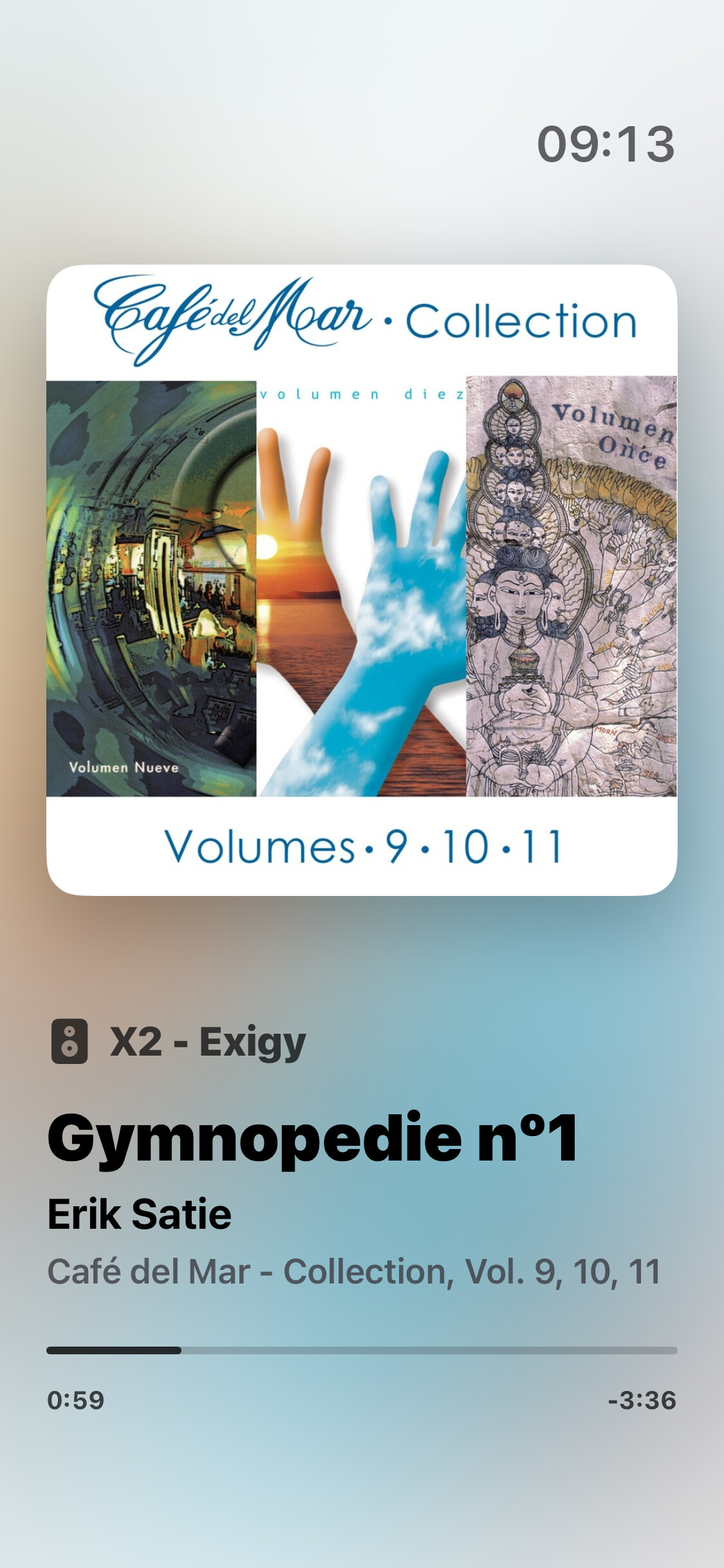
Apple Watch: I’ve looked into it. watchOS doesn’t allow regular apps to keep the kind of live network connection to the Roon Core that Klangbild needs (only audio streaming and calling apps get that), and routing it through the iPhone isn’t reliable because iOS suspends the iPhone app in the background. That’s exactly why roowatch needs a Raspberry Pi in between. So no Watch app for now – but I’ll keep an eye on it in case Apple opens this up.
The iPad/iPhone version is in Apple’s beta review right now – should be available very soon.
For anyone else who can’t get build 13: it isn’t the app itself (Klangbild runs on tvOS 17 and later). It’s usually TestFlight on the Apple TV being stuck or outdated. What helps:
• Update the Apple TV (Settings › System › Software Updates) – that also updates TestFlight
• Or quit TestFlight (double-press TV button, swipe it up) and open it again
• If it still doesn’t show, check the App Store on the Apple TV for a TestFlight update
I have build 13, but can’t find the option in Settings->Now Playing to enable burn-in protection. Is it labelled exactly “Burn-in protection”, or hiding in plain sight under a different name? Sorry if I’m missing something obvious.
Build 14 (Apple TV) and build 2 (iPad/iPhone) are now available in TestFlight
• Fixed: the queue could stay empty after starting the app although Roon showed one – thanks @wizardofoz for spotting it. It now loads right away and reconnects by itself if needed.
• New: burn-in protection for OLED screens (thanks for the idea, @wizardofoz). In display mode, cover and text swap sides every 5 minutes. Settings › Now Playing › “Burn-in protection” (shows up when “Hide buttons” is on). @thumb5 – sorry again for sending you looking for it in build 13, my announcement was ahead of the build. It’s really there now
• iPad/iPhone: tabs now work like the Apple TV’s top bar – show, hide and reorder them in Settings › Arrange Tabs, and add any Roon folder as a tab. The iPad sidebar closes automatically after picking a tab, and the display mode shows a slim progress line.
Now the iPad version got available How great! I have an Apple TV too but I just waited for years already to have a nice Roon now playing screen on iPad/..mini. I never thought, that there will ever be something with control function too.
There are already so many useful settings but I would like to make an additional suggestion. My iPad mini resides on my CD player in my HiFi rack. This is 3 meters away, so I would vote for “Extra Extra large text” option. Maybe the screen space can be used better for that, when controls are not visible?
Great suggestion, and it makes a lot of sense for an iPad in the rack. I’m working on it: in display mode, the room of the hidden buttons should go to bigger track info, plus an even larger text size. It’ll be in one of the next builds – I’ll let you know here.
Excellent app! I may switch from the TV Remote extension to this. Is there a way to hide the “zone” in the “Now Playing” screen? Also, a way to shuffle “Tags” would be great. And the ability to skip to the next song by hitting next on the ATV remote.
iPhone 15 Pro Max the playing display is a bit too big for the screen - perhaps as I have large text set in my iPhone (old eyes) but the text in the app is set to standard. Yet to try the iPad version
One other issue is you cant Enable the ext when using the iPhone as the Roon remote…used another device to enable seems to work…I guess the app goes hibernate when you switch to the Roon app - maybe a note in the connection app area to enable on another device while the app is active
Build 15 (Apple TV) and build 3 (iPad/iPhone) are now available in TestFlight
This one is almost entirely made of your suggestions – thank you all!
Display mode
• Bigger text from across the room: when the controls fade away, title, artist and album now use the free space and get much larger (Settings › Display Mode › Larger Text, on by default). There’s also a new text size “Extra Extra Large”. Thanks @Joe_underscore for the idea – your iPad mini on the CD player was the perfect use case!
• Skip tracks without waking the controls: in display mode, press left/right on the Siri Remote touchpad for the previous/next track. On iPad and iPhone, just swipe left or right. Thanks @Michael_Roche!
• Hide the zone name: Settings › Now Playing › Show “Zone” – Always, Only with Buttons, or Never. Thanks again @Michael_Roche!
Library
• Shuffle: there’s now a “Shuffle” button right next to Play Tag / Play Playlist / Play Album. Also @Michael_Roche’s idea – you’re on a roll
Settings
• Reorganized into clear sections – Appearance, Now Playing, Display Mode, Top Bar (Tabs on iPad), Library, Hidden Items, Roon Core and Help & Diagnostics – each with a short explanation.
iPhone & iPad
• Fits narrow screens: on iPhones with Display Zoom or larger text, the playback buttons now shrink (and the ±15/30 s buttons step aside if needed) instead of running off the screen. Thanks @wizardofoz for the screenshots!
• Landscape on iPhone keeps the cover: the text column takes at most about half the width and scrolls if needed. Thanks @wizardofoz!
• Enabling the extension in the Roon app on the same device: while waiting for approval, Klangbild now stays connected for about 30 seconds after you switch to Roon, and the connect screen explains it. Thanks @wizardofoz for spotting it and for suggesting the hint!
• Tested on the new iPhone Duo too – Klangbild rearranges itself when you unfold it.
As always: keep the feedback coming – it’s what makes Klangbild better every week!
A little sneak peek of what’s coming next for the iPad/iPhone version
No Apple TV needed: mirror your iPhone or iPad to any AirPlay TV (Control Center › Screen Mirroring) and the TV shows its own full-screen now-playing display – while your phone or iPad stays the remote.
Works with an Apple TV as well as AirPlay TVs from Samsung, LG, Sony and others. It’ll be in the next build.
I added my iPad Pro but had to re-enable the extension again.
Is this a one time for each device IP that gets registered? mobile devices will change IP a lot over time.
Assuming this becomes a paid app I hope family sharing will be applicable (my wife might like this better than the roon app) especially if her profile has some of her choice of playlists.
• Re-enabling: it’s once per device, not per IP address. Roon gives each device its own key when you enable it, and Klangbild keeps it – so changing IP addresses don’t matter. You’d only need to enable again after deleting and reinstalling the app.
• Family Sharing: I plan to turn it on when Klangbild goes to the App Store – one purchase for the whole family, on Apple TV, iPad and iPhone.
• Your wife’s playlists: the Profile tab lets her pick her Roon profile on her iPad. I’d love to hear whether that stays separate from yours when you both use it – that’s one thing I haven’t been able to test with a single household profile.