Hey @mikegaines61, thanks for the details, and for already trying the reboots and unplugging.
We’ve gone through the diagnostics from your Nucleus One. The good news is that the Nucleus and Roon Server are starting up normally every time. The problem is the Ethernet connection to your network.
Each time the Nucleus boots, its network link comes up, drops a few seconds later, and then reconnects at 100 Mbps instead of 1 Gbps. The network hardware flags this as a cabling problem. When it happens, Roon Server doesn’t finish announcing itself on your network, so your Roon apps can’t find it, even though the Nucleus is online.
Could you try these steps, in order:
Swap the Ethernet cable for a different, known-good Cat5e or Cat6 cable. A cable that’s been pinched, bent tightly or run under a door is a common culprit.
Try a different port. If the Nucleus is plugged into a Google Wifi point, use its other Ethernet port, or connect it directly to your primary Wifi point.
Bypass any switch between the Nucleus and Google Wifi for now, if there is one.
Restart once after the swap, from the Nucleus Web UI if you can reach it. Pulling the power forces a disk check at the next startup.
Once it’s connecting reliably, we’d also suggest setting a DHCP reservation for the Nucleus in the Google Home app (Wi-Fi → Settings → Advanced networking → DHCP IP reservations). Its address has changed several times over the past couple of weeks, and a fixed address keeps things more predictable.
After the cable and port swap, let us know whether your Roon app finds the Nucleus. If it still won’t connect, please send a fresh set of logs from after the change so we can take a closer look.
Hey @mikegaines61, thanks for swapping the cable and working through those steps. We know it’s frustrating to still be stuck.
The good news is that the cable change did its job. Your Nucleus One is now connecting to your network at full speed and getting its address normally, and other devices on your network can see it.
Your new logs point to a different cause: the Nucleus isn’t currently authorized as the Roon Server on your account. Each time it starts, our account servers report that another Roon Server is already using your license. Until that’s switched over, the Nucleus can’t finish starting up, and your Roon apps can’t connect to it. This looks like it’s been the case since at least mid-October.
To move the authorization back to the Nucleus:
Open Roon on your iMac, phone or tablet.
If it connects to a Roon Server, go to Settings → General and choose Disconnect.
On the “Choose your Roon Server” screen, select Nucleus One.
When Roon says the Nucleus isn’t authorized, choose to authorize it. That will unauthorize the other Roon Server.
If the iMac has ever been set up as its own Roon Server, it’s likely the one holding the license. After this change, just use it as a remote that connects to the Nucleus.
If you don’t see an option to authorize the Nucleus, or it still won’t connect, let us know what the app shows on that screen (a screenshot is perfect). We’ll take it from there.
Thank you for the screenshots. We looked at the logs from both the Nucleus One and your iMac. Your network is fine now, and the Nucleus is starting up and loading your library normally. What’s stopping it is that your iMac is also running its own Roon Server, and that one currently holds your Roon license. The Nucleus is waiting for the license to be moved back to it.
Please try this:
On the iMac, open Roon (it connects to the iMac’s own Roon Server), go to Settings > Account, and click Sign out. This releases your license from the iMac.
Click the Roon Server icon in the menu bar at the top of the screen and choose Quit. Please also turn off its option to start automatically, so it doesn’t come back after a restart.
In the Roon app, on the “Choose your Roon Server” screen, select Nucleus One. If it doesn’t appear, click “Need help finding your Roon Server?” and enter 192.168.86.34.
If Roon asks you to sign in or to authorize the Nucleus, please sign in with your Roon account and confirm.
From then on, the iMac works only as a remote for the Nucleus. If anything looks different from these steps, a screenshot is perfect.
Thanks for sticking with this, and sorry for the runaround. We took another look at fresh logs from your Nucleus and found the main problem: its IP address changed on Oct 29, so the address we gave you earlier (192.168.yy.34) no longer points to it. Your Nucleus is now at 192.168.yy.21.
Could you try the following?
In a web browser on your iMac, go to http://192.168.yy.21 (replace the yy) and click Restart next to Roon Server. Please use this rather than unplugging the Nucleus.
Wait about two minutes, then open Roon on your iMac, choose “Need help finding your Roon Server?”, and enter 192.168.yy.21.
If you’re asked to authorize the Nucleus, click Authorize.
To stop the address changing again, we’d suggest reserving it in the Google Home app (Wi-Fi → Network settings → Advanced networking → DHCP IP reservations).
The missing icon in your menu bar is expected: that was the Roon Server on your iMac, which you shut down as we asked. Let us know how it goes.
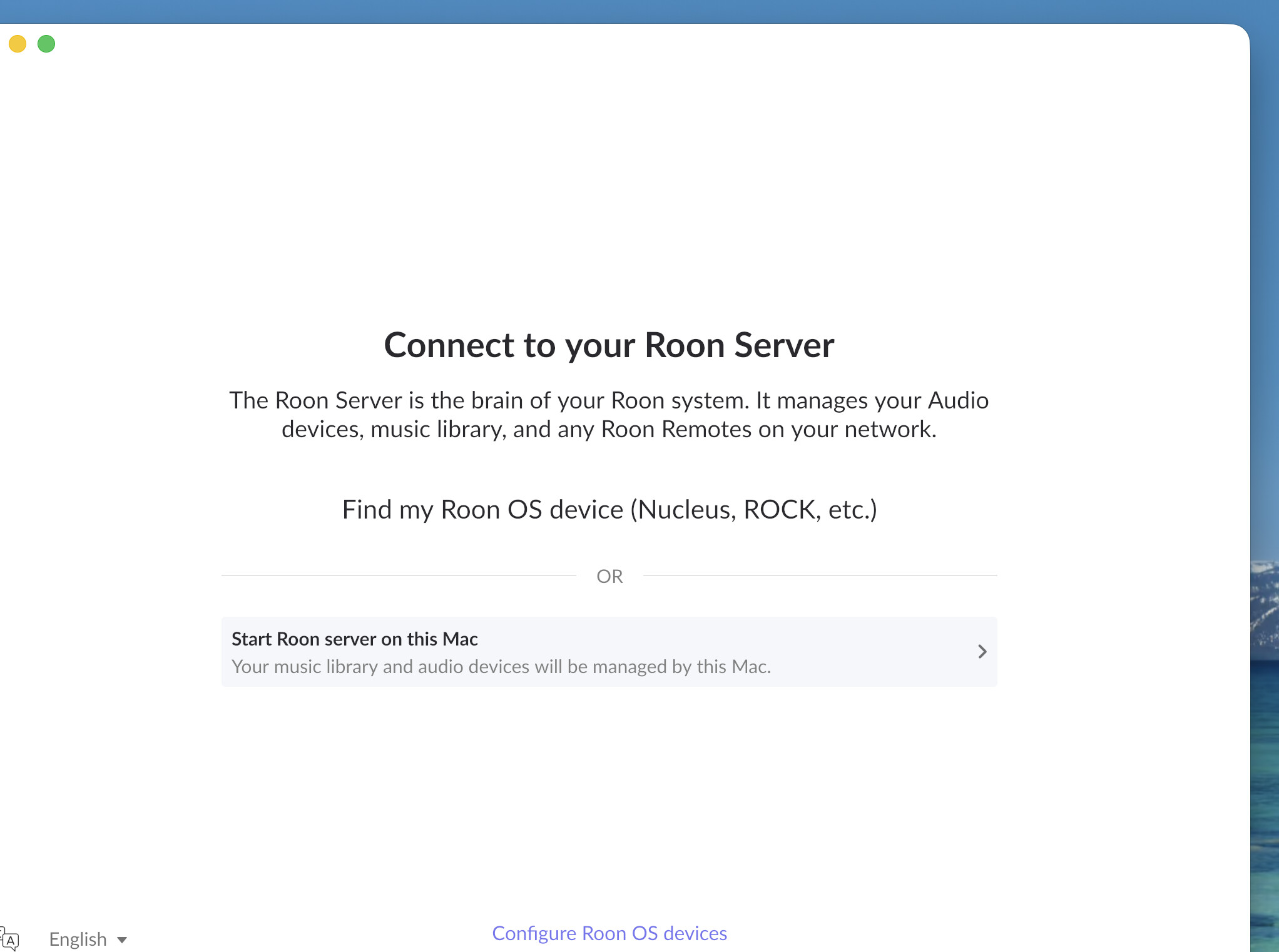
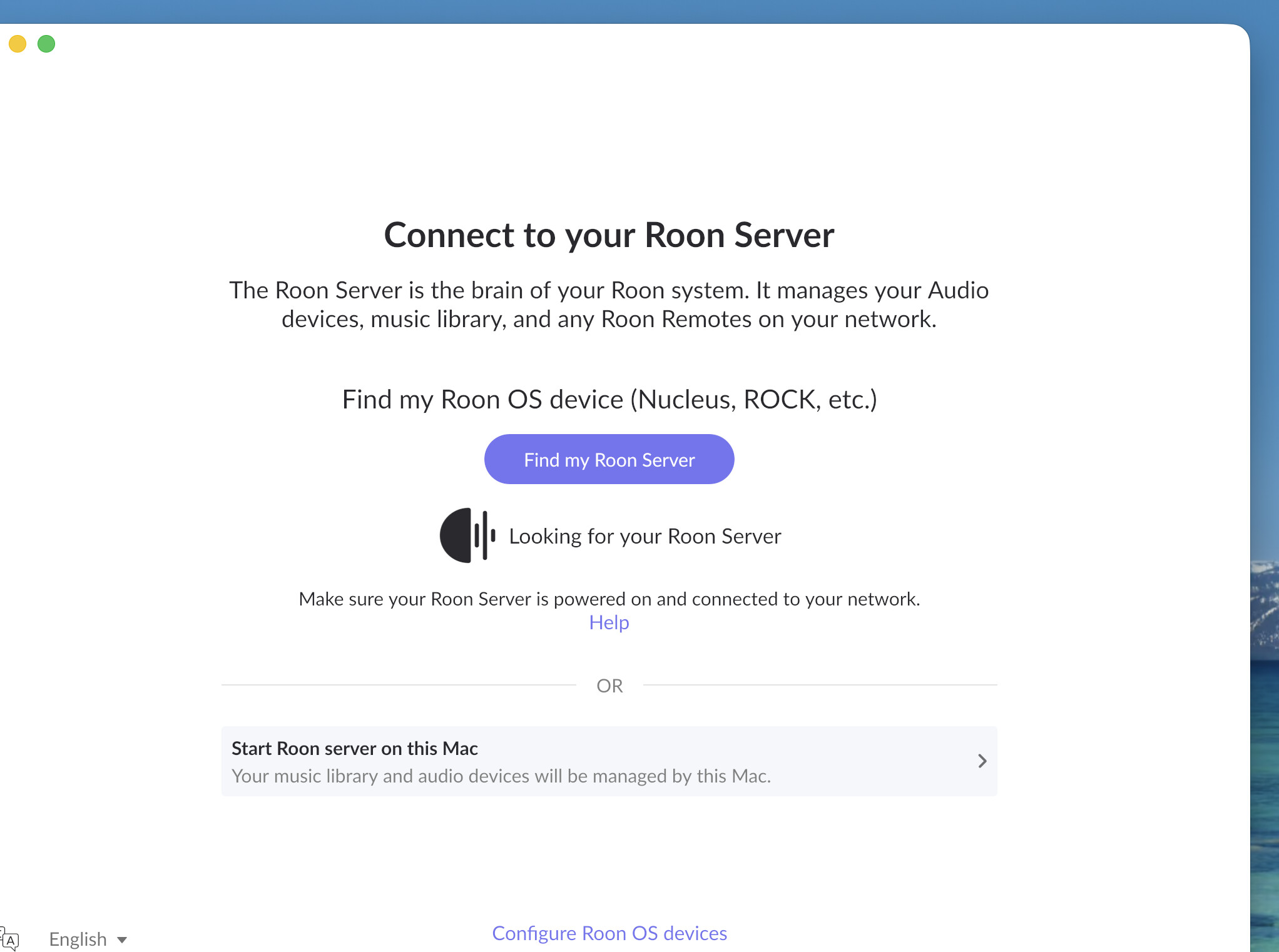
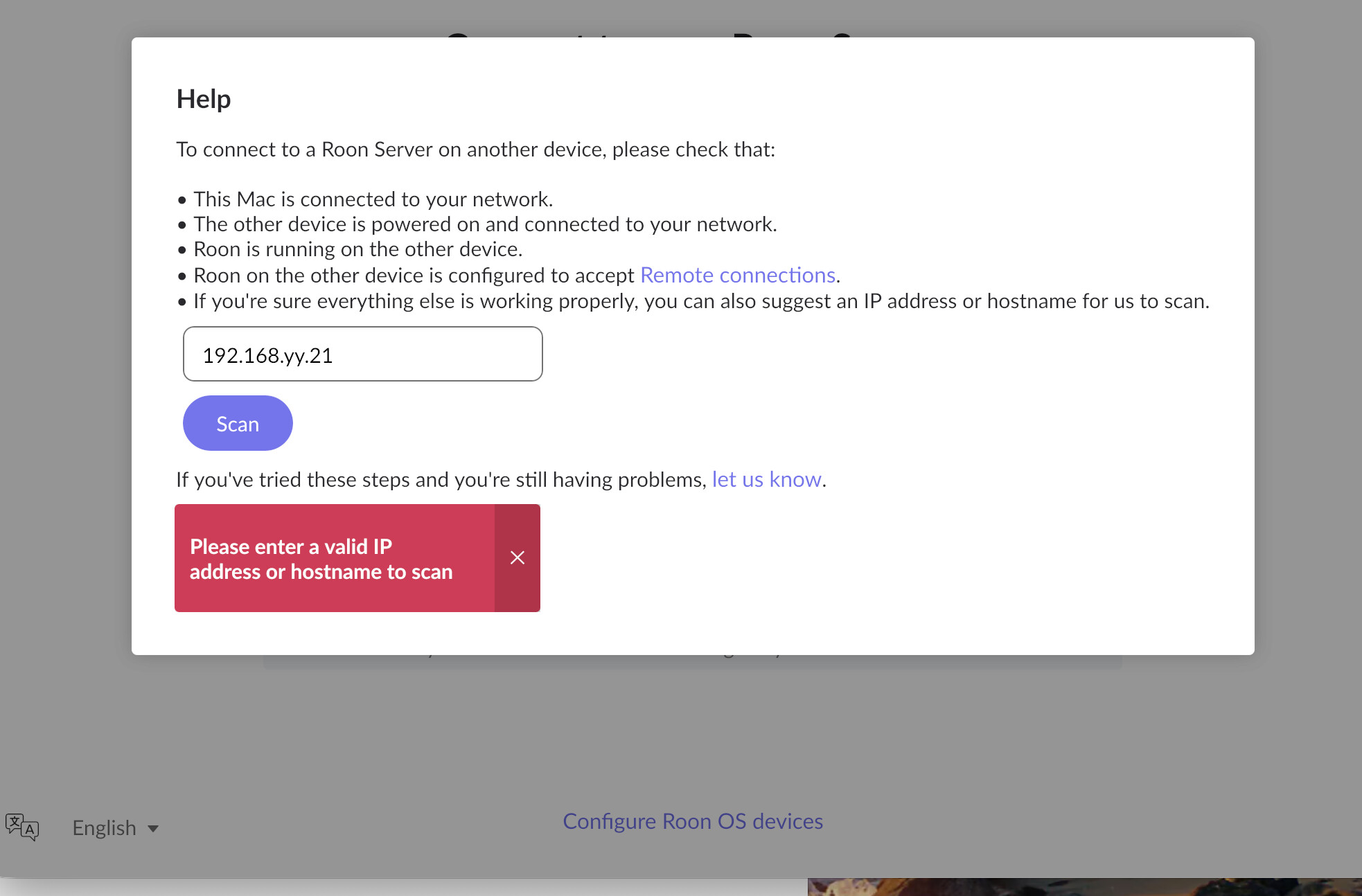
No luck. The first image is what came up when I followed the link and the second is after clicking restart and selecting help and entering the numbers.
Thanks for the reply! Based on your screenshot though, you’ve included the ‘yy’ in your IP address, which isn’t your actual IP. I put those letters there for privacy reasons, you’ll want to input the full IP of your Nucleus here.
You can find your IP by accessing your router settings > devices list. Let me know if this helps you connect.
Hi Ben, I entered the correct IP address and it takes me back to the Find My Roon Server screen, Looking for your Roon and it just stays idle on that screen. I looked into my router settings and the nucleus is there, even ran a speed test (627mbps)
Thanks for checking the router and running that speed test. It’s good to know the Nucleus shows up there and your connection is healthy. That tells us the Nucleus is on your network, so the trouble is between the Roon app on your iMac and Roon Server on the Nucleus.
We’ve turned on extra diagnostics for your Nucleus so we can see what Roon Server is doing when the app tries to connect. For those diagnostics to reach us, the Nucleus needs to be online:
Make sure the Nucleus is powered on and connected to your network, the same way you had it for the speed test.
If it’s already running, open a browser on your iMac and go to http:// followed by your Nucleus’s IP address. Click Restart next to Roon Server. Please do this instead of unplugging it.
Leave the Nucleus running for at least 15–20 minutes. During that time, open Roon on your iMac once and let it sit on the “Looking for your Roon Server” screen for a minute or two. That gives us a connection attempt to look at.
While that’s running, there’s one quick thing to check on the iMac. Go to System Settings → Privacy & Security → Local Network and make sure Roon is switched on. If macOS has Roon’s local network access turned off, the app can’t find your Nucleus, even when you enter the IP address yourself. If it was off, turn it on, then quit Roon and open it again.
Let us know once the Nucleus is back online, and tell us whether the web page in step 2 loaded for you. We’ll take a closer look at the diagnostics and follow up from there.
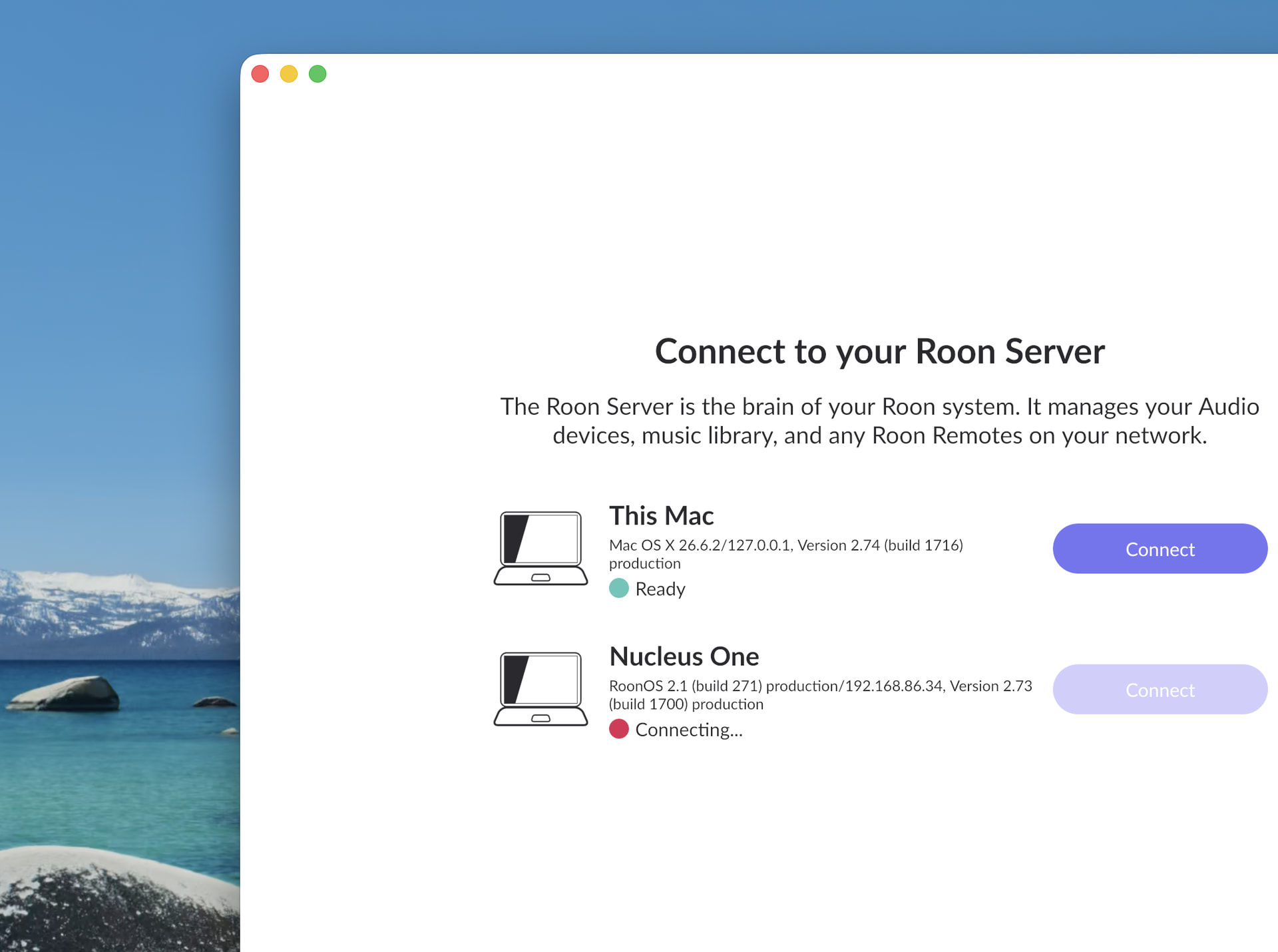
Hi Ben, followed the steps and the roon is back online; it’s also switched on on Local network and is listed multiple times if that matters.Here is a screen shot: