I’ve merged your duplicate support request with the original and reopened it.
—-
Going forwards if you require support topic reopening, please submit a reopen support request via the technical support help form link and specify that the issue be reopened.
Thanks for your patience while awaiting a response.
Based on our reading of the thread, we need to test for two remaining possible causes: either a startup program from your normal Windows account or Roon’s saved settings in that account.
Please take the following steps:
With Roon open and flickering, press Ctrl+Shift+Esc to open Task Manager. On the Processes tab, end TC2Tray.exe and tpcexTray.exe, then stop any Buffalo service on the Services tab. Watch Roon for a minute. This checks whether the Buffalo SD card utilities are interfering; they restart at your next sign-in.
Create a Backup of your library as a precaution. The next steps do not touch your library.
Exit Roon fully, including the system tray icon. Roon Server can stay running.
Unfortunately, the same started happening on my PC, too one or two weeks ago. But. it’s not happening all the time. Windows 11 here and nothing has changed on my system. Read the whole thread and I am still not able to find a solution.
@peugeot208gti Keep trying! You’re not the only one experiencing this!
I tried everything, but the flashing didn’t stop.
I did notice one thing, though: after restarting my PC and opening Roon, the flashing stops for about three minutes. Could that be a clue to solving the problem?
I found the cause of the flashing.
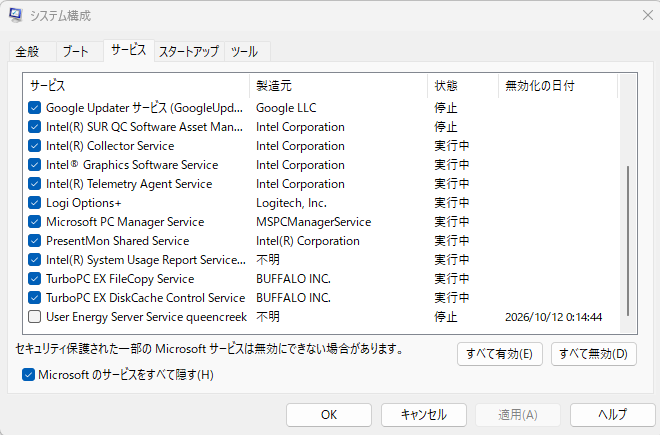
The ROON interface stopped flashing once I stopped the “user energy server service queencreek” service.
Upon investigation, I learned that this is an Intel feature designed to collect and monitor data regarding PC power consumption and system usage. While the recommended solution is to uninstall the “Intel Driver & Support Assistant” app, doing so would prevent me from updating graphics drivers via Intel Graphics Software, so I decided to simply stop the service for now. What should I do next?
Find User Energy Server Service queencreek, then right-click it and choose Properties.
Set Startup type to Disabled, click Stop if it’s running, then click OK.
Restart the PC and confirm Roon no longer flashes.
After that, check that Intel Graphics Software still offers driver updates. If it doesn’t, you can always download the latest Arc driver directly from Intel’s website. If you ever want the service back, set Startup type to Automatic (Delayed Start) or Automatic.
This thread has been reopened as per your request. When you have a moment, can you please let us know the latest status? Were you able to turn off User Energy Saver Service, and did that help at all? Let us know!
Since stopping the “User Energy Saver Service,” the flickering of the title bar has not occurred.
However, when I move the cursor to the title bar and click, its color inverts from black to white. Furthermore, clicking near the center of the title bar causes the Roon window to shrink. Could there still be a bug?
Thank you for tracking this down and for sticking with it. Your finding about the Intel User Energy Server Service queencreek fits everything your videos showed: a steady flash on Roon’s title bar only, with the rest of the screen unaffected.
The two new things you describe both sound like normal Windows title bar behaviour rather than a Roon bug:
Colour change when you click: Windows draws the title bar of the active window differently from inactive windows. Clicking the title bar makes Roon the active window, so its title bar changes shade. With Dark mode on, this difference is easier to notice.
Window shrinking: Double-clicking a title bar switches a window between maximised and normal size. Dragging a maximised window by its title bar, even a little, also returns it to normal size. A quick click near the centre can easily count as one of these.
To confirm, please open File Explorer, maximise it and try the same clicks on its title bar. If it behaves the same way, that’s Windows and nothing is wrong. If only Roon does it, please send a short video like before and we’ll take another look. If your single clicks often count as double clicks, you can slow the double-click speed in Control Panel → Mouse → Buttons.
Now that the flashing has stopped, you can undo some of the changes from earlier testing:
Turn RoonServer.exe back on in Task Manager → Startup apps, plus any other startup items you want back, such as the Buffalo utilities.
Remove the -nodeepcolor flag from your Roon shortcut, and put the Intel Graphics settings (colour depth, VSync, Speed Sync) back how you had them.
Set Dark mode, accent colour and transparency back to how you like them, and delete the test Windows account if you don’t need it.
Keep the queencreek service set to Disabled. Every so often, check that Intel Graphics Software still offers driver updates. If it doesn’t, you can always download the latest Arc driver directly from Intel’s website.
@Dimtiris_Stathis, if you’re seeing the same flashing on Windows 11, look in Services (Win+R → services.msc) for User Energy Server Service queencreek. Stopping and disabling it is what fixed the flashing here.
Just checking in on this, were you able to try the File Explorer title bar test we mentioned? If it behaves the same way there, that points to Windows rather than Roon, and if Roon is still the only app doing it, please send over a short video so we can take another look. If your single clicks are being read as double clicks, you can also try slowing the double-click speed in Control Panel → Mouse → Buttons, and let us know how it goes.
Please note, if we don’t hear back from you this thread may close automatically soon. If the thread auto-closes and you need further assistance, please submit a reopen support request via the technical support help form below and specify that the issue should be reopened. Thank you.