For Roon connectivity to work properly, both Roon Server and Roon Remote need to be turned on.
· I can't turn on Roon Server, I need help.
Describe the issue
Roon Rock on Nuc not starting remotely
Describe your network setup
Everything has been connected and working for years, never touched. LAN cable, in switch, in NUC with Roon Rock. Checked cables, everything powered up. The error is: Roon Server Software Not Running. Rebooted but the problem remains unchanged, Roon is up to date.
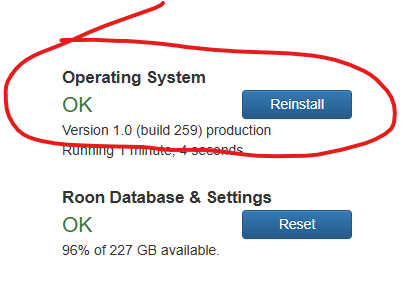
Have you tried clicking the Operating System Reinstall option? It will reinstall RoonOS and Roon Server. If that does not help, Roon support will be along to diagnose.
Thank you for your patience awaiting a staff response.
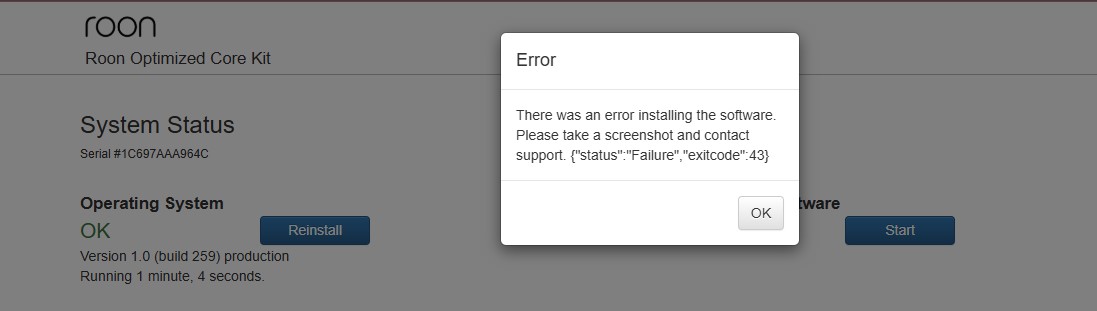
We can confirm that particular diagnostic means the process to extract and install the update failed.
First, check the physical status of the drive. Power off the NUC, unplug it, and confirm the internal M.2 SSD is firmly seated. If a second drive is installed in the 2.5" bay, check that connection as well.
Then power it back on and try the OS Reinstall from the Web UI once more. Let us know if this helps.
If not, please try to reach the ROCK from another computer via network share to access the RoonServer logs folder. Zip up the entire logs folder and upload it here.
Hi everyone,
Can I get assistance? I’ve sent the log file twice. If I have to wait, that’s fine. Just let me know.
I think my request expires soon. Can you let me know?
Thanks.
Thank you for sending the logs, and sorry for the long wait.
We’ve gone through them: your ROCK was running normally until the evening of 3 October (around 22:28), when the log stops abruptly. The way it ends points to the NUC shutting down unexpectedly at that moment (for example a power interruption or a freeze). Since then Roon Server hasn’t been able to start, and the “exitcode 43” from the Reinstall means the system couldn’t install the Roon software on its internal drive.
Your music is on your two WD My Book USB drives and isn’t affected. Your Roon database (library edits, playlists, history) is on the NUC’s internal SSD, and we don’t see any Roon backups configured, so let’s protect it first:
Make a copy of your database. From a computer on the same network, open the ROCK’s network share (\ROCK\Data on Windows, or smb://ROCK/Data on a Mac; you can also use the ROCK’s IP address instead of the name). Copy the whole RoonServer folder to your computer. Let us know if you can’t open the share or the folder.
Check the SSD. An unexpected shutdown can damage the drive, so it’s worth testing it before reinstalling:
Power off and unplug the NUC, and check that the M.2 SSD is firmly seated.
If you’re comfortable doing so, take the SSD out and connect it to a Windows PC (for example with an inexpensive M.2 NVMe-to-USB adapter), then check its health with a tool such as CrystalDiskInfo or the SSD manufacturer’s own utility (for example Samsung Magician, WD Dashboard or Crucial Storage Executive). Tools like Victoria can also run a read-only surface scan.
Please only use read or health checks. Don’t run any write, erase or “repair” tests, as these can wipe the drive, including your Roon database.
Windows may say the drive needs to be formatted, because it uses a Linux file system. Please don’t format it, just close that message.
If the health check shows warnings or errors, the SSD should be replaced. If it looks healthy, put it back in the NUC and try Reinstall in the Web UI once more.
If Reinstall still fails, the next step is to reinstall ROCK from a USB stick using our ROCK Install Guide. Please note that this process erases the internal SSD, which is why the copy from step 1 matters. Please disconnect the two WD drives during the reinstall.
Please keep in mind: if the unexpected shutdown damaged the data on the SSD, the database copy may be affected as well. Restoring it may work fine at first but can lead to problems later (for example Roon Server crashing, or parts of the library or playlists missing or behaving oddly). If that happens, the reliable fix is to start with a fresh database and let Roon rescan your WD drives. Your music files stay safe either way. If the SSD itself turns out to be faulty, it should also be replaced, otherwise the problem may come back.
Once Roon is running again, we strongly recommend setting up scheduled backups in Settings > Backups to one of your USB drives or a network folder, so you have a clean copy to restore from next time.
@vadim Hi Vadim,
I managed to save the RoonServer folder, which seems like good news.
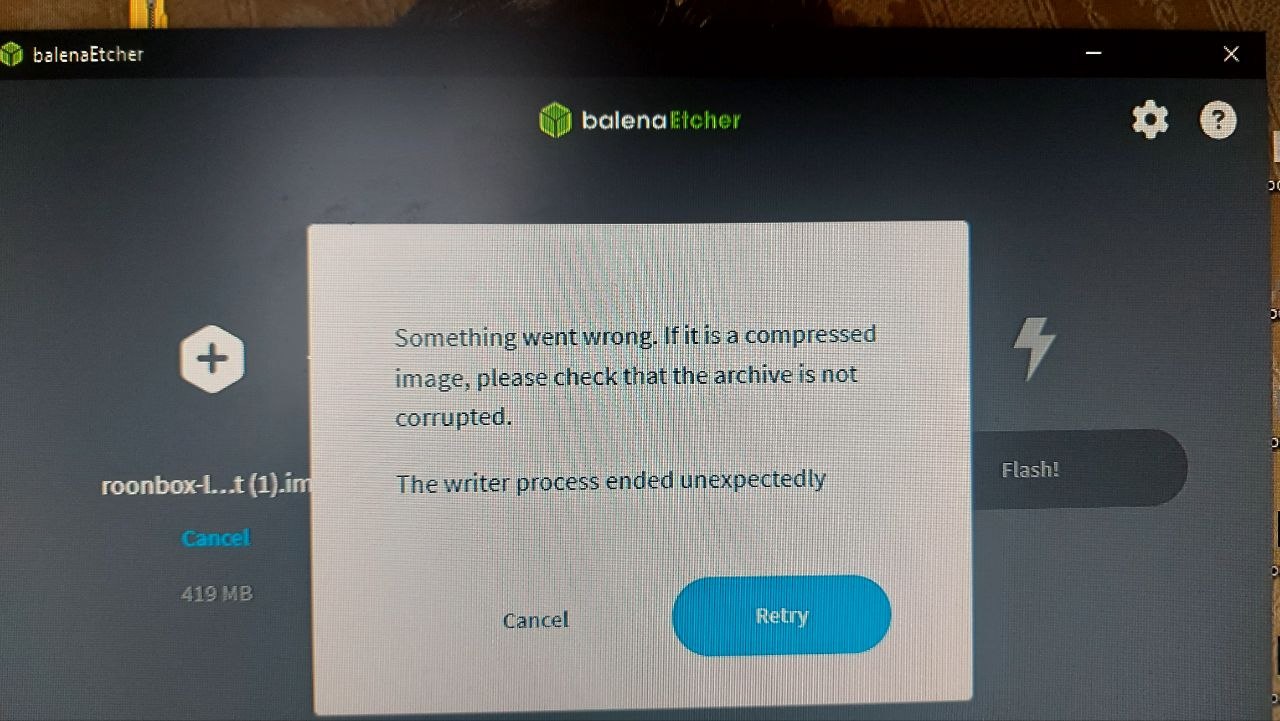
The problem is with writing to the Balena Etcher USB drive (see photo).
It happens with three different USB drives that are normally in use. What can I do? I followed the procedure at https://help.roonlabs.com/portal/en/kb/articles/rock-install-guide.
I also tried the restore/installation process, but the procedures were unsuccessful. Perhaps it was due to the error when uploading files to Balena Etcher.
I haven’t had a chance to test my NUC’s internal SSD. I’ll have to get organized, but I could buy a new one, install Roon from scratch, and try to recover the data on RoonServer_old.
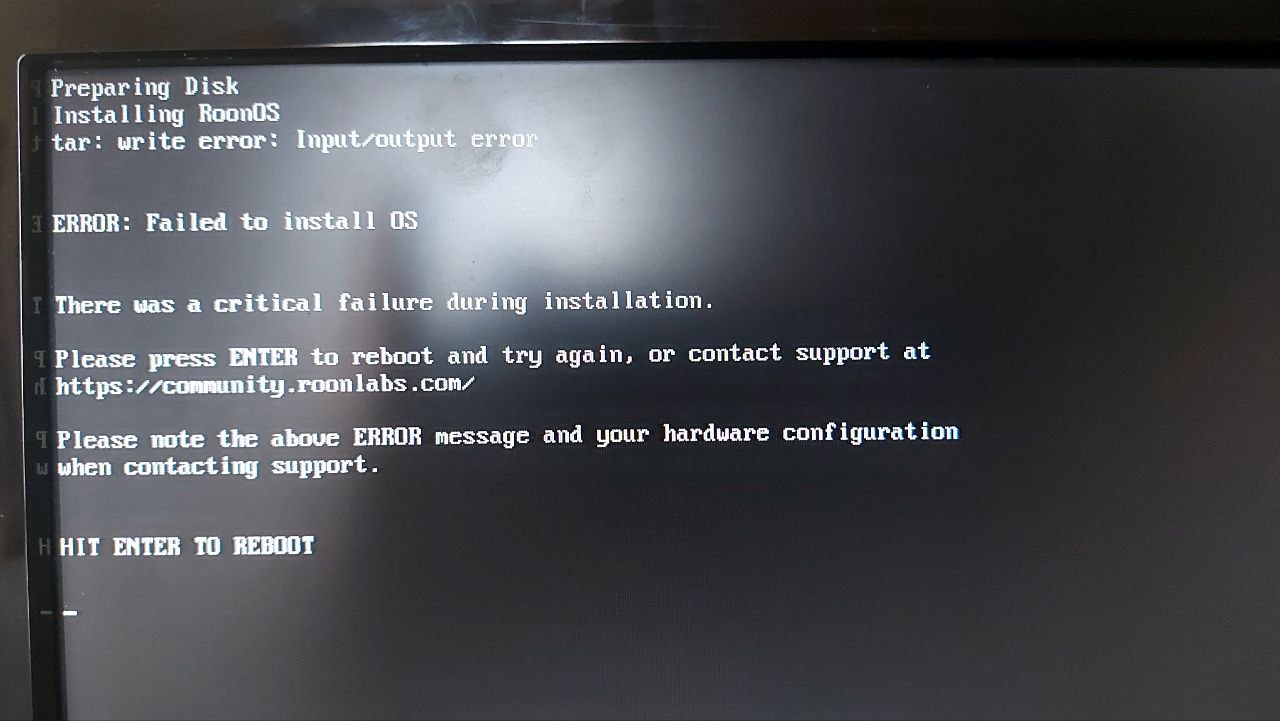
I’m attaching some screenshots of the various situations I encountered during the attempted installation phase. Maybe something can be found to solve the problem.
Thanks for the photos, they show the cause clearly. When the NUC starts, it warns that the internal Samsung 980 PRO SSD has a S.M.A.R.T. status of “Bad”, and the installer then stops with an “Input/output error” while writing Roon OS to that drive. So the SSD has failed, which also explains why Roon Server stopped starting after October 3.
Your USB sticks and Balena Etcher are fine. The NUC did start the installer from your stick, and the installation only failed when it tried to write to the internal drive. No need to test the SSD any further.
Next steps:
Replace the internal M.2 SSD with a new one.
Install ROCK on it from your USB stick, following the same ROCK Install Guide, with the two WD drives disconnected.
Once ROCK is running and you can reach it from a Roon app, let us know before restoring anything. We’ll walk you through putting back the RoonServer folder you saved.
Good job saving that folder. Just keep in mind what we mentioned earlier: because the drive was failing, the copy might contain some damaged data. If Roon behaves oddly after the restore, starting with a fresh library and letting Roon rescan your WD drives is the reliable fallback, and your music files are safe either way.
I installed everything and it seems to be working fine.
I installed the codecs, restored the Qobuz service, and applied the Convolution file. Roon has updated to the latest version.
I’m waiting for instructions on how to recover the RoonServer_old folder.
external hard drives are not connected
I use TAGs a lot, it would be great to have them back.
Great to hear the install is up and running again, and that Qobuz, Convolution, codecs, and the current Roon version are all in place.
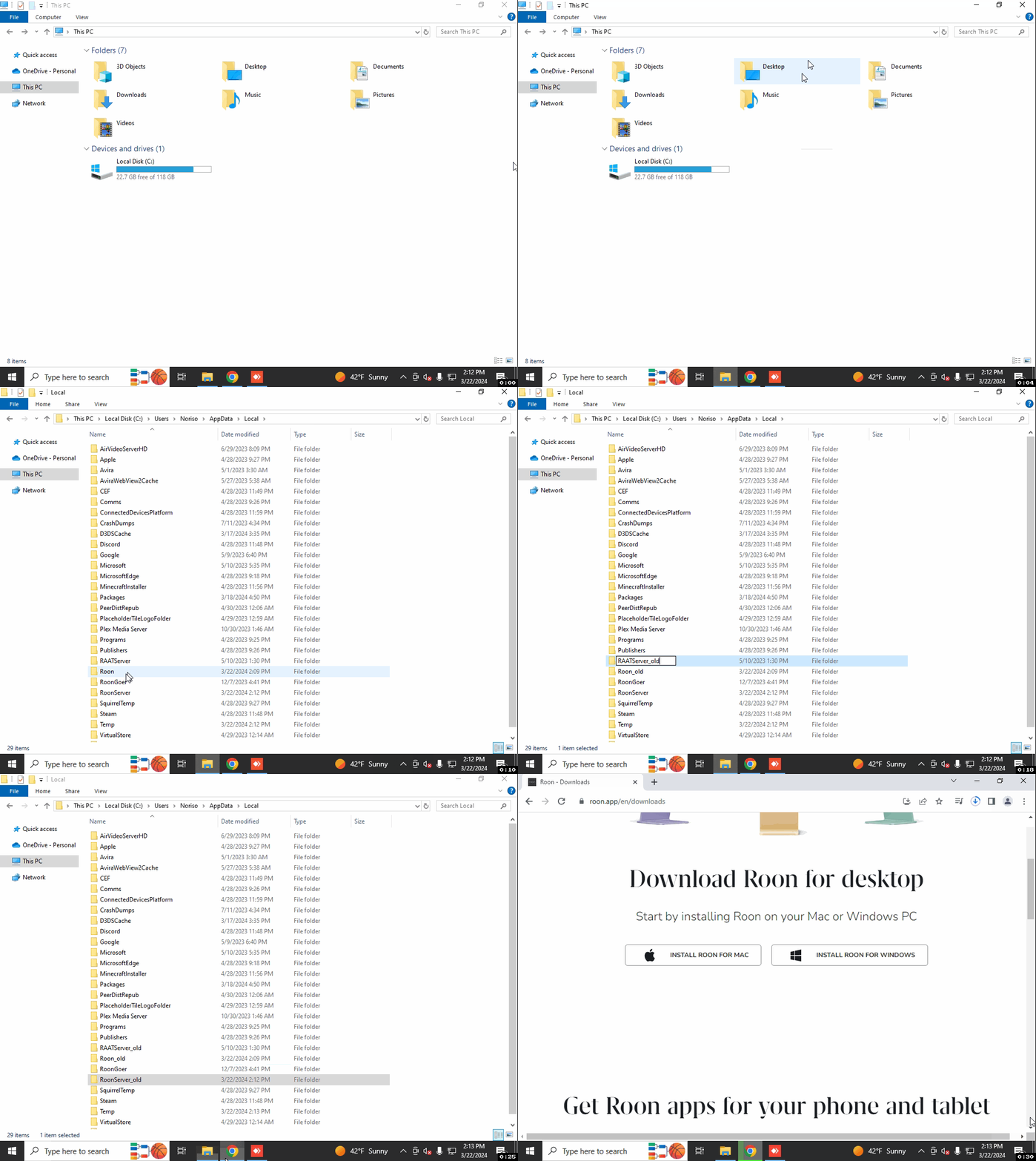
For the RoonServer_old folder, we want to use an intermediate PC to host the database. Please find a PC where you can install Roon, or one that already has it installed, then create a backup of the existing library if needed and, on that PC, perform a RoonServer_old:
Find the folder that says “Roon Server” and “Roon”
Rename the “RoonServer” folder to “RoonServer_old” and “Roon” to “Roon_old”
Reinstall the Roon App from our Downloads Page to generate a new Roon folder
Verify if the issue persists on a fresh database before restoring the backup
Here is the process outlined from a Windows machine:
After that, install Roon fresh on the PC, select it as the active Server, log in and set everything up, then exit Roon and Roon Server from the taskbar.
Once that is done, copy the contents of the backed-up RoonServer folder into the empty database, and then try to create a proper backup of that database after it starts up, that new backup will then be restored to the ROCK.
You’ll also want to make a new backup of the previous ROCK database before trying to restore the new backup. Let us know how the backup goes or if you have any issues along the way.
Hi @noris
Everything is working again. I found a backup from 2021 and found the same situation back then. Well, I already had my tags, now I’ll just have to update them with my memory… and with time.
Now I have a problem and a question.
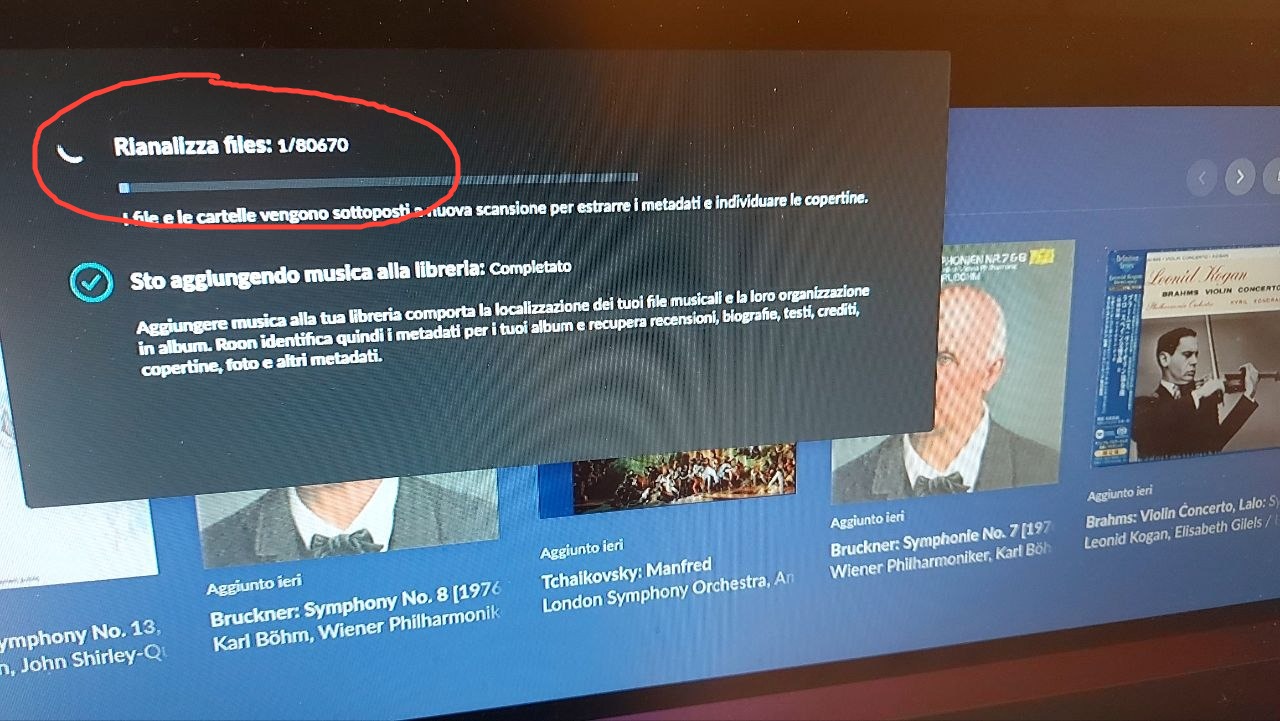
The problem is that Roon imported the libraries from the two external hard drives.
It keeps perpetually displaying “reanalyzing files” 1/xxxxx. How can I fix it? Everything was fine before.
I extracted the list of files not recognized by Roon to an xls file. Is there a way for Roon to ignore them? Is this the problem?
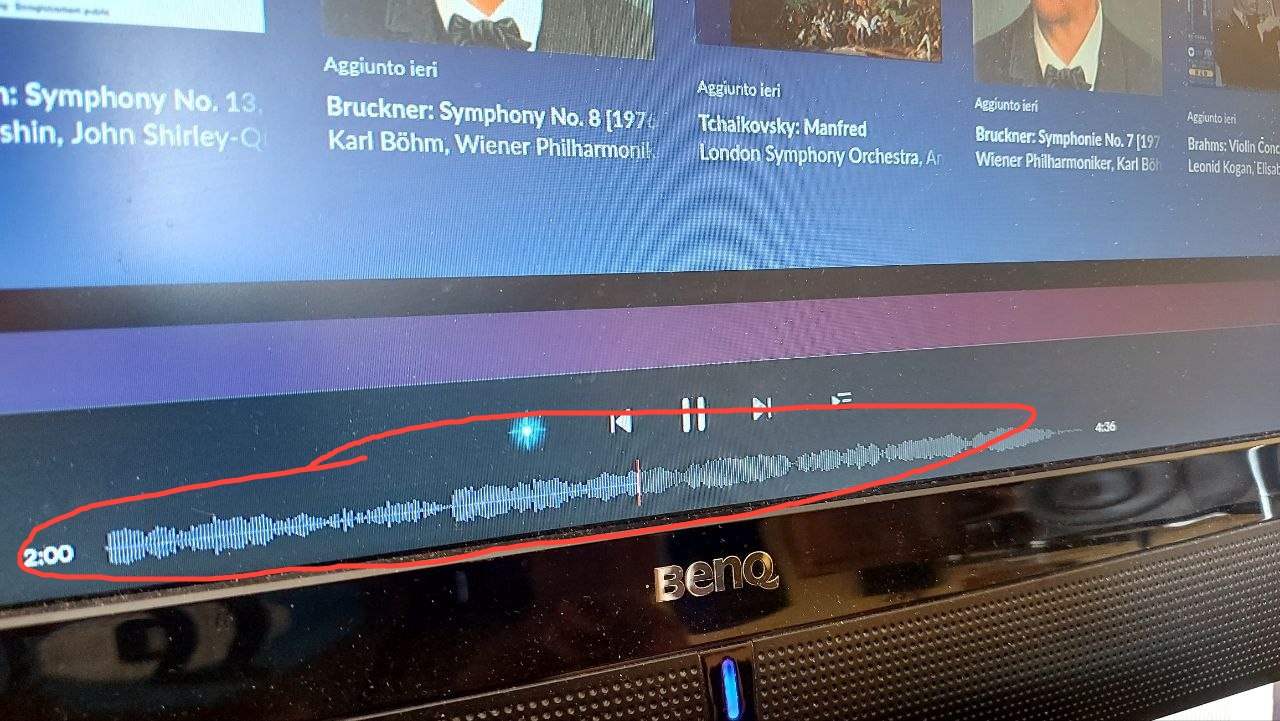
I’m curious, however, that the “track time bar” with Qobuz has always been a straight line; now it appears jagged, like when I listened to files from external hard drives.
Glad to hear Roon Server is back up and running! The new waveform look is expected: it’s part of the Roon 2.74 update, as @Suedkiez mentioned.
For the stuck “Reanalyzing files” status, we’ll need fresh logs from the new ROCK. With both WD drives connected, leave Roon running for about 30 minutes. Then open the ROCK’s network share (\ROCK\Data or smb://ROCK/Data), zip the entire RoonServer > Logs folder, and upload it here.
Please also send:
A screenshot of Settings > Storage
Your setting for “Background audio analysis speed” (Settings > Library)
Whether the counter ever moves past 1
The skipped-files spreadsheet
Also, do you still have the RoonServer_old folder? It may have the tags you added after 2021.
Once things are stable, we’d recommend setting up scheduled backups in Settings > Backups.