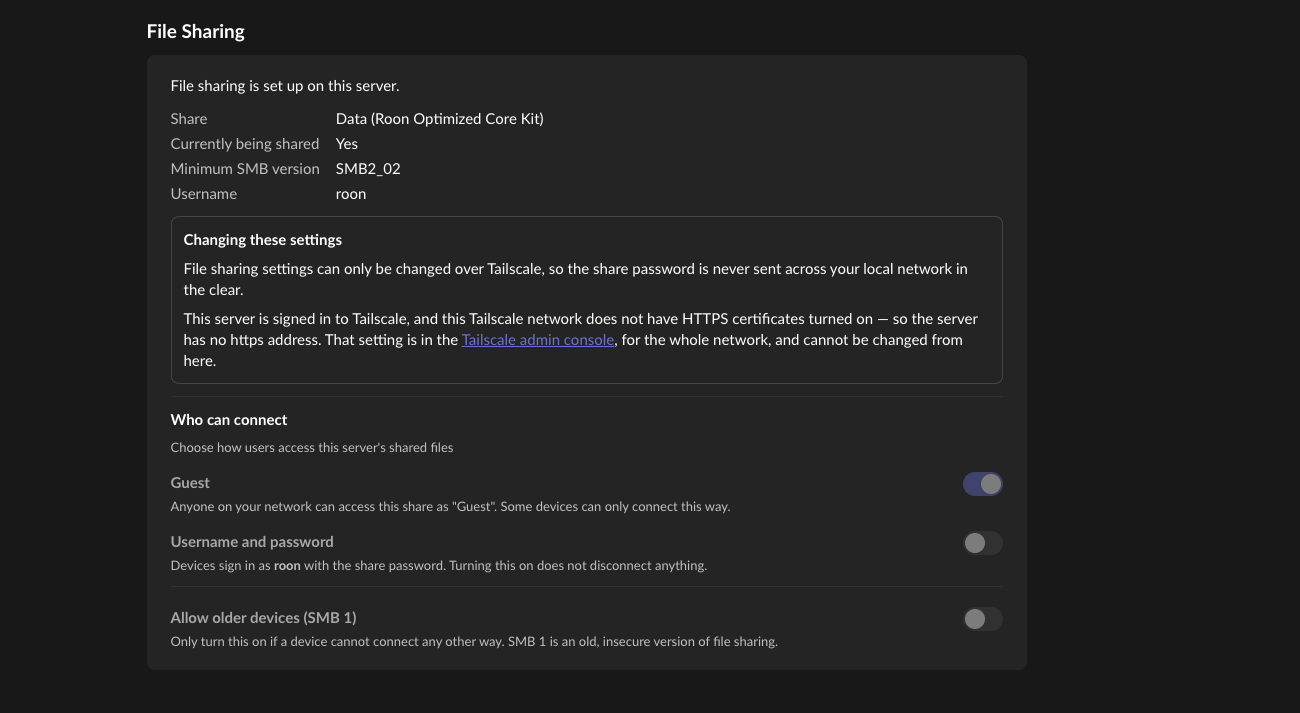
According to the release notes, RoonOS 3.0 (284) offers new options for SMB access:
RoonOS File Sharing
In the first RoonOS 3.0 builds, the Samba 4 upgrade required you to enter guest/guest to access the RoonOS Data share. We’ve listened to your feedback, and the Data share is now more configurable. You’ll find the new File Sharing section under Settings in the WebUI, with three options:
Guest access (default). The Data share stays open on your local network, as it was in RoonOS 2.x. You don’t need to enter anything.
Username and password. Turn on sign-in and set your own password. Guest access then turns off, and the share asks for your credentials on Mac and Windows.
SMB1 (optional). Some older devices only speak the original SMB1 protocol. You can turn it on if you need it. It stays off by default because SMB1 is less secure.
Your File Sharing settings are kept after a reboot, an update, a reinstall, or signing in to Tailscale again.
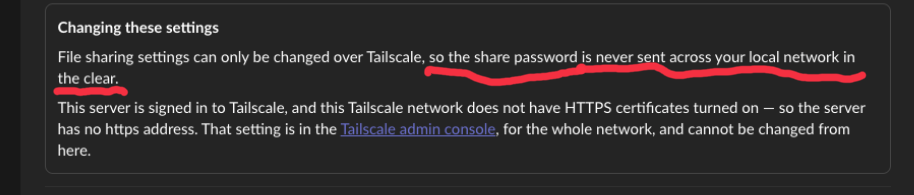
But as the above screenshot already indicates, you’ll need to be logged in to tailscale to actually make changes to these settings.
I don’t understand the reason for this. SMB access control is a completely independent thing from tailscale VPN. Why are these two things bound together? AFAIK tailscale was introduced as a workaround in case port forwarding for Roon ARC doesn’t work with certain ISP. This is quite something else than SMB access.
I don’t (need to) use tailscale because RoonARC works fine via port forwarding with my ISP. So why should I need to sign up with tailscale just to adjust local SMB access security on my room server?
Or does this mean, RoonOS exposes your SMB share for remote access (ie. the internet) via tailscale once your signed in? This would be a complete no-go for me.
If security is a concern, then sending the password unencrypted over the LAN is also a concern. The web UI is accesses over http by default, which is unencrypted by definition.
It seems that an alternative to the Tailscale solution would be enabling https on the server. The server could have a certificate. If this came from a generally trusted Certificate Authority, such as the free Let’s Encrypt, it should be automatically accepted by any modern browser.
I wonder why this approach was not used or if I’m missing something.
Well, insecure guest access hasn’t been regarded as a security concern for a decade, so why should setting a password in an unencrypted web interface inside your local network suddenly be of concern?
My guess would be, that setting passwords in a web interface which itself isn’t password protected doesn’t make much sense. Anybody could simple reset the password via the web interface. So maybe Roon took the tailscale approach instead of introducing a login prompt for the whole web interface or maybe just the critical settings part, which of course would need it’s own, user configureable password then to be secure.
Of course, this way they nicely circumvent the issue of support requests like “I forgot my password to the web interface! Help me restore access!”. Answer: “You need to reinstall and restore from a backup and write down your password next time.”
Or does this mean, RoonOS exposes your SMB share for remote access (ie. the internet) via tailscale once your signed in?
To clarify, RoonOS does not expose your SMB share for remote access. It’s there for people who want to change the username and password for SMB access can do so with it encrypted across the wire. It covers situations where the LAN is shared by others like apartments, universities, marinas, RV parks, etc.
If security is a concern, then sending the password unencrypted over the LAN is also a concern. The web UI is accesses over http by default, which is unencrypted by definition.
It seems that an alternative to the Tailscale solution would be enabling https on the server. The server could have a certificate. If this came from a generally trusted Certificate Authority, such as the free Let’s Encrypt, it should be automatically accepted by any modern browser.
I wonder why this approach was not used or if I’m missing something.
The password for SMB isn’t sent on the wire when connecting to a network share on ROCK, only hashes of the password are used. Only password hashes are stored on disk as is standard for samba.
We didn’t choose https and Let’s Encrypt directly on the box because the device needs a DNS entry for normal certificates and something to manage the certificate renewal. The tailscale option manages that all for the user.
The process is optional and usually one time only.
The goal for updates and new feature is to limit the impact on existing features unless those features are getting updated of course.
The SMB v1 toggle setting should not be gated behind a Tailscale wall. A user has more issues to worry about than this setting if their server is on a large open network, like anyone else with Roon being able to connect to their server. Unless you are going to tell us this is the first step in locking down network access per remote.
The goal was to keep something like downgrading a service to something deprecated be behind something that can be blocked. In other words, if you login with tailscale, it can’t downgrade outside of that. This was the first implementation so it’s localhost only. Extending the option to switch to smb1 when not logged in to tailscale can be considered.
We don’t have anything planned at the moment to lock things down more. Things can and do change but nobody is talking about it.
I signed up with tailscale to try the out the new feature and can report the following:
Aside from signing up with tailscale and registering the rock machine with tailscale, it’s also necessary to activate https in the tailscale management console in order to access the SMB settings.
You (obviously) need to install the tailscale app on your phone/tablet/PC in order to make a connection via tailscale VPN to the rock machine (which is routed over the internet, I suppose).
In order to access the SMB settings, you have to open the rock web admin page via the https:// URL provided by tailscale instead of “rock.local”
So this is rather complicated in order to just set a password.
Regarding the new feature itself, following feedback:
The “Guest” toggle doesn’t automatically turn off when “Username and password” is selected as advertised, but stays on instead. It can be toggled on/off without effect. Guest access is not possible in both cases. Probably just something in the GUI to fix.
Passwords set by the user cannot contain special characters (like !"§ etc.), at least I don’t get a connection when using any of those in my password. This should be looked after or just simply excluded in the password guidelines (“must be 8 characters or more, no special characters”).
Summing up:
Regarding the issue, that Windows doesn’t allow anonymous guest access anymore, it’s either applying some registry modification or setting up a tailscale account to activate user/password access for fellow Windows users. This both is probably too much for less technically oriented users.
So why not do something as follows:
Toggle between anonymous guest access and user/password access with a predefined combination like “roon”/“music” in the open accessible web interface for compliance with Windows security requirements - as convenience for all users that don’t want to go into technical detail but need access from their Windows machines.
Set up individual passwords for those users with extra security requirements via the already established tailscale way
I just found out: When setting a password, you actually get a notification screen, showing the password in large letters with the reminder that this is the only time it will be shown to you in clear text and a strong recommendation to write it down.
Well, colour me thoroughly confused by this new system.
For network access from my ROCK/NUC to my Windows PCs for fileshares I’ve created local accounts (username: roon with a password) on the PCs that need to have them.
So I thought I would add the same set of credentials to my ROCK/NUC for network access from my Windows PCs and do away with the old guest/guest credential.
But I cannot, for the life of me, see how to do this. The new WebUI helpfully tells me that I’m on my local network and all the network access settings are read-only, but I can’t see where in the voluminous Tailscale admin page(s) I can set up this simple user credential on my ROCK/NUC and turn off the guest/guest access.
Right, I think I’ve got it figured out - you have to first enable HTTPS in Tailscale, then wait a while for the SSL certificate to be generated and loaded in somewhere (in Tailscale? in the ROCK/NUC?) and finally open the WebUI at the Tailscale generated address for the ROCK/NUC. Then the options to turn off guest/guest and add your own username credentials become enabled.
It’s a bit of a faff, and I’m fairly used to IT - this could be a challenge for those who want a music appliance rather than a computer.
Cool and thanks. However, we’ll make sure the knowledge base article has the details. If it wasn’t optional we’d take a different route like some of the other network equipment configurations do and use a cloud account.
A question - having set up the password for the roon username, can I logout of Tailscale so that I can continue to use Pi-hole as the DNS server on my ROCK/NUC?
I use port-forwarding for ARC access, I don’t need Tailscale for that.
I do appreciate the way the boilerplate in the File sharing section of the Web UI changes according to the system state. Giving the https address of the web UI is a nice touch - that was very useful after years of typing the local IP address…
See my suggestions above on how to make a non-guest login easier accessible for users that neither want to (or are able to) tinker with Windows registry to allow guest access nor take the tailscale approach just to enable user/password login.
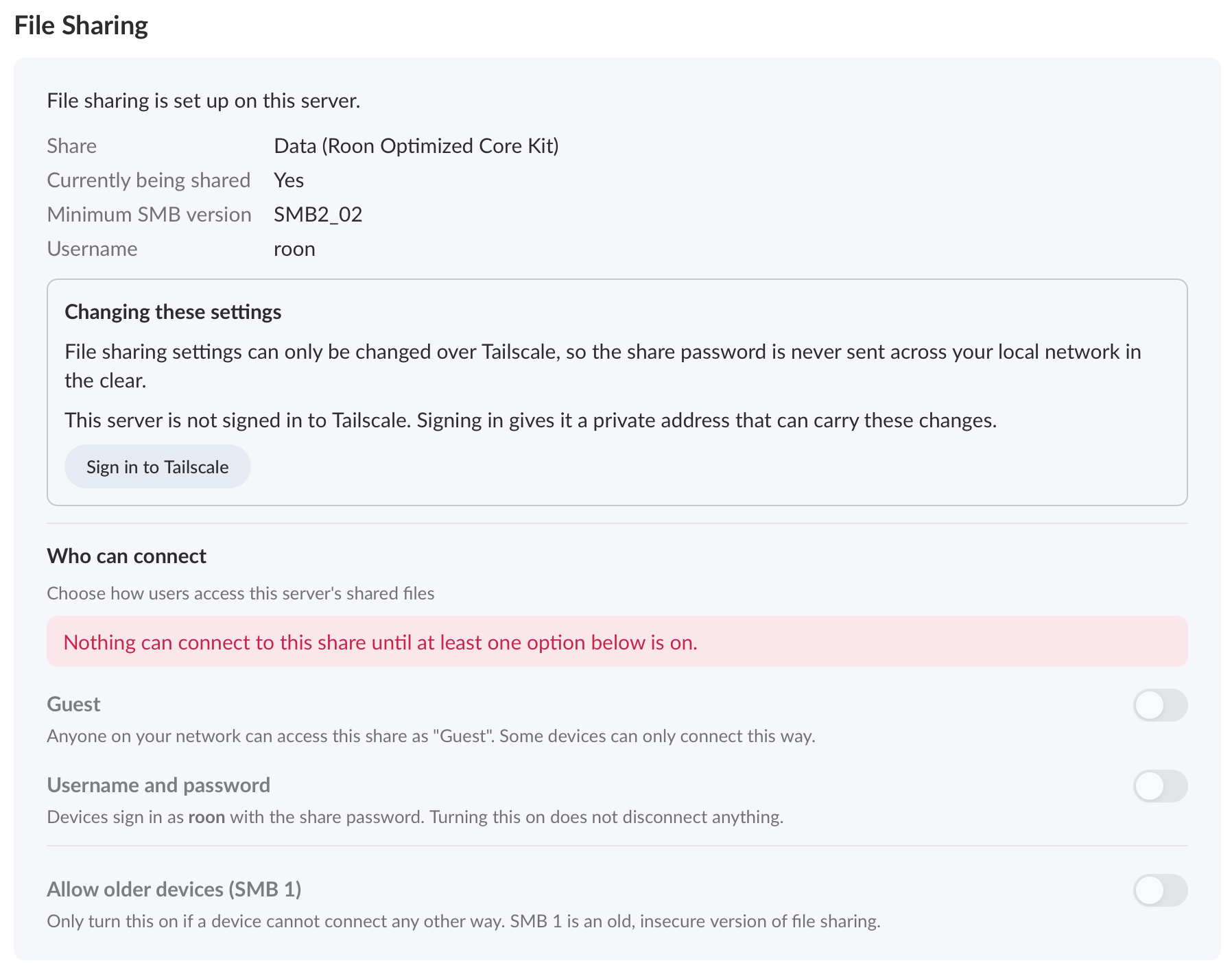
Good question. As it seem, you have to stay logged in into tailscale on the ROCK machine to keep SMB access via username / password active. If you log out of tailscale, you loose SMB acces to you maching completely as both guest access and user / password access are disabled and cannot be enabled again until you log back in via tailscale:
This sucks big time. IMHO the settiings should stay as they are if you log out of tailscale, just greyed out of course, because you cannot modify them in this state.
I’ve had tailscale up and running for some time now, so no questions about that. For those that have turned on HTTPS to enable the File Sharing settings, did you also have to run tailscale cert on your Roon server?
Running tailscale cert is step 5 in tailscale’s Enabling HTTPS article, which you can get to by clicking Learn more next to tailscale’s HTTPS Certificates setting.
I have a nucleus titan, so running that command might be a bit of an issue if it’s needed. I haven’t experimented yet since tailscale states the machine names and tailnet DNS name will be published on a public ledger. I may change the name of the titan before I do anything, to not give away the type of machine it is (not that it matters).
@gsuzor91 , you don’t have to run tailscale cert. That’s for a slightly different situation when manually managing certificates. RoonOS uses tailscale serve which manages the certs automatically.
The main point is to turn on HTTPS Certificates in the tailscale admin console.