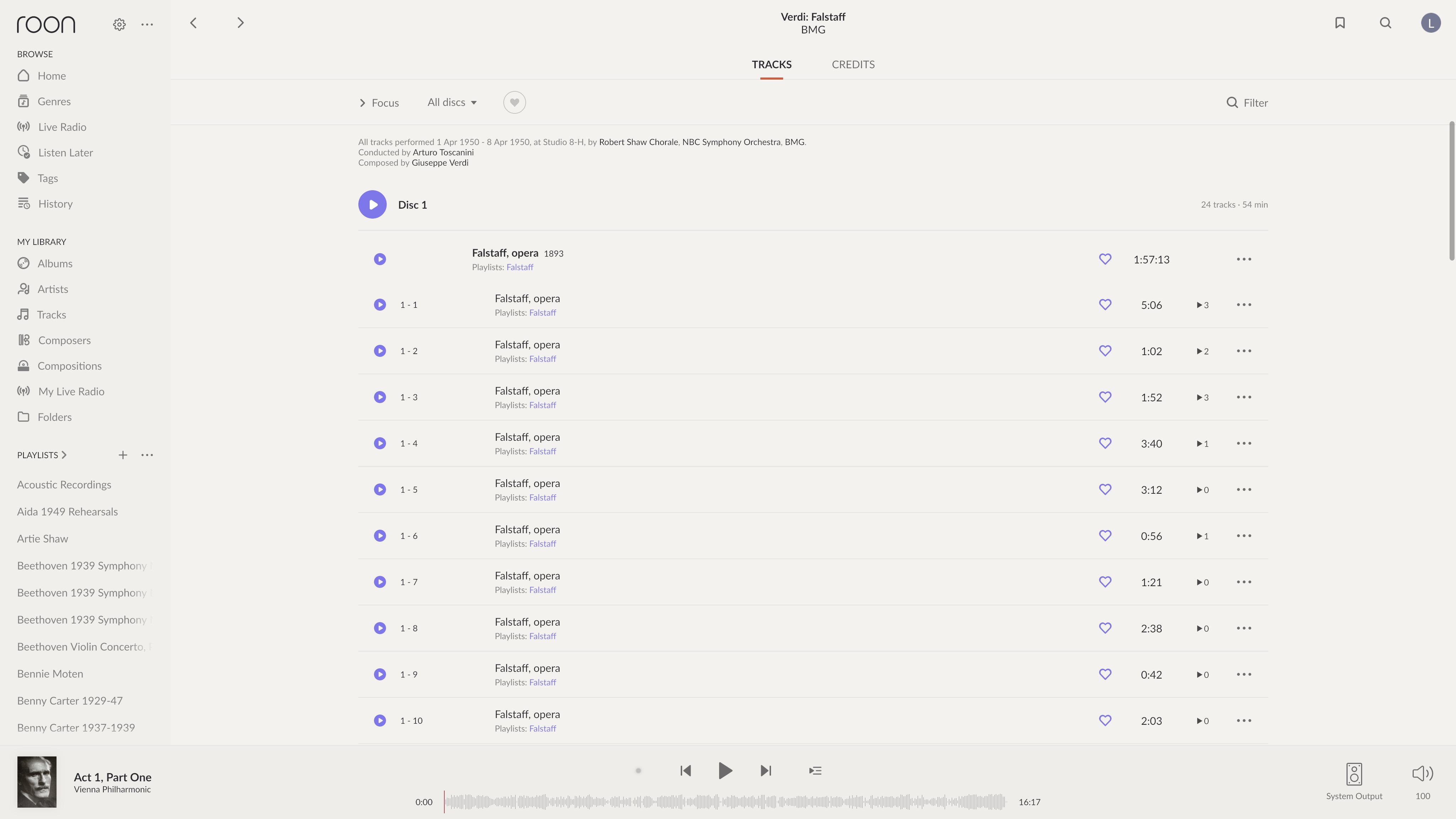
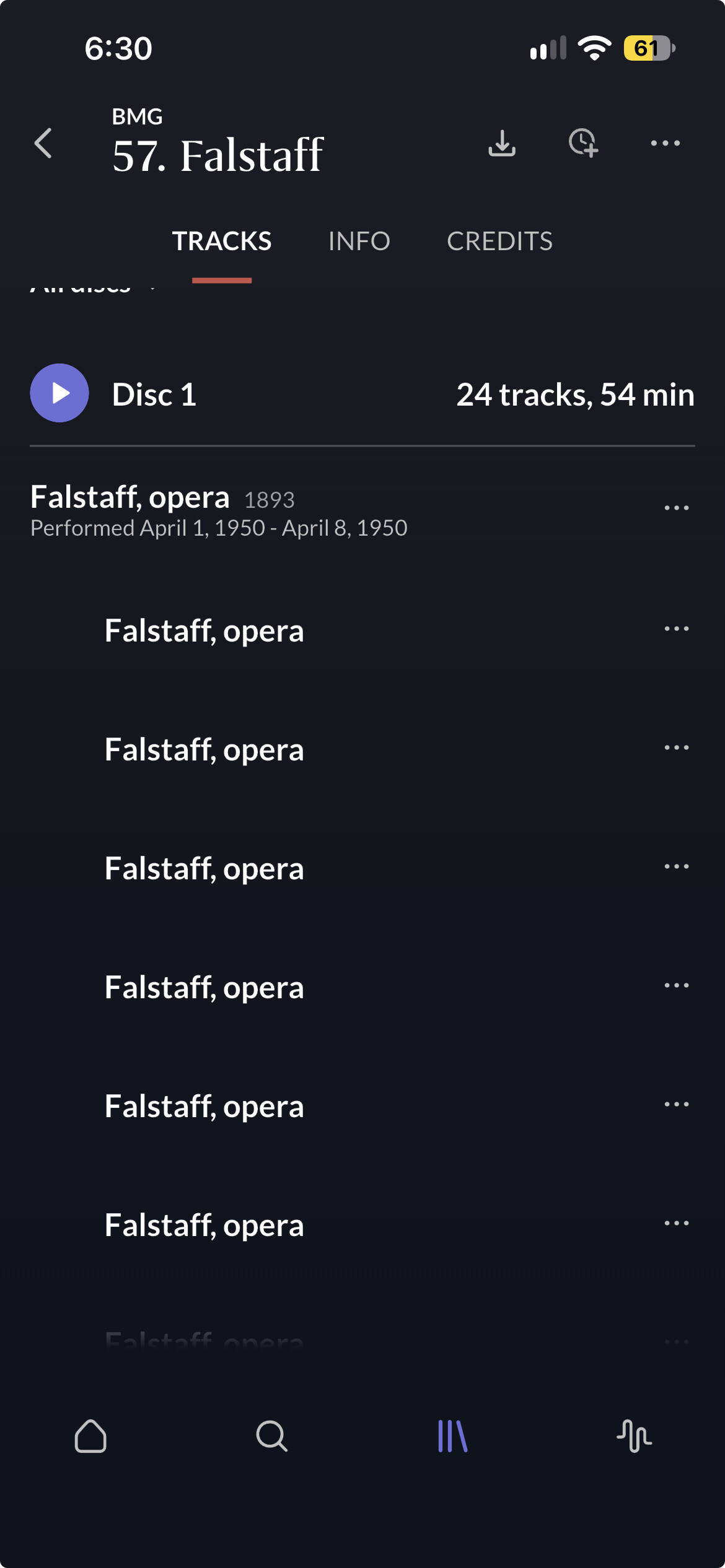
· I successfully created a single playlist consisting of 54 files (title + disc number + track number) from a commercial album (source) of Verdi's opera Falstaff. The problem is that each of the titles in the source album subsequently was replaced by the identical generic term, e.g., Act 1 Scene 1 now reads "Falstaff opera". Is there a way to return the titles to their original format?
The generic titles come from Roon’s metadata for this album, which replaced the track titles from your files. Your playlist uses the same tracks, so it shows the same titles. You can switch the titles back to the ones in your files:
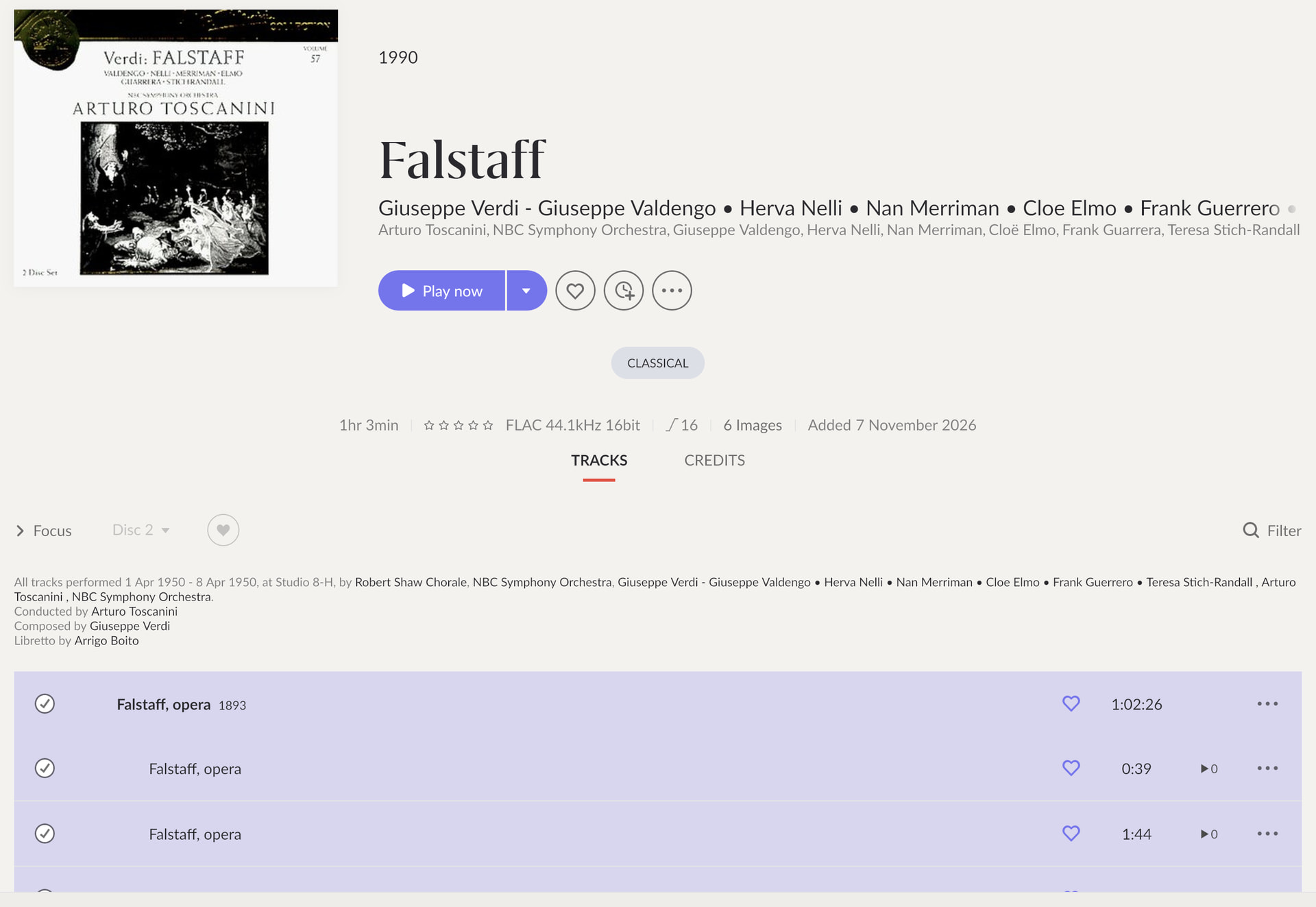
Open the Falstaff album and select all the tracks (click the first track’s checkbox, then Select All).
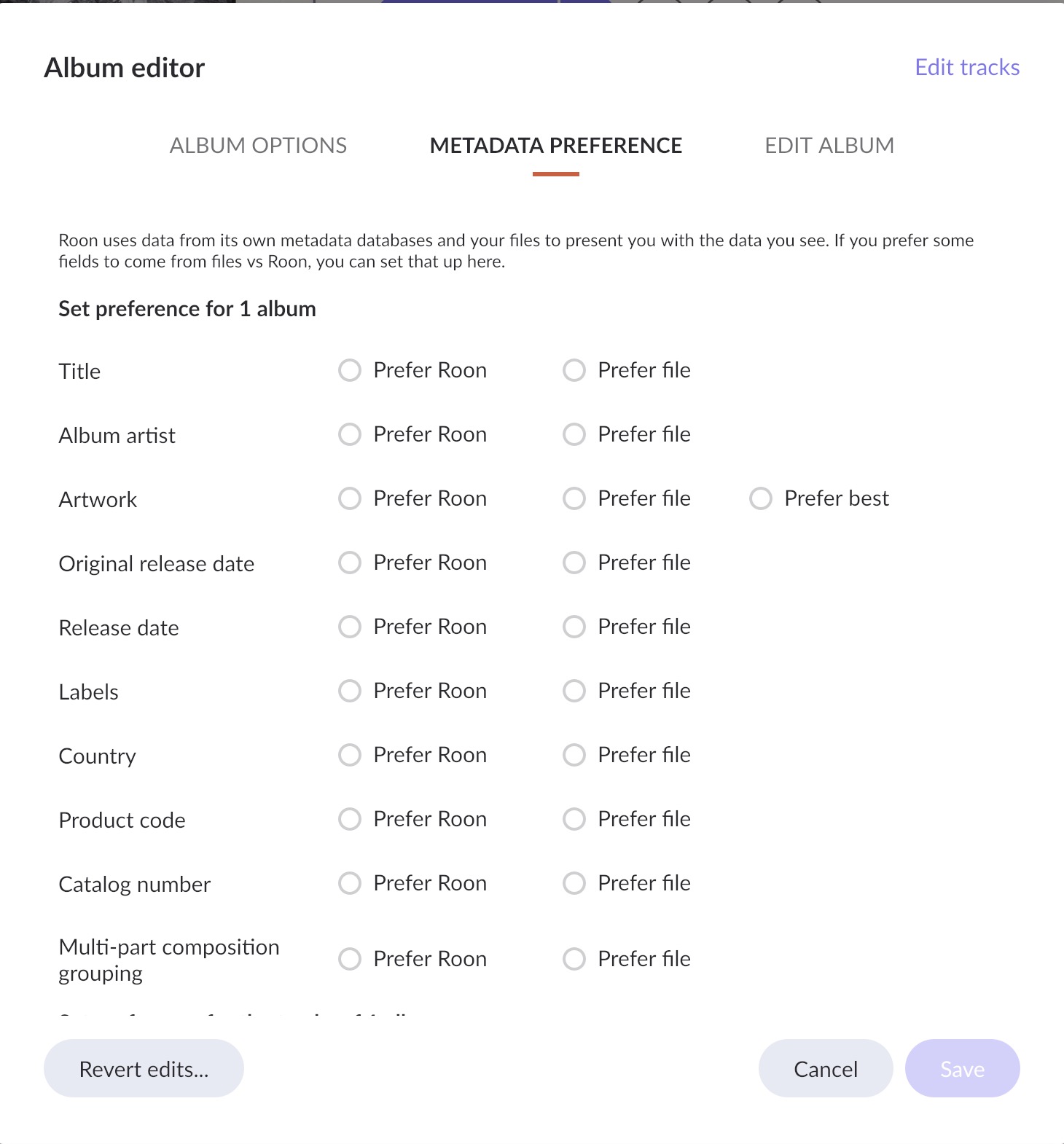
Click Edit in the top-right, open the Metadata Preference tab, and set Title to Prefer File.
Click Save.
The original titles should then show on the album and in your playlist. The steps are here:
It would also help if you report the album through this form, so the titles can be fixed in our metadata for everyone:
Many thanks for replying so promptly. Please clarify how to find the select-all check-box. I don’t see it on the screenshot below. Perhaps you can insert a red colored arrow to indicate where I should click.
On the first tab of the Album Editor, there is an option to “Rescan album” - click on that to have Roon update it’s database with your (or any) changes. ARC will pick up these changes as it reads from the database.
Thanks for your patience. Your diagnostics show that your Roon Server has the corrected titles. When Arc plays the album, it receives the original file titles, such as “Falstaff Act 1, Scene 1 - Falstaff!”
Arc keeps its own copy of your library, and that copy was last refreshed on October 25, when the album still had the generic titles. The changes you made with “Prefer File” didn’t trigger a refresh of Arc’s copy, so Arc is still showing the old titles.
To get Arc up to date:
For the Falstaff playlist: in Roon, make a small change to the playlist, such as adding one track and then removing it. This sends a fresh copy of the playlist to Arc.
For the album: if the album still shows the old titles in Arc, disconnect and reconnect to your Roon Server in Arc. This reloads your whole library into Arc with the current titles.
If the old titles are still there after that, please let us know where you’re seeing them in Arc (the album page, the playlist, or the Falstaff composition page), ideally with a screenshot.
Laurence Landow here. Besides ARC’s failure to revert generic file titles to corresponding file titles in Roon, the files in ARC are no longer in alphabetical or numerical order.
Thanks for trying the reconnect, and we’re sorry for the runaround. Your latest diagnostics show that disconnecting and reconnecting to Zenith didn’t reload your library in Arc as we expected. Arc picked up where it left off, so it is still using the copy of your library it saved on October 24, before the titles were fixed.
Your Roon Server has the correct titles. When Arc plays the album, it gets “Falstaff Act 1, Scene 1 - Falstaff!” and so on. Here’s what we’d suggest next:
1. Check which screen you’re on. Your diagnostics show Arc opening the Falstaff (opera) composition page. That page lists the opera’s parts using Roon’s own composition information, not the titles in your files. So the part names and their order there won’t change with “Prefer File.” Your own titles show on the album page and in your playlist. A screenshot of the Arc screen you’re looking at would help us confirm.
2. Refresh the playlist. In Roon on your Mac, add any one track to your Falstaff playlist, then remove it again. This sends a fresh copy of the playlist to Arc. After that, the playlist in Arc should show your file titles in the correct order.
3. If the album page in Arc is still wrong, deleting and reinstalling Arc makes it download your whole library again with the current titles. Note that this removes any music you’ve downloaded to your iPhone for offline listening, so you’d need to download it again.
Please let us know how step 2 goes and send a screenshot of where you still see the old titles or the wrong order. We’ll take it from there.
a) on the Roon server: both the Falstaff album and the Falstaff rehearsal playlist show my titling.
b) on ARC: the Falstaff rehearsal playlist shows my titling, but the album still shows generic titling (attachment, below).
c) Sorting remains a problem in Carplay but not on the iPhone itself.
Responses to your comments
Check which screen you’re on. Attached is the screenshot of the album titles in ARC.
Refresh the playlist. I added and deleted a track in the Falstaff rehearsal playlist as instructed. In ARC, the playlist tracks show my titles.
If the album page in Arc is still wrong. I deleted the ARC App and reinstalled it, but the generic titles remained, instead of those on the Roon server.
Final issue: there are major alphabetical and numerical sorting problems in Carplay (but not on the iPhone itself) similar to those reported by other Roon members when sorted by “Date”.
Thank you for the clear summary and the screenshot, that pins it down. On the album page, ARC groups classical tracks under their composition and labels each track with the name of its part in the opera, taken from Roon’s classical metadata. It doesn’t use the track title. For this recording, Roon’s metadata has no separate part names, so every track shows the opera’s name, “Falstaff, opera”. The “Prefer File” setting changes the track titles, which is why Roon on your Mac and your playlist in ARC show your titles, but it doesn’t change those part names. Reinstalling ARC can’t change them either, since they come from Roon Server. We’re passing this on to our developers.
For now, your rehearsal playlist is the best way to see your own titles in ARC.
The CarPlay sorting problem you describe is already reported to our developers, together with the other CarPlay sorting reports.
I reviewed my Falstaff rehearsal playlist and commercial disc on the Roon server this morning and was very pleased with the updates. So pleased that I in my enthusiasm, I “guilded the lily” by selecting “Prefer file” everywhere as the default setting for the Roon server and permanently deleting an older rehearsal playlist. Big mistake, since BMG titling on the commercial disc has been replaced by generic format on the Roon server. The playlist looks fine, ditto for ARC (both playlist and commercial album).
The album titles momentarily return when I click on Re-identify in Album Options/ Your files, but then revert to the uninformative “Falstaff album” mode. What should I do to prevent this from happening?
Thanks for sticking with this, and for the clear description of what happens when you re-identify.
What you’re seeing is expected with how things work right now. When you click Re-identify, Roon matches the album against its metadata again. For a moment it shows the titles from your files while it does that, and then it applies Roon’s metadata for this recording, which is where the generic “Falstaff, opera” titles come from. So re-identifying won’t keep your titles. It can actually undo the fix, so we’d suggest not using it on this album for now.
To get your titles back on the album:
Open the Falstaff album, select any one track, then click Select All in the top left.
Click Edit, open the Metadata Preference tab, and set Title to Prefer File.
Click Save, and leave the album as it is afterwards (no Re-identify).
If the titles still switch back to the generic ones after that, please send us a screenshot of the Metadata Preference tab for the album, and tell us which library-wide settings you changed on October 28. That will help us see which setting is winning.
On the bigger picture: the issue with the generic titles for this recording is still open with our developers. We don’t have an update to share yet, but we’re keeping this thread linked to it and will post here as soon as we hear more. Until then, your Falstaff rehearsal playlist is the most reliable way to see your own titles, both in Roon and in ARC.
Regarding your query about last week: I selected “Prefer file” for all domains (Title, Album artist, etc) in all my albums found on the Roon global preferences page (gear icon). In other words, I didn’t limit the change to just this album.
After receiving today’s email, I opened the Falstaff album and selected “Prefer file” in the metadata preference window for the “Title” domain. I subsequently opened the album without taking any other action.
The attachment below shows neither “Prefer Roon” nor “Prefer file” is check-marked for the Title line.
I deleted the existing album from my library, clicked on Settings / Library / Import settings / Select meta-datasets, and uploaded the two original CDs into my library for the second time. On opening Roon, track titles on CD #1 are specific for those from the opera libretto (i.e., in Italian) but track titles on disc #2 are identical to one another and in English (i.e., “Falstaff Opera”). Merging the two discs changes the track titles on CD #1 to “Falstaff Opera” as well.