With this Early Access release, we’re continuing to improve RoonOS 3.0, focusing on network file sharing and the WebUI.
The RoonOS Data share is now more flexible, supporting both guest and password-protected access. We’ve also improved how RoonServer connects to network shares, particularly around authentication and encrypted SMB connections.
The WebUI continues to evolve, with clearer presentation of update and reinstall progress, better error reporting, and improved network configuration.
IMPORTANT: You will need RoonServer running the latest Early Access (release/roon_2.74 #build_number) build to get all of the network share improvements.
RoonOS File Sharing
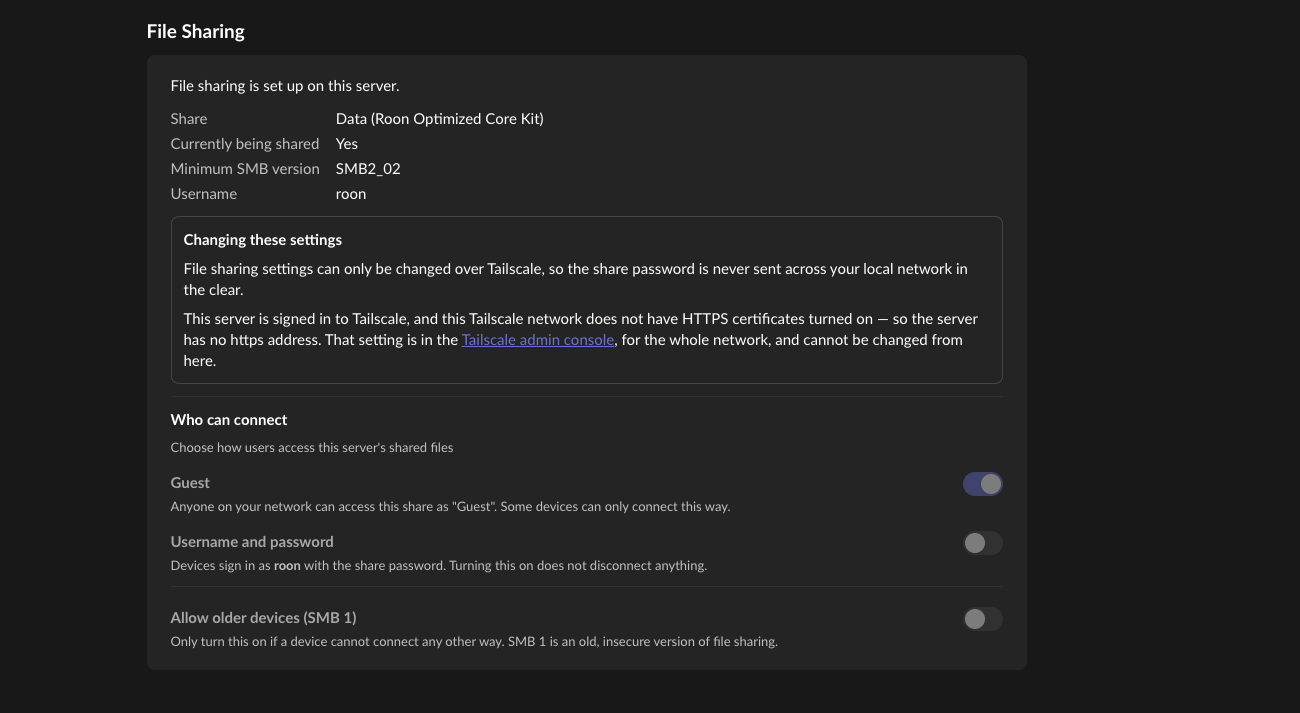
In the first RoonOS 3.0 builds, the Samba 4 upgrade required you to enter guest/guest to access the RoonOS Data share. We’ve listened to your feedback, and the Data share is now more configurable. You’ll find the new File Sharing section under Settings in the WebUI, with three options:
- Guest access (default). The Data share stays open on your local network, as it was in RoonOS 2.x. You don’t need to enter anything.
- Username and password. Turn on sign-in and set your own password. Guest access then turns off, and the share asks for your credentials on Mac and Windows.
- SMB1 (optional). Some older devices only speak the original SMB1 protocol. You can turn it on if you need it. It stays off by default because SMB1 is less secure.
Your File Sharing settings are kept after a reboot, an update, a reinstall, or signing in to Tailscale again.
Network shares in Roon
We also improved how RoonServer connects to SMB shares on your NAS or computer. RoonServer now tries SMB3 first, so RoonServer prefers SMB3 when connecting, improving compatibility with shares that require SMB encryption.
Authentication failures are handled more carefully. An incorrect password now results in a single failed login attempt instead of repeated attempts every few seconds, reducing the chance that a NAS will temporarily block RoonServer. Roon will also tell you more clearly when a share refuses your login, or when the database disk is full or can’t be written to.
One more change concerns guest shares. A share added with a blank username and password now connects anonymously. One change to guest shares to be aware of: a share configured with a blank username and password will now connect anonymously. If an existing guest share stops connecting after the update, edit it and use guest as the username.
WebUI redesign
We’ve continued refining the RoonOS WebUI. Everything is now organized into four main sections: Overview, Storage, Networking, and Settings, with power controls available from their own menu. The Overview tab shows the state of RoonServer, your storage, Tailscale, and USB drives at a glance.
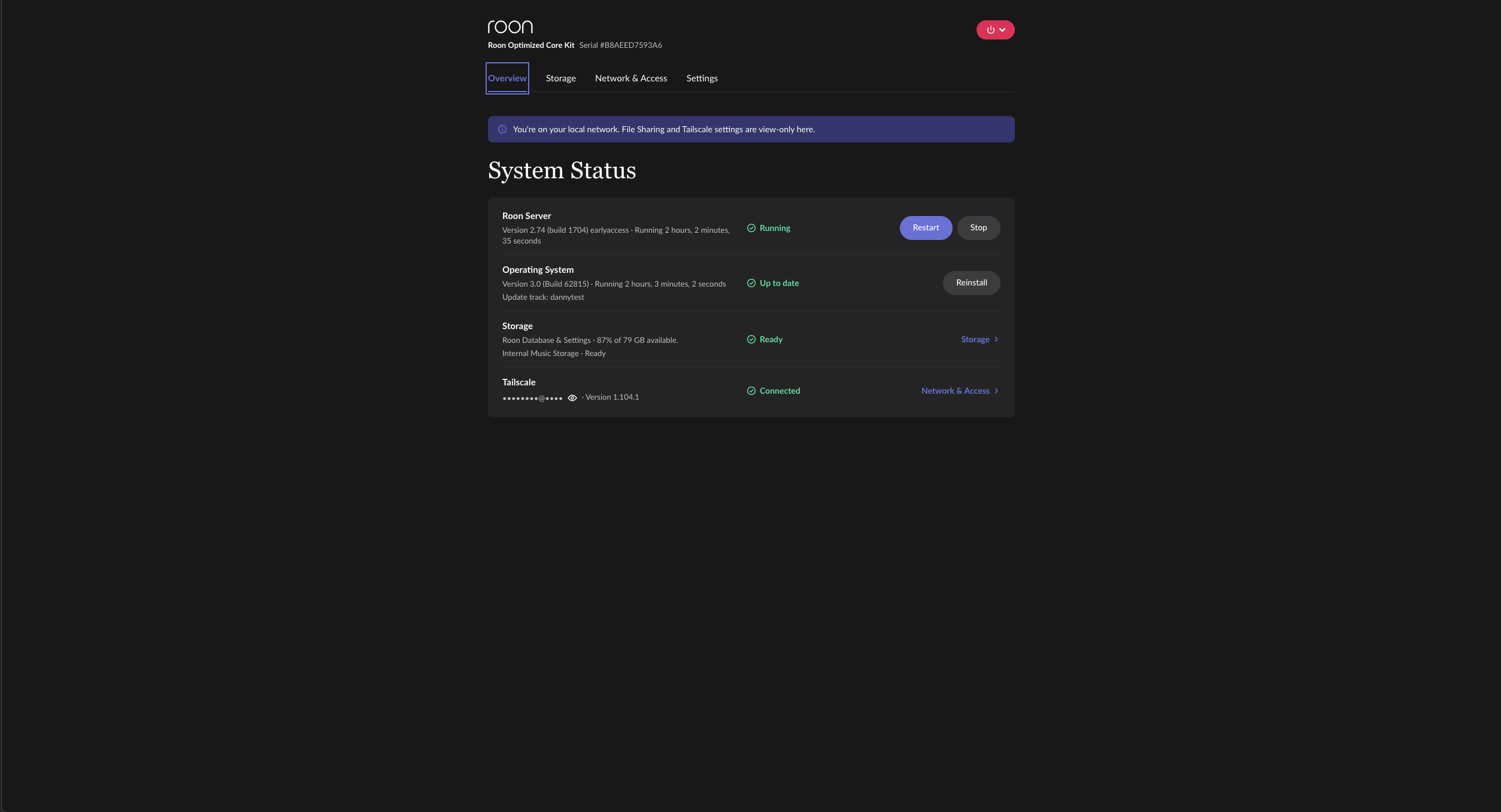
Updates and reinstalls are now much easier to follow. The WebUI shows progress throughout, even if you reload the page, and tells you what went wrong if something fails. For example, if you don’t have enough free space, you’ll see how much space is needed and how much is available. And if a reinstall fails, Roon keeps running on the version you already had.
Changing network settings is quicker too. When you save new DNS or IP settings, they apply right away, without a reboot.
NOTE: as previous 3.0 updates, this release is only available on Nucleus One, Nucleus Titan, or ROCK on a supported Intel NUC
Change Log
- Added configurable guest or password-protected access to the RoonOS Data share
- Added optional SMB1 support for older devices
- Improved SMB3 and encrypted network share support
- Improved network share authentication and retry behavior
- Improved network share and database storage error reporting
- Updated guest share authentication behavior
- Continued WebUI redesign and navigation improvements
- Added persistent progress and improved error reporting for updates and reinstalls
- Network configuration changes no longer require a reboot
Installing RoonOS earlyaccess
- Download the instruction file for RoonOS
earlyaccess(do not modify the file or its name in any way) - Follow the steps in the Roon Help Center to copy the instruction file to your RoonOS device and initiate the update procedure.
Moving back to production
- Download the instruction file for RoonOS
production(do not modify the file or its name in any way) - Follow the steps in the Roon Help Center to copy the instruction file to your RoonOS device and initiate the update procedure.
If you run into anything unexpected, please let us know in the Early Access category on the forum. Your feedback during EA is exactly what shapes the final release.
Thank you for your support.
The Team at Roon Labs