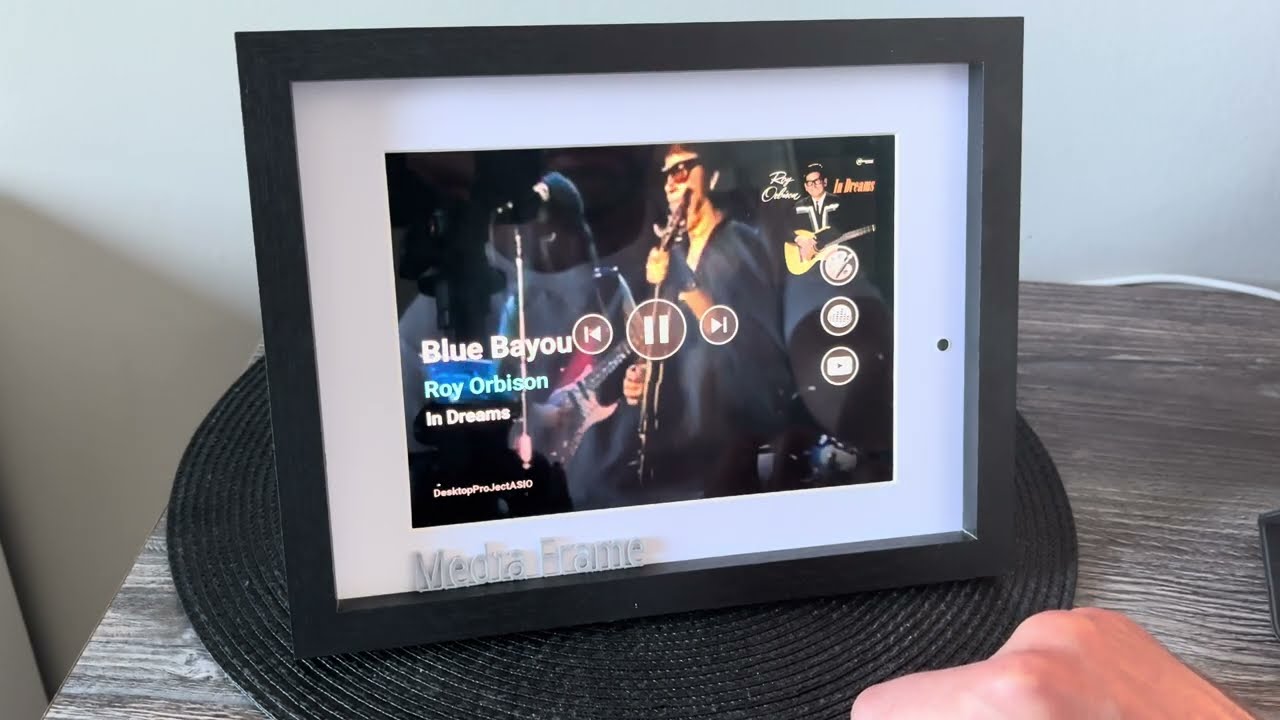
I have been playing with these and they are quite neat (vinyl focus is funky)
I was expecting the VU meters to move, but they seem to be static
I have not tried screen mirroring yet, as I have been using the tablet since it started working.
I never like casting the screen from within Android, if something better exists.
Roons display output has too many issues and casting tends to timeout.
@Michael_Harris
The VU meters should move, but per default they use to the sound in the room, so if you are not near any sound sources, or did not approve the apps request to use the microphone (check using Setup guide, found bottom of about/copyrigt page) then it can’t show much, it does have a toggle called “EQ mode” in the setup - > appearance section that switches between simulated motion and real mic input for EQ bars at least (and for VU meters in next release). 
A tip! if you tap on the pixel device and the VU meters or the EQ bars don’t move, then I would suggest the app did not get permission for the microphone.
Thanks again for testing Michael!
Agreed, it does the same on my Google Nest Hub (times out or disconnects when showing Roon). One of the reasons I built (am building) this app!
1 Like
Hi. Where’s the download link. Pinned on roon or pinned in Google. Love the concept.
1 Like
Hi @Dave_Potter, it’s pinned in the Google Group, but here you go my friend
(You do need to join the Google group for play store to allow you to download)
Using Android:
https://play.google.com/store/apps/details?id=com.anonymous.mediaframe
Using the Web:
https://play.google.com/apps/testing/com.anonymous.mediaframe
Hi Michael, just so you know, I added a fix for the VU meters (And EQ bars as both use live sound to animate).
Thanks I will update and do some testing tomorrow.
Thanks for looking into this one
New release should be available now in Play Store for testers.
Version 0.1.1784
Release Notes
Improved artwork handling and transitions
New Now Playing customization options
New theme: Roonish
- Added a new theme inspired by the visual style of Roon. (Fully adjustable as everything!)
Improved GUI experience
Fixed issues
-
Fixed an issue where incorrect artwork could sometimes be displayed for the currently playing track.
-
Fixed issues with color selection dialogs.
-
Fixed various smaller UI and stability issues.
Other improvements
-
Removed the Standard/Expert mode selection, as the distinction was no longer needed.
-
Added various performance improvements and behind-the-scenes optimizations.
2 Likes
Thank you to everyone who is testing the app—your input is truly appreciated!
I value all feedback and read every comment and group email, doing my best to fix issues as soon as we discover them.
Together, we’ll make this the most complete app in its category! In fact, I genuinely believe there isn’t another app that offers this many features and customization options.
2 Likes
FYI since I still havent had the time to create any guide or user manuals, here is at least one for those that havent figured this one out:
You can save your own custom theme using the “Custom 1 - 3” found in “Appearance” (Both in the app or via WebGui)
This is how:
- select on the three custom themes you want to use for your specific settings (Custom 1-3)
- adjust everything on the appearance page according to your preferences.
- Scroll down to the bottom of the page and press “Save” - Done!
Now all your settings for apperance will be applied when selecting that specific “Theme” (Custom 1-3)
Also I can not stress how much more comfortable it is to access the Media Frame/tablet using a secondary tablet/phone or computer and connect to the app via it’s web control interface from afar, and see the adjustments directly, it is also easier to “browse” through the settings and pages.
All you need to do is Enable “Web Control”, set a password (the random one might be hard to recall), and point either your other phone or tablet on the QR code on the Web Control page using your camera app, it will open the correct url/page for you.
1 Like
Here’s a sneak peek at a new feature that might be coming in a future update! 
It’s currently awaiting approval from YouTube/Google for the required API quota, so nothing is guaranteed yet—but I’m hopeful!
1 Like
A new version with several fixes will be available on the Play Store for testers in approximately 35 minutes. (Finishing automatic reveiw..)
What’s new:
• GUI and visualization improvements for the Now Playing screen.
• Added a selectable color for the bottom gradient.
• Fixed the text shadow slider so it now works correctly.
• Improved artwork handling for compilation albums.
• Further improvements to background artwork fading and transitions between tracks.
• QR codes for Web Control are now generated instantly.
1 Like
Some nice improvements in a short period of time and Roonish definitely lives up to it’s name 
VU Meters also looking good now thanks 
1 Like
Thanks for this information. I have been playing with the Roonish layout to get it to meet my needs.
This app seems to work really nicely on my Google Pixel tablet, so I need to save these settings into a custom option. OK I found the Save option on the Custom 1 - 3
I don’t see the Save option on the items like Roonish though, is that deliberate?
1 Like
Yes, those are default themes, and not supposed to be edited
If three different save states/themes (Custom 1-3) are not enough I can add more.
It’s not that is an issue, but you can change it to make it look perfect and then you lose the changes you made, so maybe it is just confusing.
Maybe an option to copy one of the defaults to one of the customs that can then be modified. I have a nicely working Custom 1 now that is working nicely, so thanks for the excellent work you have done so far
You can create your own version of Roonish by using it’s values as a template, then save it and modify those.
If it makes it easier here are the default settings for Roonish in appearance menu:
Backdrop = Fancy
Full-screen animation = Off
Album cover style = Default
EQ style = Off
EQ mode = Live mic
EQ size = +45 (Doesnt matter in this case since it is OFF)
EQ bars position = Left (Doesnt matter in this case since it is OFF)
Track title & artist — size = −25 %
Track title & artist — horizontal position = 4
Track title & artist — vertical position = -1
Show album name = On
Scroll long text = On
Shadowed text (title, artist, zone/source) = Off
Bottom gradient = Solid
Gradient Color (when solid) = rgb(30, 30, 30)
Outline around album art = On
Album cover — horizontal position = -4
Album cover — size = 0 %
Album cover vertical position = -2
Display music source = Off
Progress bar (music) = On
Show timestamp on progress bar = On
**
Sorry for the inconvinience!
**
1 Like
“Maybe an option to copy one of the defaults to one of the customs that can then be modified. I have a nicely working Custom 1 now that is working nicely, so thanks for the excellent work you have done so far”
Good suggestion! I will add that to the ever growing ToDo-list!
1 Like
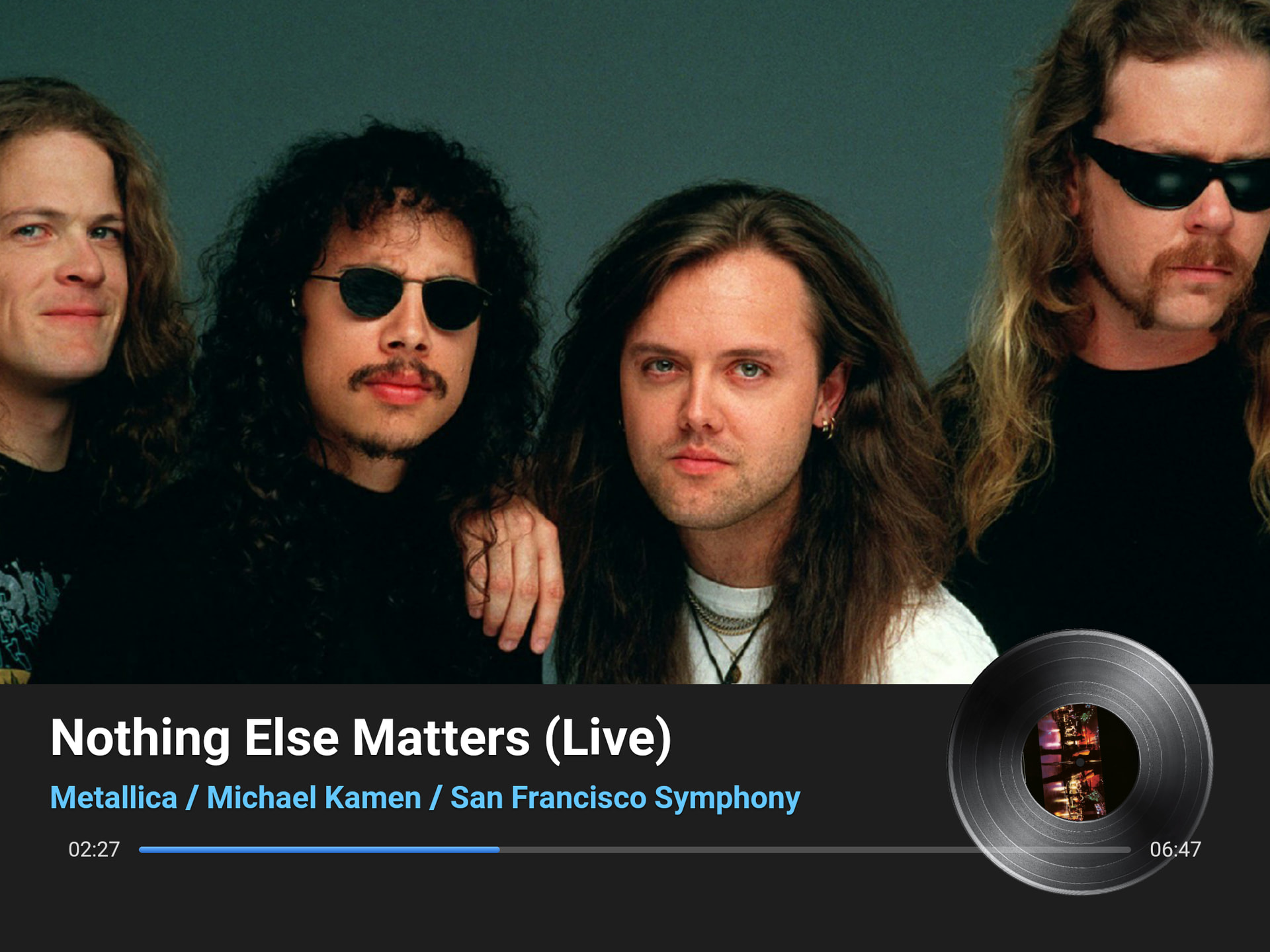
BTW my own version of “Roonish” looks like this:
1 Like
Thanks I ended up doing something similar.
I love the flexibility of what you have built here.
I appreciate the quick feedback thanks
1 Like