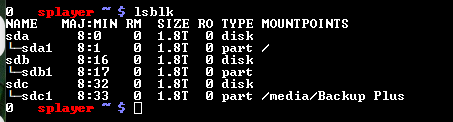
I’m a little confused. When I connect the drive to the Salkstream, it automatically shows as a folder in the Media folder. Does this mean it is “mounted”?
If I then unmount it before running the big_writes command, won’t the drive no longer be visible to the Salkstream and my PC?
@mjw I am not a Linux expert but could async and flush help with this?
Mounting with sudo mount -o async,flush <mountpoint can prevent the sync option from slowing down transfers.
Also, doesn’t NTFS also cause slow transfers after a while? Wouldn’t ext4 would be a better format, assuming the Salkstream will recognize it…???
For the best performance and reliability with Arch Linux, use the ext4 filesystem. If installing the OS, consider disabling the journal with mkfs.ext4 -O “^has_journal” <device to reduce writes.
But, like I said, I am not an expert, I only play one in my head…
Edit: I also just found this post about a similar issue (although it is with FAT32 not NTFS):
I also wonder if the Salkstream “forgets” the mount point directory when the drive is unplugged or creates it automatically when the drive is plugged in? Like dynamic creation and deletion of the directory and mounting when drives are plugged in?
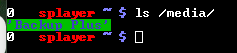
Maybe try an “ls” in the “/media/” directory and see if “Seagate Backup Plus” directory is there?
I’ve not used “sudo” for any of the commands I’ve used before (such as updating the OS, running rsync). I’m not even sure what “sudo” is )
I know if I plug in a drive, the Salkstream automatically creates a folder for it in the Media folder. If I physically disconnect (not unmounting) the drive, the folder remains, although it will appear empty until I physically reconnect the drive.
If I run ls /media/, I only see the other drive that’s still mounted
The Seagate Backup drive doesn’t show up, presumably because I unmounted it (though it’s still physically connected)? Accessing the Salkstream’s “Media” folder from my PC, all I see is the Backup Plus folder for the other drive. The Seagate Backup folder disappeared when I unmount the Seagate drive.
PS - I just tried adding sudo at the beginning of the command line and I get the same failed to access message.
So it does seem like it removed the directory when you unmounted the drive.
You could try making the directory and then mounting it. (“mkdir /media/my_new_directory”)
Then the command would be:
“mount -o big_writes /dev/sdb1 /media/my_new_directory”
“my_new_directory” could be your “Seagate\ Backup\ Plus”?
“rmdir” is the command to remove the directory when you are done if needed? (after you unmount the drive).
I successfully created the new directory Seagate\ Backup\ Plus with your instructions. Thanks!
I then ran this command with no error messages.
mount -o big_writes /dev/sdb1 /media/Seagate\ Backup\ Plus
Next, I tried transferring a music file from my PC to the Seagate drive. Unfortunately, there was absolutely no improvement in behavior/transfer speed.
I’m curious, does this only appy to using a NTFS formatted drive with Linux? I ask because when I connect my NTFS formatted USB drives to my PC, transfer speeds are fast and stable.
I wish I could remember what format one of the drives used when I bought it. It wasn’t NTFS and the Salkstream didn’t recognize it. Mr. Salk had me reformat it to NTFS, which the Salkstream instantly recognized.
Might have been exfat or mac HFS+? But linux should recognize those? maybe something in way the salkstream is setup?
Here’s the AI summary of the async, flush command if you want to try it (sudo is like issuing the command as the “Super User” (root) or “admin”, apparently you don’t need that part?).
The command ‘sudo mount -o async,flush ‘device’ ‘mountpoint’’ is used in Linux to mount a filesystem with specific performance-related options. It is often used to address slow write speeds to devices like USB drives.
Here’s a breakdown of what the command does:
sudo: This executes the command with administrative (root) privileges, which are required to mount filesystems.
mount: This is the command that attaches a filesystem from a device to a directory.
-o async,flush: This specifies the mount options.
async: This option allows write operations to be performed asynchronously. Instead of waiting for data to be physically written to the device before continuing, the system buffers the data in memory and writes it later. This can dramatically improve performance for write-heavy tasks, especially on slower devices. It is the opposite of the sync option, which is a common cause of slow write speeds.
flush: This option is particularly relevant for filesystems like FAT32 and NTFS. It tells the filesystem driver to issue a “flush” command to the device when data has been written to the buffer, ensuring the data is committed to the device and reducing the risk of data loss on an unplanned removal.
<device>: This is the path to the storage device, such as /dev/sdc1 for a partition on a USB drive.
<mountpoint>: This is the directory where the filesystem will be attached (or “mounted”), for example, /media/myusb.
In summary, this command is an optimization technique used to boost write performance on certain filesystems, typically for external drives, by changing how the operating system handles data writes.
That very well may be. If I remember correctly, Salk said the Salkstream uses a “custom” version of Linux. I’m not sure exactly what that means. He also mentioned the OS was stripped of any unnecessary processes to assure the best audio performance. Again, I don’t know exactly what that means.
It was years after I bought the Salkstream that I first learned that it uses Archlinux. I didn’t even know what Linux was at the time. I found out when I learned how to update the OS (I was concerned about keeping current with security features) thanks to the generous members here on the Roon Forum.
I was reading about NTFS vs ext4. Unfortunately, much of it was over my head. A couple things did stand out though:
NTFS is widely supported across multiple platforms, including Windows, Linux, and macOS, making it a versatile choice for users who need cross-platform file access. Ext4, while highly efficient on Linux, has limited support on non-Linux systems, which can be a drawback for users requiring multi-platform compatibility.
Hmmm, having Archlinux on the Salkstream and Windows on the PC, this would seem to favor me sticking with NTFS.
Ext4 is known for its high performance and reduced fragmentation due to features like delayed allocation and extents. These features optimize file storage and access, making Ext4 faster for read/write operations, especially on Linux systems.
NTFS, while optimized for Windows, can suffer from fragmentation over time, which may require periodic defragmentation.
Is it possible that the drives need to be defragmented? I didn’t think this has been an issue on modern drives/computers for some time. Also, since they are just used for backups, they are not read/written to very often. If they did need to be defragmented, wouldn’t they exhibit the same slow data transfer behavior connected to either my Salkstream or my PC?