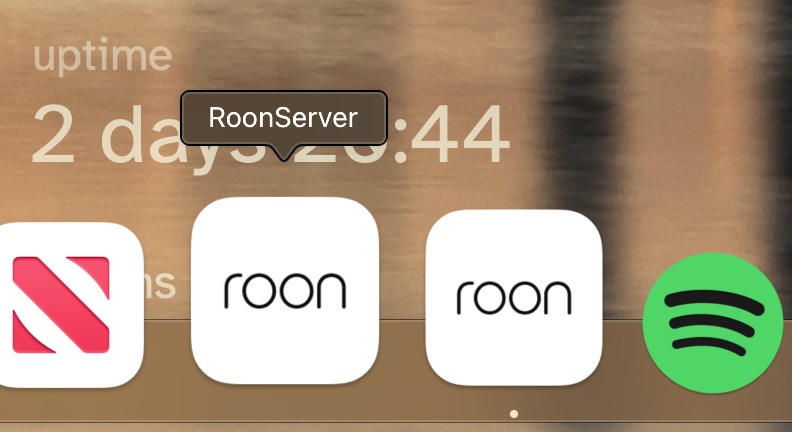
As new updated leaves server app running as a process. You can quit the app from the menu, however if I want to start the server again the only way to do it is restarting the Mac.
Is there any way to do it without having to restart the Mac?
Note: the reason I have to quit and restart the server is because so often the Google hub that I use to see what is playing is not found on the available zones after some time and found the solution was restarting the server.
Once the server is running, you’ll see the little Roon logo menu in the upper right corner of the screen that lets you set the server startup preferences. Here’s a clip from mine:
There are two ways to relaunch RoonServer.app if you quit the app from the menu.
Launch the Roon.app in the Application folder. Then you can quit the Roon.app and the RoonServer.app will remain running.
The RoonServer.app is located inside the Roon.app package. So, you can open the Roon.app package (right click the app and select "Show Package Contents) and make an alias of the RoonServer.app and store it someplace like the Applications folder. Then, any time you quit the RoonServer.app you can just run it using the alias.
What a fine mess…
Here is the problem… This whole situation only works fine if you have RoonServer Set to launch at Startup and you don’t click the Quit option in the RoonServer drop down menu.
If I’m using RoonServer on mac when I double click the roon icon from the applications it should launch RoonServer.app, especially if I am using RoonServer as my Roon core… Not Roon.app. If the server is running and I want to use the Roon.app gui it will be available from the Roon icon in the menu bar as seen in the photo above.
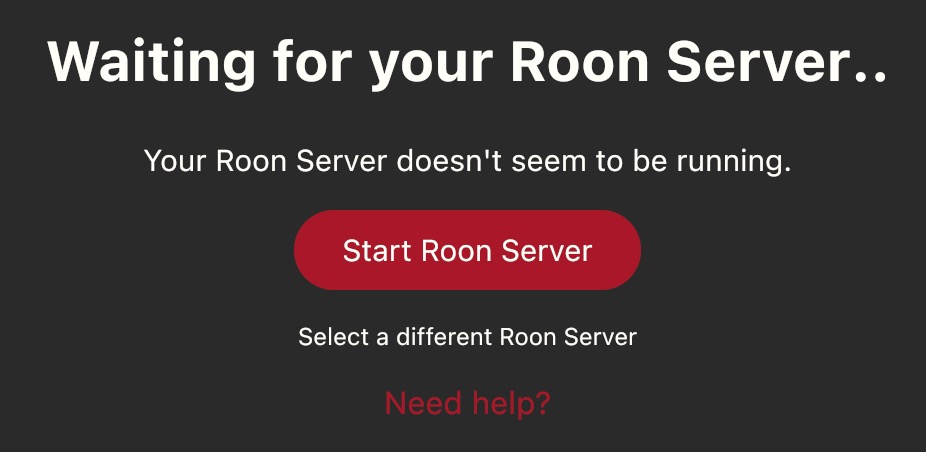
If RoonServer is not running and you click the roon icon in the applications folder it launches the Roon.app and waits for the server… which it will not find if it isn’t set to launch at startup or if you quit it intentionally or by accident. At this point you now have to do the whole show package contents of the Roon app and find the roon server icon and launch RoonServer Manually.
Could you, please, tell me if this is consistent for you?
If it is, what was your setup before the migration to the latest build? How did you install the update? manually or was it downloaded and installed automatically?
I tried to update via Roon, but when that didn’t work I deleted Roon and downloaded it again. In both cases the ‘Start Roon Server’ button didn’t work.
In Mac: Go to folder Applications, Right click, Choose “Show Package Contents”, Click on folder “Contents”, double click on RoonServer.app, go to menu bar, Activate “Launch at Startup” and reboot Mac.