I currently have the NUC placed on a high shelf. To take any detailed photos of the internal setup, I would have pick it up. My plan is to wait for ASUS to provide me with some guidance regarding the BIOS/memory issue; I can then take the NUC, make any necessary adjustments, and take some good pictures for you at the same time.
I actually reached out to Akasa to inquire about the compatibility of their Turing RC Pro model, but I received a definitive response: “the cases are not compatible with NUC 15 pro (+) PLUS due to a missing front panel header.” This is disappointing, as I was hoping to switch to a fanless solution as well.
I will share the chassis details/photos once I’ve opened the unit for the memory investigation.
Ah I see, so you’re in the stock case - that makes sense and thanks very much for clarifying. I hope Akasa might make something appropriate in due course for you. I might look to a Pro instead, perhaps with the 7 series 240H processor, but there doesn’t seem a lot of point buying a fast processor only to throttle the settings for the case.
For my needs, there’s no real reason to keep the Roon Core in the same room as the rest of the electronics and speakers, unless you intend to use its digital outputs directly with the DAC.
From my perspective, the factor of noise isn’t a particularly critical parameter. However, I kept it next to the DAC for 24 hours, and the noise didn’t bother me at all. The fan was running at minimum; I could feel the air exiting the side, but the NUC was only lukewarm, not hot. I’d say the heat dissipation system works quite well.
He did give the answer in his comment. You have to enable XMP in the bios or the hardware chooses the RAM speed. With XPM enabled the hardware will run at the rated speed of the RAM or its own highest rated speed if it can’t get that high. I figured this out this last week with a HQPlayer build. With the very newest hardware many bios updates will be to add RAM compatibility, especially if is a DDR5 platform.
There is no XMP BIOS setting in the Asus NUC 15 Pro+. Unfortunately, not all 6400 MHz RAM modules are compatible, and mine are definitely not.
Given what we’ve discussed, I don’t expect any difference in performance, even though mine are clocked at 4800 MHz.
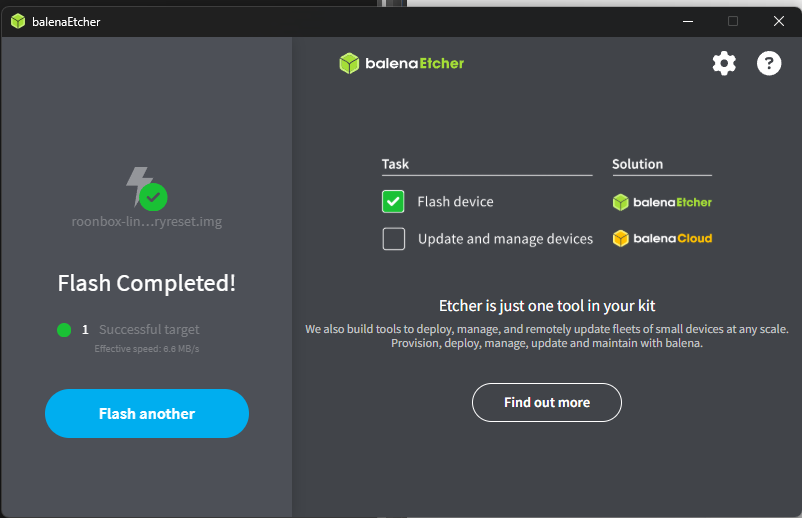
I have tried the Asus NUC15CRH hardware, but no matter what I do, then the USB key fails to be used as input. I have tried to create the USB key with Rufus and Etcher - used the USB input on the backside,
I have tried to disable to 2 SSD drives - no luck.
Disabled Secure boot
Looks like the USB can’t be found.
Is it important to use a USB key with 8GB ? - I have used 4 GB.
Boot ends with the text “Welcome to GRUB”
You might try DietPi for PC instead. Installs Linux and then gives you a menu system to install RoonServer and other things. As you probably know, the RoonServer that runs on RoonOS is the same RoonServer that runs on Linux.
I like the idea of a slim version of Linux and the ROCK packet. I just dont understand why my ROCK package wouldnt install.
I think the main problem is the usb and the missing connect.
It is more than a slim version of Linux, it is a closed version. Anyway, you realize that the 15th gen series are not officially supported on ROCK currently.
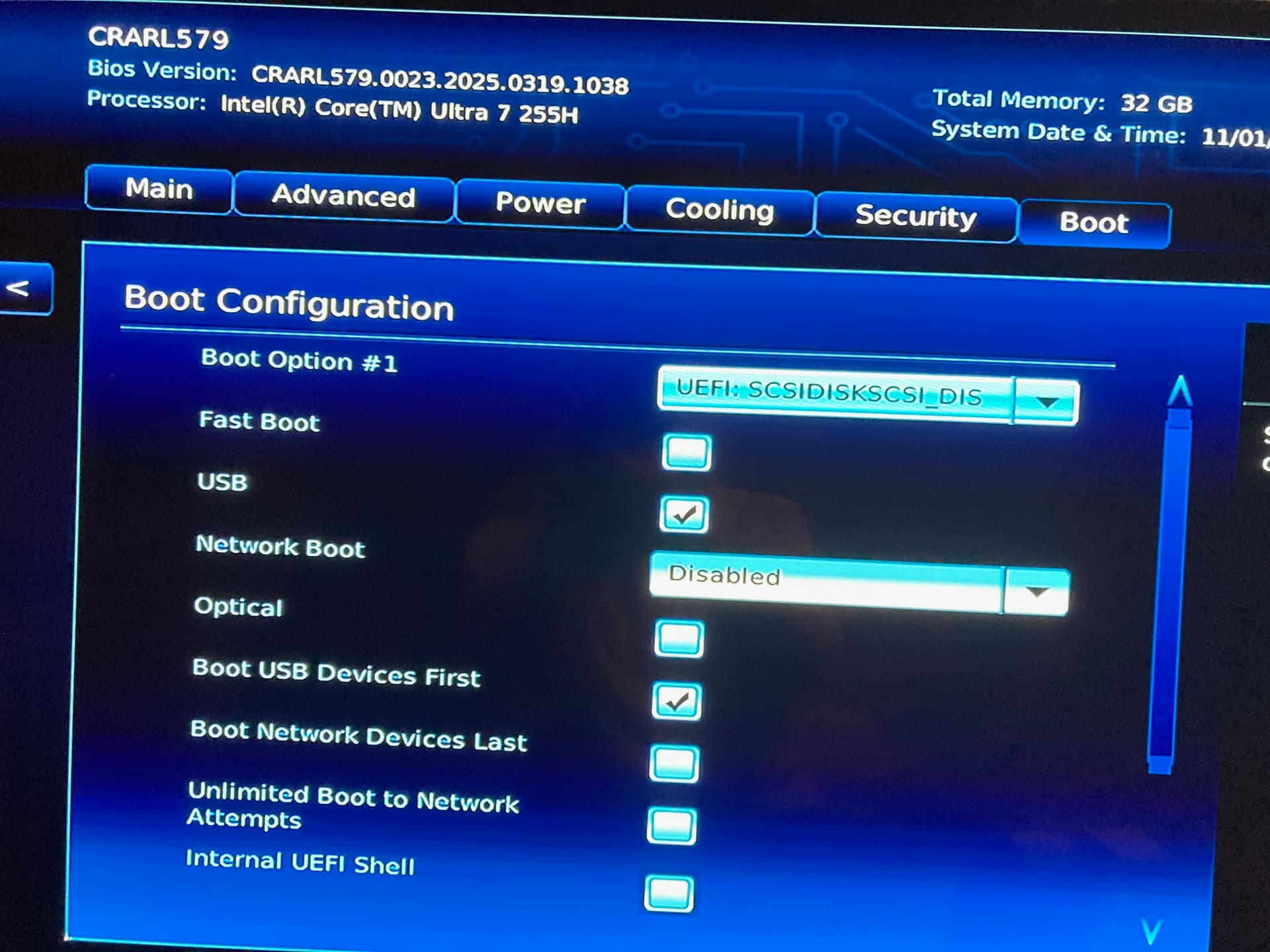
I believe your NUC is booting from USB, but the installation process isn’t starting because you first need to make some changes in the BIOS. Here is a list of steps that should work; let me know if you succeed.
BIOS Configuration for ROCK:
This step is crucial to allow the installation of non-certified operating systems.
Turn on the NUC and repeatedly press the indicated key to enter the BIOS (usually F2 or Delete/Del).
Navigate through the BIOS settings and modify the following parameters (the exact name may vary slightly depending on the NUC model and BIOS version):
Disable “Secure Boot”: Look for the “Secure Boot” option (often under “Security” or “Boot”) and set it to “Disabled”.
Enable “Legacy Boot” (if available): In some older BIOSes, it might be necessary to enable “Legacy Boot” or “CSM (Compatibility Support Module)”. In newer NUCs, this might not be required.
Configure the boot order: Ensure that the NUC can boot from USB. You might need to set the boot order to prioritize USB drives.
I think my problem starts with the image file and the USB. I have tried to use Rufus-4.11 but only option in Partition scheme is MBR.
Using Etcher I now get and error like the attached.
Are there alternative download sites?
I have downloaded a fresh version of Etcher and the ROCK file. The image file .img.gz file is 308.595 and the unpacked file .img is 409.600.
Using the Etcher tool then I get the error “ERROR OPENING SOURCE” - something went wrong while opening the file xxx" so something must be wrong the the source file ??
**Strange - I have tried to load the file from a NAS drive and from the c-drive. Same problem. Do you have the same file sizes as I have?
Can it be that some kind of security system block the access to write the imge to the usb key?