Hello Everyone,
With this new Early Access release of RoonOS 3.0 we’re excited to introduce a new way to enjoy Roon on the big screen: native HDMI display support for RoonOS devices. Connect your Nucleus or ROCK to a TV, and you’ll get a clean, living-room-ready Now Playing experience — album art, track info, and progress, right on screen. It’s the same great display zone experience you may already know from Chromecast and web browsers, now built right into RoonOS itself. We’ve also improved the troubleshooting mode for RoonOS to make it more straightforward and user-friendly.
IMPORTANT: You will need RoonServer running the latest Early Access build for the HDMI display zone to work correctly.
HDMI display for RoonOS
What is this feature?
When you connect a Nucleus One, Nucleus Titan, or ROCK on a supported Intel NUC to a TV via HDMI, Roon can turn that screen into a “Now Playing” display — showing album art, track info, and a progress bar, just like a Chromecast or web browser display zone.
How to access it
Connect your RoonOS device to a TV or display with an HDMI cable. RoonServer will detect it automatically and list it under Settings → Displays. The display zone automatically enables once Roon discovers it — no setup needed. It’s then ready to be assigned to an audio zone.
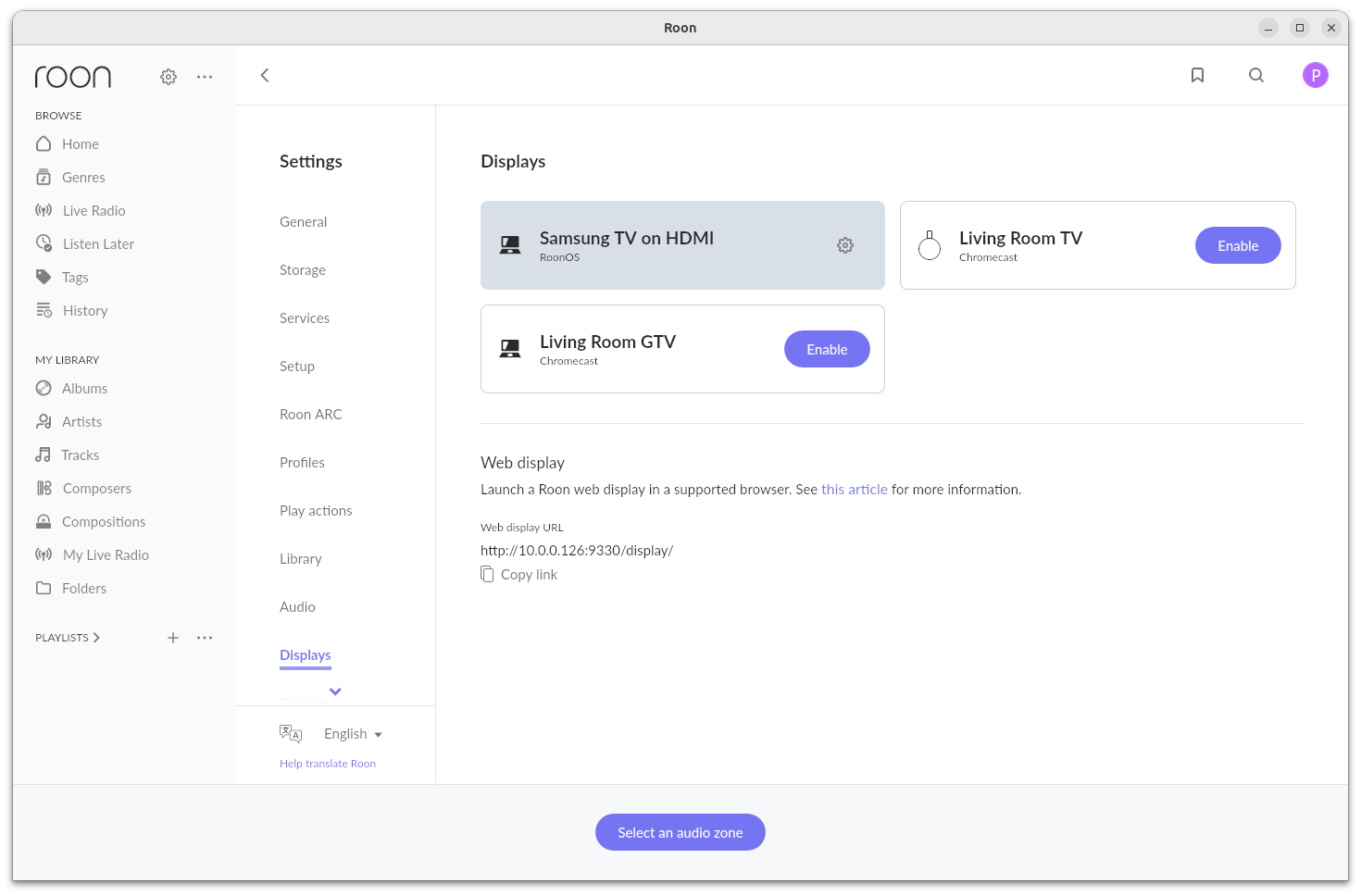
If you (or Roon) previously turned it off, you’ll need to re-enable it manually: go to Settings → Displays, find the entry, and toggle Enable on.
You can also link it directly to any other Zone from the Now Playing screen: tap the zone icon → the Displays icon → select the HDMI display if it’s active.
How does it work?
Once assigned to an audio zone, the display shows real-time updates — album art, track title/artist, and playback progress — as music plays. The screen shows an idle view when nothing’s playing, and returns to the full Now Playing view during playback. The audio zone and display zone are independent, so you can, for example, turn off the display while audio keeps playing (or vice versa). Your assignment is remembered and automatically restored after a network hiccup, Core restart, or device reboot.
WebUI redesign
In this release, we’ve also refined the WebUI experience. The designs were refreshed, and some new functionality has been added to the screen. For example, when an update for RoonOS is available, the Operating System block will display an alert and allow you to start the update.
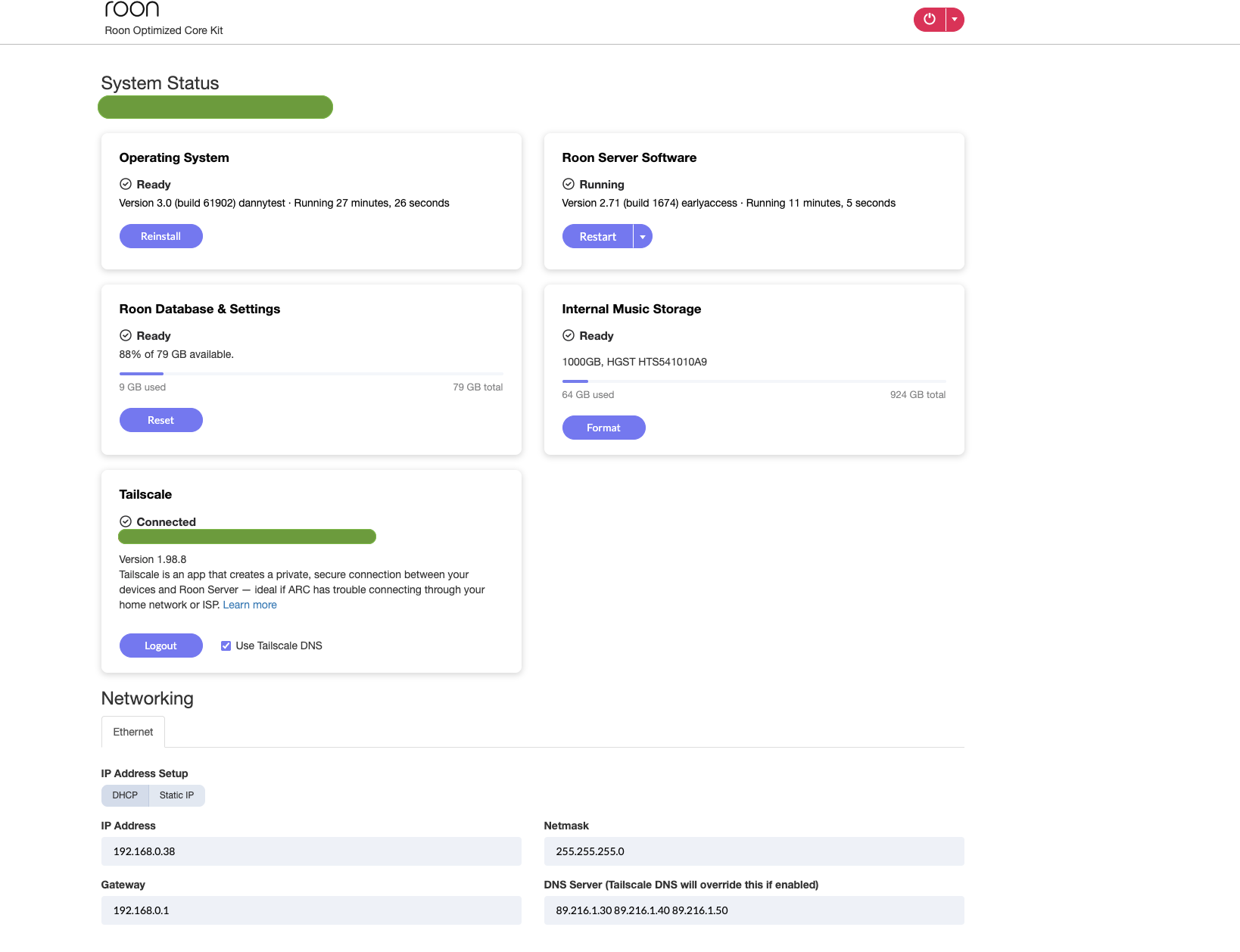
Along with that, we addressed a couple of issues with the USB Drives section, for example, when it failed to update after disconnecting a drive from a RoonOS device
Changelog
- HDMI Display feature for RoonOS, along with Troubleshooting screen updates
- WebUI redesign and fixes for existing problems
- Boot splash screen — starting up now shows a clean splash screen instead of technical boot text.
- Fixed a regression which caused Nucleus Titan Internal/Nucleus One Internal Storage to show at \ROCK\Data instead of \NUCLEUSONE\Data and \NUCLEUSTITAN\Data network names
- Fixed an issue where reinstalling could fail to fully release storage in use, which could interrupt the reinstall process.
- A potential fix for the issue which made it impossible to roll back to the production version of RoonOS on Nucleus Titan and Nucleus One
Installing RoonOS earlyaccess
- Download the instruction file for RoonOS
earlyaccess(do not modify the file or its name in any way) - Follow the steps in the Roon Help Center to copy the instruction file to your RoonOS device and initiate the update procedure.
Moving back to production
- Download the instruction file for RoonOS
production(do not modify the file or its name in any way) - Follow the steps in the Roon Help Center to copy the instruction file to your RoonOS device and initiate the update procedure.
If you run into anything unexpected, please let us know in this thread or open a support ticket. Your feedback during EA is exactly what shapes the final release.
Thank you for your support.
The Team at Roon Labs