Somewhat reviving this topic and providing some insights on an alternative path.
tl;dr
It is still frustrating that Roon does not support storing downloaded ARC media on external storage. This feels like a general oversight. However, if you are brave enough to go fairly deep (ADB, root, filesystem tricks), there is a workaround. I got this working reliably on a FiiO JM21 (Android 13). Your mileage may vary.
Background / what didn’t work
I tried all the commonly suggested approaches mentioned here and elsewhere:
- Enabling developer options and forcing apps to prefer external storage
- Reinstalling ARC so it defaults to installing on the SD card
- Moving the app between internal and external storage
None of these worked.
In particular:
- Reinstalling ARC to SD caused immediate crashes
- ARC clearly expects a very specific internal directory layout and filesystem behavior
- Moving the app or parts of its data breaks relative paths and assumptions inside the app
In short: ARC is not designed to live on removable storage, and Android’s “move to SD” mechanisms are not sufficient.
The key insight
Roon ARC does not actually care where its media lives.
What it does care about is:
- The exact internal path it expects
- A proper Linux filesystem with POSIX semantics
- Correct permissions and SELinux labels
This is why exFAT, MediaStore, SAF, and simple bind-mounts all fail. ARC relies on behaviors that only something like ext4 provides.
What finally worked (high level)
This is the ugly part.
1. Root access (mandatory)
There is no way around this.
- Bootloader unlocked
- KernelSU installed
- Verified full root access
Without real root, this problem is unsolvable.
2. Identify ARC’s actual download directory
ARC stores downloaded media here: /data/user/0/com.roon.onthego/app_flutter/media
Not in files/, not in cache/, and not via MediaStore.
3. Create a real Linux filesystem on the SD card
Instead of writing directly to exFAT, I:
- Created an ext4 filesystem inside a loopback image
- Stored that image file on the SD card
- Mounted it with
loopandseclabeloptions
This is critical:
- ext4 behaves exactly like internal storage
- No FUSE
- No MediaProvider
- Full POSIX guarantees (atomic rename, fsync, file locks, etc.)
4. Bind-mount that filesystem into ARC’s private directory
The ext4 filesystem is then bind-mounted to: /data/user/0/com.roon.onthego/app_flutter/media
From ARC’s point of view:
- Same path
- Same permissions
- Same filesystem behavior
From reality:
- All downloaded media lives on the SD card
ARC is completely unaware of the trick.
5. Fix permissions and SELinux (non-negotiable)
This was the make-or-break step.
- Ownership set to ARC’s app UID
- Permissions set to
700 - SELinux context matched to the original directory (
app_data_file)
Once this matched exactly, ARC stopped crashing and downloads worked immediately.
6. Make it persistent across reboots
Finally:
- A boot-time script mounts the ext4 image
- Applies ownership and SELinux context
- Re-binds it into ARC’s directory
This survives:
- Reboots
- App restarts
- OTA updates (the image lives on the SD card)
Final result
- ARC downloads work normally
- Media is stored on the SD card
- No crashes
- No MediaStore limitations
- No performance issues
- ARC behaves as if it were using internal storage
Effectively: transparent external storage expansion for Roon ARC.
Reality check
This solution is:
- Ugly
- Fragile if you don’t know what you’re doing
- Completely unsupported by Roon
- Requires root and comfort with low-level Android/Linux tooling
But after exhausting every “normal” option, this was the only approach that worked reliably.
If there’s interest, I can:
- Post a full step-by-step guide
- Share the boot script
- Explain how to resize the storage image later
Just wanted to share the findings first, in case it helps others hitting the same wall.

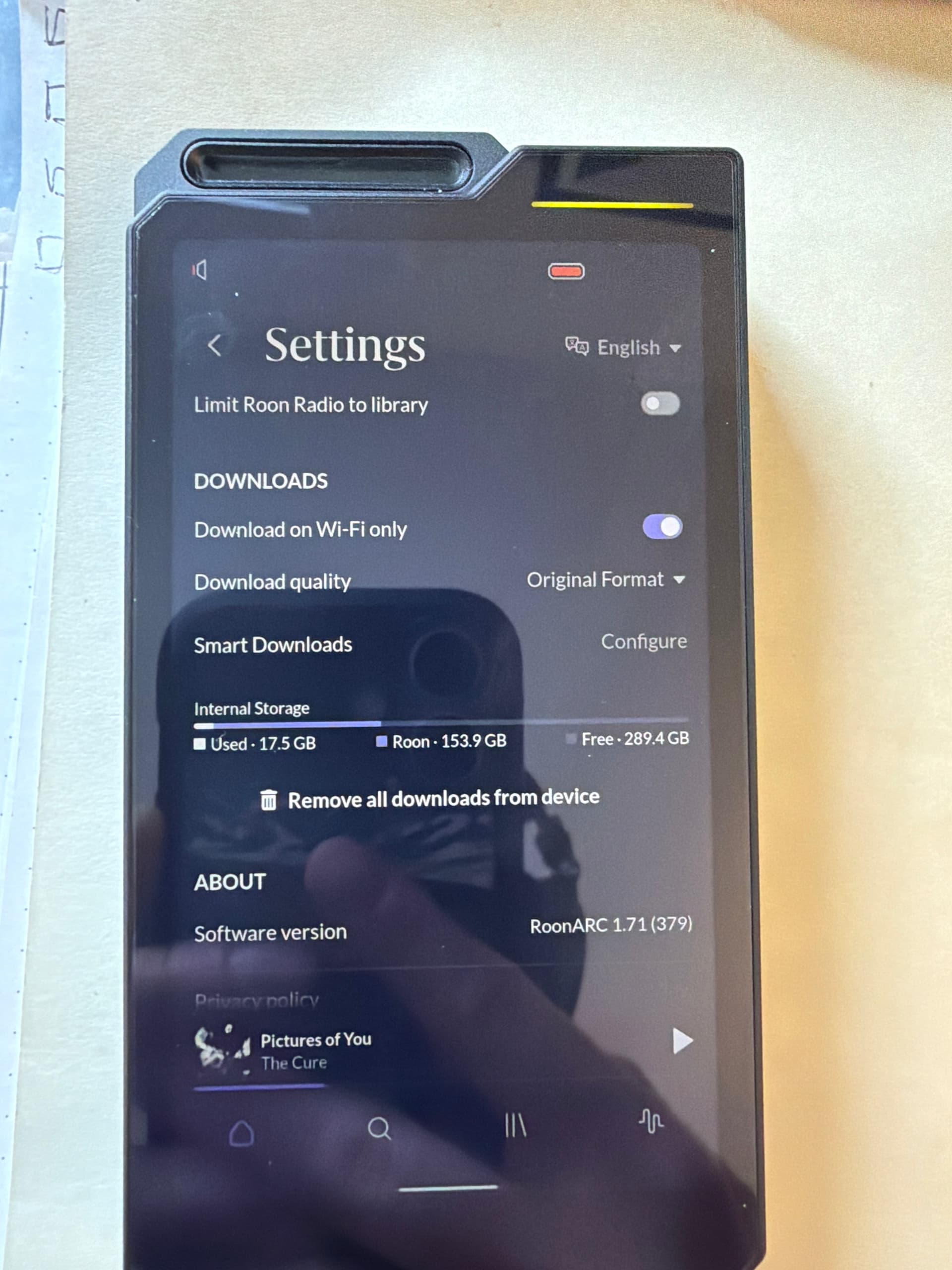
 I’m happy it worked on your device. I did try that approach mentioned in the other post, but had no success.
