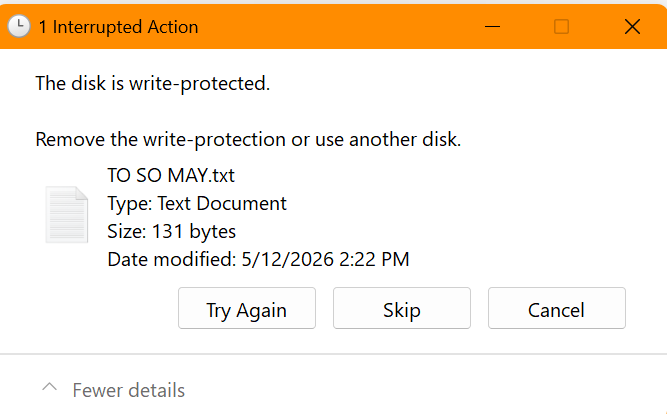
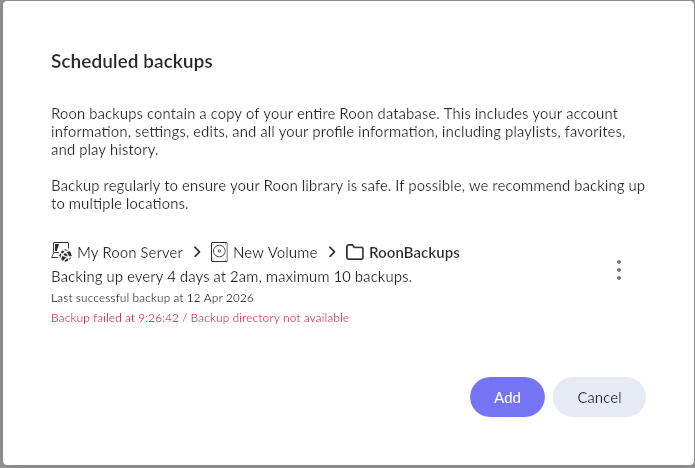
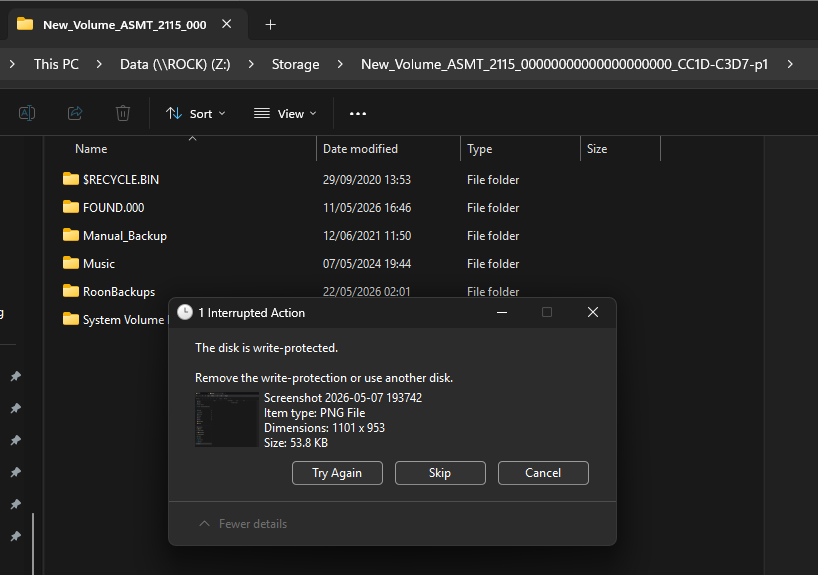
The latest update fixed the original issue, however, there is a new one. My USB drive is seen and the storage locations are active again. However, ROCK is reporting the drive is Write Protected, which it is not.
The drive is formatted exFAT. When moved to a Windows PC, the drive is fully write-able and new folders can be created.
Attempting to create a new folder on the USB drive while attached to the ROCK NUC results in failure as well (assuming it is the same issue, write is not enabled).
Thanks for the information. With this release, when an exfat drive is inserted, If the drive reports errors or doesn’t report clean within 90 sec it mounts it read-only. I’m assuming yours doesn’t finish the check within 90s. We’ll discuss moving the needle towards just mounting it but still having the fsck option in the web ui available. If critical errors are encountered during use though, switching to read-only.
This should be reported to the user so they are aware (on the RoonOS Web Admin screen?), and take remedial action. It would also be good to prompt the user to try running the new fsck action.
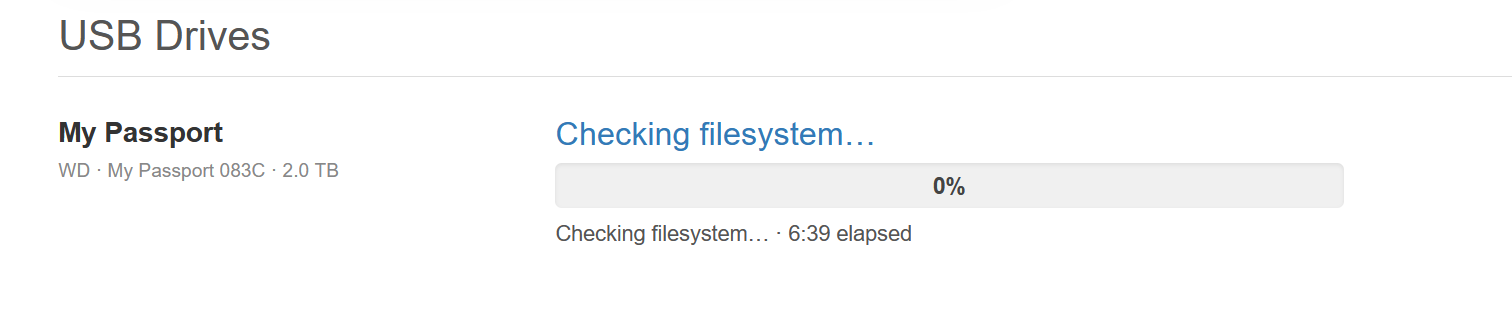
I didn’t grok the new USB display settings the first time I looked at the new Web Management page (which is great btw). It showed the drive with the timeout error. So, I clicked the Try Again button and got this..
After that, I could copy and create folders on the USB drive.
I think that the initial 90s timeout is too low for users who have big drives and might take for the initial drive check, even if only for the first time. And, some documentation about this so that users know to use the “Try Again” button.
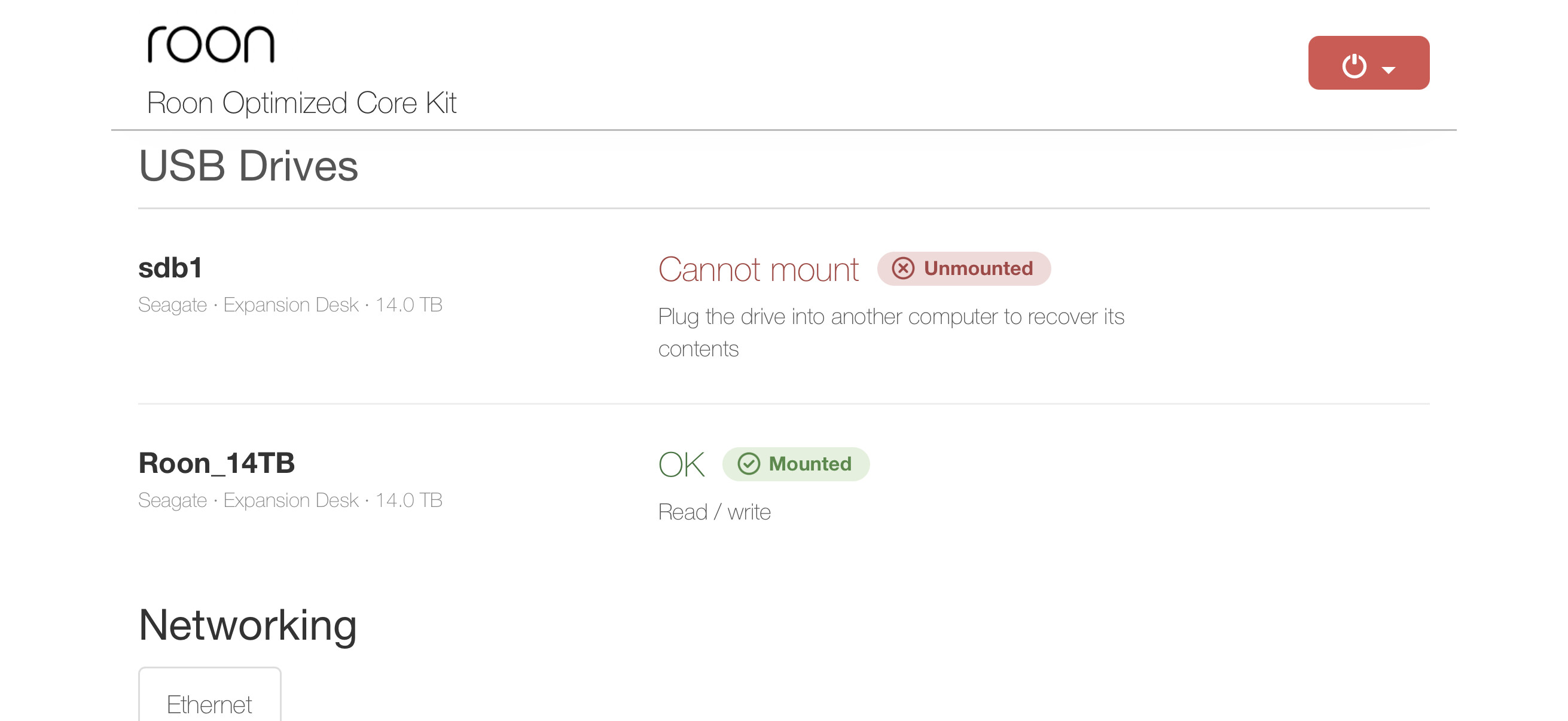
Also, my NUC used to have a Wifi option as well as ethernet under the Networking section and I would really like that back.
I had the same experience with the internal SSD in my ROCK/NUC - the checking filesystem froze at 3.12 elapsed for a number of minutes before I got the “Mounted” signal - even when I tried refreshing the web browser several times during that time.
I have a 14TB ext4 HDD USB3.0 attached to the ROCK NUC. I didn’t see any issues on first load when I updated today. I’ll keep an eye on the next reboots.
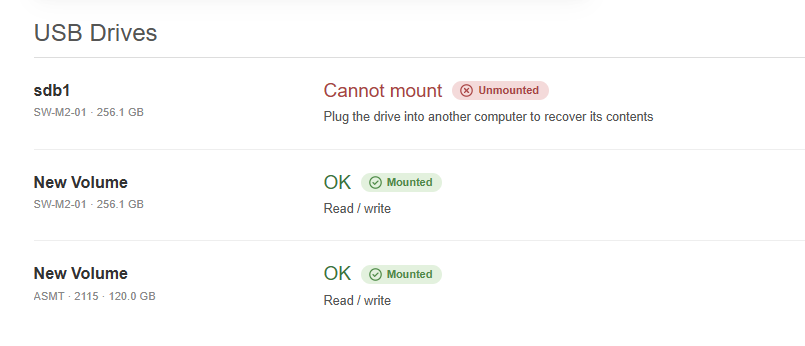
That “unmounted” entry is actually a small partition on the SW-M2-01 disc (an m.2 256GB SSD in a USB external housing). The SSD was originally used in a Windows PC and Windows created several partitions on it. I’ve been unable to get rid of this one partition, so it shows up like this in RoonOS.
The main differences are the tools available to test for and fix issues and somewhat the architecture of the file system itself, like does it support journaling where interrupted writes can’t corrupt a disk.
The Linux NTFS tools are still too unsafe to run in every situation. We looked into other options but didn’t solve the problem. Perhaps the new work being done in the Linux kernel for NTFS will improve the tools as well. This one is falls into the “there was a critical problem, mounting read-only, please fix on a windows computer” bucket.
exFAT and FAT16/32 use simple structures to store the meta data about the disk, files, and directories. So it isn’t resilient but can repair easily from interrupted writes. We’ll add the FAT tools support to be on par with exFAT.
HFS+ is on par with NTFS. It is only mostly documented which leaves it as a best effort implementation and too unsafe to run in every situation.
Good feedback. At a minimum we’ll switch it to a in-progress / indeterminate progress bar and test the feedback available for the different file systems.