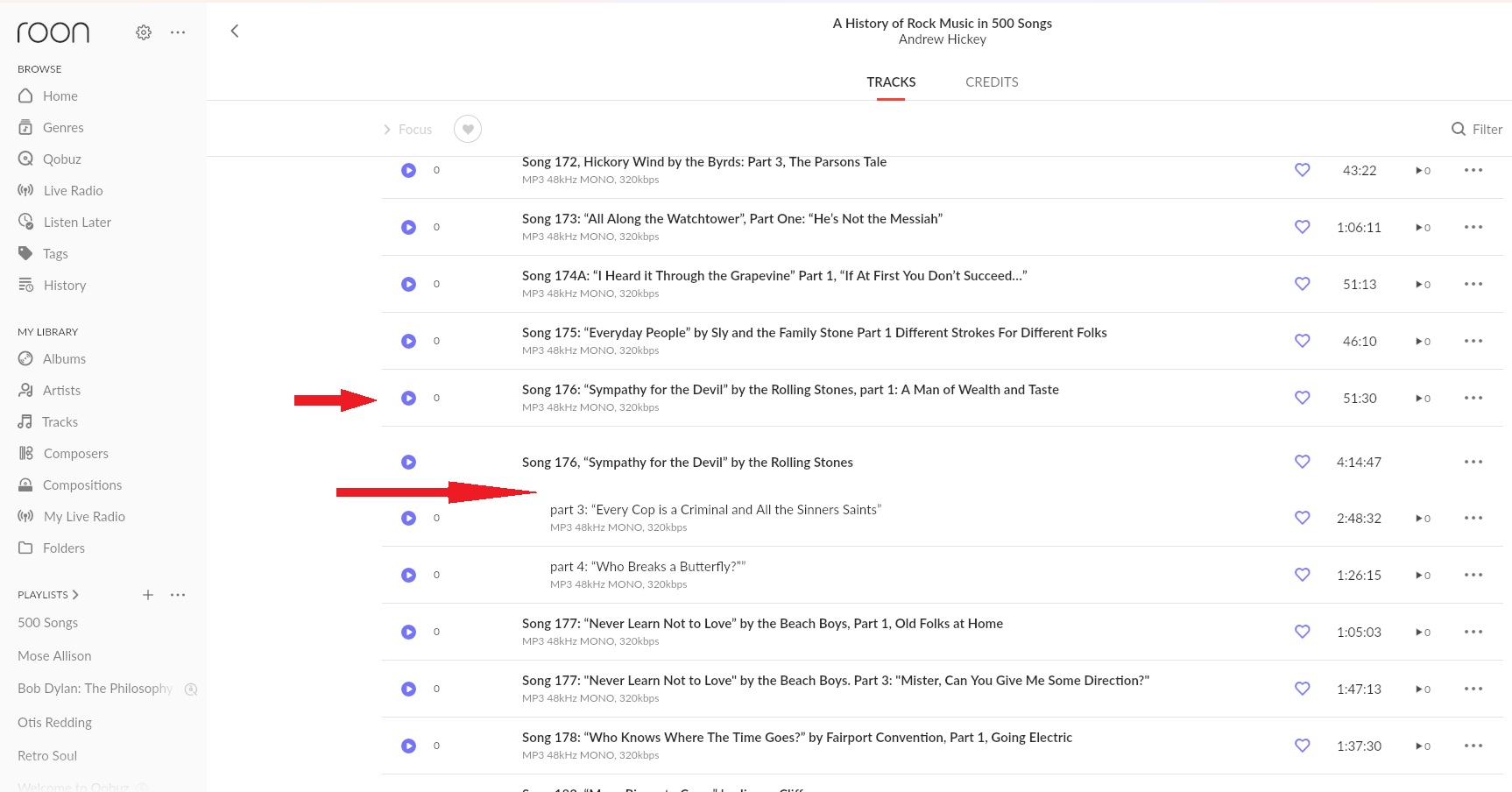
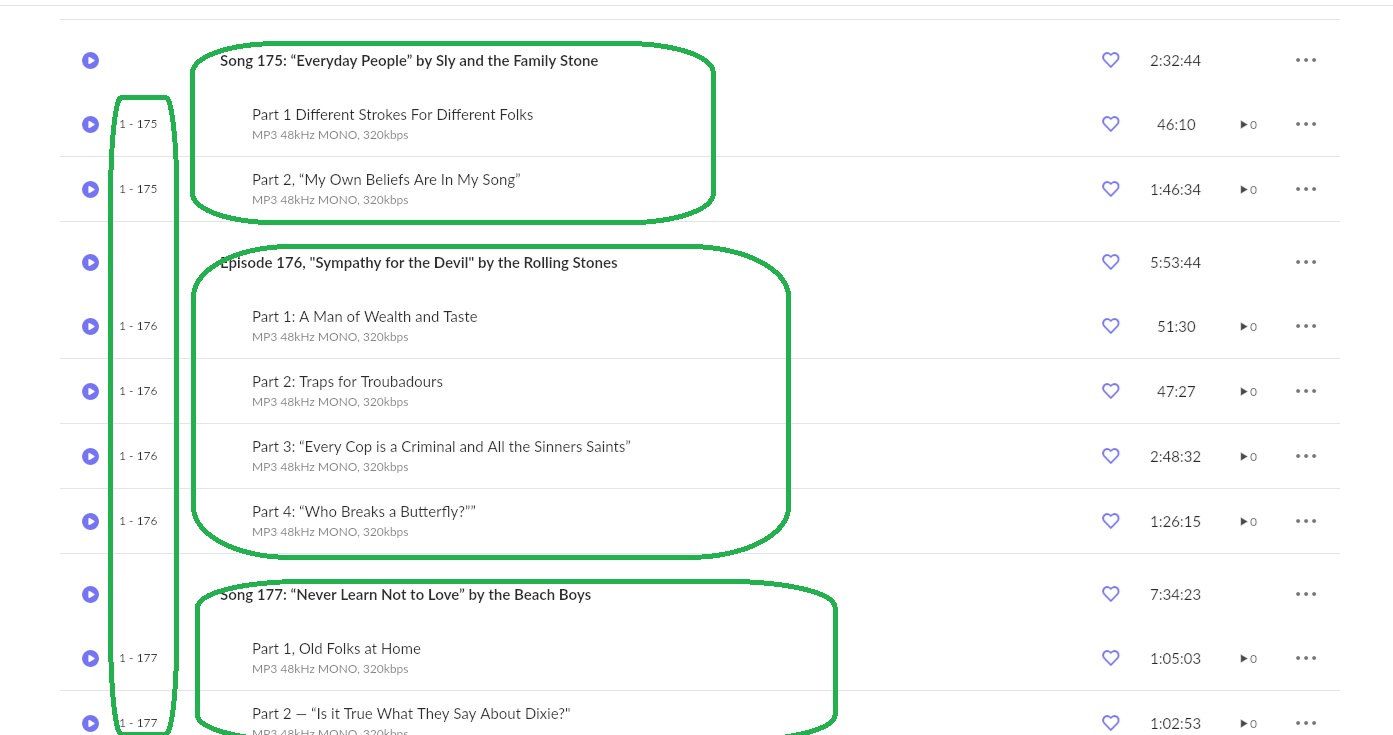
I’m hooked on Andrew Hickey’s wonderful podcast A History of Rock and Roll in 500 Songs. Unfortunately, when I import files into Roon the organization of files is less than consistent. Here’s a screenshot of the problem:
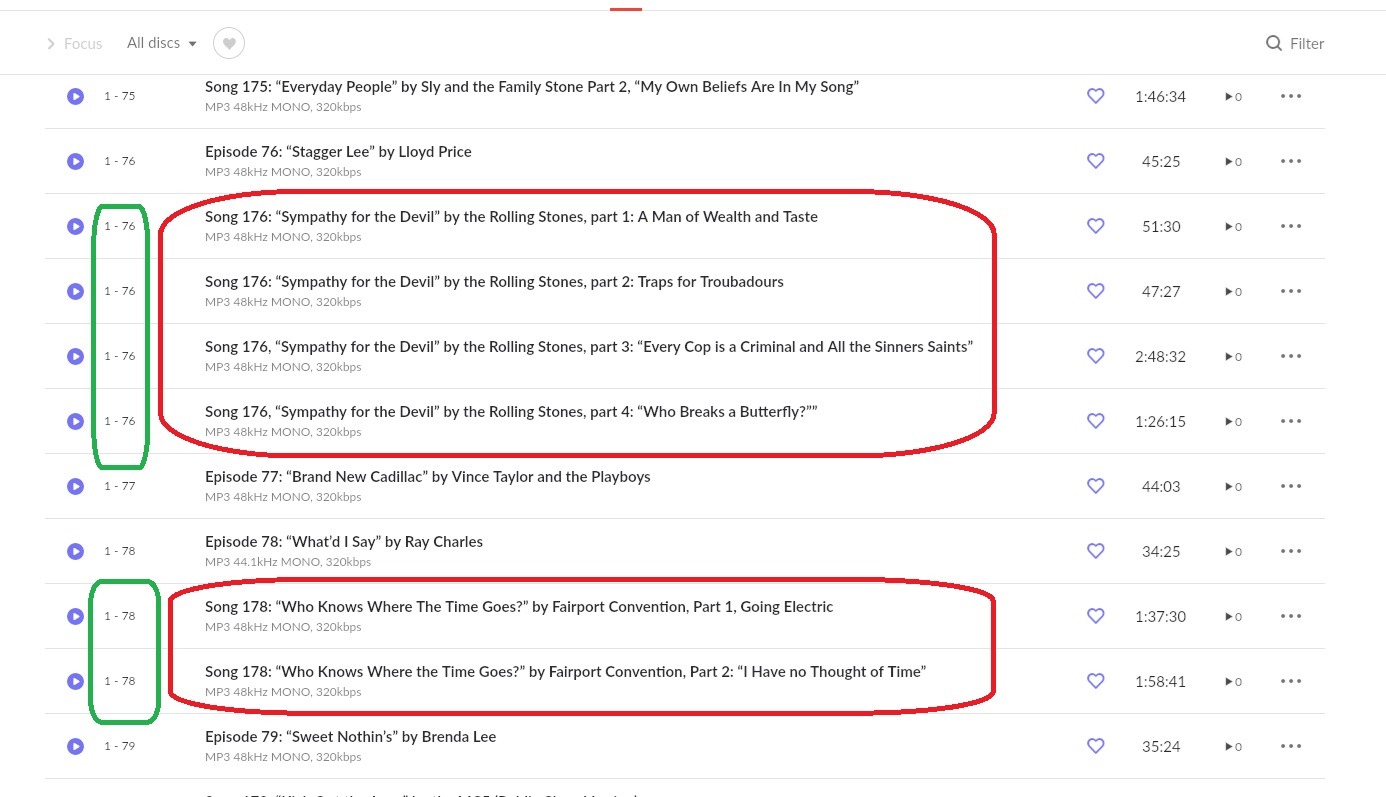
As you see, “Sympathy for the Devil” has 4 parts. Parts 3 and 4 were imported the way I’d like to have them organized, as sub-sections. But you’ll see Part 1 above it, separated from the others. Part 2 is also separated, listed singly off the screen
This happens with other files, as you’ll see with the other parts of songs listed on the screenshot. I’ve looked at the underlying file data and can’t see what to toggle on or off to make the files line up correctly.
Anyone know how I can code the file data to make the files line up under their major titles?
That seems to be exactly what I want to do, except the reference doesn’t explain how to do it. “Tags” -at least the way I have been using it - the tag looking like a price tag - doesn’t give me options for Part or Work.
Where are these options available in Roon and are the “tags” mentioned different from Tags as in the price tag icon?
Ok - referencing the original screenshot in this thread "the Rolling Stones “Sympathy for the Devil Part 1”.
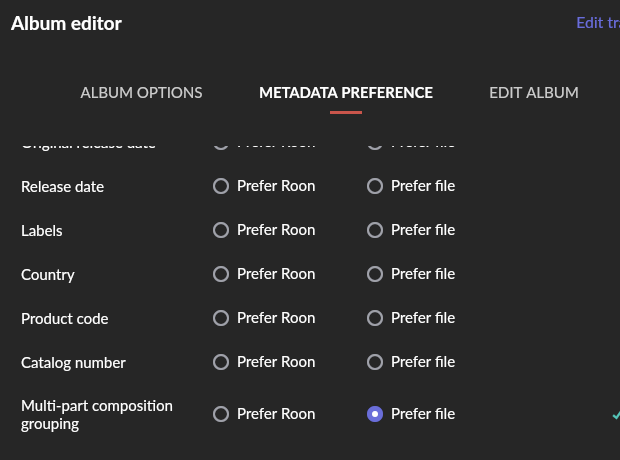
I used dBPowerAMP to put in the file tags “Work” and “Part” where Work = “Sympathy for the Devil” and Part = “Part 1: A Man of Wealth and Taste”. I followed the referenced Roon file tag instructions and used metadata preference to instruct Roon to import the entire album “History of Rock and Roll in 500 Songs” using multipart composition grouping “Prefer File”. I did the same for the other parts of the song, using their part numbers 1-4.
Then I Rescanned the album to look for file changes. Result - nothing. No change.
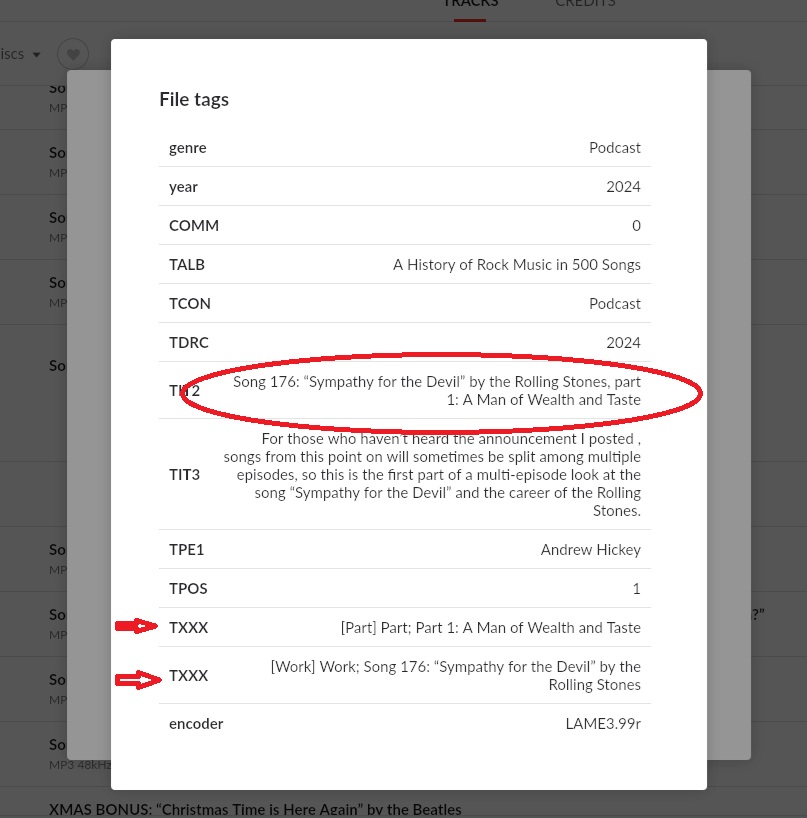
I checked the file data in Roon to see whether the file tags for Work and Part were there, shown below.
As you see, the file tags Work and Part have both been added to the file and are seen by Roon, but for some reason Roon isn’t showing the data that way.
In order to separate the files whose topics are songs from the “Bonus” podcasts, I decided to try to just separate them as though they were on separate discs - Songs on Disc 1, Bonuses on Disc 2.
I used dBPowerAmp to create the file tag “DISCNUMBER”, which is one of the Roon-recognized file tags for all the files. Then I bulk tagged all the songs as DISCNUMBER = 1 and all the bonus files as DISCNUMBER = 2. Then had Roon re-scan the entire album “500 Songs”.
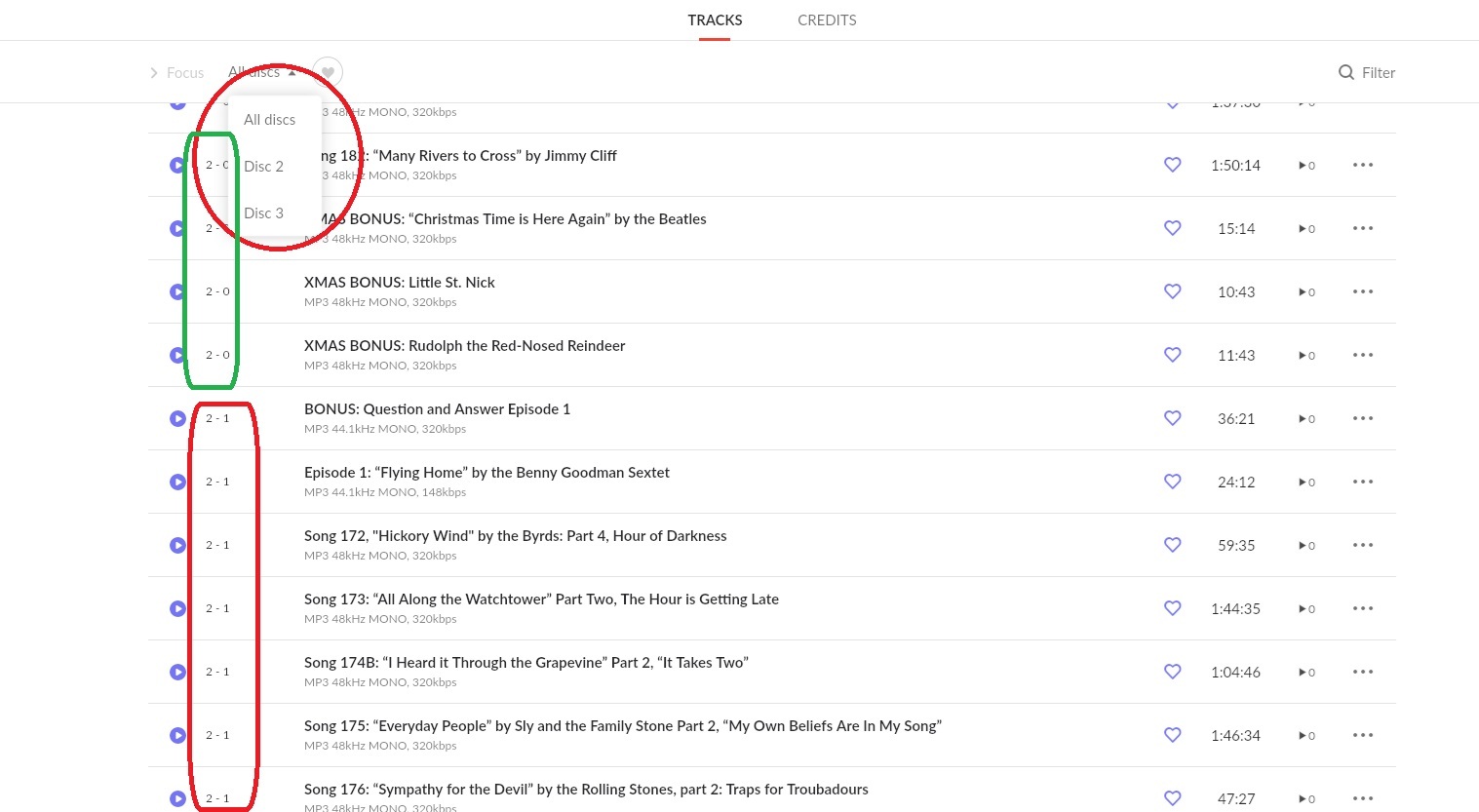
When it was finished, I rebooted. Here’s what it showed:
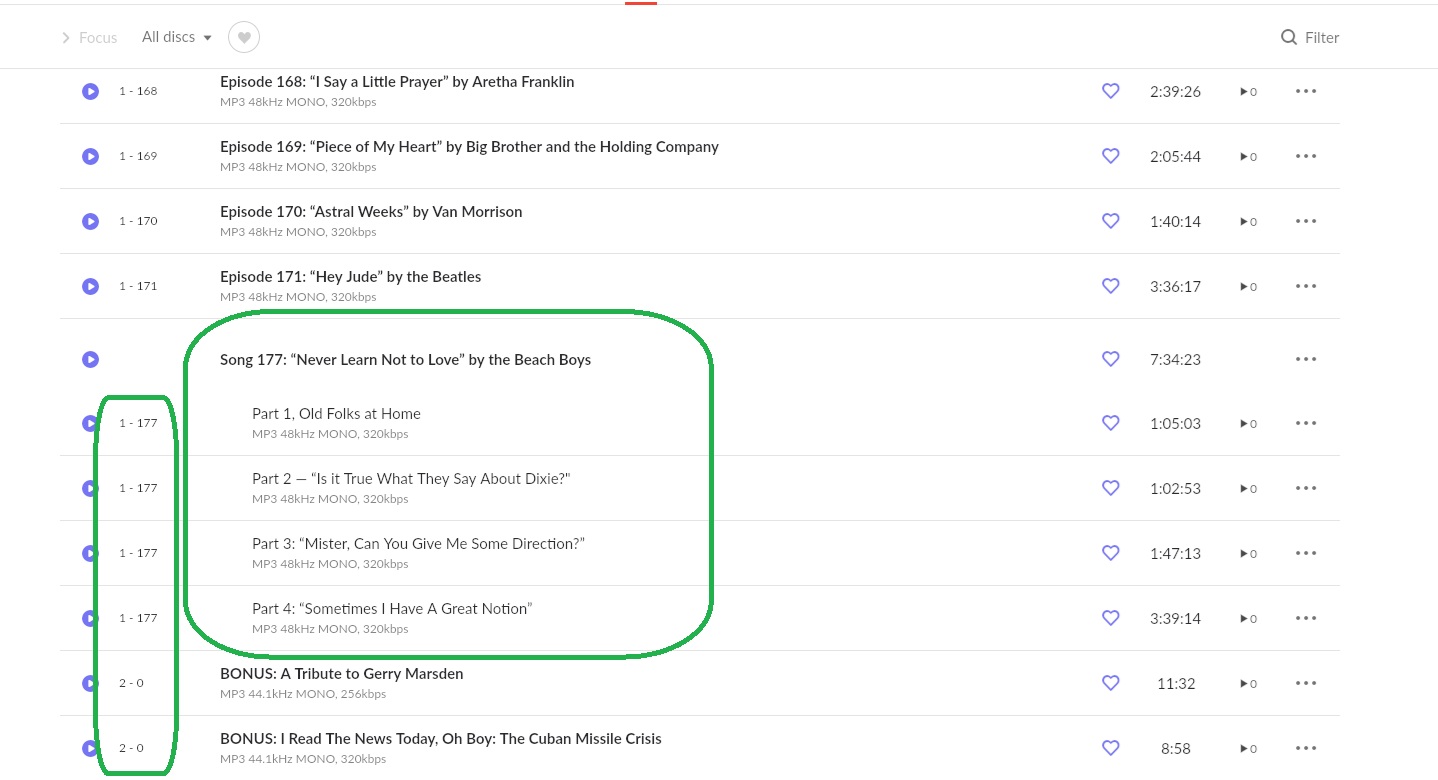
There is no Disc 1, only Disc 2 and 3. And you will see the bonus files are numbered 2-0 (green), all the song files are labeled 2-1. I have no idea where the “2” comes from.
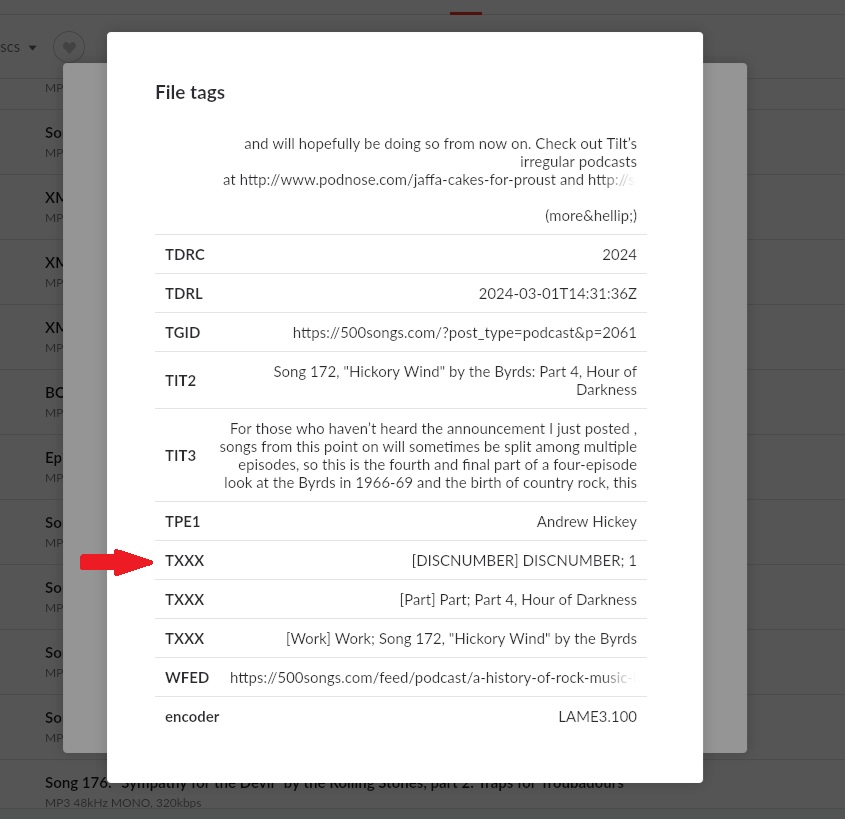
When I go to the underlying file tags in Roon, this is what it shows:
I think Work and Part only applies to classical works, try adding Genre = Classical to the collected album , see if it fools it. Some parts of the Focus tool only work if here is a Classical Tag
Basically Roon doesn’t do what you want so you have to play tricky
If all else fails , move the album folder to somewhere safe and do a Library Cleanup then return the folder to the main watched folder. If you don’t do that cleanup it will retain the old metadata even if you have overwritten parts
I reclassified the entire album as “Classical”, then removed the folder from the Roon library to a safe place. Cleaned up the Roon library, which showed the same number of files that had been removed.
Just to make sure the library index was clean, I rebooted Roon 2x. I then made sure “Import options” were multi-part = “prefer file” and further turned off both background and scan on demand to make sure the files imported completely before being scanned.
Once all that was set, I copy and pasted the album folder back into Roon. Once the files had finished copying, I turned on background scan and scan on demand and waited for the scan to finish.
Results are mixed. All the disc numbers are now correct, and some but not all of the files are showing the Work/Part trick working, as shown below.
The only difference I can find is in the second shot. In the track numbers, Roon seems to have not recognized the one hundreds, ie it is 176 not 76 and 178, not 78. The underlying file tags are correctly numbered. I thought perhaps Roon didn’t like track tag numbers over 100 or so, but this seems an inconsistency as there are many others over 100 that appear correctly.
So thanks for the Classical suggestion, but I’m still plugging away. Isn’t database cleanup fun? I remember chasing down misplaced files in iTunes whose problem was an invisible terminal space on the end of a name.
The track numbering problem appears to stem from some files not having track numbers in the track number metadata tag. Once I filled in the correct track numbers they fell into order.
The mystery of why some files used the Work/Part fields and others did not came down to exact data entry for the tag WORK. Each field has to have exactly the same names, not just letters but commas and semicolons, quotation marks, etc, or they won’t match up.
The easiest way to do this is to bulk change the files at the file level. For example, I selected all four of the Episode 176, “Sympathy for the Devil” by the Rolling Stones files at the file level and typed that into the WORK field. When I hit OK, the files came into Roon with the Parts organized.
Classical may not be a requirement, but there is certainly something going on with it. If you turn it on and off as a genre the WORK tag seems to come into play, but not always.
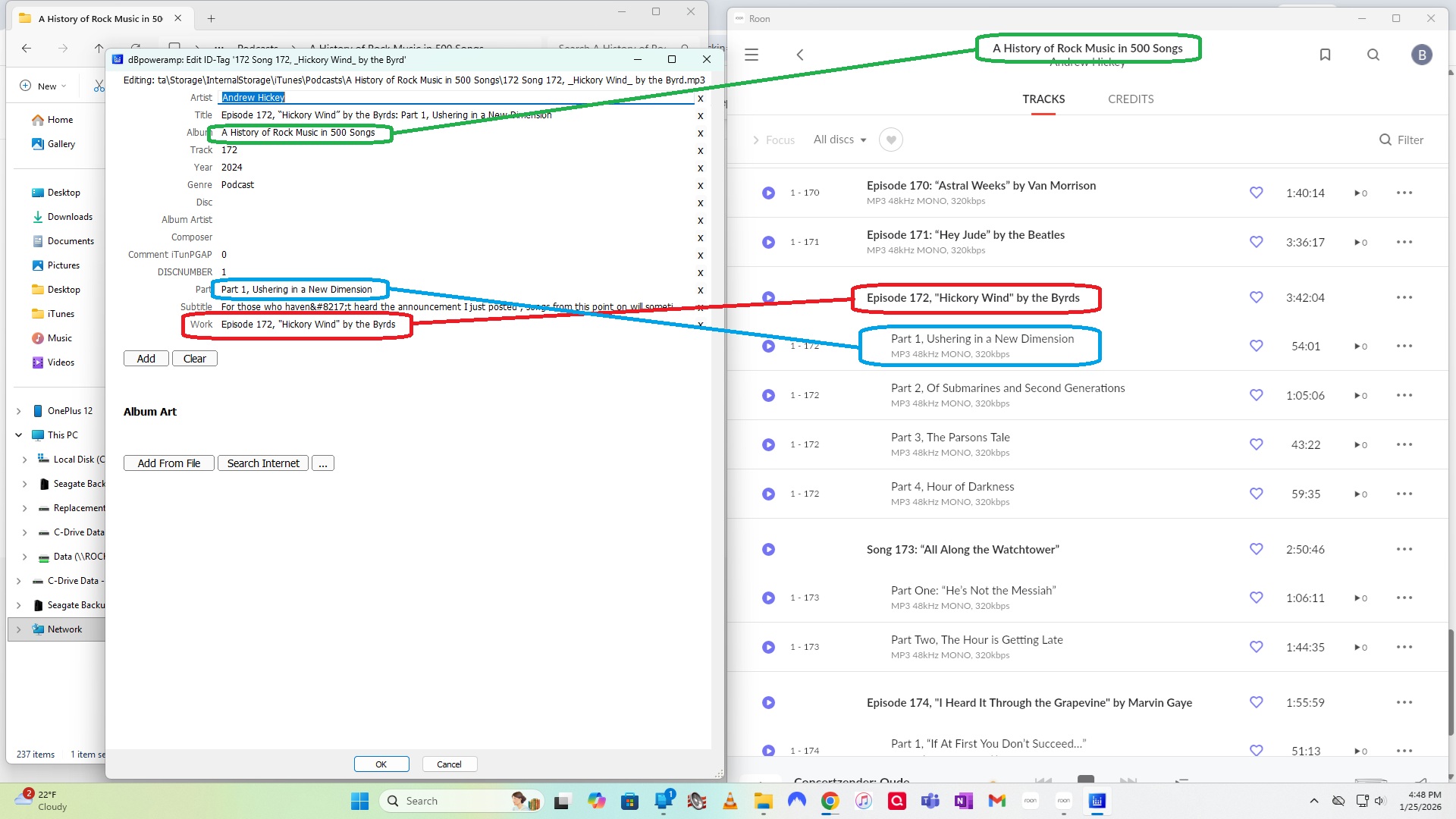
Here’s another inconsistency. Going back to the original problem with the podcast, you will see below I have mapped the ALBUM = A History of Rock Music in 500 Songs, WORK = Episode 172, “Hickory Wind” by the Byrds, and PART = Part 1, Ushering in a New Dimension. Works perfectly.
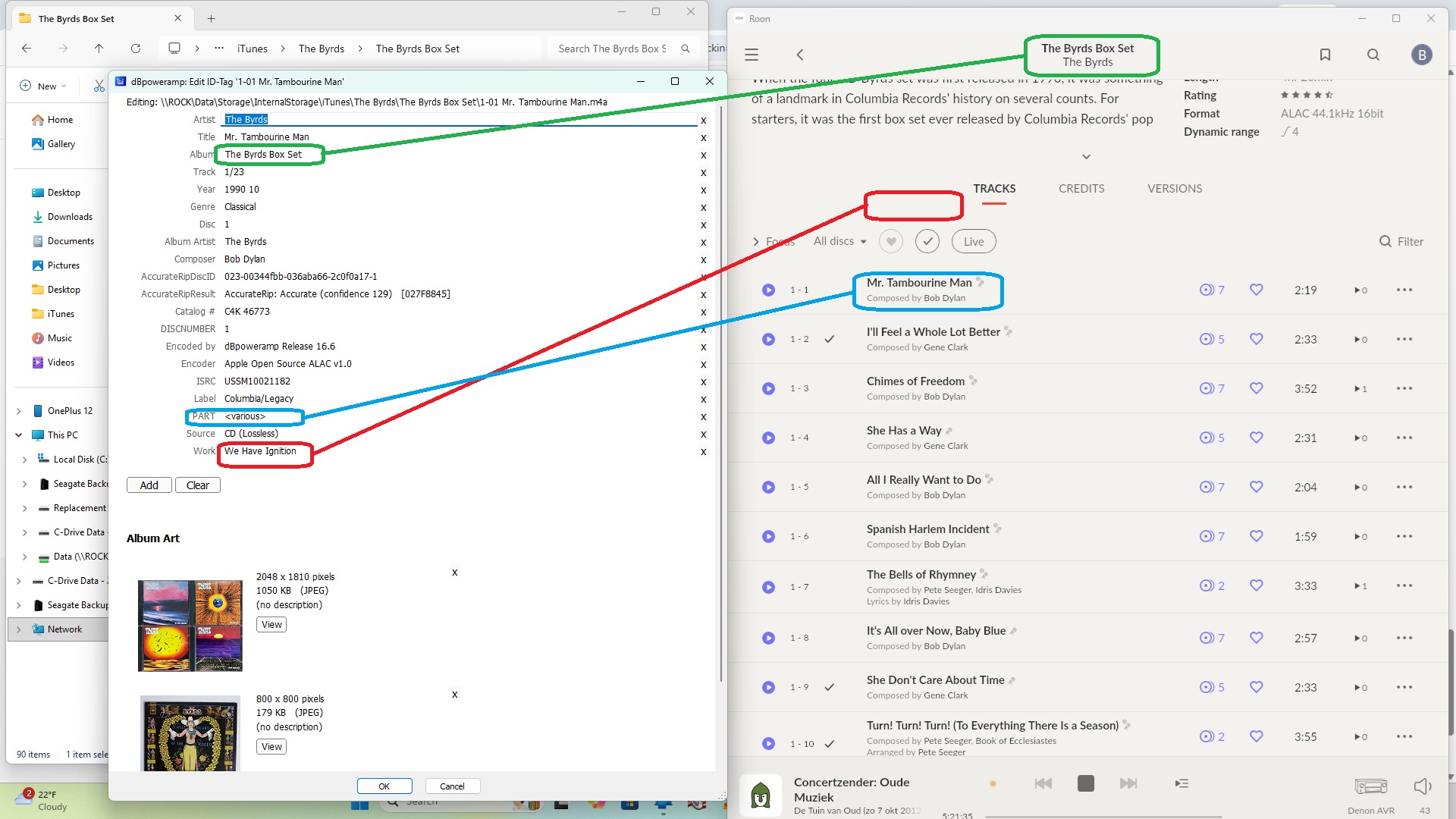
But here I tried to use the same trick for the ever-continuing problem of a box set. In this case I’m using the 4-CD box set of the Byrds released in 1990. Each disc had a unique title, 1 was “We Have Ignition”, 2 was “Cruising Altitude”, 3 was "Full Throttle, and 4 was “Final Approach”.
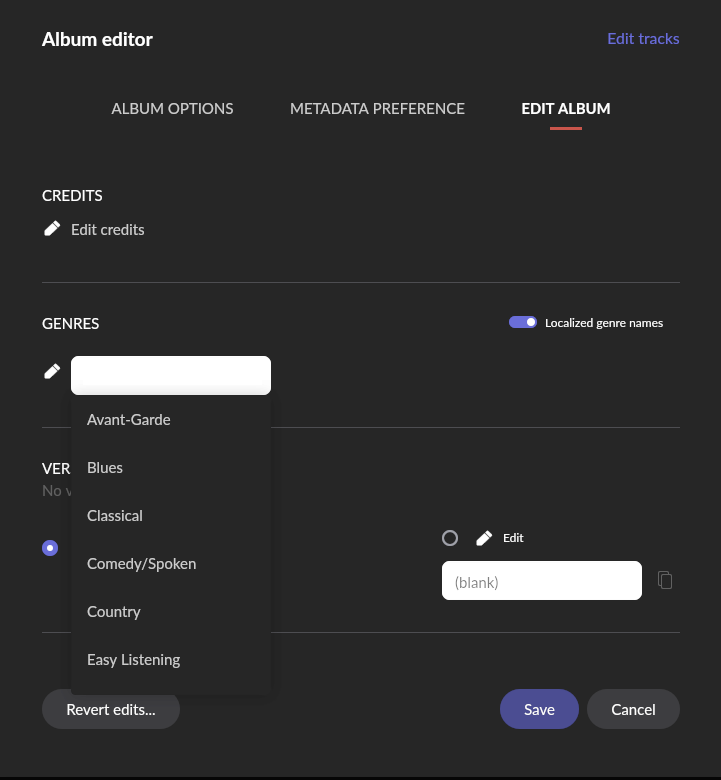
Using the same structural logic as on the podcast, ALBUM = The Byrds Box Set, Work = We Have Ignition (for disc one), and Part = for the tracks. However, when you do that you get what’s below. Work does not map at all.
When I go to the Album Editor → Metadata Preference → Multi-part Composition Grouping then select FILE, when I try to save, Roon won’t save it with FILE selected.
What is different in the podcast data and the album data? It’s all just files and labels. I have both set to GENRE = Classical, just to make them identical.
And as some folks may know, the south and east of the US has been bombed by a very cold snow and ice storm. Perhaps the only reason I have the patience and doggedness to keep at this task.
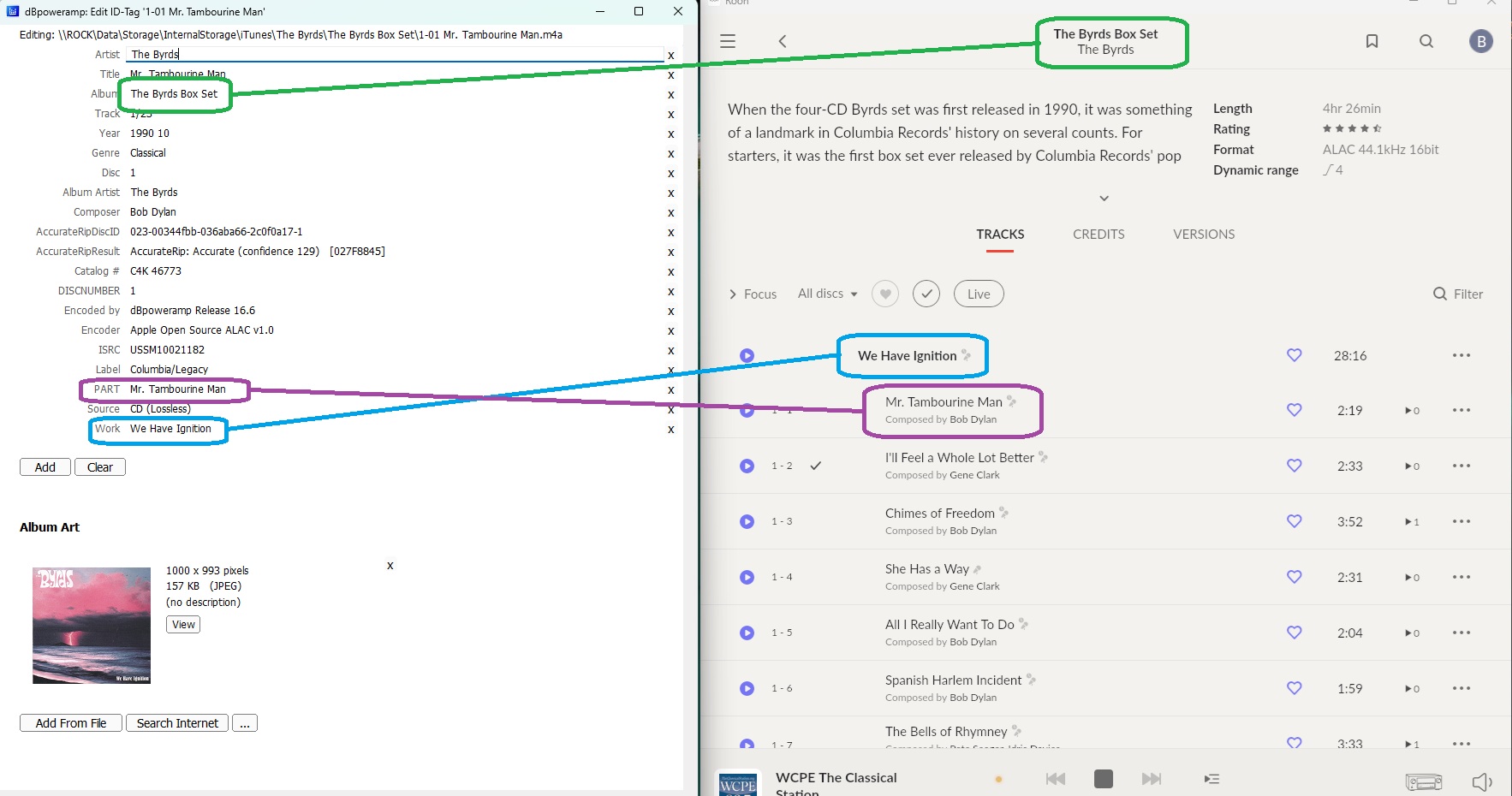
The Byrds Box Set fell into line when I finally realized that I would have to enter each song as a part. There is no way I could find to automate the process, at least using dbPowerAmp as the file program.
But as you will see, using ALBUM = The Byrds Box Set, WORK = We Have Ignition, and PART = (the song track, typed in) gives the results I was looking for.
Looks like you’ve figured it out, @robert_vanarsdall. As @DDPS stated above, the Classical genre is not necessary. I’ve used this methodology to tags sections for dozens if not hundreds on non-classical box sets and deluxe/anniversary editions over the years. It’s quite handy.
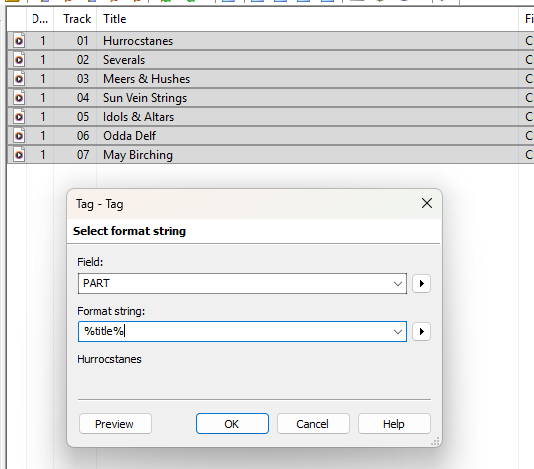
Are you sure dbPoweramp does not have an individual track editor that runs on multiple tracks at a time? I use mp3Tag, and there is a tag -tag interface that let’s me batch set the Part attribute for each file based on another attribute (title in this case) for every track I have selected. I would imagine dbPoweramp has the same functionality