Problem establishing connection between Roon server on Synology NAS and client app on Mac after Update v2.6 build 1629

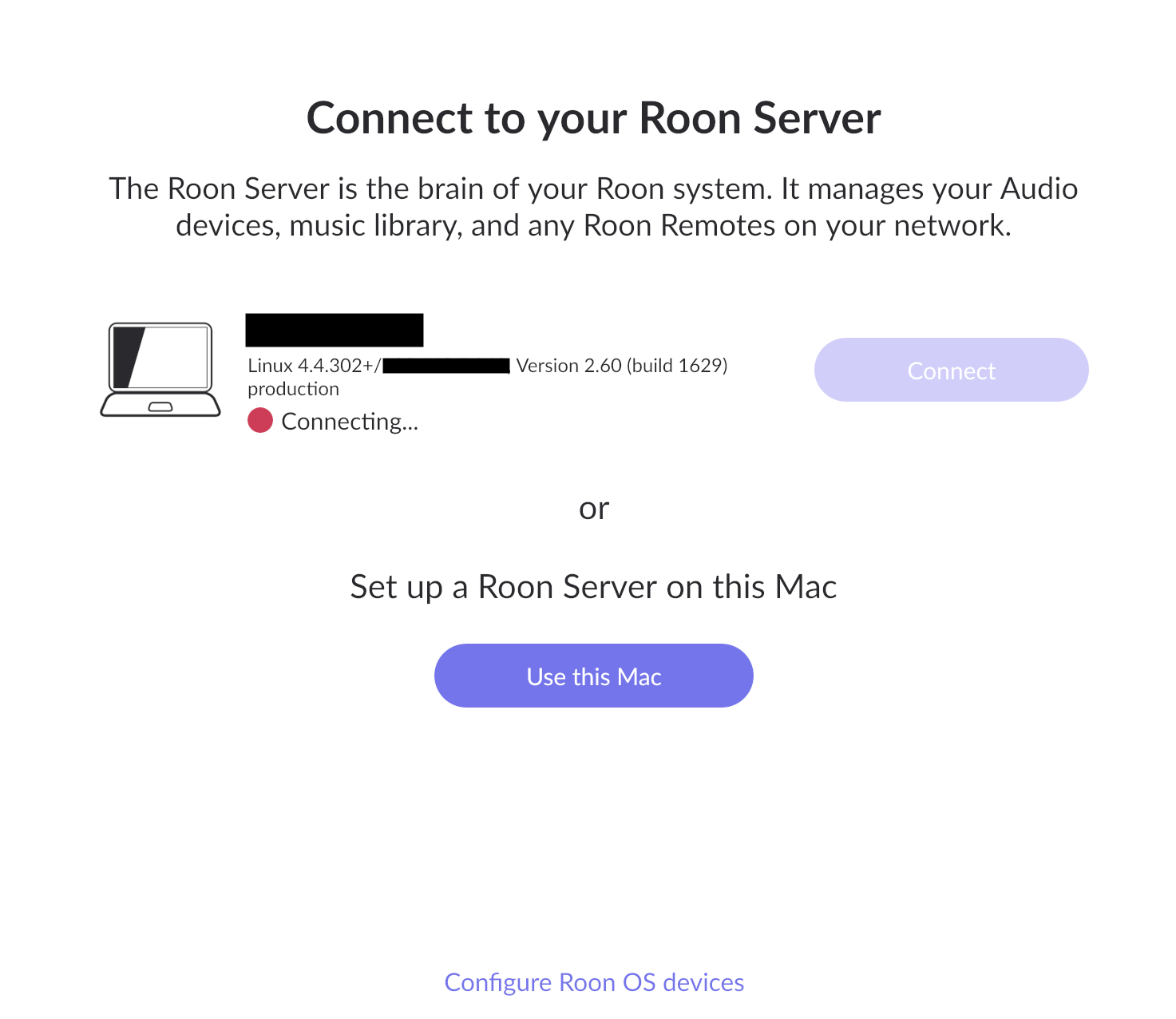
Cannot connect to Roon Server running on Synology DS NAS (linux 4.4.302+) from the Roon client app running on a Mac Studio after recent update. The whole setup worked fine until 2/14/2026. Reinstalled and restarted the server. It works fine with the roon app on my iPhone, as well as on my other Mac (MBP14”) but not with my desktop MacStudio (OS Tahoe 26.2). It was working fine until this afternoon. When I start the client app on the MacStudio, it opens up a window titled “Connect to your Roon Server” which lists the server running on the NAS, but with a red button with a text saying “Connecting…”. The Connect button next to it is grayed out and nothing happens. I cannot open any other windows on the Roon client on the Mac side.

As the Roon server works just fine with the clients on both my iphone and MBP14, I suspect the issue is specifically between the NAS and MacStudio, more specifically, establishing a server-client connection between them.

I restarted NAS, MacStudio, reinstalled both the server and client apps. No luck. As I cannot access the Roon’s Settings panel on the Mac side, I can do little to reset anything. Is there an easy way to get out of this bind?

Your symptoms indicate a client-side macOS issue rather than a Synology or Roon Core failure.
With the issue appearing immediately after a macOS update, this points to a macOS permission or networking layer restriction.

  1. Most likely cause: macOS “Local Network” permission reset

macOS updates can silently revoke Local Network access for applications.
• Open System Settings → Privacy & Security → Local Network.
• Locate Roon.
• If enabled, toggle it OFF, wait a few seconds, then toggle it ON.
• If disabled, enable it.
• Fully quit and relaunch Roon.

  1. Second likely cause: corrupted local Roon client cache

Dragging the app to Trash does not remove its user-level configuration files.
• Quit Roon.
• In Finder, hold Option, click Go → Library.
• Locate the folder named Roon.
• Rename it to Roon_Old.
• Relaunch Roon.

This resets only the local client state. The Core database and music library on the Synology remain unaffected.

  1. Additional checks

Firewall
• System Settings → Network → Firewall.
• Temporarily disable it and test.
• If it connects, re-enable the firewall and ensure Roon is allowed.

Multiple network interfaces
If both Ethernet and Wi-Fi are active, temporarily disable one and relaunch Roon. Discovery may occur on one interface while the session attempts to route over another.

1 Like

Thank you very much for your detailed suggestions. I went through all of them carefully in the order as given. None of the steps resolved the issue. In all scenarios, when I run Roon on my Mac, it invariably opens up the “Connect to your Roon Server” panel that displays the server on my NAS, with a text block indicating “Connecting…” placed next to a red dot, while the “Connect” button is grayed out.
I would have liked at this point, if I could, to open up the Roon’s Settings window to stop this behavior by removing the Roon server setup, etc, to start afresh, but I cannot open any other window in Roon as long as it is stuck in this “Connecting…” panel.

I wonder if it has something to do with corrupted license credentials or some related cache data, that is outside of the Library > Roon folder(?), but it is just a suspicion on my part. The Roon Server on the NAS seems to work perfectly fine as I can verify by logging out and logging in to Roon app on my iPhone and play some music.

I peeked into what’s in the Library > Roon > Logs on the Mac side, but I couldn’t understand what is going on either.

Hoping that you may shed some light on them, let me briefly summarize what I see in the log file in the following. Thank you in advance,

==== summary below of the Roon log file on the Mac side. (ip address and login credentials are obfuscated for security)

  1. After launching, the log file shows some loading activity of openGL-related stuff,

  2. followed by a block that looks like:

02/15 17:24:42 Trace: [remoting/remotebrokerv2] [my_NAS] [InitConnection id=371a my_nas_login_name@xxx.xxx.x.xxx:xxxx] Connected.

(??? doesn’t the line above mean the connection is successfully established?)

02/15 17:24:42 Info: [remoting/distributedbroker] FOUND BROKER my_NAS (….)
02/15 17:24:42 Debug: [broker/filebrowser] getpartitioninfo 2 command: /usr/sbin/diskutil, args: info -plist ‘/dev/disk3’
02/15 17:24:42 Debug: [easyhttp] [2] POST to https://discovery.roonlabs.net/1/query returned after 236 ms, status code: 200, request body size: 140 B
02/15 17:24:42 Trace: [SOOD] Adding User IP xxx.xxx.x.xxx
02/15 17:24:42 Trace: [remoting/remotebrokerv2] [my_NAS] [InitConnection id=3f2c my_nas_login_name@xxx.xxx.x.xxx:xxxx] Connected

  1. It is then followed by a large block involving mounted volumes.

  2. After that, with the Connect panel still open and indicating it is still trying to connect, the following block ( as bracket by [[ … ]] below) is being repeated indefinitely:

[[ 02/15 17:28:12 Info: [stats] 428548mb Virtual, 649mb Physical, 165mb Managed, 484mb estimated Unmanaged, 0.36% of runtime in GC pauses, 2ms last GC pause duration
02/15 17:28:12 Debug: [easyhttp] [20] POST to https://api.roonlabs.net/discovery/1/query returned after 97 ms, status code: 200, request body size: 140 B
02/15 17:28:13 Debug: [easyhttp] [21] POST to https://api.roonlabs.net/discovery/1/query returned after 100 ms, status code: 200, request body size: 74 B
02/15 17:28:14 Warn: frame took 20.98ms! 19.12ms preframe, 0.00ms safe queue, 0.00ms timers, 0.00ms frame calls, 2.60ms update, 20.98ms render
02/15 17:28:20 Warn: frame took 24.57ms! 19.21ms preframe, 0.00ms safe queue, 0.00ms timers, 0.00ms frame calls, 2.64ms update, 24.57ms render ]]

(??? what does the preframe mean above?)

  1. BTW, another possibility I was suspecting is that the Roon server somehow black-listed my Mac and thereby refusing to connect? But I don’t see any indication of it in the log file on the Mac side…
Thanks for posting the logs—they clarify the situation significantly and rule out a lot of guesswork.

The critical lines are:
[InitConnection ... Connected]
[remoting/distributedbroker] FOUND BROKER my_NAS

What this tells us:

  1. Network is healthy: The TCP session is establishing successfully. This is not a firewall, MTU, or routing failure.
  2. Core is responsive: Your Synology is accepting the connection, so your Mac is not “blacklisted.”
  3. Cloud is accessible: The repeated 200 status codes from api.roonlabs.net confirm your license/account authentication is working.

The failure is happening after the connection is made, but before the interface can transition to the “Active” state. The client completes broker initialization but fails to transition the session state to an active UI context.

Since you have already cleared the ~/Library/Roon folder without success, the issue likely lies deeper in the user profile configuration or is a specific regression with OS Tahoe 26.2 on your hardware.

The next logical step:
Please create a new, standard macOS User Account on your Mac Studio.

  1. Go to System Settings → Users & Groups → Add Account.
  2. Log out of your current account and log in to the new one.
  3. Install Roon and attempt to connect.

Why do this?

  • If it works in the new account: The issue is confined to your original user profile (likely a corrupted preference file outside the standard Roon folder or a font/rendering conflict).
  • If it fails in the new account: This confirms a system-wide compatibility issue between the latest Roon build and macOS Tahoe 26.2 on the Mac Studio, which would require a ticket with Roon support.

This is the fastest way to isolate the problem without wasting time on network troubleshooting.

PerttiS, thank you for following up with more clarifications. It is good to know that the Remote app is connecting to the server at least. Let me summarize what I tried after your reply.

For all scenarios below, the Roon server on my NAS is always the latest 2.60 (build 1629).

  1. Re: your suggestion about trying the same from another account, I just did that by running afresh the Remote app (2.60) from another account on my MacStudio (now running the latest OS Tahoe 26.3 installed on February 15, making it a bit ambiguous whether all this trouble is limited to Tahoe 26.3 or pertains to both 26.2 & 26.3) and encountered the same problem. I also tried a fresh copy of the earlier version 2.54 of the Roon Remote. It also fails to start, i.e. to finish the connecting stage and show my library.

So, no matter what, my MacStudio running recent OS Tahoe (v. 26.2 and/or 26.3) fails to work beyond the “Connect to server…” panel, even though the connection itself seemed to succeed per the log file as you noted earlier.

  1. On the contrary, on my laptop (MBP14), still running on Tahoe 26.2, Roon Remote (2.54) runs successfully with the latest Roon server (2.60). When I switched to the latest Roon Remove (2.60), it still ran with the latest server. These behaviors hold true through sign-in and sign-out cycles in the Roon.app site, although it took a while (2 or 3 minutes) before Roon remote shows my library, maybe because I have a large library? And it works fine whether I turn on the Firewall or not on MBP14.

From (1) and (2), it is a bit confusing because Tahoe 26.2 seems compatible with latest Roon on my MBP14, while it is not the case with MacStudio, potentially indicating an issue just specific to my MacStudio. (it would be nice to know if anyone else have experienced the same issue with more generic nature)

  1. As I recall, there was a fatal system incident around the time when the Roon was being updated. I don’t recall whether it happened during the update process or after it. Anyhow, I had to restart the machine. As MacStudio seemed to work fine after reboot, I didn’t connect it to Roon at the time. If this incident corrupted something related to roon, can you think of any that can still evade detection through all the testing you suggested earlier?

  2. The Roon server 2.60 seems to be OK with both iPhone and iPad, My iPad (iPadOS 18.6 build 22G86) running Roon Remote app v 2.58 (build1606) and My iPhone (iOS 26.2.1 build 23C71) running the latest Roon Remote, v 2.60 (build 1629). They are working fine, through sign-in and out cycles. Note however that both iPad and iPhone are not running the most recent OS updates. Both devices are now indicating a new OS update available (iPadOS 26.3 & iOS 26.3 respectively), but I am not installing them for fear that they might also break the Roon.

  3. It may shed some further light if I upgrade my MBP14 to the latest Mac OS Tahoe 26.3 and verify whether it breaks or not the currently working Roon-setting on it. It will at least help localizing the issue to Tahoe 26.3 if the update also ends up beaking the Roon remote on MBP 14. But I am refraining from doing so as I want to keep this functional setup as a reference while troubleshooting the MacStudio situation.

  4. BTW, when I am stuck in the Roon Connect to Server panel, it seems I cannot open any other window/panel within Roon, such as its Settings. Is this normal, do you think?

  5. Is there other tests I should try to find more about the issue before I submit a ticket as a problem specific to [Mac OS Tahoe 26.3/26.2 + Roon 2.6] or [MacStudio + Tahoe 26.x + Roon 2.6] ?

Again, thanks in advance.

Do you have a VPN in your system?

Norman, I have vpn, but I am not currently using it. I have also tried turning on and off apple’s built-in security measures such as private wifi address and limit tracking, and they don’t seem to have any effect on the issue.

Friend of mine had the same issue with same setup. He found that the VPN was greyed out in the Synology app which allows checking on the system and turning it on and off fixed his problem

Thanks Norman. Can you clarify on what you mean by Synology app ? Initially I understood it to be referring to my MacStudio setup on the Roon remote app side. On Synology that is running the Roon server, I am not aware I ever encountered a vpn option anywhere…?

Sorry. Meant Synology Assistant. Also, my friend is running his core on the Studio

I will download the Synology Assistant and check for anything on the NAS settings that may be relevant for my issue. Thanks.

I am about to submit a ticket, and I wanted to share something I found so far.

I have two Macs (MBP14 & MacStudio), one working and the other not working with the latest Roon server running on the Synology NAS. I have carefully compared the log files spat out by the Roon Remote on both Macs, and I was able to narrow down where their output diverges concerning the steps involving the server, named myNAS in the following:

On MBP14 on which Remote successfully launches: the following steps are logged:

  1. Trace: [remoting/remotebrokerv2] [myNAS] [InitConnection id=d478 myNAS@xxx.xxx.x.xxx:xxxx] Connected
  2. Info: [remoting/distributedbroker] FOUND BROKER myNAS (…..)
  3. Trace: [remoting/remotebrokerv2] [myNAS] initializing with InitConnection [myNAS@xxx.xxx.x.xxx:xxxx, state=Idle]
  4. Trace: [remoting/remotebrokerv2] [myNAS] [InitConnection id=9f34 myNAS@xxx.xxx.x.xxx:xxxx] Connected
  5. Trace: [remoting/remotebrokerv2] [myNAS] Connecting => Authenticating
  6. Trace: [remoting/remotingclientv2] SENT REQUEST DistributedBroker.ConnectRequest={ ClientBrokerId=xxxx ClientBrokerName=‘yyyy’ ProtocolVersion=‘28’ ProtocolHash=‘aaedd22e2e6e452231e74dd309ffb9d27a9751ed’ ClientBranch=‘production’ }
  7. Trace:[remoting/remotingclientv2] GOT NONFINAL DistributedBroker.ConnectResponse={ BrokerId=xxxx BrokerName=‘myNAS’ }
  8. Trace: [remoting/remotebrokerv2] [myNAS] connected to myNAS (…..)
  9. Trace: [remoting/remotingclientv2] GOT NONFINAL DistributedBroker.UpdatesChangedResponse={ IsSupported=True WasJustUpdated=False Status=‘UpToDate’ HasChangeLog=False CurrentVersion={ MachineValue=206001629 DisplayValue=‘2.60 (build 1629) production’ Branch=‘production’ } }

On MacStudio on which Remote fails to finish launch and show my library: the following steps are logged, missing many of the steps above:

  1. Trace: [remoting/remotebrokerv2] [myNAS] [InitConnection id=e1f1 myNAS@xxx.xxx.x.xxx:xxxx] Connected
  2. Info: [remoting/distributedbroker] FOUND BROKER myNAS (…..)
  3. MISSING
  4. Trace: [remoting/remotebrokerv2] [myNAS] [InitConnection id=ebd2 myNAS@xxx.xxx.x.xxx:xxxx] Connected
  5. MISSING
  6. MISSING
  7. MISSING
  8. MISSING
  9. MISSING

As a consequence, the MacStudio is stuck at showing the following image indefinitely:

I also noted that while the remote app is stuck at this window, somethings (I don’t know what they are for) still go on behind such as:

[push2] push connector url received from push manager:....
[push2] connected to push2 connector at ...
 
[devicemap] device map updated

[appupdater] initial check for updates
...
[appupdater] Update not needed


On the other hand, MBP14 log shows that in addition to these steps, it also logs the following additional steps, probably related to successfully transitioning to display the Home Screen with my library:

Debug: [windowpos] saving pos=265|125|1024|768 because location changed to {X=265, Y=125}
Debug: ev_app_init: found previously chosen broker: [object System.Guid] [is_essentials=0]
Info: [client/root] Broker changed null => myNAS (Remote Broker xxxxx)
Info: [client/root] Client is acting as a remote
Info: [client/root] Broker ready changed False => True
Trace: [bits] myinfo: {“os”:“Mac OS X 26.2.0”,“platform”:“macosx”,“machineversion”:206001629,“branch”:“production”,“appmodifier”:“”,“appname”:“Roon”,“pushid”:“broker/xxxxx”,“roon_auth_token”:“xxxxx”}
Debug: ev_app_init: done
Info: sending local time zone to remote broker:
Info:    datetime=2/17/2026 9:33:28AM
Info:    iso=2026-02-17T09:33:28.9938810-05:00
Info:    offset from utc minutes=-300.00000016666667
Debug: trigger: appinitwasrun
Debug: trigger: apploaded, restoring nav stack
Debug: GMS: restoring nav stack
Debug: GMS: no GMS file found for broker id [object System.Guid] – going home instead
Info: ScrollDirection
Info: [ui] loading home screen
Debug: UI-FWD: mode: home
Debug: GMS: trying to save nav stack, but nav stack stuff was in progress
Debug: UI-NAV: home / bookmarkdata:
Debug: GMS: done restoring nav stack
Warn: AddTopLevel: win_main(284)
Debug: after delayed_start_work
Info: [ui] loading home screen

Sorry for the crowded text. But I hope this may be of some use for anyone who might be experiencing similar issues…

It seems the issue is solved for now as follows:

I tried fiddling with the network configuration on my MacStudio now that I have verified that another Mac running the same latest MacOS (Tahoe 26.3) allows the latest Roon Remote (2.60 build 1629) to work fine with the latest Server (2.60 build 1629) running on my Synology NAS. The most obvious difference between the two Macs involved details in their respective network configuration.

The culprit was that on MacStudio, I was using the “DHCP with Manual IP Address”. The other Mac - MBP14 ran the Remote successfully and it was using “DHCP”, all other setting options being equal.

So, now I have everything running OK on all Macs, using “DHCP with Manual IP Address, using public DNS by google and openDNS, Private Wi-Fi address = Fixed, Wi-Fi 6E mode = Automatic, Limit IP address Tracking = ON, Firewall = Active, not using VPN)!

For a reason that I don’t quite remember, but likely trying to make the Roon Arc work, I had opted the Manual IP Address mode for MacStudio, with the manually set ip address being reserved via eero settings, like having a static ip address if that parlance applies here. I eventually gave up making Arc work for me, but left the mac’s ip setting that way. With earlier Mac OS versions, it apparently wasn’t a problem. But with Tahoe 26.3, it seems to have become an issue. Now that Roon works fine after I switched it back to the DHCP mode, I am happy for now.

But why choosing the Manual IP address mode for my Mac wifi would have become an issue with the latest Mac OS update? To be more specific, why the Roon server’s log file never showed the “Authenticating…” step during its “Connecting to Server” stage when the Mac was in that manual ip address mode? That remains a puzzle for me.

Anyway, thank you for those of you who provided me with useful guidance.