· I just need help pointing Roon to my music. I set it up a year or two ago, and I've forgotten how to do it, so I just need some help. I need help loading new music onto Roon, and I'd also like to move all of my music from my hard drive to the internal memory which I installed onto Roon. I need help with both of those.
Tell us about your home network
· I can communicate to the Roon just fine. I just need help within the Roon software as to how to point it to my music.
Thank you for your post. What is the operating system of the machine hosting Roon that has this internal storage drive? We can provide specific steps in any case.
Here are a couple of resources to get your started:
No problem at all, I’m sorry you’re still having issues. Roon doesn’t offer phone support at this time - all technical support is handled right here on community, so you’re in the right spot.
Before anything else, it looks like each of your Roon devices are running an outdated version of Roon.
Could you first please update both your Roon Server and Roon Remotes to the latest Ron version? The latest version is Production 1653.
You can update your devices by accessing your Roon Settings>About
I’m confident we’ll get you back up and running smoothly soon. Thank you!
Sorry to hear you don’t have phone support. I feel like it’s going to take a couple of days to resolve, and that frustrates me. Here we go.
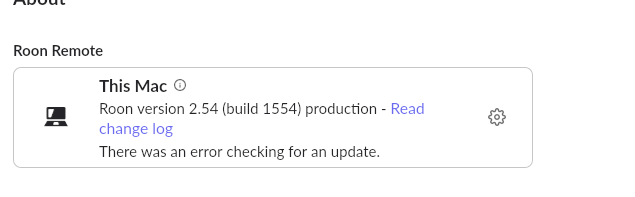
I tried updating the software, but for whatever reason I’m getting an error. See the screenshot for what I am seeing when I try to update my Mac. Looks like the Nucleus updated just fine, though.
I sincerely apologize for the long delay in getting back to you. I completely understand your frustration; waiting days for a response when you just want to get your library organized and listening to music is incredibly aggravating. Let’s get both of these issues sorted out right now.
1. Fixing the Mac Update Error
When a Mac device throws an error during an in-app update, the quickest and most reliable fix is to simply perform a fresh installation. Doing this will successfully update the software and will not affect your Roon database or your music.
Please follow these steps to bypass the error and update your Mac:
Close the Roon application on your Mac.
Open your Mac’s Applications folder and drag the Roon app to the Trash.
Open the downloaded .dmg file and drag the new Roon icon into your Applications folder.
Launch Roon. It should now connect smoothly to your server.
2. Pointing Roon to Your Music
I took a look at your system diagnostics to see how your storage is currently configured. Interestingly, while you mentioned a Nucleus, your diagnostics show that your active Roon Server is actually running on a Synology DS923+ NAS (named “bingbong”).
Since the Roon Server is running directly on your Synology NAS, pointing it to your music should be quite straightforward if your music files are already saved on that same NAS.
Open Roon on your Mac.
Navigate to Settings > Storage.
Click Add Folder.
You should be able to browse the local folders of your Synology NAS directly to find and select the specific folder where your music files are kept.
If your music is not currently saved on this Synology NAS (for example, if it is still sitting on your Mac’s internal hard drive or a separate USB drive), please let us know exactly where the files are located. Once we know where they are, we can give you the exact steps to transfer them over to your NAS storage!