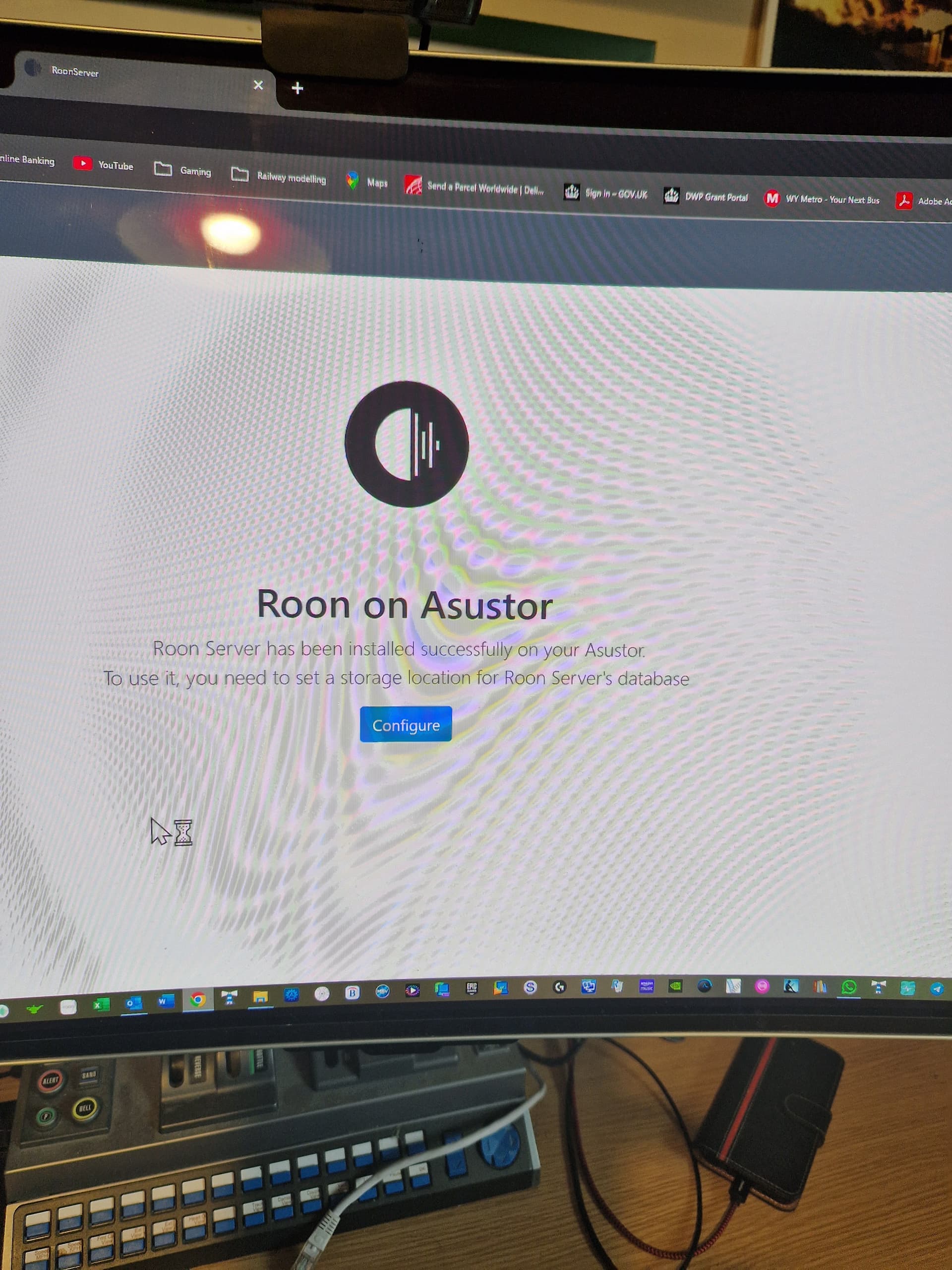
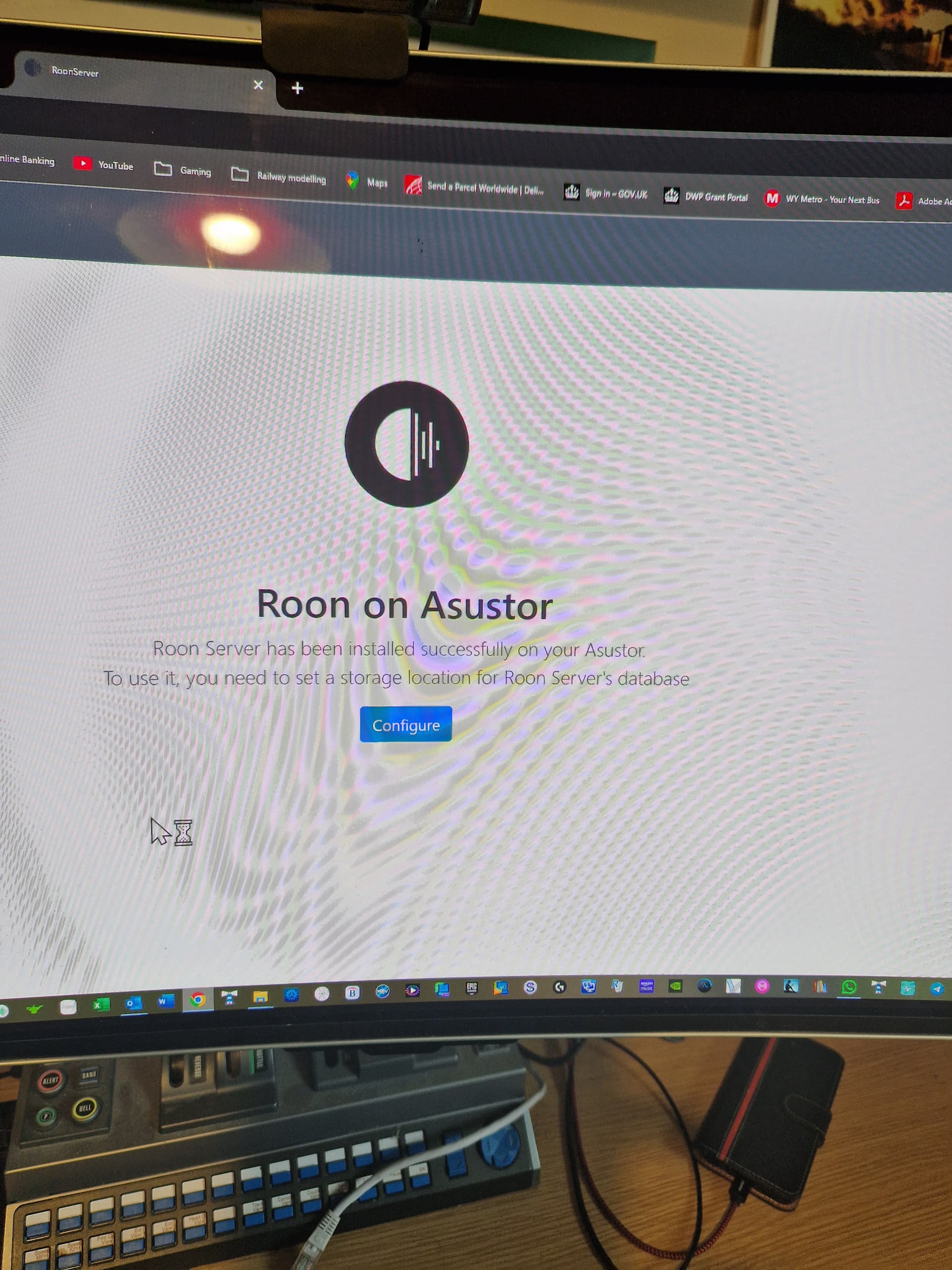
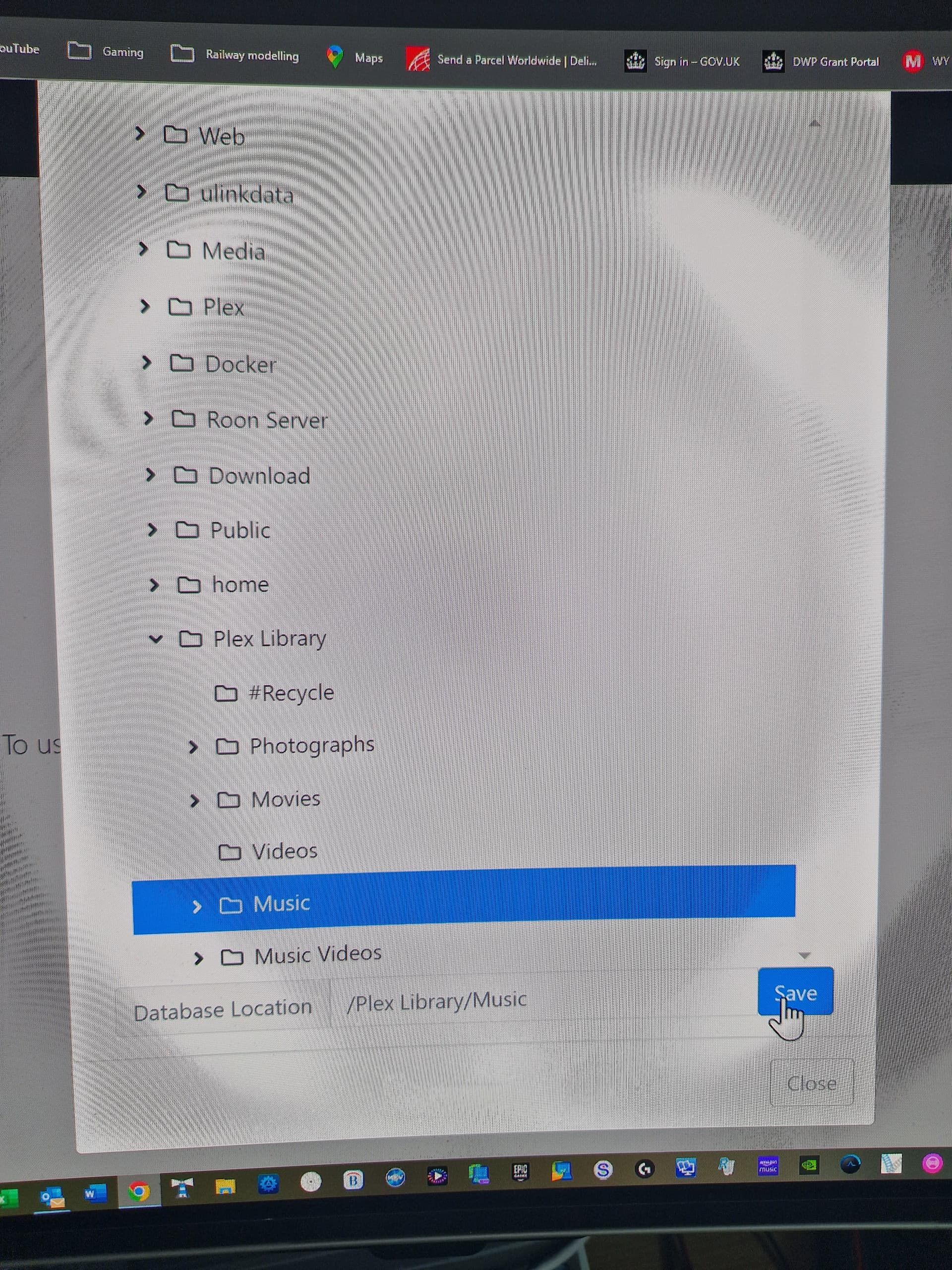
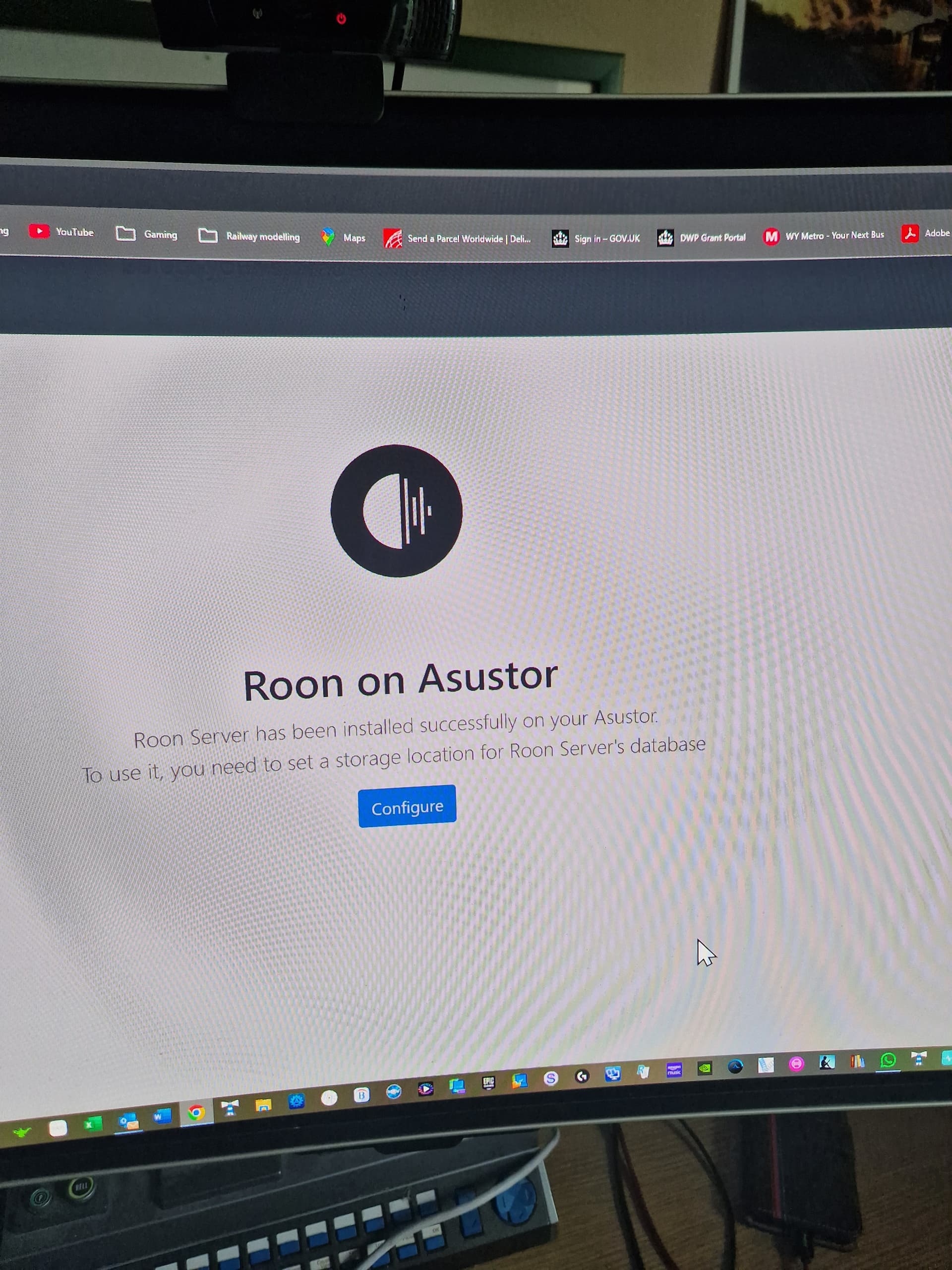
From this screenshot, we can see that your database has not been configured yet, so the Roon Server itself is still not up and running. As mentioned by @Joachim_Herbert, please click Configure, then provide us with a screenshot and a short description of what happens afterward
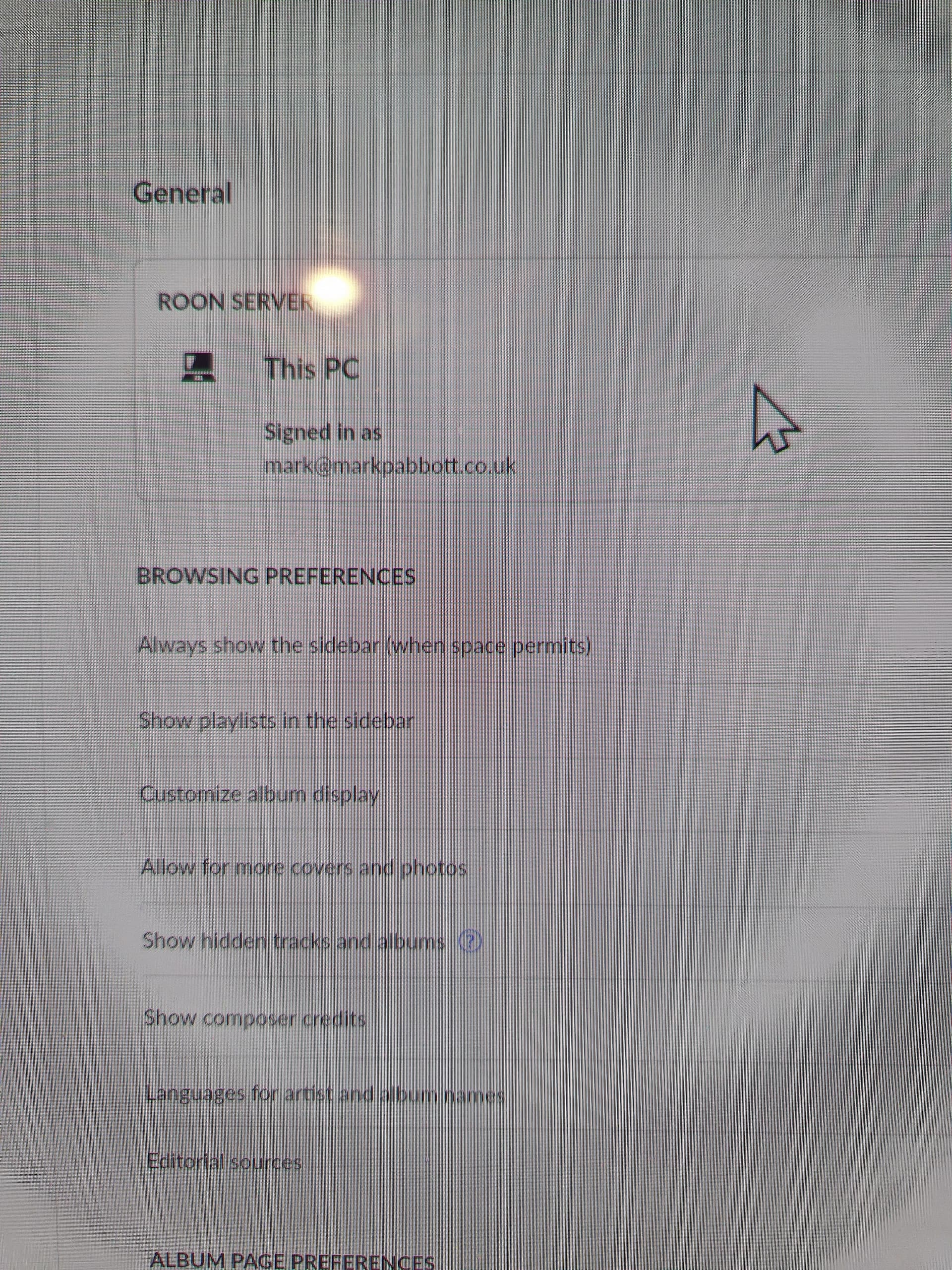
This is because you are still connected with roon server on your PC. Roon only works with one server at a time, so you have to disconnect from one and connect to the other.
@Mark_Abbott, please try to follow the steps as laid out before.
From the PC Client disconnect from roon server running on your PC.
From the PC Client connect to the roon server running on your NAS.
This is necessary to make the server running on the NAS the active one and to access it from your PC.
As an alternative you may uninstall roon server on your pc at that point. If the roon client does not find it in your LAN, it will search for an active server and suggest you connect to it.
After logging into the new server, select the directories that hold your music.
@Mark_Abbott, it seems you are still connected to the roon server on your PC. This makes it impossible to connect to the server you have (or have not) installed on your NAS.
install roon server on NAS
configure roon server on NAS, i.e. set database location
disable roon server on PC (via roon client on the PC)
enable roon server on NAS (via roon client on the PC)
select directories holding your music on NAS (via roon client on the PC)
If you follow these steps you will be fine.
If you don’t you won’t.
It might be helpful to document each (!) step with a screenshot and post it here, so we can check if there os a problem an one point or the other. Of special interest ist a screenshot of what happens after you click configure.
We asked for that several times now. Please deliver proper screenshots that document the steps you take.
You don’t have to delete Roon - once you install Roon on your NAS (as @Joachim_Herbert has mentoined above) you’ll be able to select that machine to act as your main Roon Server.
Let me know if this all makes sense and if you have any specific questions.
We haven’t heard from you in some time, so we’re reaching out to inquire about the current status of the issue. We’ll keep an eye out for a response. Thank you!
In spite of following the advice as provided, I still cannot get the ROON server app on the NAS to be seen by my PC client. I can see my NAS via windows without issue. I can still access the music files on the NAS from the ROON client. The issue appears to be tyhe PC client not being able to discover the ROON server app on the NAS.
We’re still seeing an active RoonServer instance on the PC as of this writing; this means the server has been online in the background.
Just for due diligence, did you disconnect from the server on the PC entirely and close the RoonServer background process before opening the Roon GUI again?
Please share a screenshot of what you see when you first launch Roon.
Please also ensure that Roon.exe is added as an exemption to the Windows Defender firewall (I couldn’t confirm that this step was covered above, but it can prevent client/server connection on Windows 10 machines sometimes).