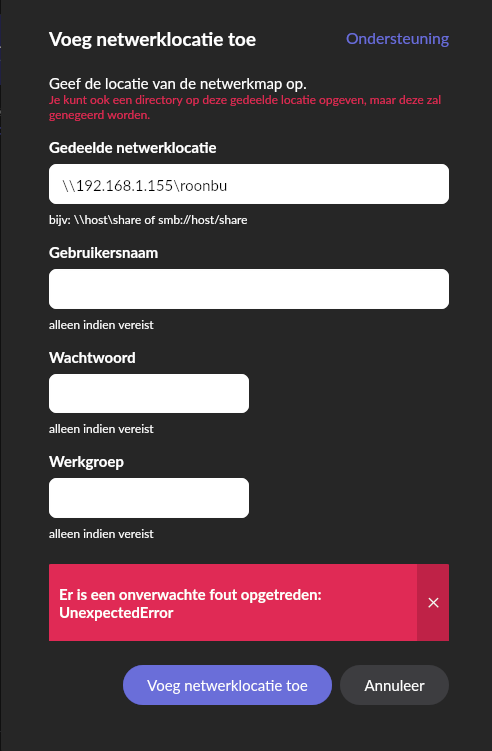
· 1) Backup function: i always get "unexpectederror" i have tried all combinations (ip adress is correct, folder is correct, with or without username, PW and workgroup-all correct)
Welcome back to the community! I see from your screenshot that you’re hitting an “UnexpectedError” when trying to link your backup to a network share at \\192.168.1.155\roonbu.
This error is a bit of a “catch-all,” but it almost always points to the host machine (the PC or NAS at that IP address) refusing the connection request from Roon.
To help us narrow this down, let’s go through a checklist of the most common “invisible” barriers:
The “Double Lock” (Sharing vs. Security)
If this is a Windows machine, sharing a folder requires two separate steps. If one is missing, Roon will get a “permission denied” error that shows up as “UnexpectedError.”
Sharing Tab: Right-click the roonbu folder > Properties > Sharing. Ensure the user has Read/Write permissions.
Security Tab: This is the one often missed. Go to the Security tab in that same Properties window. Ensure the same user has Full Control or Modify permissions listed there as well.
Credentials and Passwords
Roon generally requires a username and a password to establish a stable network handshake.
Is there a password on the account? Roon often fails to connect to “Guest” or “Public” shares that don’t have a password.
We recommend using a local user account on that PC that has a password set.
Firewall & Antivirus
The computer at 192.168.1.155 might be blocking Roon’s “knock” on the door.
Try temporarily disabling your Windows Firewall or any Antivirus (like Norton, McAfee, or Bitdefender) and try to add the location again.
If it works with the firewall off, you’ll need to create a rule to allow Port 445 (SMB) traffic.
Alternative Path Format
While backslashes (\\) are standard for Windows, Roon’s network engine sometimes responds better to the URI format. Please try entering the path exactly like this: smb://192.168.1.155/roonbu
A quick sanity check: Are you able to access that \\192.168.1.155\roonbu folder from a different laptop or device on your network? If other devices can’t get in, the problem is definitely within the Windows sharing/security settings on that host PC.
Give those a try and let us know which one (if any) gets you past that red error box!