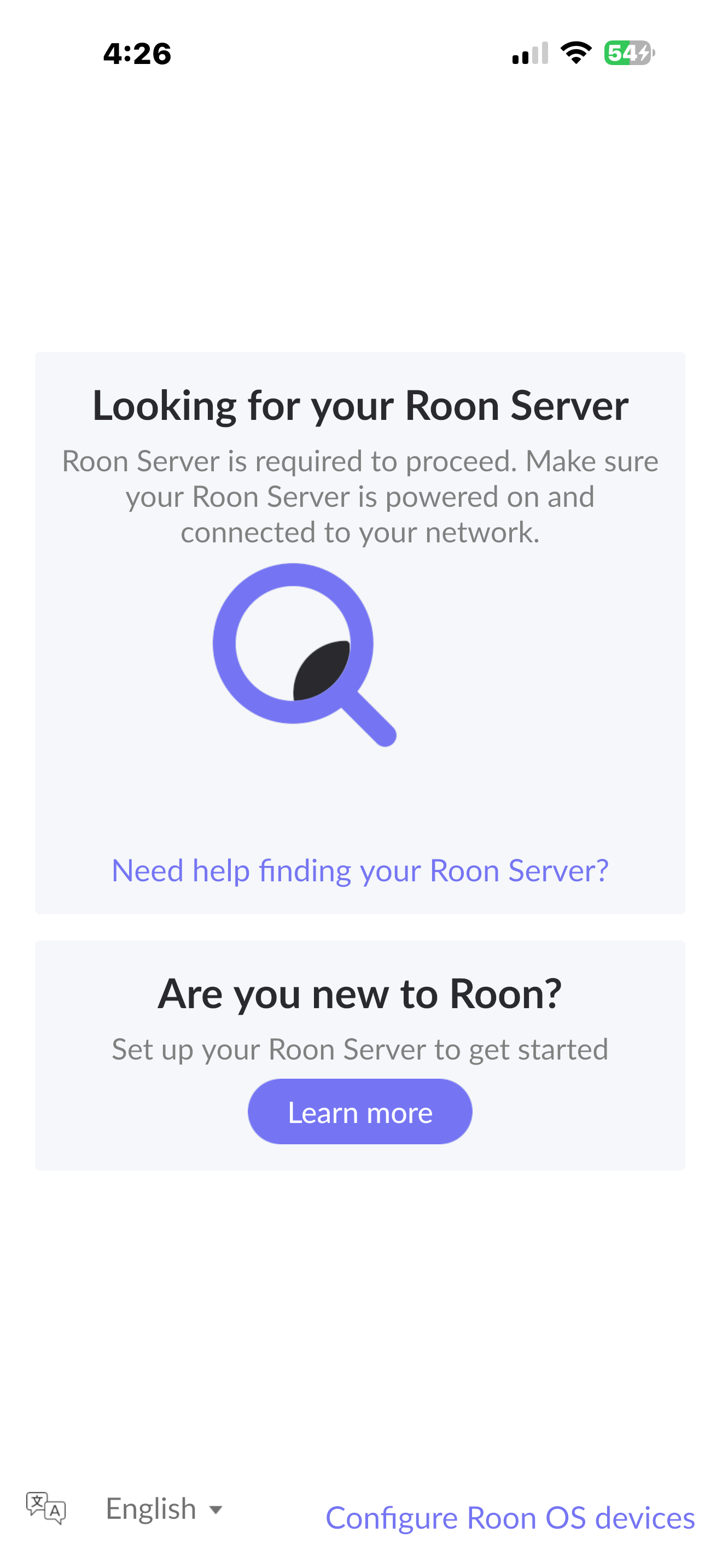
· I cannot connect to the server via my iPhone-the Roon app cannot seem to find my sever-I am running the latest version of the app, iOS 26.4.2. My server is Naim Uniti Atom 532516
The Uniti Atom is not a Roon Server. It’s a Roon Ready endpoint, i.e., an output device.
A Roon Server is either a Windows, macOS, or Linux computer running the Roon Server program, a Roon Nucleus device, or similar dedicated Roon Server devices.
The app on the phone would connect to such a Roon Server for control, and the Roon Server would be able to output to the Atom.
Welcome to the community, and thank you for reaching out!
As @Suedkiez rightly pointed out, the reason your iPhone app is stuck searching is due to a fundamental misunderstanding of your device roles. Your Naim Uniti Atom is a phenomenal, certified Roon Ready streaming amplifier, but it is purely an audio output device (endpoint)—it does not have the hardware or software capabilities to act as a Roon Server.
Roon operates on a specific system architecture that requires three distinct pieces to work:
The Server (The Brain): A central machine that manages your music database, processes the audio, and handles streaming traffic. This must be a Windows or Mac computer, a Linux machine, a supported NAS drive, or a dedicated device like a Roon Nucleus running the free Roon Server software.
The Control: Your iPhone app, which acts strictly as a remote control to tell the “Brain” what to play.
The Output: Your Naim Uniti Atom, which receives the high-resolution audio stream over your network and plays it through your speakers.
Looking at your account diagnostics, you do not currently have a Roon Server set up or running on your network.
Choose a computer: Pick a computer (Mac or Windows) that is connected to the same Eero Pro 6 network as your iPhone and your Naim Uniti Atom.
Download the Server software: Head over to the Roon Downloads page and download and install Roon Server onto that computer.
Launch and Log In: Keep that computer powered on and running the Roon Server program.
Once that server is active on your network, open the Roon app on your iPhone. It will immediately stop searching, find your new server, and allow you to log in. From there, you will be able to go to Settings > Audio, enable your Naim Uniti Atom, and start streaming!
Let us know if you have any questions about choosing or setting up your server machine.