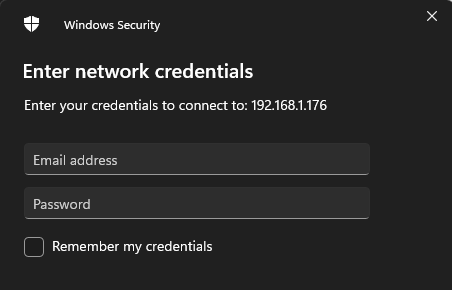
Following the instructions from: Importing Media to ROCK (roonlabs.com) I am trying to access the Roon ROCK storage folders from a Windows 11 PC. However, I cannot get this syntax to work…
I can ping the ROCK machine successfully but cannot use the command line to access the storage locations… All I get is " Your file couldn’t be accessed" Any hints?
Tried but it is not working for me… If I just type ROCK/ in the browser it opens up the ROCK config page, but any other way of accessing the folders seems to be locked out for me. I turned on Network discovery and file shareing, I am on a private network… for some reason this does not work.
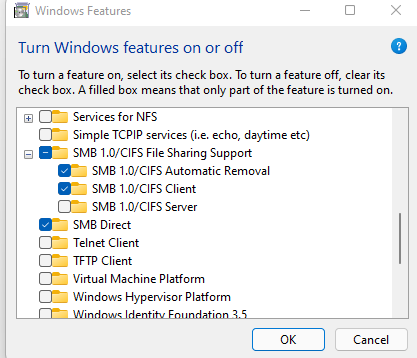
I also checked to see if the SMB features are installed in Windows, and they are:
Just to be clear you are trying the “\\rock\data” (or \\ip_address\data) in Windows explorer, right? Not Internet explorer. Just want to make sure as this has come up with others before.
Other things to try:
Did you try turning off your firewall? or lookin the firewall and see if “roon”, and 'RAATserver" are added as exceptions.
Check in the roon remote to see if the storage is showing up under settings/storage and verify the IP address under settings general.
You can also try dragging and dropping in the roon remote to put files into rock.
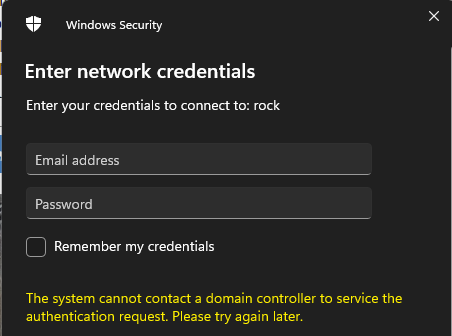
That “system cannot contact a domain controller” message is very odd - I’ve never seen that on a network credentials screen. Can you give some details about your home network setup?
Pretty straight forward home network, one network, wired ethernet mainly, ASUS RoG router, pretty much out of the box…
The machine I spend most of the time on is managed by my company IT, it is not joined to any domain, but it is controlled by IT… maybe it has some group policies prohibiting this access… funny thing is I used this machine for a couple of years without a hint of an issue…
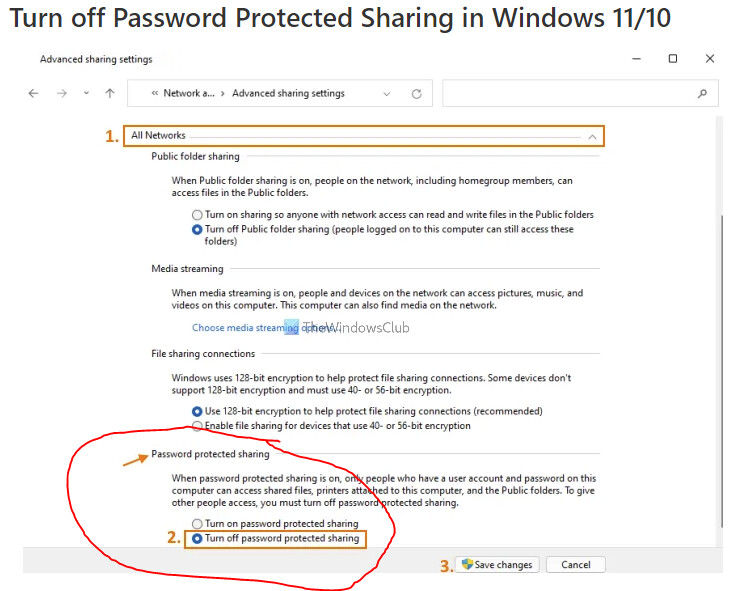
Thanks, tried to turn the password protected sharing off, made no difference… I will try with a second PC, perhaps is something on my network that is not allowing this to go thru…
Did you follow the advice of bearFNF ?
'Just to be clear you are trying the “\rock\data” (or \ip_address\data) in Windows explorer, right? ’
(oops, I see in editing my reply I typed 2 backslashes preceeding rock\data, but in the post appears only one … ???)
What is the response or result of this input in Windows Explorer ?
You didn’t answer this question. “\rock\data” or \ip_address\data is a wrong command in Windows Explorer. Perhaps the solution is simple …
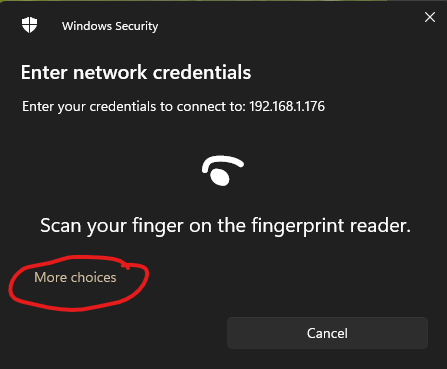
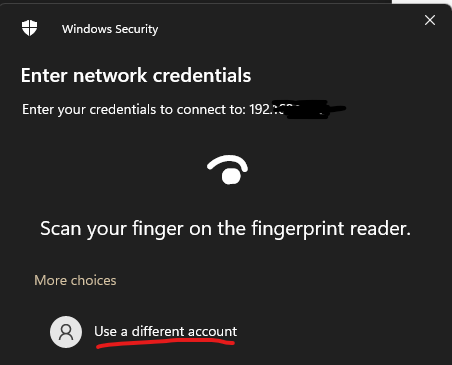
Yep, I followed the advice… in both cases the system takes a bit of time before I get an authentication dialog box, so I take it that the share is accessed and that I should enter either Admin or Guest (according to the instructions at Roon)… I seem not to be able to successfully login so never get past the login screen.
These are messages that would seem to indicate that your PC is under IT’s control, and they are using Intune Enrollment and Microsoft Intune to register and control your machine. I think you’re fighting the system here.
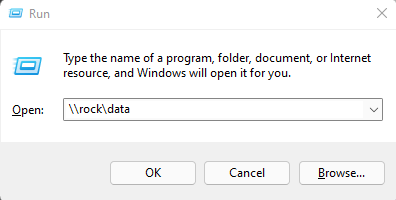
Edit: but on the other hand that first screenshot in your last message is showing you entering the network address in the Run command - that’s not where you use it. You enter it into the address field of your Windows File Explorer. Have you done that? Like this:
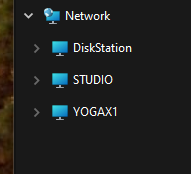
Yep, tried that too, same thing, I get the authentication dialog box… Also interesting, in the network section you can see ROCK there… In mine, it is invisible…
 )
)