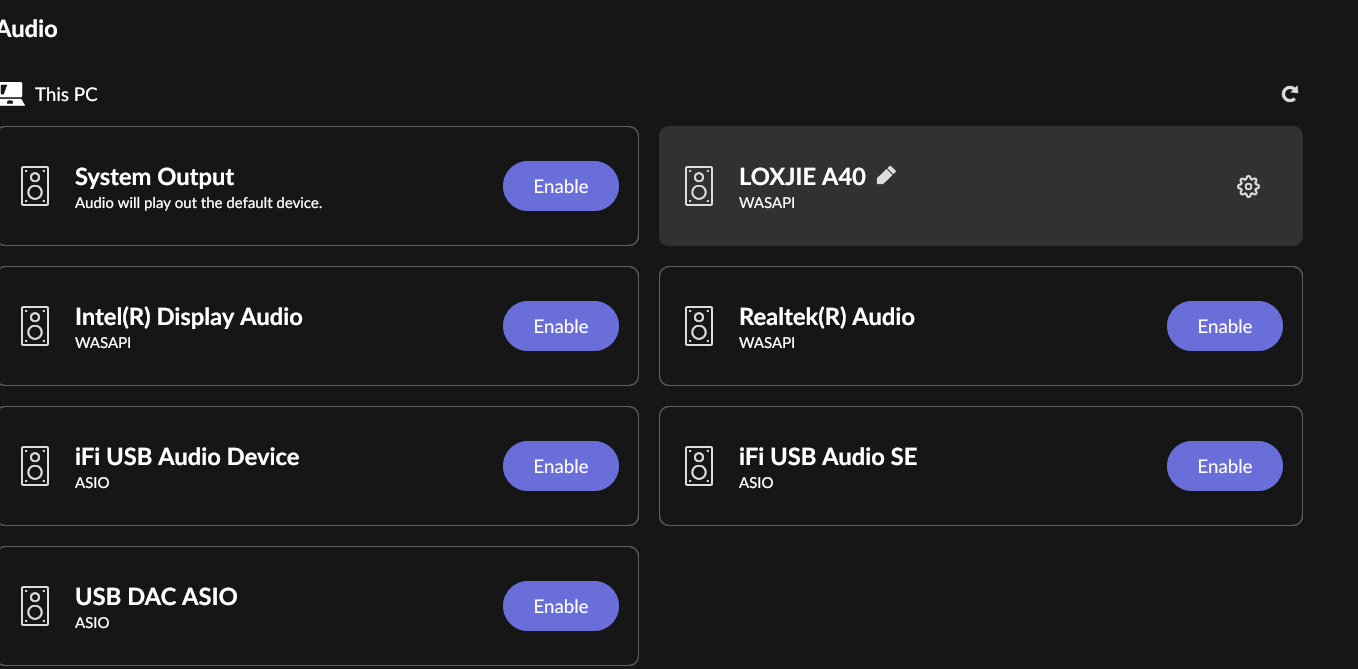
I was using an iFi Uno mini USB DAC with my Roon setup but I’ve since changed a couple of times. However, the iFi drivers are still showing up in the Audio section of Roon under “This PC”.
I’ve uninstalled the iFi USB drivers but it’s still appearing. In the meantime, I started using a Topping DAC, which I then sold and removed the drivers. The Topping doesn’t show in the list.
I’ve scoured my PC for residual iFi drivers but can’t find anything. I presume Roon is seeing them but I don’t know how.
I also did a clean Roon install (for a different issue) but the iFi is still showing up as a device.
Not a big deal but a little irritating as it looks like I have drivers that I can’t get rid of. Anyone else experiened a similar situation?
Roon Remote and Roon Server version 2.0 (build 1462)
Assuming you are on Windows, this might help, it will force Roon to requery all audio endpoints. Make a database backup first, I would suggest.
You can generate a new RAATServer instance on your device by following these instructions, but please be aware that this will reset your Roon Settings → Audio Tab to factory settings and I would advise making a backup of any custom DSP settings you have:
Thanks for the reply. Just to clarify, I’m running Roon front end (Bridge?) on my laptop and I have Roon Server running on a spare laptop to do the gruntwork. It’s on a machine running Ubuntu 22.04.
I can’t change the name of the RAAT server in Ubuntu as the owner is ‘root’ and it looks messy to go about changing that…out of my comfort zone entirely.
I did locate the RAATServer file on my Windows machine and followed your instructions. Sure enough, it generated a new file but the problem remains. The “iFi USB Audio SE (Asio)” still shows up.