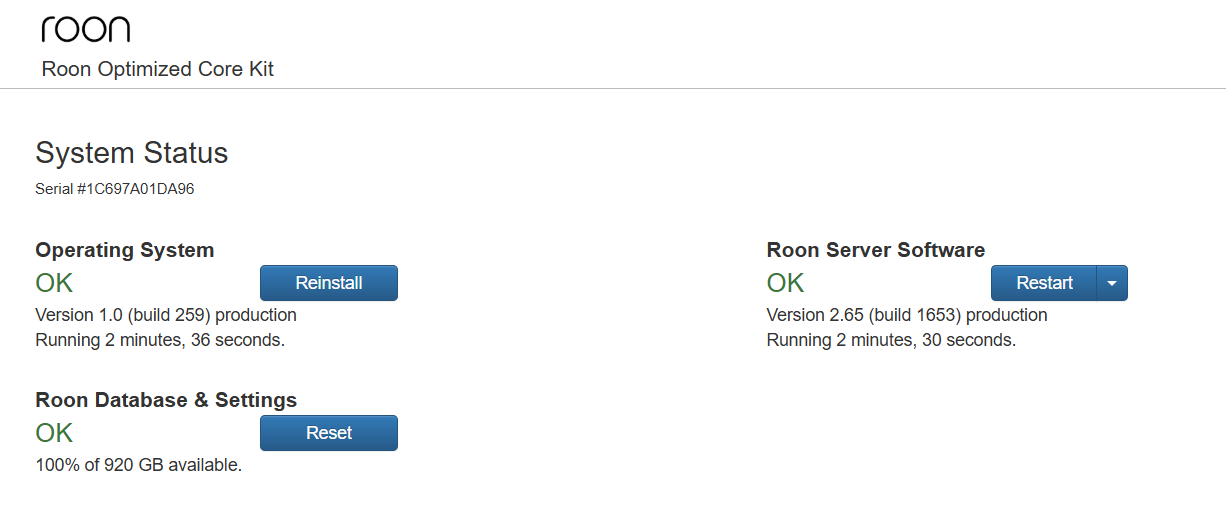
Yes this is current (assuming that your ROCK was installed in BIOS mode, before UEFI mode was available. This affects only the Roon OS version („Operating System“), your Roon Server is definitely current)
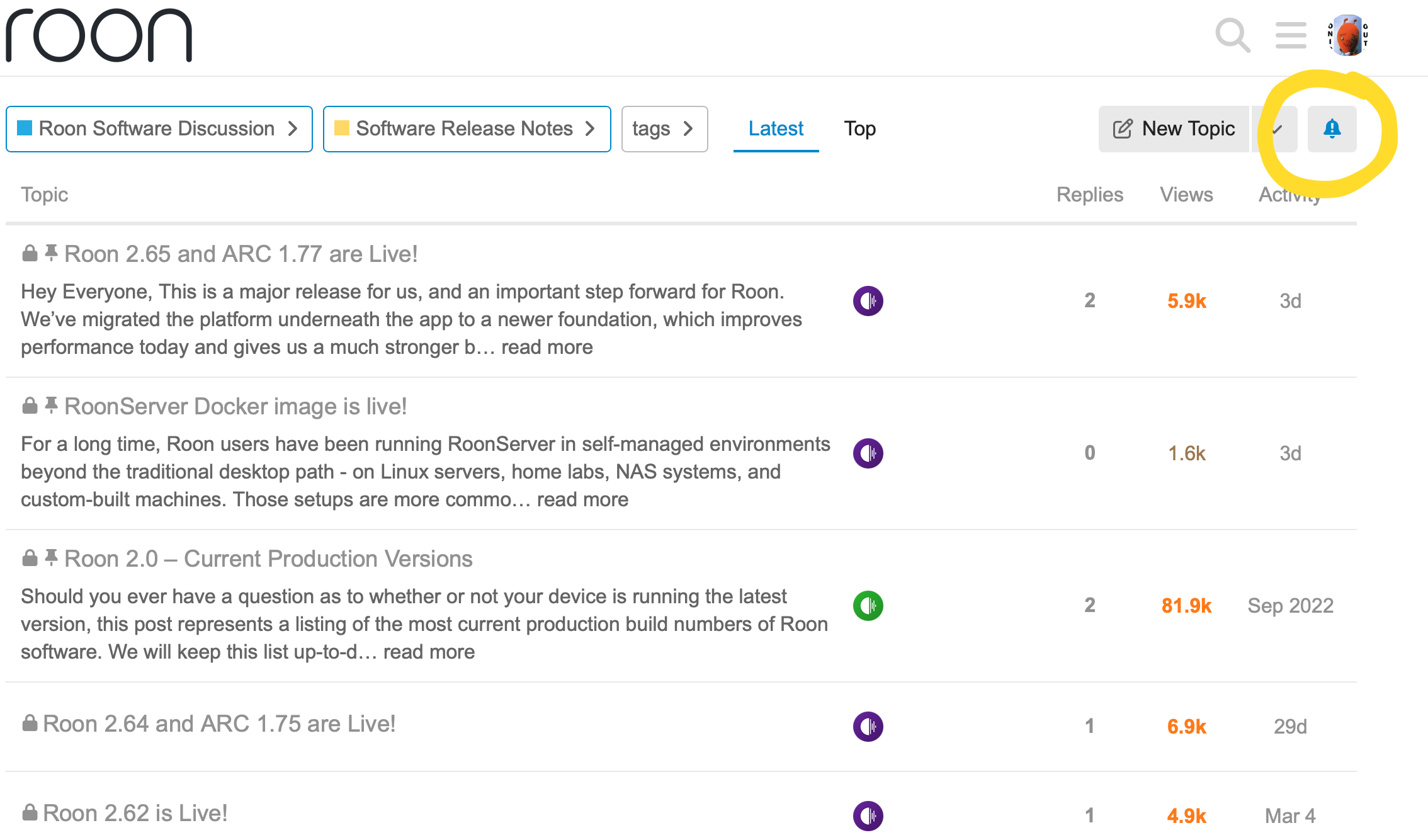
You can go there and click the notification button top right. Then it sends you a forum notification or an email (depending on your forum settings) whenever new release notes get posted:
For the latest Roon Server and client software versions, you can always look at:
From this, you can see that the version 2.65 that you are running is latest production Roon Server software (2.65 - build 1653). It does not include the versions of RoonOS that may be running on ROCK installs and Nucleus devices.
It is likely that you are running the latest version of RoonOS for your ROCK installation.
Version 1.0 build 259 of RoonOS is last version that supports BIOS boot devices so if you originally installed ROCK prior to the first build to support UEFI boot (254?) or you chose to use BIOS boot for any reason, then build 259 is the latest one available to you.
There are newer builds of RoonOS (that still run the same version of the Roon Server software) but these do not support BIOS boot and can not be installed as an upgrade to the earlier versions. At present, the only advantage to the newest version 2.1 (build 271) of RoonOS is that it includes support for some additional HDMI hardware variants (courtesy of a fix for the Nucleus Titan) and it includes support for running Tailscale on the Roon Server machine.
If you are currently using BIOS boot (selecting ‘Reinstall’ does not upgrade you to build 271 of RoonOS), then the only way to upgrade to version 2.1 build 271 is to set your NUC to use UEFI boot (in the BIOS settings - at which point your NUC will no longer boot) and then reinstall using the ROCK installer package and an USB stick as you did when you first installed ROCK (and then using the ‘Reinstall’ button to bring the new installation up to date). This involves completely reformatting your system SSD in your NUC and so a backup to a USB disk or a network device must be performed first and, after upgrading to build 271 this backup must be restored to get your database and settings back.
As the community members have already accurately described above, your Roon Server software is currently up to date on the latest production release.
The version discrepancy you are seeing is because your Roon OS is running on the legacy BIOS branch. The only way to update your Roon OS to the current version is to change your system’s BIOS settings to UEFI mode and perform a fresh installation using a USB drive.
If you choose to proceed with this update, you must create a manual backup of your Roon database to an external or network drive first. Changing the boot mode and reinstalling the OS will reformat your system SSD and permanently delete your existing database.
However I’m stuck on the “Restore database” part. Before I began this undertaking I did a manual fresh backup to my USB drive. Now I’m ready to do the restore from my USB drive. However I dont understand where my latest backup is. Roon is asking me to specify which RoonBackups directory to use. They all seem to be in some hexadecimal number naming convention. How can I figure out which backup directory is the one I did this morning.
It’s completely understandable why those hexadecimal strings are confusing—they aren’t meant for human eyes! Those long strings (like 54ec8cf0…) are unique identifiers for your Roon database.
The trick to finding your backup isn’t decoding those numbers, but rather letting Roon do the heavy lifting for you. Here is how to pinpoint that fresh backup you made this morning.
When Roon asks you to “Select a backup folder,” it is looking for the parent folder named RoonBackups, not the hexadecimal folders inside it.
In the Roon browser, navigate to your USB drive.
Look for the folder named RoonBackups.
Do not click into it. Just highlight the RoonBackups folder itself and click "Select this folder" (or "Select").
2. Identifying the Right Directory (If you have multiple)
If you see multiple folders named RoonBackups or if you are looking at your USB drive in Windows/File Explorer to figure out which path to give Roon, use the Date Modified column:
Open your USB drive in your computer's File Explorer.
Right-click the headers (Name, Size, etc.) and ensure Date Modified is checked.
The folder that was updated this morning is your "latest" backup location.
Inside that folder, you will see a file called roon_backup_root. This confirms it is a valid Roon backup directory.
3. Let Roon Show You the Dates
Once you have selected the correct RoonBackups folder in the Roon app, Roon will scan the contents and present you with a human-readable list of timestamps.
It should show something like: Today at 9:15 AM.
Simply select that entry from the list and hit Restore.
Our diagnostic servers show recent activity associated with the server in question, so we’re going to allow this thread to close due to inactivity shortly without any further responses from the OP.
Please reach out in the meantime if we can assist further. Thank you!