· Hi, I'm using my PC with Windows 11 as Roon Server, connected via USB with Chord Qutest external DAC to my amp Mcintosh MA7200. I installed all necessary drivers for DAC and made settings to use ASIO drivers instead off WASAPI in order to have better sound quality.But have I huge problem, when I listen Live Radio or Tidal I almost always have choppy/continuous short-term outages of the songs. But when I switch my DAC to WASAPI mode I don’t have that problem but sound is weaker compared to ASIO mode. I tried to install new version of Roon sever 2.64 but I couldn’t there was an error checking for an update. Could you please help me how to fix this issue. Thank you in advance. Kind regards Riste
Tell us about your home network
· I’m using T-P Link Archer AX23 directly connected with cable to my PC
Welcome to the forum! Can you please let us know the exact local time, date, and track when the issue happens next? Does it occur with multiple ASIO endpoints, or only one in particular? You can also please install the latest Roon version from our downloads page if the automatic update is failing (install on top).
Thanks for the update and additional information! It sounds like you are dealing with a combination of electrical interference and driver sensitivity. The fact that the issues start specifically when you charge your HP Probook is a big clue as to what might be going on.
Since your PC and Chord Qutest are connected via USB, this noise travels through the ground wire of the USB cable and interferes with the DAC’s timing.
To confirm, if you unplug the laptop charger and run the laptop on battery, the dropouts stop immediately?
If so, try plugging the HP Probook into a completely different wall outlet (preferably on a different circuit) than your PC and Hi-Fi system.
If using a power strip, ensure your PC and McIntosh are on a high-quality filtered power strip, and the laptop is NOT.
Consider a USB galvanic isolator (like the iFi iDefender+ or Topping HS01). These devices "break" the noisy ground connection from the PC to the Chord Qutest while allowing the music data to pass through.
With that, your logs show a massive clock drift when using the ASIO driver. This means the driver and the DAC are losing sync because the PC is struggling to keep up with the strict timing ASIO requires, likely worsened by the electrical noise mentioned above.
Increase ASIO Buffer: Open the Chord DAC Control Panel in your Windows system tray (bottom right). Increase the Buffer Size (or Latency) from the default (e.g., 256 or 512) to 1024 or 2048 samples. This gives the system more "breathing room" to handle interruptions.
Disable Wi-Fi: Your logs show that your PC has both Ethernet and Wi-Fi active. Having two active connections can cause Roon's RAAT protocol to "stutter." Go to Windows Settings and turn off Wi-Fi entirely, leaving only the wired cable to your TP-Link router.
It looks like you’re now running on the latest version of Roon, are you still having issues updating?
Thank you Benjamin for the instructions. To continue, I first need to find a way to increase the ASIO buffer size to 1024 or 2048 samples. I’ve tried everything, but to no avail. I really don’t know what to do.
Dear Benjamin, to be more precise I can’t find CHORD Qutest USB Driver Control Panel on the Task Bar as I previously have when I had use my Cambridge Audio CXA81 with USB. I tried to install Chord DAC USB Driver on another Laptot and I theresult is the same.
We’ve not seen a response in some time, but diagnostics indicate that your RoonServer and Roon Remotes might have been active in the interim. Are you still encountering issues with this particular audio chain?
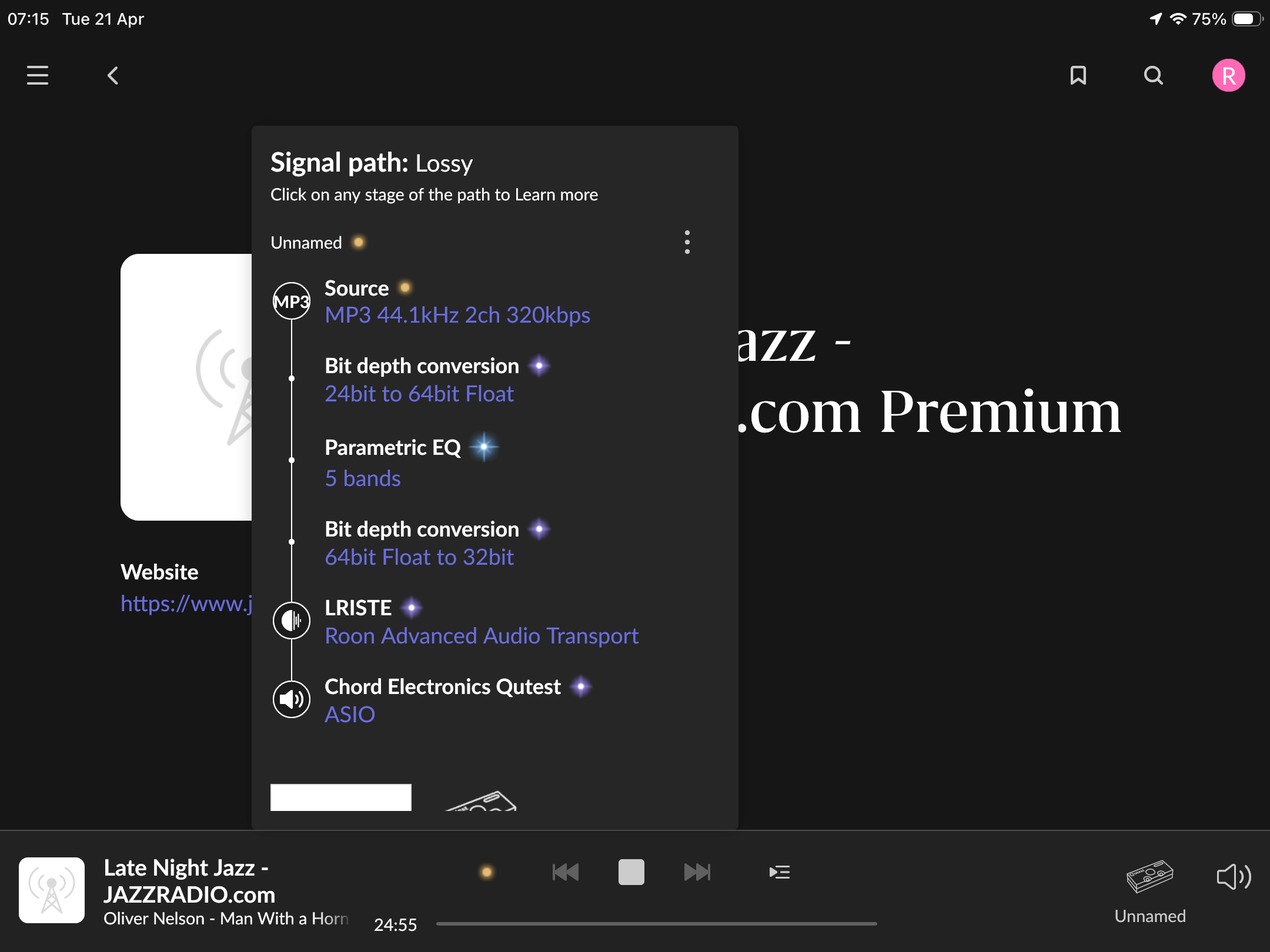
Please share a screenshot of the affected Signal Path in Roon and we’ll proceed from there.
Thanks for letting us know what switching the PC to best performance and using the power conditioner helped with the issues, this is wonderful news. I’ll go ahead and mark your post as solved, happy listening!