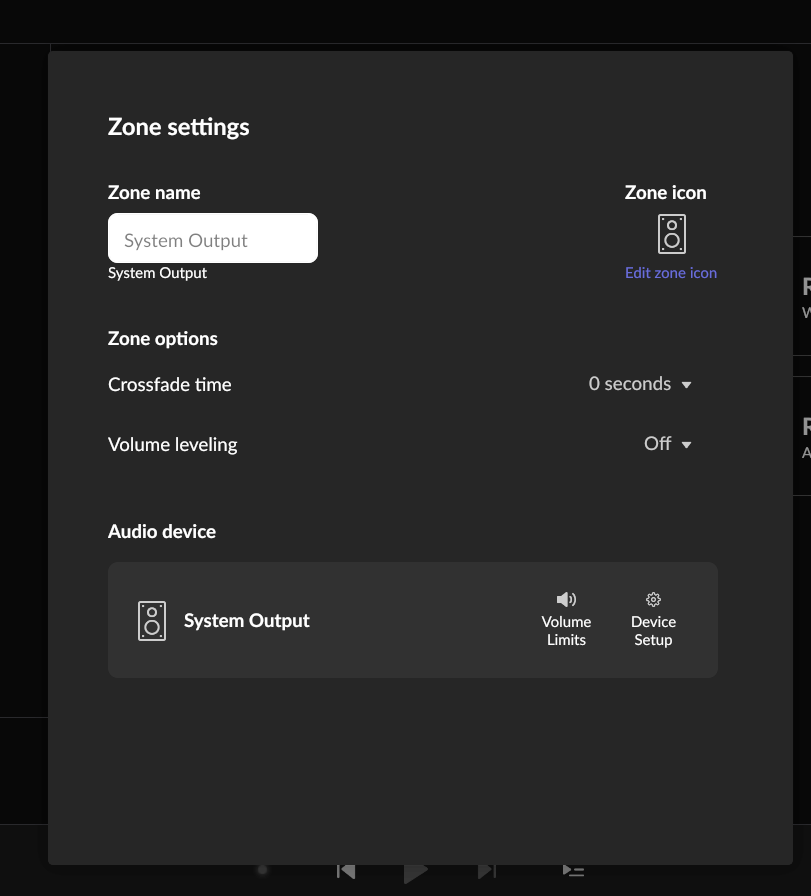
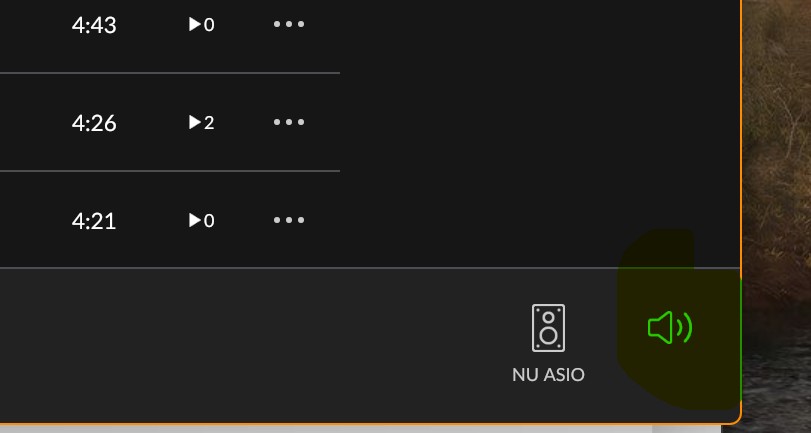
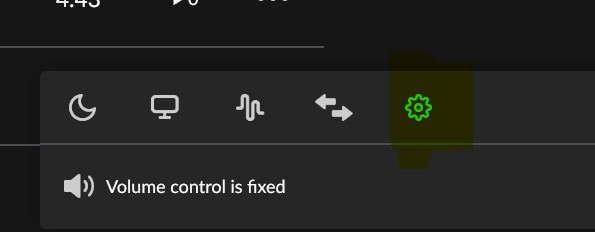
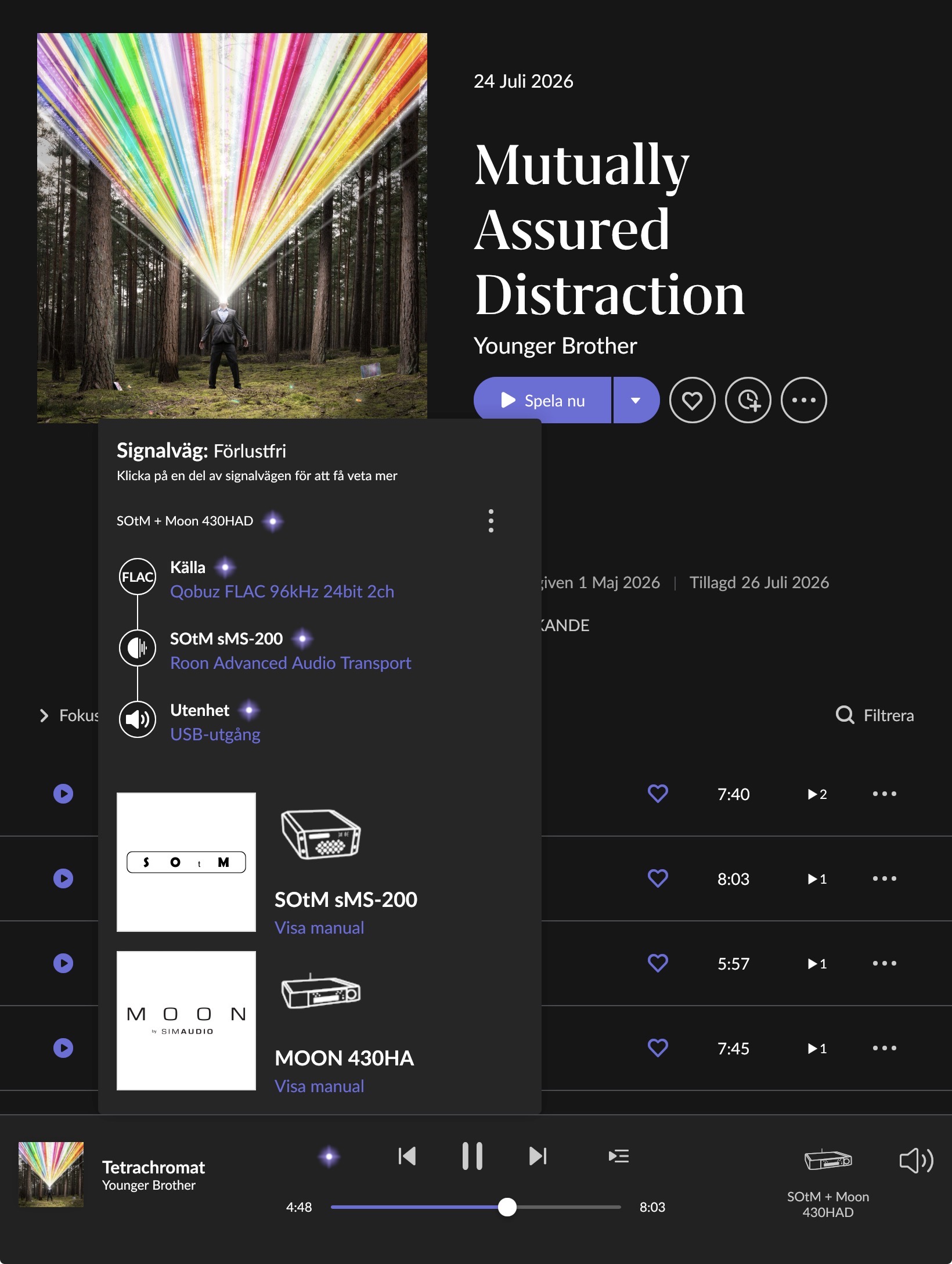
· mac os is Tahoe 26. When I updated to it, the emoji for my Moon 280D dac/streamer changed from a replica of the component to one of a speaker called System Output. I rebooted the 280D and my modem and router to no avail.
Tell us about your home network
· the router is from Quantum. Don't see a model number. The router and modem are a room away from my system, so I have Quantum extender model C5500XK.
AceRimmer
("I’m not just a hero; I’m a legend!")
2
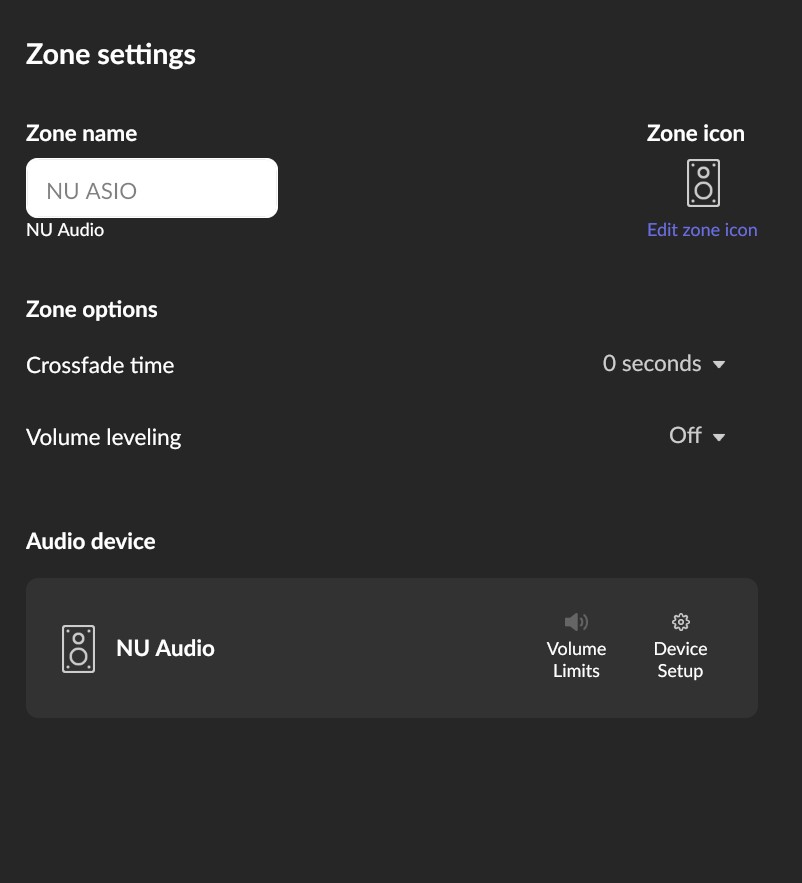
And if you go to zone settings and click on edit zone icon, is the original one available to be selected again?
It might be possible that during the update it reverted to just a generic icon.
He might be misleading you a bit. You can select generic icons there, but i recommend you go to:
Settings->Audio
There, under “Connected to your server” you should see a few devices.
Depending on your setup/OS you activate the relevant Zone (I suppose your 280D is connected to your server with a USB-cable?). In that Zone, click the “Identify”-button and filter the devices by typing “280”. You should be able to recover the line art for your Moon DAC.
Thanks for your patience, and thanks to AceRimmer, Rugby, and Mikael_Ollars for jumping in here.
Mikael’s suggestion is the right path for this: please go to Settings > Audio, find the Zone for your Moon 280D under “Connected to your server,” click Identify, and filter by typing “280.” That should recover the correct line art for your DAC rather than the generic speaker icon it fell back to after the macOS Tahoe update.
Please give that a try and let us know if it restores the original icon, or if you run into any trouble along the way.
Thanks for chiming in. When I go to the Audio Settings, there is no “Connected to your server”. There are 4 shaded gray rectangles, all with the speaker icon.
The first one says System Output, audio will play out of the default device.
The second is labeled Microsoft Team Audio, CoreAudio and has a white window within “unnamed”.
The third gray rectangle has “Other network devices” above it and 280D Airplay 2 127.0.0.1 within.
The fourth is labeled MacBook Pro Speakers, CoreAudio and has a white window within “unnamed”.
Since you’re running macOS, the behavior you’re seeing is consistent with the newer, stricter Local Network permission controls in the recent macOS releases.
Please try the following steps:
Open macOS System Settings → Privacy & Security → Local Network
Make sure Roon and Roon Server are both enabled
Even if they are already enabled, please toggle them off and back on
Fully quit Roon Server from the macOS menu bar / task bar
Reboot your Mac
After reboot, launch Roon again and check if the devices is avaliable again.
Once these permissions are refreshed and the system restarted, your audio devices should reappear.
Please let us know if the issue persists after these steps, and we’ll continue from there.
Benjamin: Thank you. Your directions were clear enough for this 80-year-old tech-challenged man to follow. Streaming is restored. I’m very grateful. Michael
alex_wood
(Vinyl is still King, but Roon is heir apparent.)
11
Isn’t it about time that these icons were improved, they have been in this almost Sub-optimal way since early days, can’t we do better in 2026?