Thx @ogdens_sliced,
Machine 1 setup works on Intel D54250WYK nuc under Fedora 43 with Gnome 49, same Bottles version from flatpak. Couldn’t get it up before under Fedora 42, however.
I am trying to run Roon with Bottles. It runs but cpu usage is about 30-40%. what about yours? and what settings do you use? thanks
I used the settings from @ogdens_sliced for machine 1.
Runner: wine-ge-proton-8.8
DXVK: Disabled
VKD3D: Disabled
Latency Flex: Disabled
Bottles from flatpak which is 52.1 currently.
Cpu iirc (I’m not at home) 100% listed in top which sums up the all 4 cores, i.e. 25% of the capacity.
This sounds about right. Using Btop, I see around 6% on my i7 laptop with 16 cores (top 100% / 16 = 6.25). Windows apps are not very efficient.
Roon interface looks all washed out after a system upgrade:
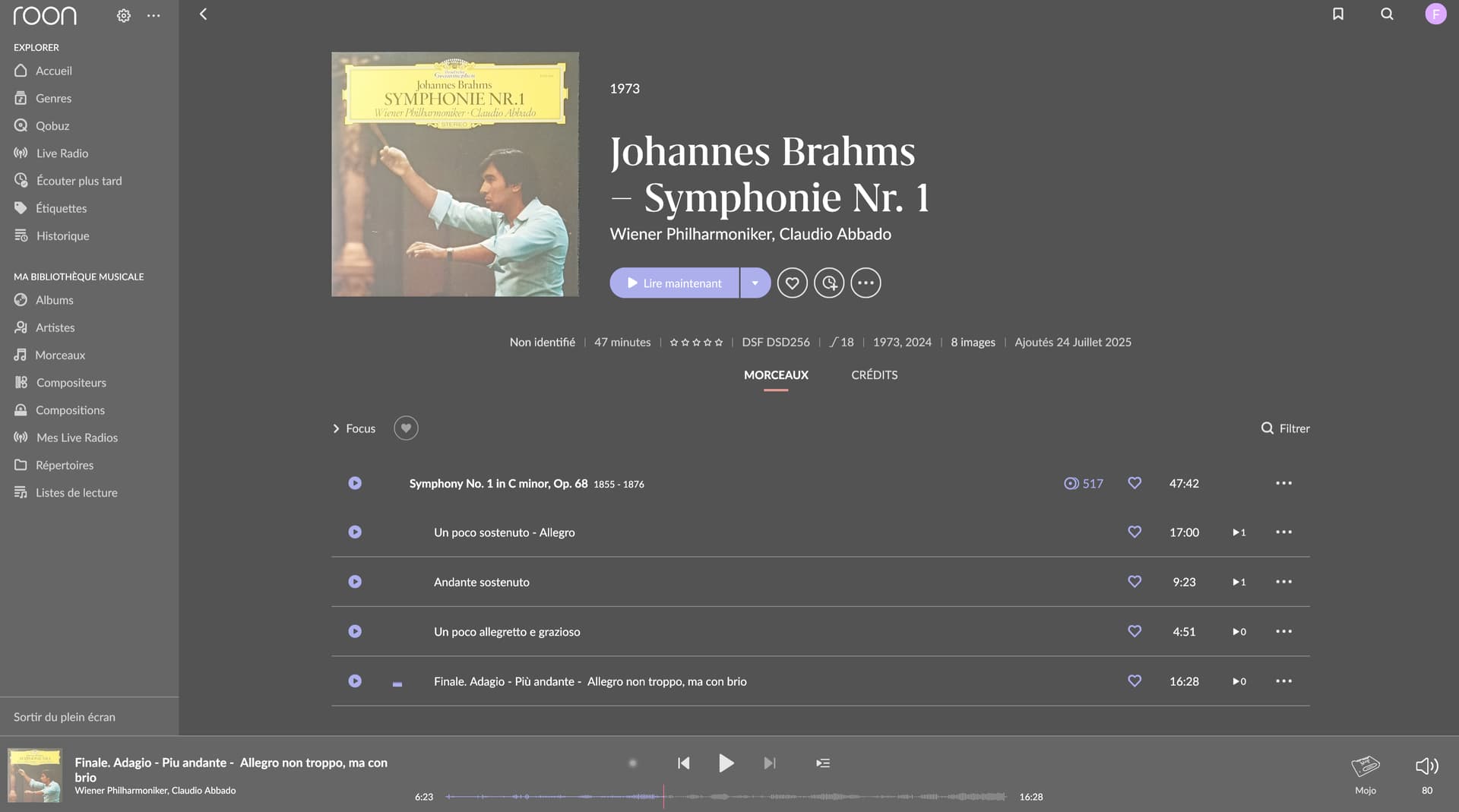
It looks like a HDR bug but I’m not sure. Some covers are “clean” other are washed out as well. Any idea? I’m running wine 10.19 on wayland.
EDIT: I’ve tried to downgrade wine and mesa but the overlay is still there. I’ll wait for your feedbacks.
1 Like
I don’t think the version of Mesa matters much to Roon. Whether you run Mesa 23.2.1 on Ubuntu 22.04 or the latest Mesa 25.3.0 from kisak-mesa PPA, the faded colors are the same.
What solved the problem for me was switching from winehq-staging to winehq-stable. Now running Wine 10.0
Thanks.
I couldn’t (and can’t) use Roon with wayland before wine 10.17 because OpenGL didn’t use EGL and that was messing up with my GPU. I really can’t identify where this overlay comes from though.
Have you tried?
robin@nuc10:~$ echo $XDG_SESSION_TYPE
wayland
robin@nuc10:~$ wine --version
wine-10.0
robin@nuc10:~$ es2gears_wayland
EGL_VERSION = 1.5
1 Like

Not sure if you ever fixed this but I also was having this exact same issue and I also did not want to downgrade wine to previous version so I installed wine 10.14 (last version that worked for me without that washed out issue) and put it in /usr/local/bin/ and named it wine10 so I could keep using up to date wine for other things and just have this version only for Roon.
me@archlinux:~$ wine --version
wine-10.20
me@archlinux:~$ wine10 --version
wine-10.14
Have a look at Easier way to install Roon (Remote) on Linux: Bottles!
I had the same on CachyOS (Arch based distro) with the default (Arch?) wine packages. CachyOS publishes their own package with a set of optimizations (probably mostly for gaming), but that did fix the washed out color / overlay issue for me.
In Bottles it also worked pretty much straight out of the box.
Took me a while, but in the end I got it to work.
Only thing I still don’t have is a way to simply pick the “System output” as an audio endpoint.
Not that it matters that much, but in some cases that’s just easier.
You can’t with the Wine packages. The simple solution is to install the native Roon Bridge binary on the Linux machine.
@robin246 and for those struggling with washed out colors on wayland: I made a fix for wine. It is due to a double sRGB conversion on default framebuffer. Arch users can freely download a working build or a PKGBUILD from here (with the patch). But please: try at your own risk this is not yet official.
A ticket is pending: https://bugs.winehq.org/show_bug.cgi?id=59436
2 Likes
Thanks, @rulbricht. I’ll wait for the official fix. 
For Ubuntu (and derivatives), the simplest solution is to stick with Wine 10.0.0, since the issue is present in Wine 11.0.0.0. I prefer to use the Wine HQ builds.
CODENAME=`lsb_release --codename | cut -f2`
# Use dpkg --print-foreign-architectures to check if already installed
sudo dpkg --add-architecture i386
sudo mkdir -pm755 /etc/apt/keyrings
wget -O - https://dl.winehq.org/wine-builds/winehq.key | sudo gpg --dearmor -o /etc/apt/keyrings/winehq-archive.key -
sudo wget -NP /etc/apt/sources.list.d/ "https://dl.winehq.org/wine-builds/ubuntu/dists/$CODENAME/winehq-$CODENAME.sources"
sudo apt update
sudo apt install wine-stable=10.0.0.0~$CODENAME-1 wine-stable=10.0.0.0~$CODENAME-1 wine-stable-i386=10.0.0.0~$CODENAME-1 wine-stable-amd64=10.0.0.0~$CODENAME-1 --yes
printf '\n# Use Wine 10.0.0.0\nPATH=$PATH:/opt/wine-stable/bin\n' >> ~/.profile
source ~/.profile
sudo apt-mark hold wine-stable wine-stable-i386 wine-stable-amd64
If you need to remove Wine 11.0.0.0, or have a bit of a mess, this should help.
# Remove Wine packages and configuration files
sudo apt purge "wine*"
sudo apt autoremove --purge

# Remove Wine directory from home folder
rm -rf ~/.wine

# Optionally, remove residual configuration files
rm -rf ~/.local/share/applications/wine
rm -rf ~/.local/share/desktop-directories/wine*
rm -rf ~/.local/share/icons/hicolor/*/apps/wine*

# Clean up APT
sudo apt update
sudo apt autoclean
Unfortunately my lutris roon install on my bazzite pc suddenly failed today (roon starts, but crashes immediately). I have now installed through bottles, using rooninstaller from the programmelist from bottles which is supposed to be gold. Roon starts ok, i get the gui but … every audio output gives too many failures so no music. I tried to install roon bridge, but apparently this is not possible on bazzite (atomic distro). The service installs, but exits with permission errors even though i installed with sudo. Any suggestions on how I can get correct communication from bottles with my audio device (an usb dac, which is seen by roon, but it does not want to play)?
Since Bazzite is based on Fedora, it should be possible to install Roon Bridge. However, the easy install script will likely fail to start the service because of default SELinux settings.
Executing sudo restorecon -rv /opt/RoonBridge and reloading the service should resolve this.
Thank you! I executed the command and the bridge service is now running according to journalctl There is a warn: get lock file path…, but no errors. In every roon endpoint the dac is now correctly shown in audiodevicelist, but at the same time it says device not found. I can only disable it, or retry to connect. So no music playing yet unfortunately
The path may also be restricted.
Are you commenting on the device(s) using Roon Bridge or all devices on the network?
Sorry, I mean all of my controlpoints list the dac attached to the bazzzite pc. But at the same time in the list it says device not found. Frustrating part is it just worked until a few days ago and I do not know what,changed. Other endpoints work just fine. Server is on rock nuc.