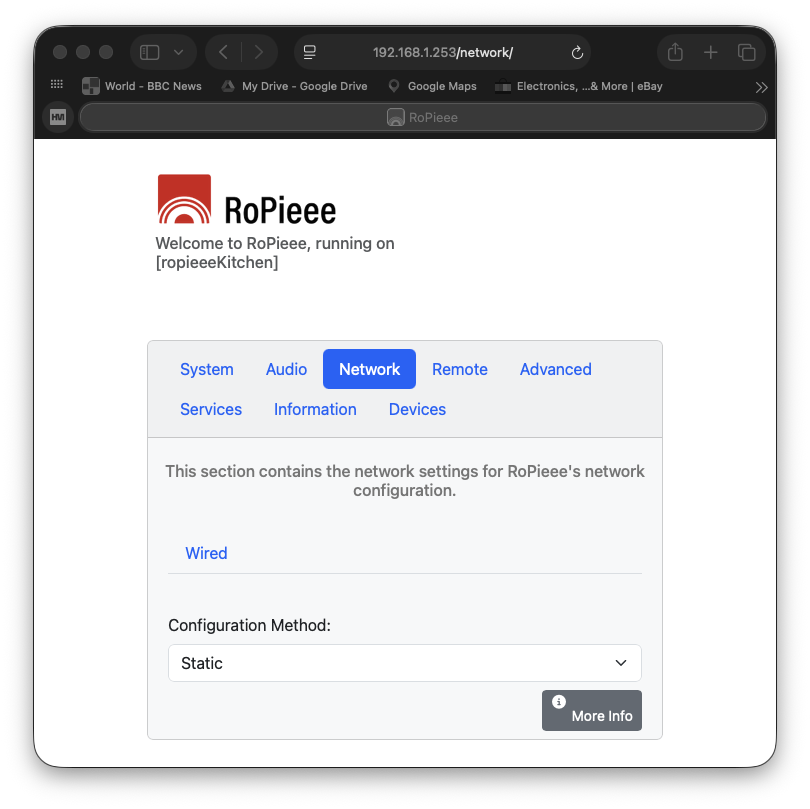
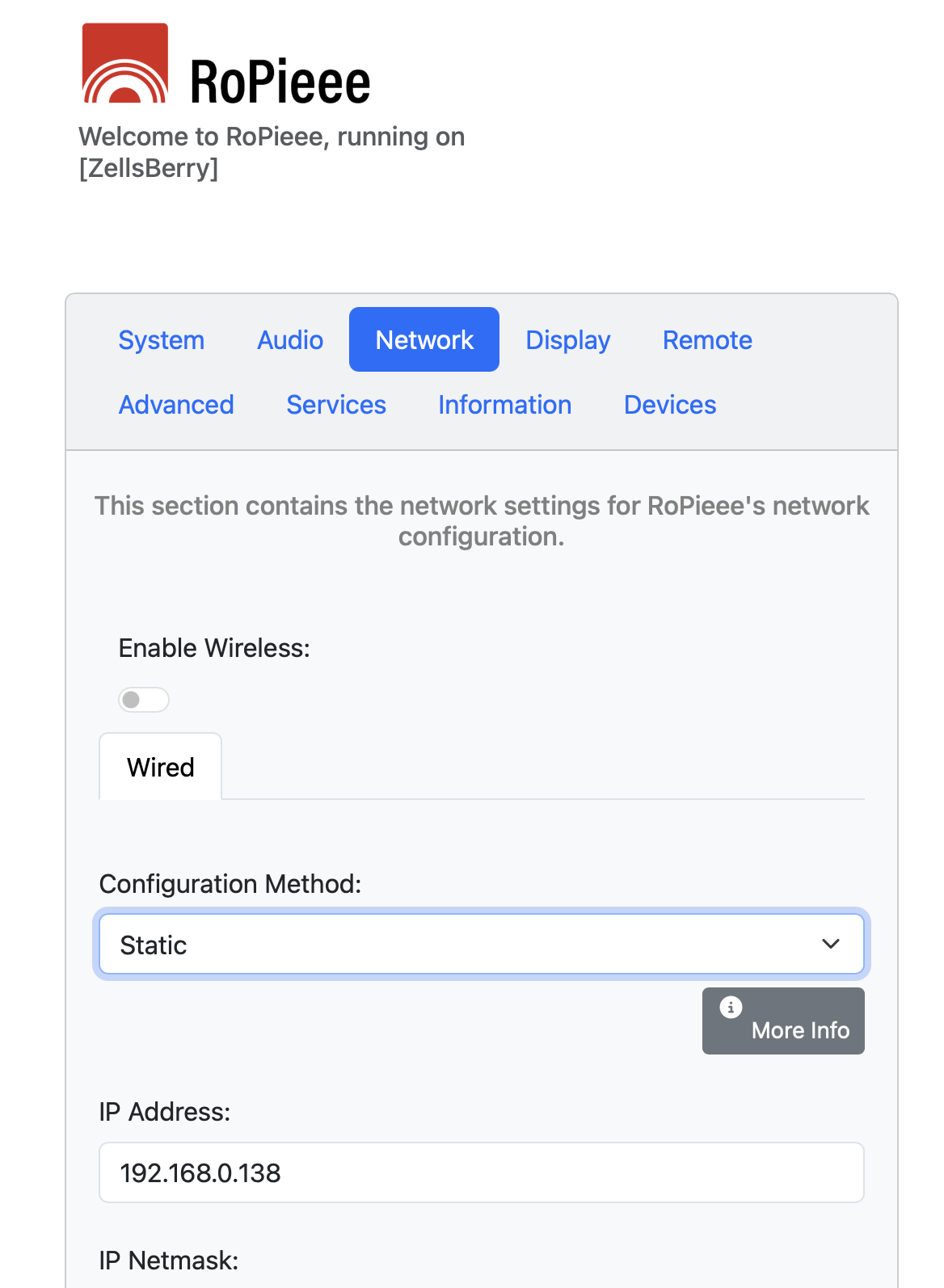
My BT Smart Hub 2 is reluctant to allow me to set a static address in the router itself. So I want to change the IP address using the Ropieee web page. Under the Network tab, I can see a field called ‘Configuration Method’ which allows me to select DHCP or Static. But when I select Static there are no fields to let me actually specify the static IP address. Also the ‘More Info’ button is not doing anything.
I’ve tried on a Mac with Safari, an iPhone with the DuckDuckGo browser and a Windows PC with Microsoft Edge and I get the same result.
Am I doing something wrong or is this a ‘functional awareness’?
UPDATE Seems I was doing ‘something wrong’. I’ve just changed the router’s Server address range to 192.168.1.64 - 192.168.1.250 and rebooted everything in the network. Ropieee is now showing me all the fields expected for Static IP.
mjw
(You want nice, supportive? Call a damn helpline.)
3
You can set a fixed IP address for any device using the BT Smart Hub 2. Use DHCP Address Reservation, which will always assign the same IP address to the same MAC address.
I’ve done this, but I no longer use BT as an ISP, so I can’t point you to the exact menu setting. IIRC, it is an option in the list of attached devices to reserve and change the address.
Yes you are correct, you should be able to do this on a BT Smart Hub 2. But it doesn’t always work.
By trial and error I have discovered that you can only set Static addresses outside the Server address range. In my case this defaulted to 192.168.1.64 - 192.168.1.253. If you try to set one inside this range, it accepts it but when you look again it has reverted to DHCP.
Having said that, the router sometimes decides that it is going to set something within the Server address range to Static!
Anyway I have now changed the Server address range to 192.168.1.64 - 192.168.1.150.
So far the system is working OK.
mjw
(You want nice, supportive? Call a damn helpline.)
5
I think you misunderstand. You are not setting a static IP address, but making an address reservation for DHCP. Therefore, the reserved address will be in the DHCP address range and the device(s) must also be set to get an address via DHCP. Do not set a manual address in the device!
I have not found a setting in the BT Smart Hub 2 that will allow you to do this successfully. There is a button that says “Always use this IP address” but setting it to ‘Yes’ does not stick. When you click it to ‘Yes’, hit ‘Save’ and then come back, it has reverted to ‘No’.
There is no way of telling the router which address you want to sign to a device within the ‘Server address range’, just the option button to always use the specific address assigned by the router - which doesn’t work.
Other threads in various places have implied this is a known issue with these routers.
What is wrong with doing this?
mjw
(You want nice, supportive? Call a damn helpline.)
7
You need to restart the device to take on the new address. Likewise, the device must be set to use DHCP, which also may require a restart.
Once the device is registered on the router, open the device details, and select Always use this IP address. IIRC, this may be changed to any address in the DHCP server range, but again, the device will need to be restarted to take on the new IP address.
Address reservation is always preferable to assigning a fixed address on a device. You are more likely to experience network disruption using a manual fixed IP address including IP conflicts, broken port forwarding, and loss of connectivity.
If you are happy with this, then set a fixed address on the device that is below the router’s DHCP range.
Not sure I understand this. When I’ve tried setting the router to ‘Always use this address’ this has been with a device, by which I understand whatever it is that is connecting to the router over ethernet, that is set to use DHCP and is already using the address within the ‘Server address range’ that was assigned to it by the router. All that is changing is the setting in the router to tell the router to always assign the same address that it has now, to the device. So I’m not clear why the device would need resetting? And why does the router forget that it has been set?
mjw
(You want nice, supportive? Call a damn helpline.)
9
DHCP assigns an address with a lease. However, if the device has another IP address or one not setup by DHCP, it will not pick up the new address until the lease expires or the device is restarted—thus issuing a new lease with the new IP address.
Right. So if the device has an IP address setup by DHCP and it is within the router’s ‘Server address range’ then telling the router to always assign the existing IP address to the device means that nothing changes as far as the device is concerned. The next time the lease expires or the device restarts then the router should give it exactly the same address. But this is the setting that the BT Smart Hub 2 does not want to remember.