HQPlayer Configurators for the Best Music

A Brief Project Overview

The HQPlayer Tools were created because the HQPlayer manual contains excellent descriptions of the filters and shapers. So why not use search criteria to find, for example, filters for blues music that emphasize timbre? Anyone can use the HQPlayer Tools for free without registering. Just go to my website, griggaudio.de, and click the “HQPlayer Tools” icon in the upper right corner.

Then I had the idea to transfer the filters and shapers directly to HQPlayer. The Grigg Audio HQPlayer Bridge was born. Because some filters and shapers can be very challenging, I further developed the idea of building a ranking engine. This measures the load time and DSP load on your own hardware and shows me, even before the transaction, whether these settings will work and how long it will take.

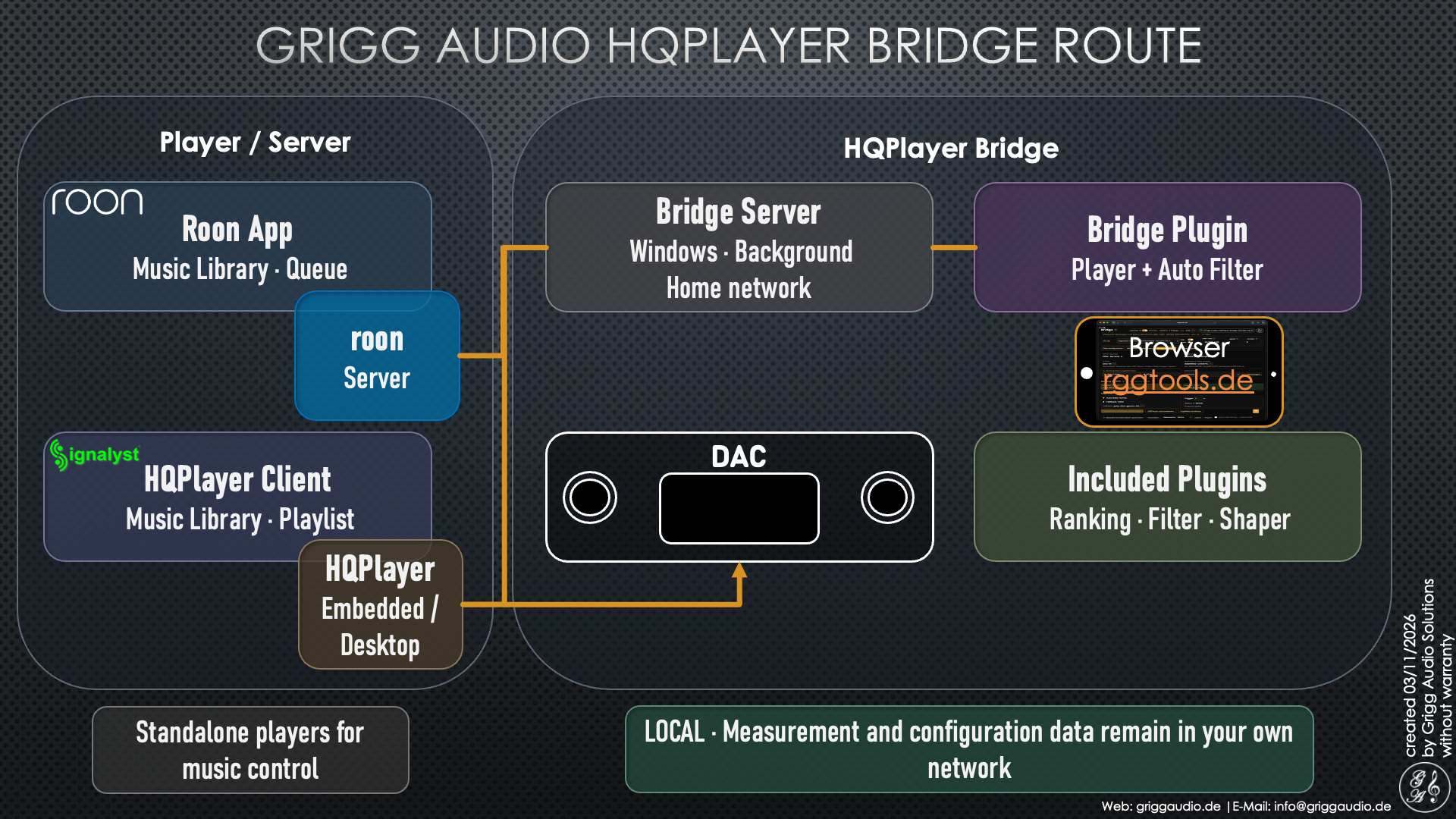
The user interface is operating system-independent. All you need is a browser. The Bridge Server requires Windows.
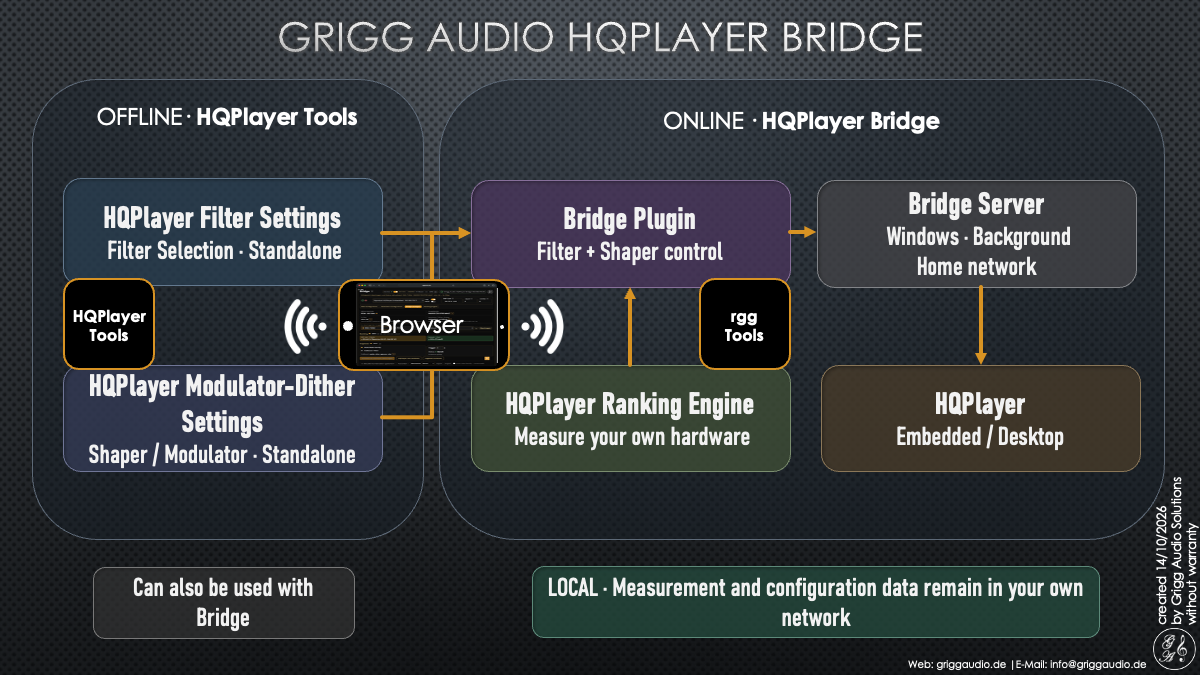
Grigg-Audio-HQP-Bridge-EN.png

HQPlayer Tools

The HQPlayer Filter Settings and the HQPlayer Modulator-Dither Settings work both as standalone applications and in conjunction with the Bridge plugin. They share the same database; the only difference is that, when connected to the internet, a fixed box with the monitor is displayed at the top, and all data can be transferred directly to HQPlayer.

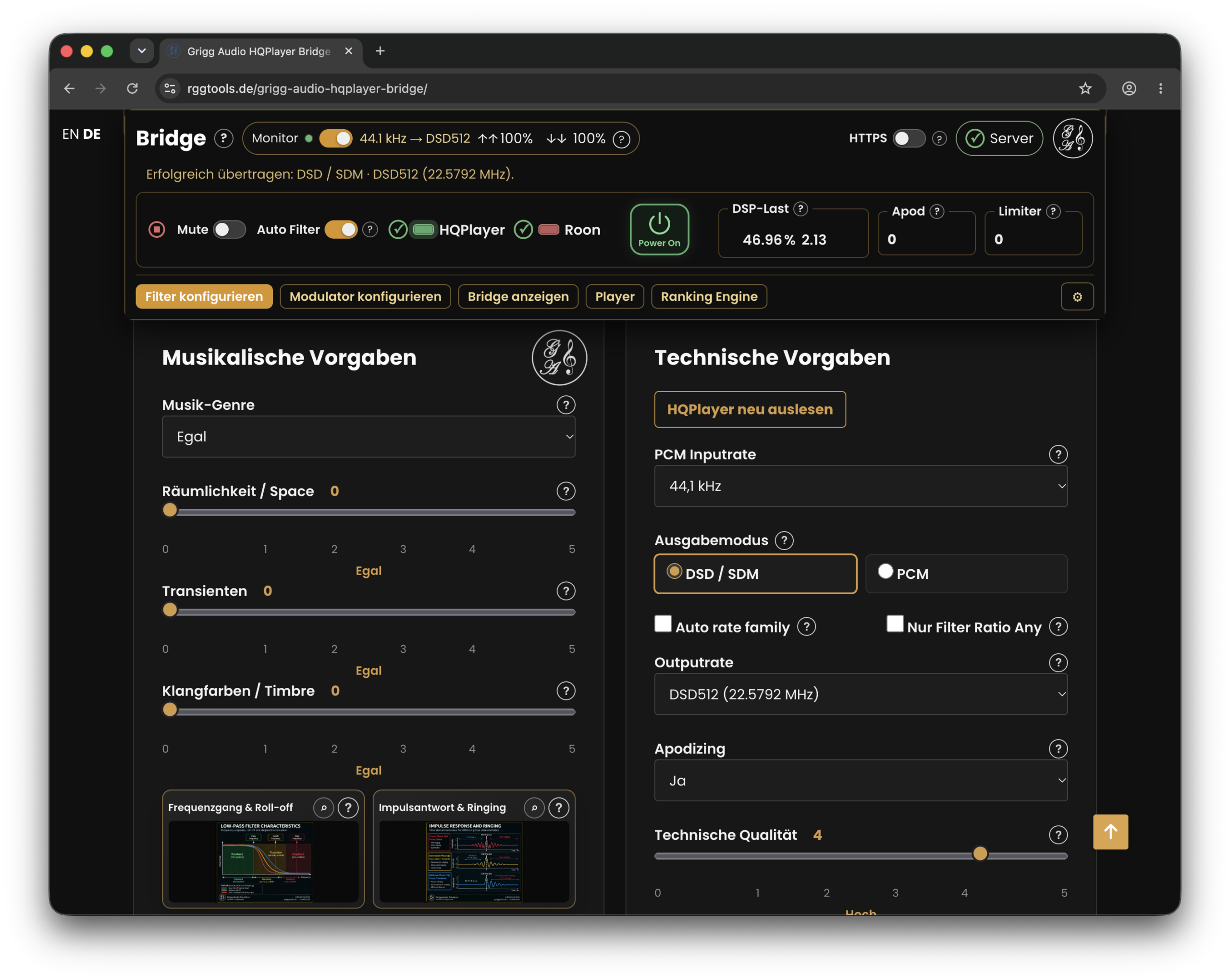
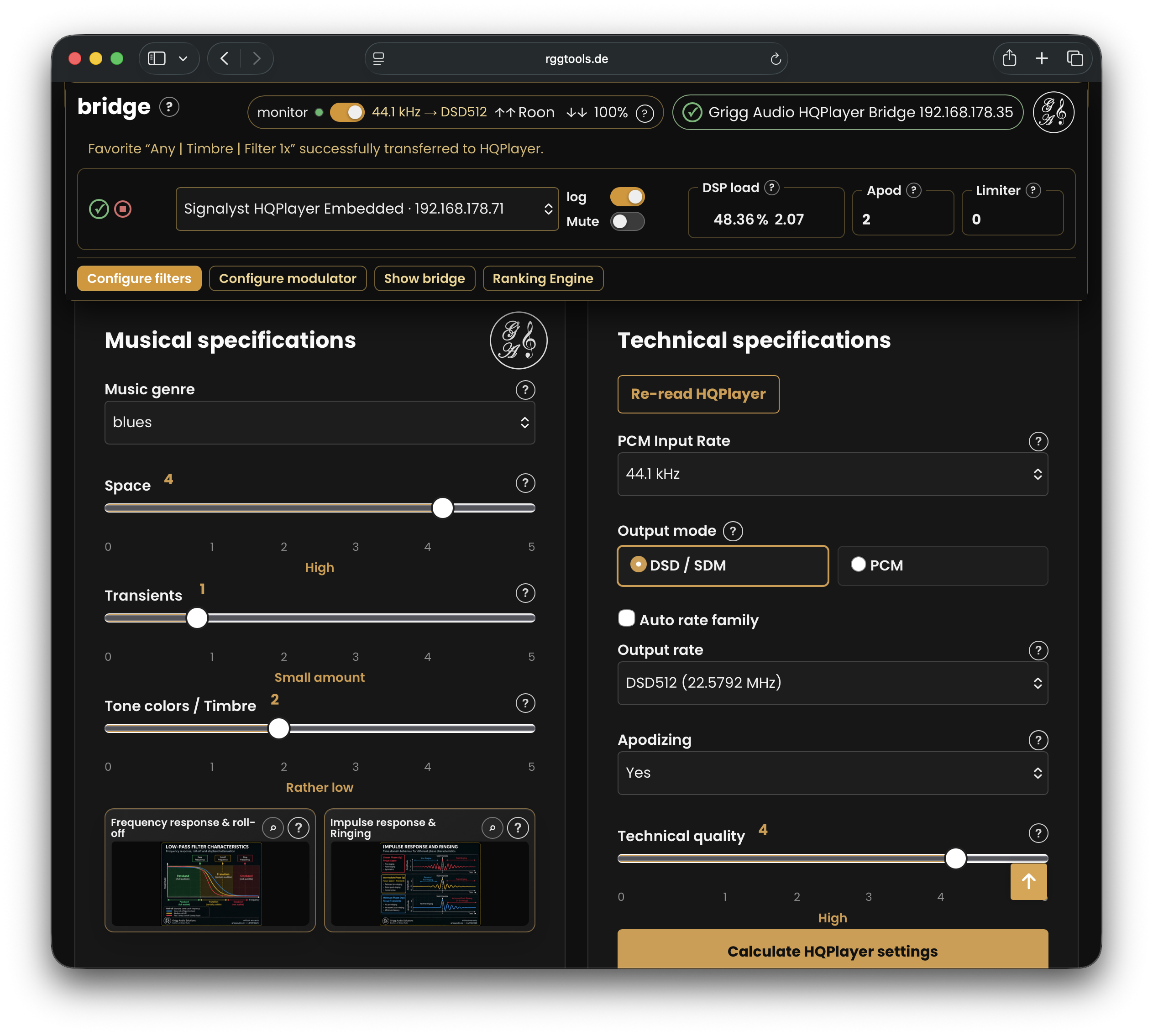
This is where I select my filters:
Bildschirmfoto-2026-10-14-um-12.03.13.pn

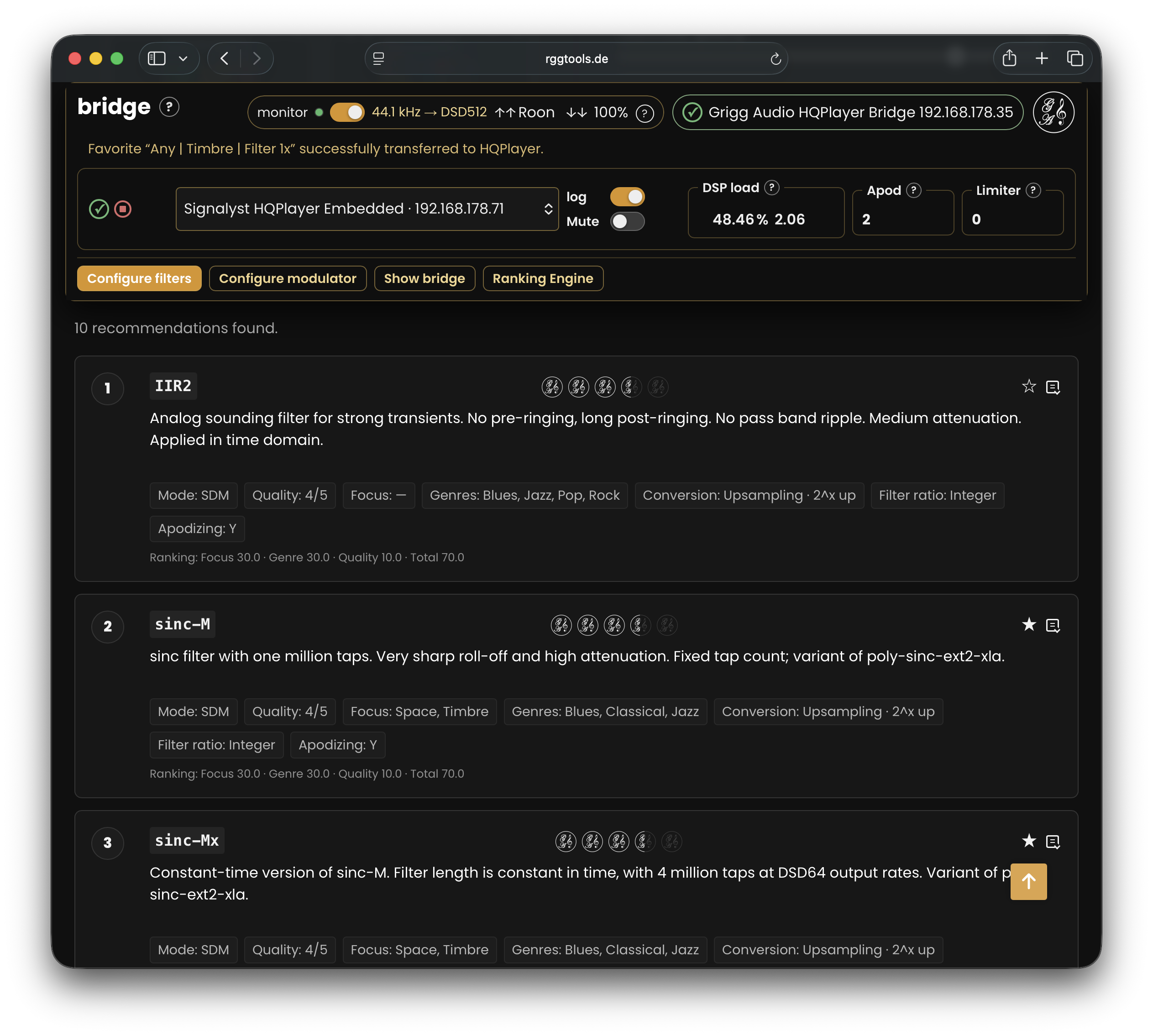
And this is the result I get. With the Bridge plugin, I can mark items as favorites and add notes. And of course, I can stream them directly to the HQPlayer:
Bildschirmfoto-2026-10-14-um-12.03.28-1.

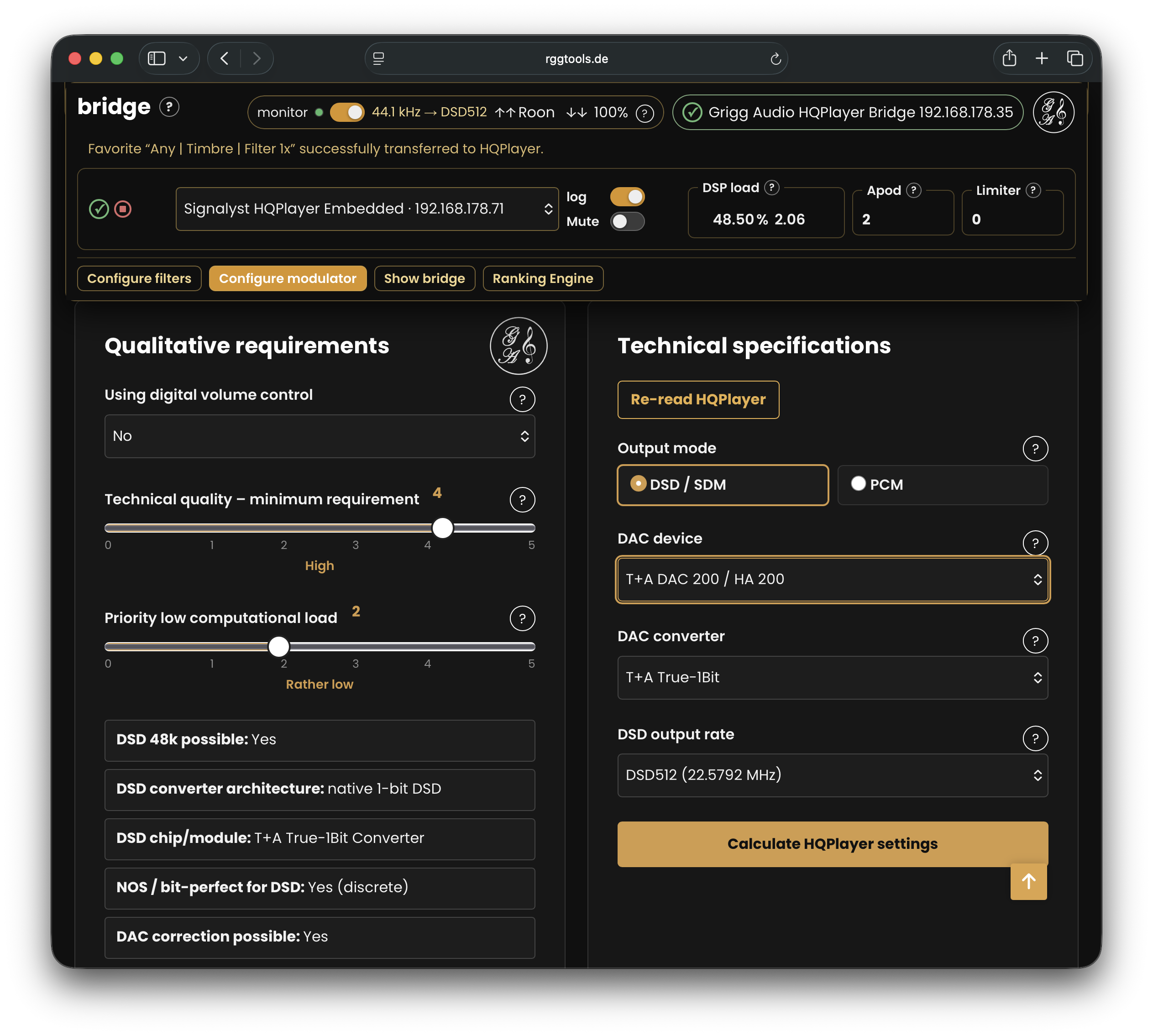
My requirements for modulators:

Bildschirmfoto-2026-10-14-um-12.03.59.pn

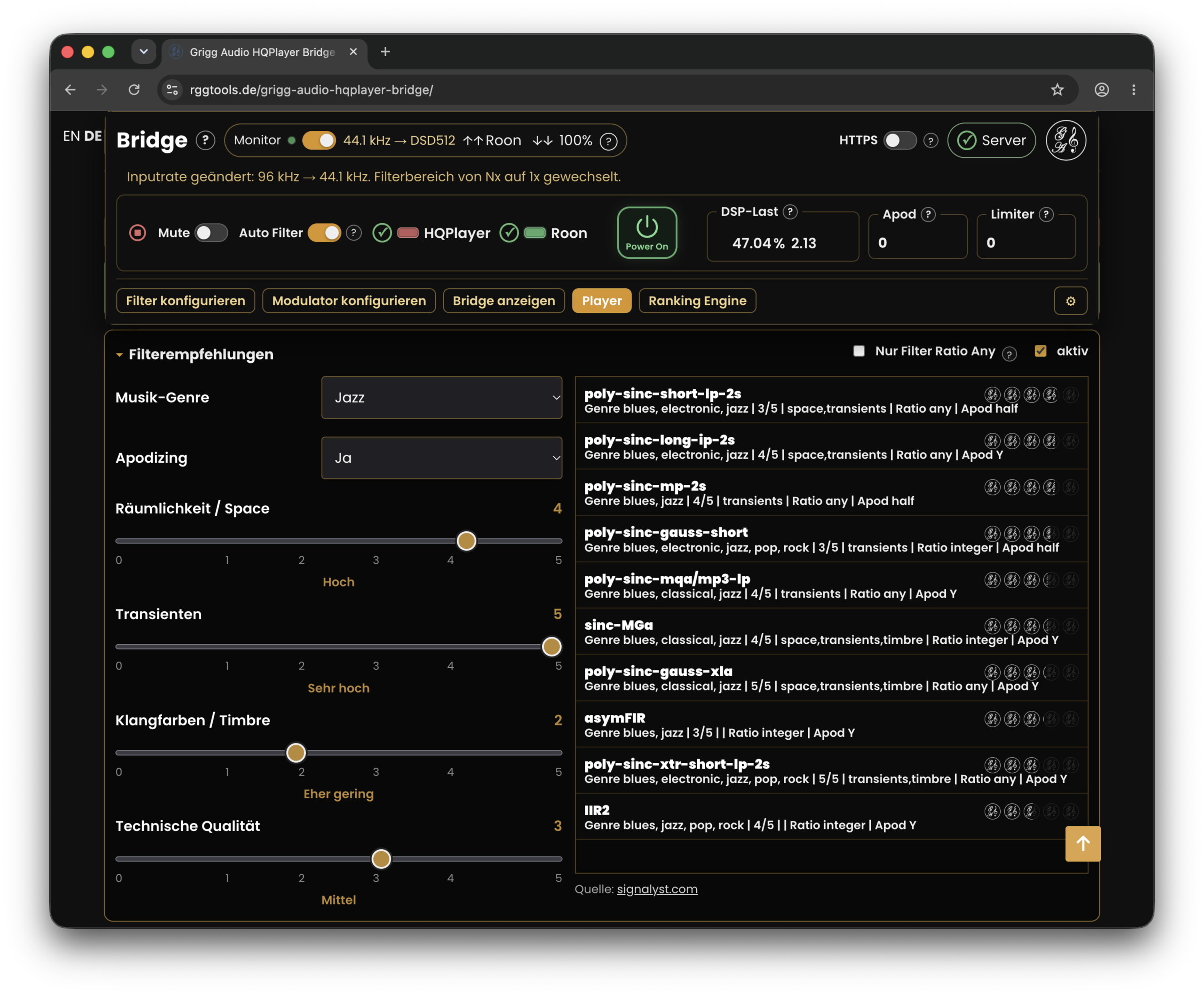
And here’s another list of recommendations:
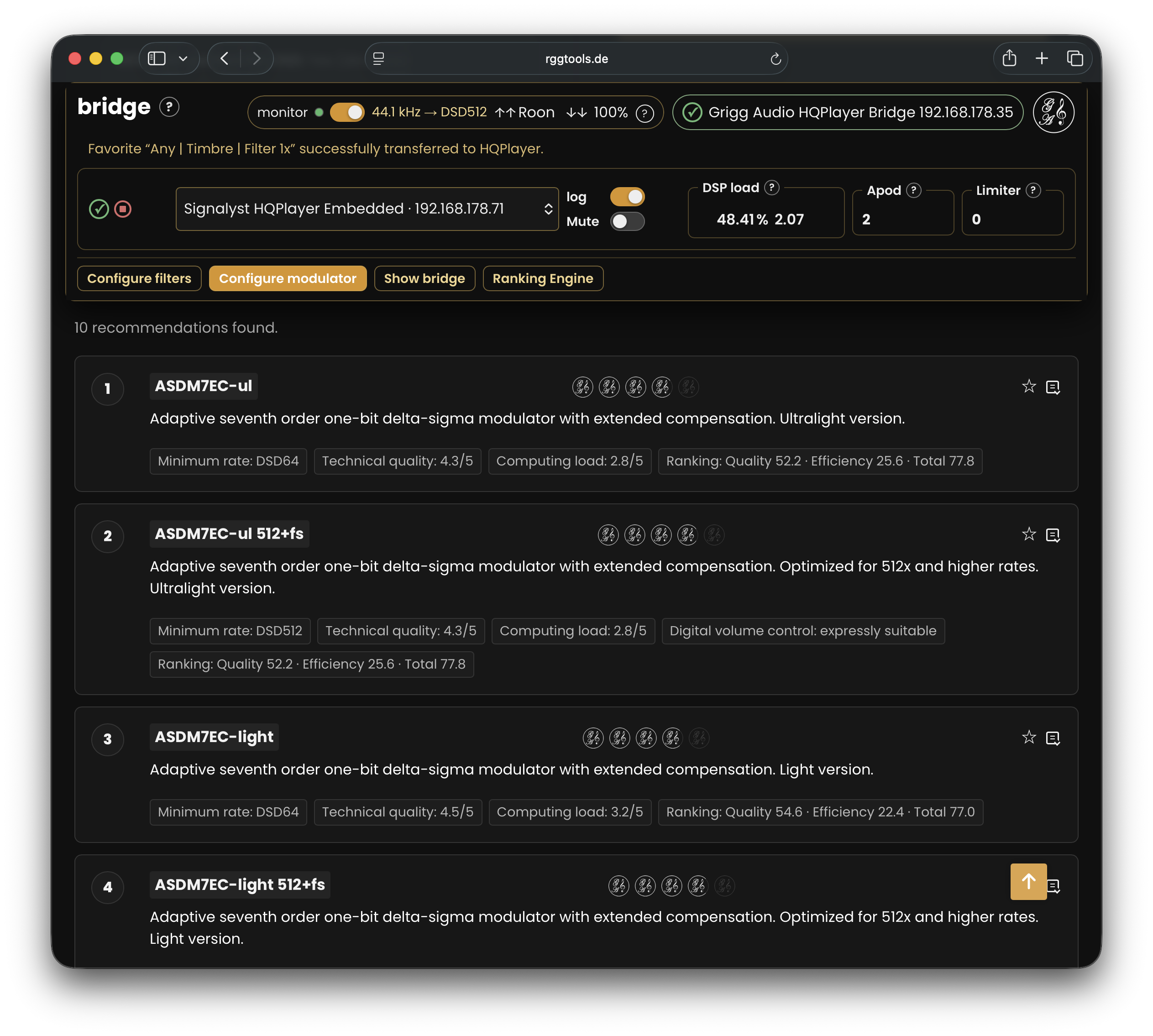
Bildschirmfoto-2026-10-14-um-12.04.07.pn

Bridge Plugin

The Bridge plugin serves as the central hub connecting the other plugins to the Bridge Server. I can monitor various parameters there, or directly switch filters, shapers, the output rate, and the output mode. The Analyzer in the Bridge Server simulates every change and rejects implausible settings. For example, in cases of issues with ratio integer filters or modulators that only work with DSD1024. The DAC’s permissible output rates are filtered in advance using a snapshot.
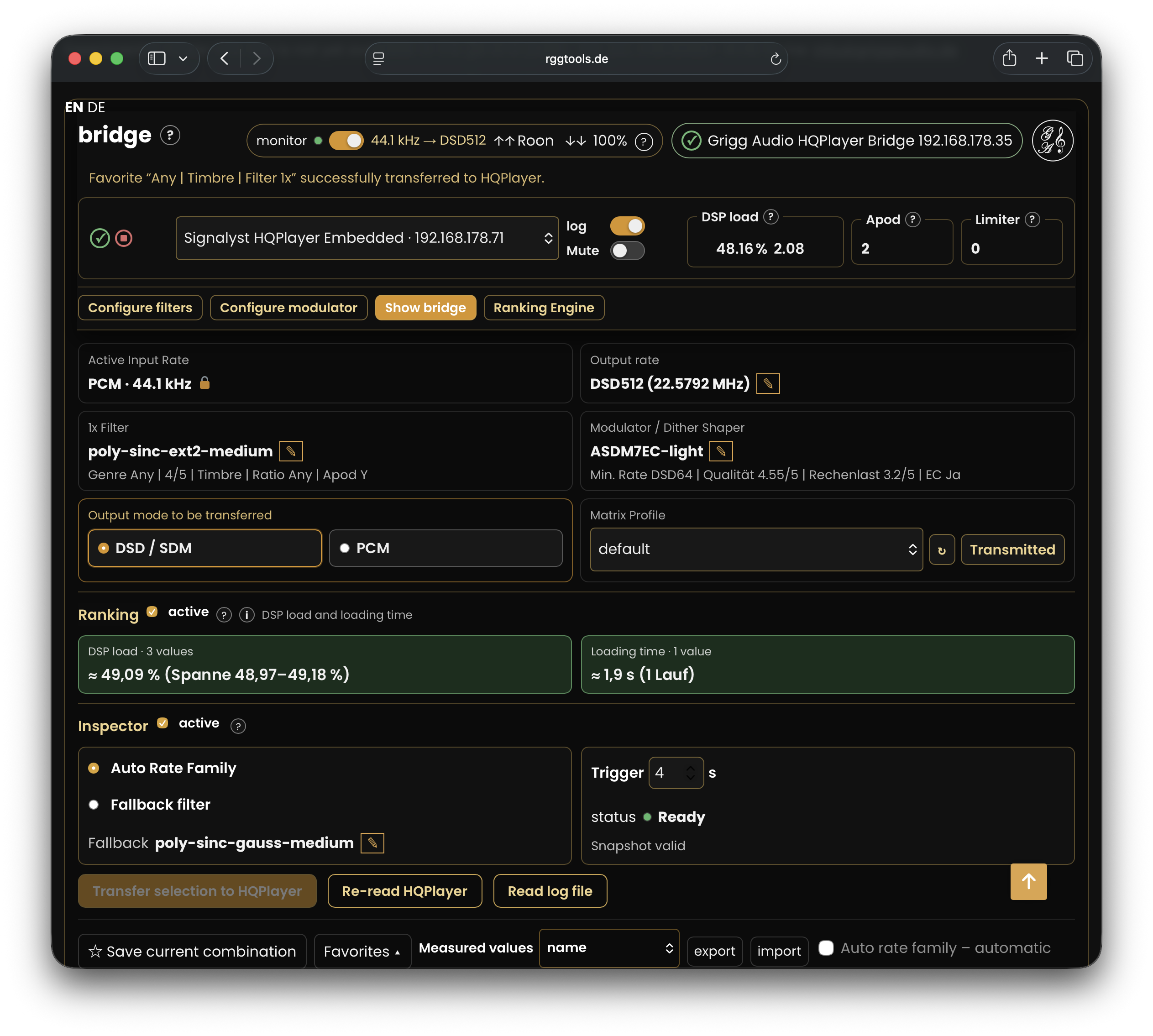
Bildschirmfoto-2026-10-14-um-11.58.01.pn

Existing rankings help me choose specific combinations. Below, I’ve selected a new filter, and I can see that I’ll have to wait a little longer (23 seconds):
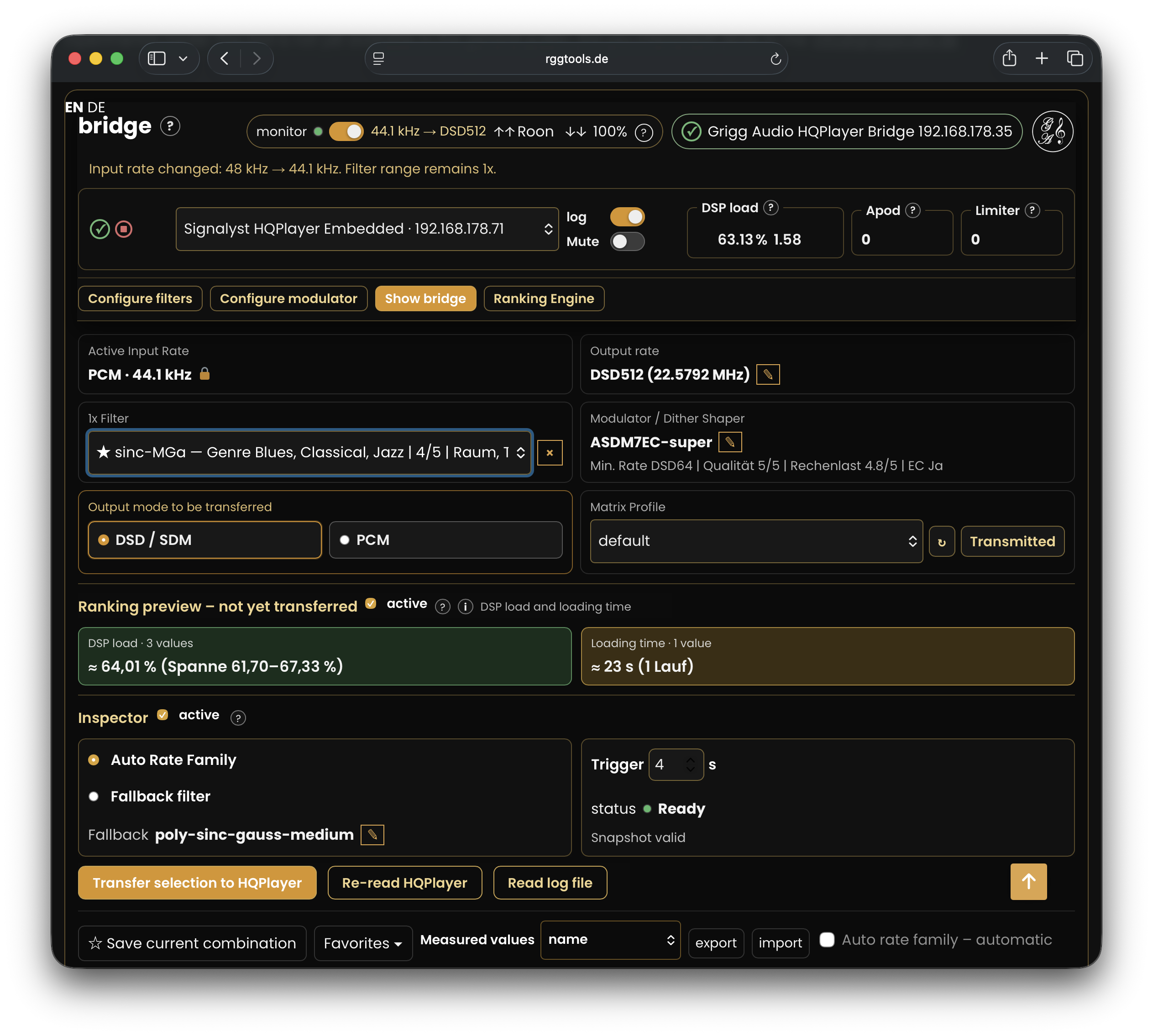
Bildschirmfoto-2026-10-14-um-17.40.35.pn

I can also save my favorites there. The ranking results are automatically sorted:
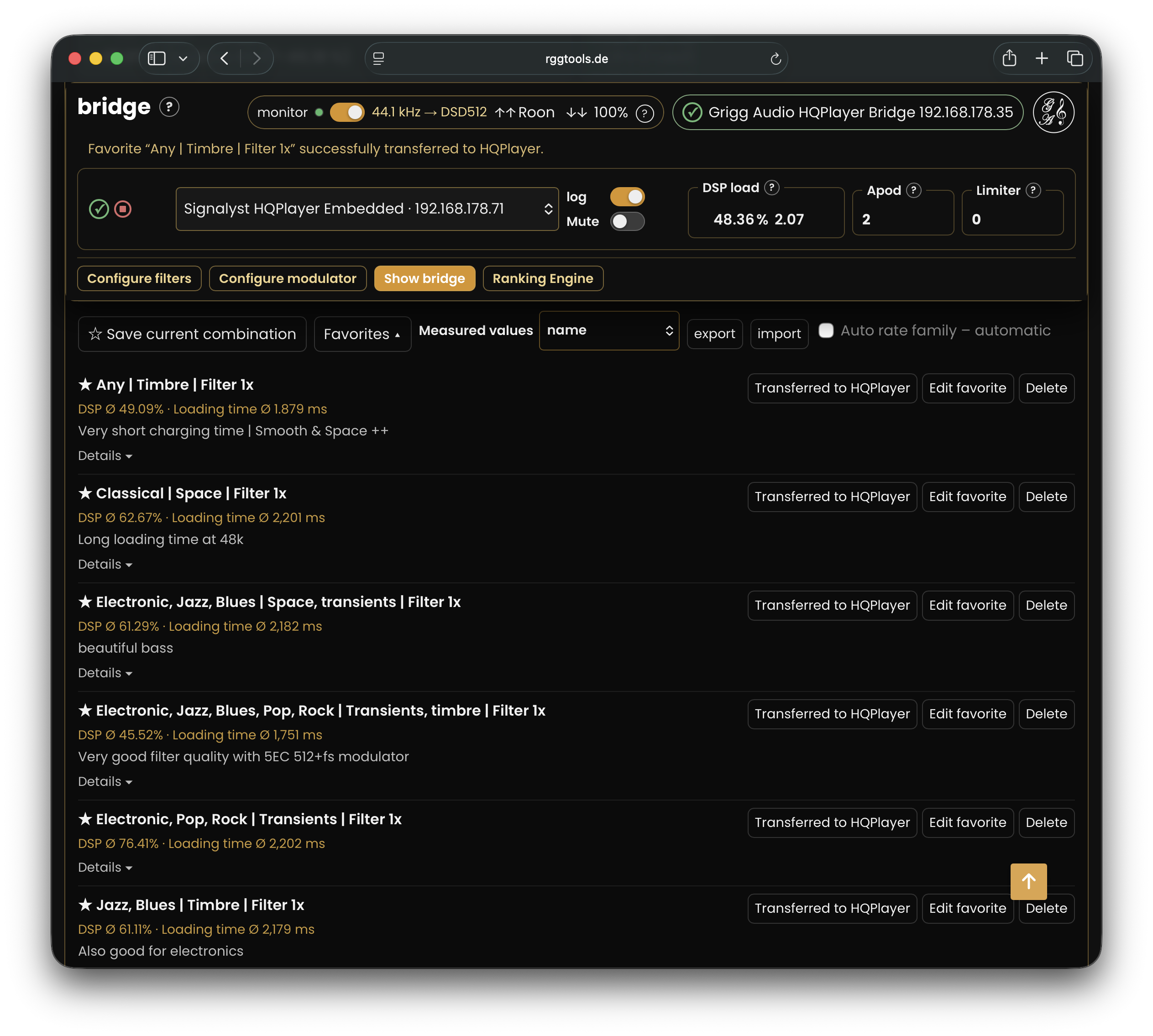
Bildschirmfoto-2026-10-14-um-11.58.16.pn

HQPlayer Ranking Engine

With this engine, I can automatically run over a thousand transactions to measure DSP load and load times. The results are based on my personal hardware. My results are only partially comparable to those obtained with other hardware.

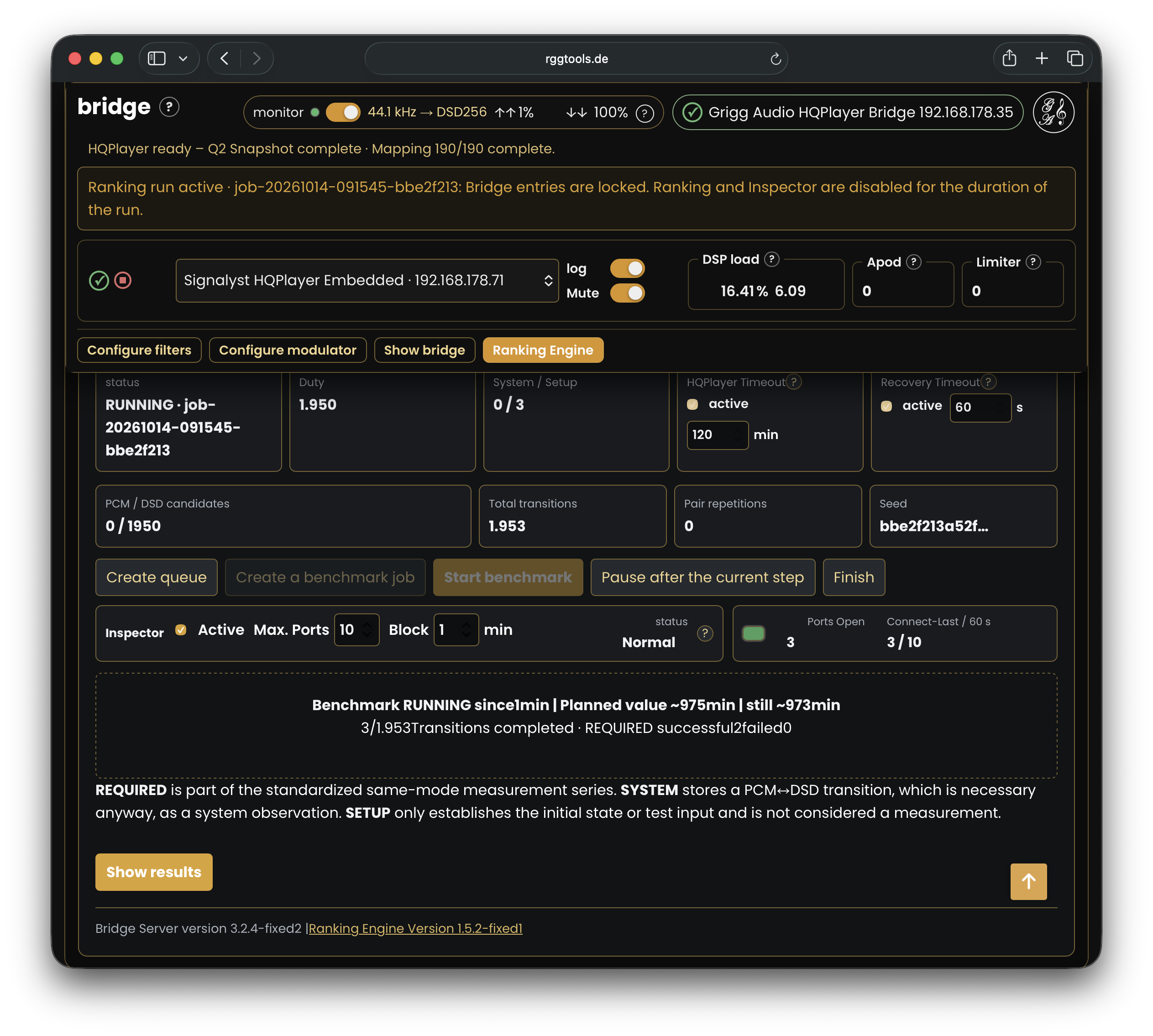
The selection process is handled by a workflow and is simulated in advance using the server’s analyzer. Something big (1953 Transitions) is happening right now:
Bildschirmfoto-2026-10-14-um-11.17.37.pn

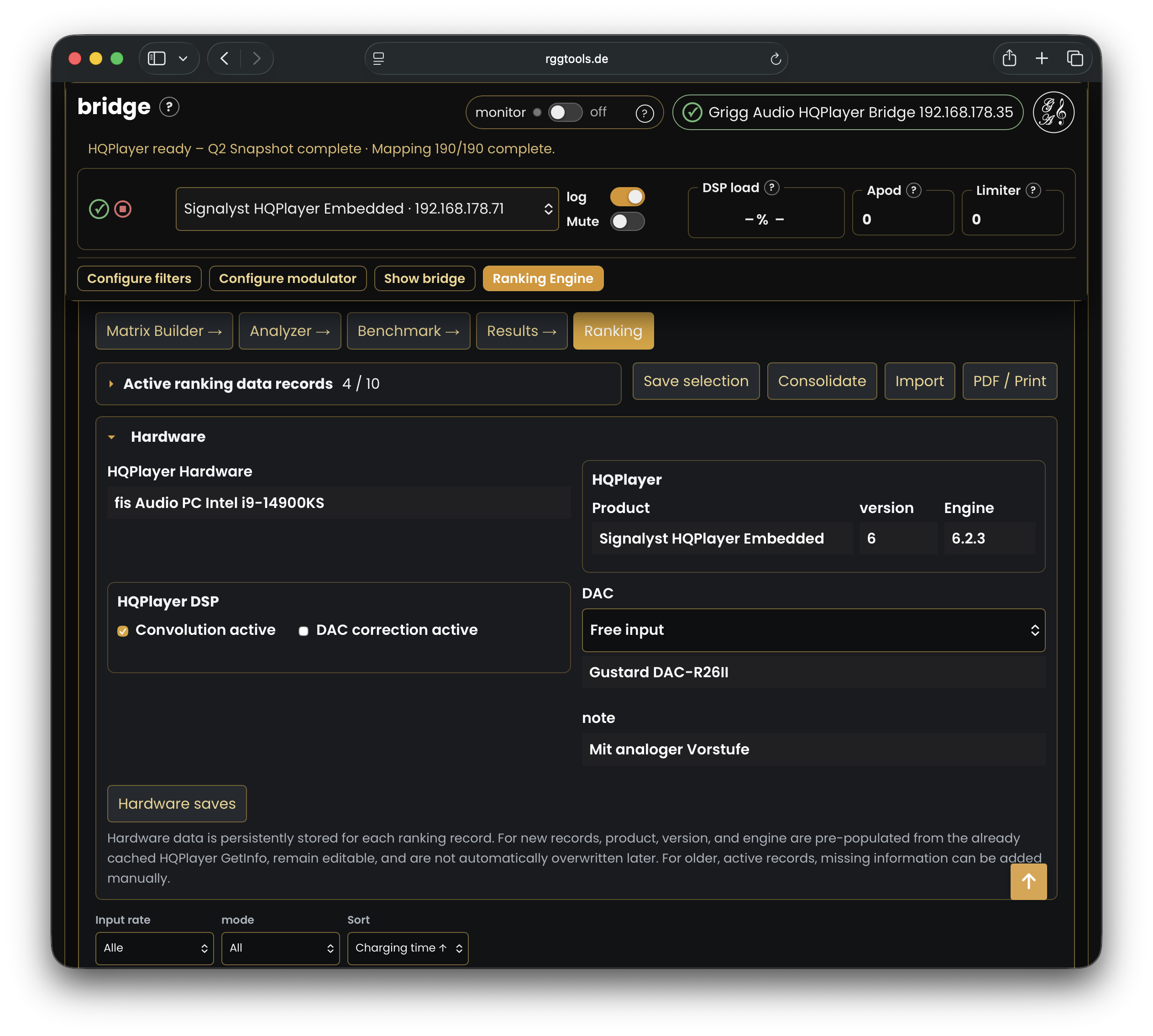
I assign the test results, which were generated overnight, to my hardware. Data from HQPlayer is automatically retrieved:
Bildschirmfoto-2026-10-14-um-11.35.43.pn

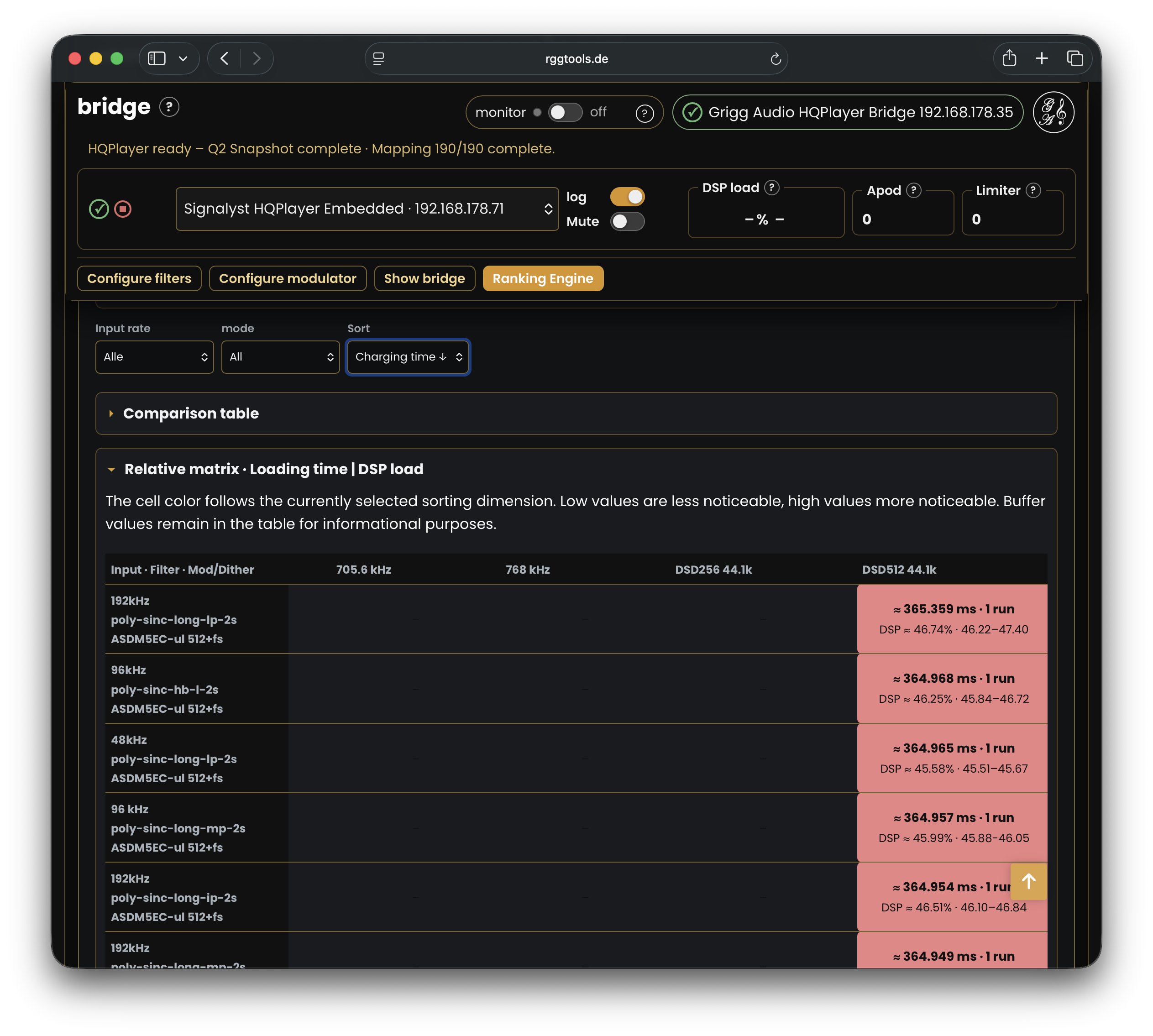
In the Ranking, I can look for problematic scenarios. However, these are also displayed automatically in the Bridge plugin:
Bildschirmfoto-2026-10-14-um-11.36.35.pn

That’s it for now. For me, the benefits lie in the fast transactions—including bundled ones, such as with the “Combination Favorites”—and the ability to view the DSP load and load times in advance. The ranking results take absolutely everything into account:

  • Input/output rates

  • Filters/shapers

  • My hardware

5 Likes

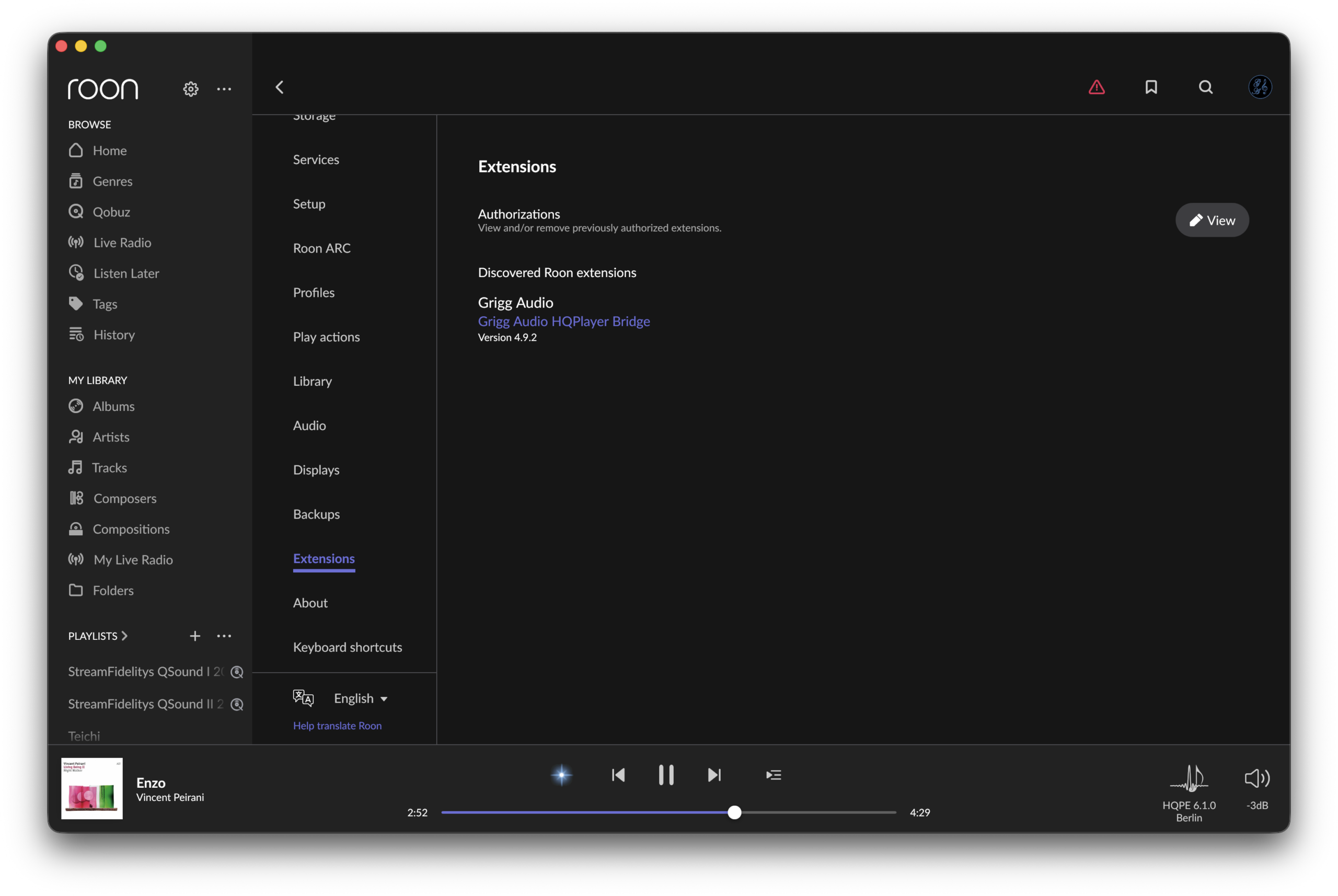
A lot has happened. I now have a Roon extension:

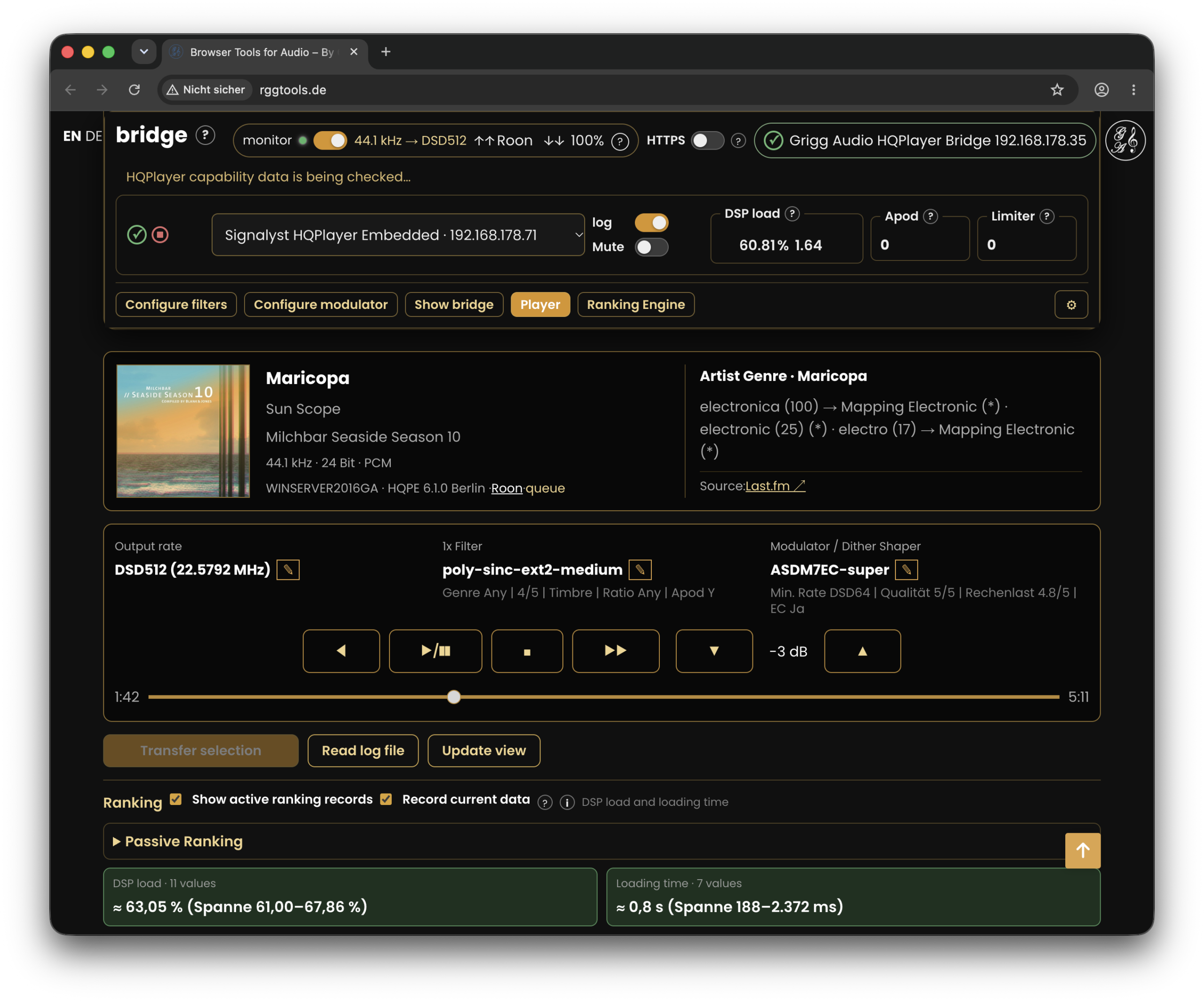
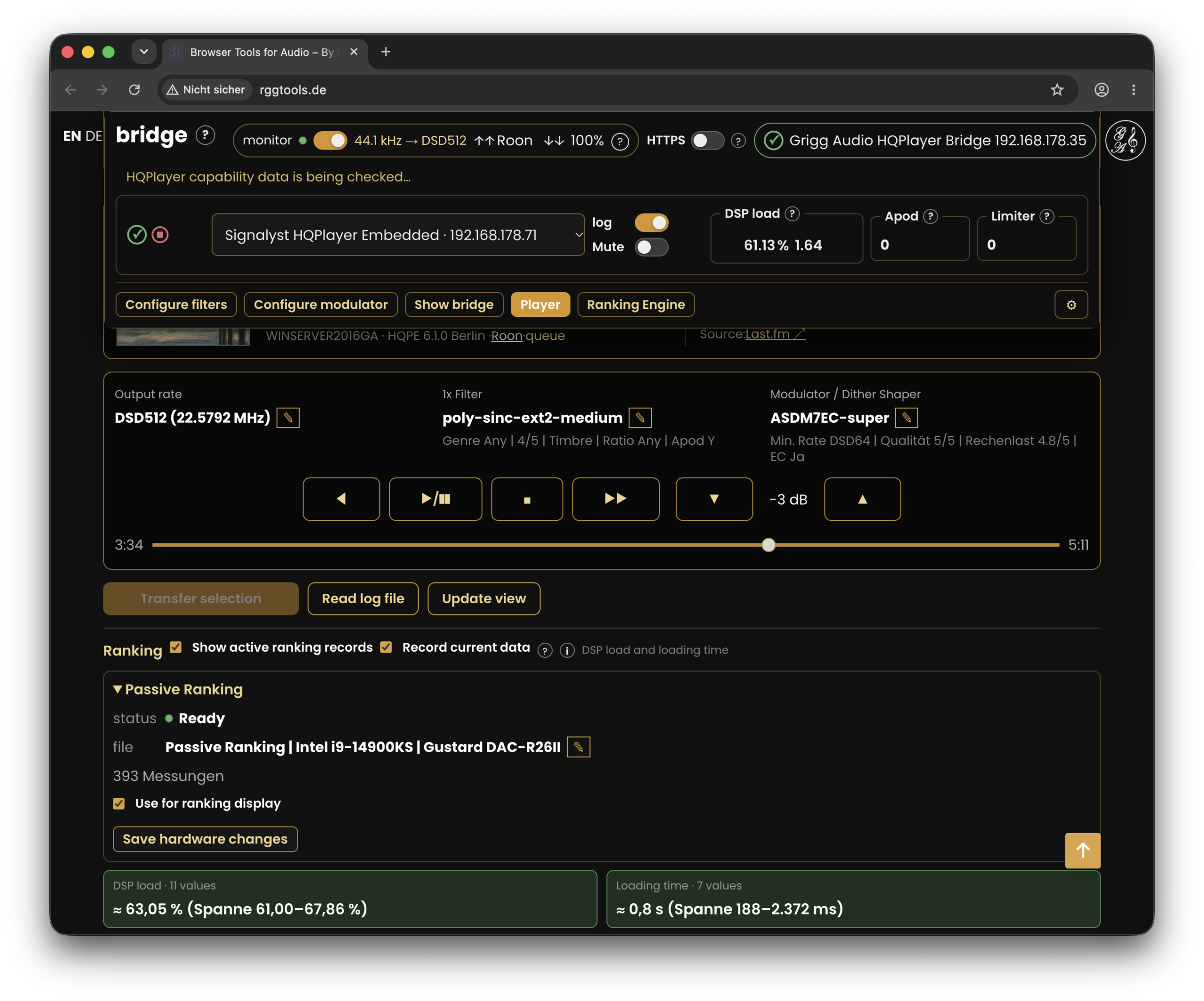
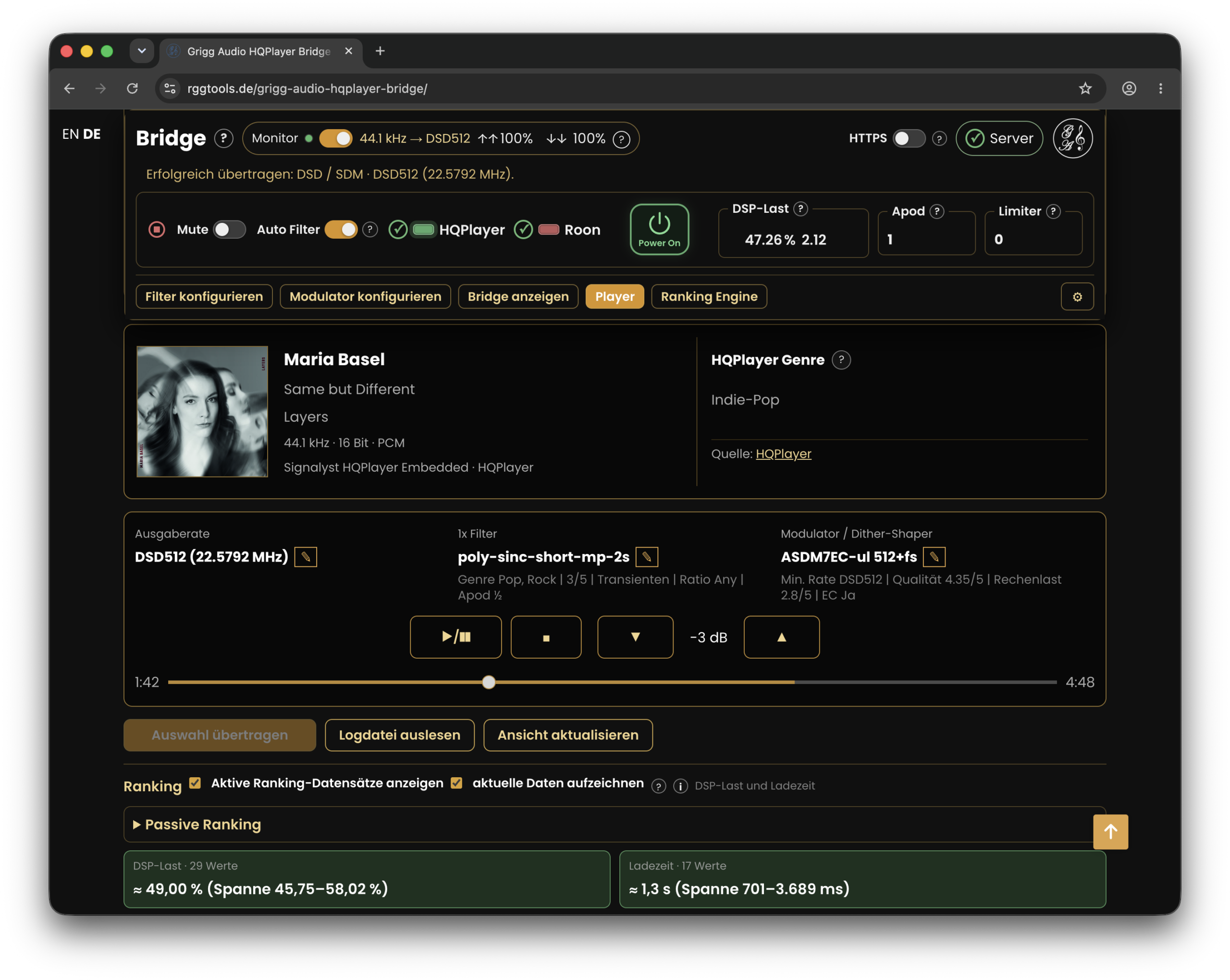
This resulted in a handy player. It doesn’t have library management or music selection features. But the standard commands for play, stop, and fast-forward are available:

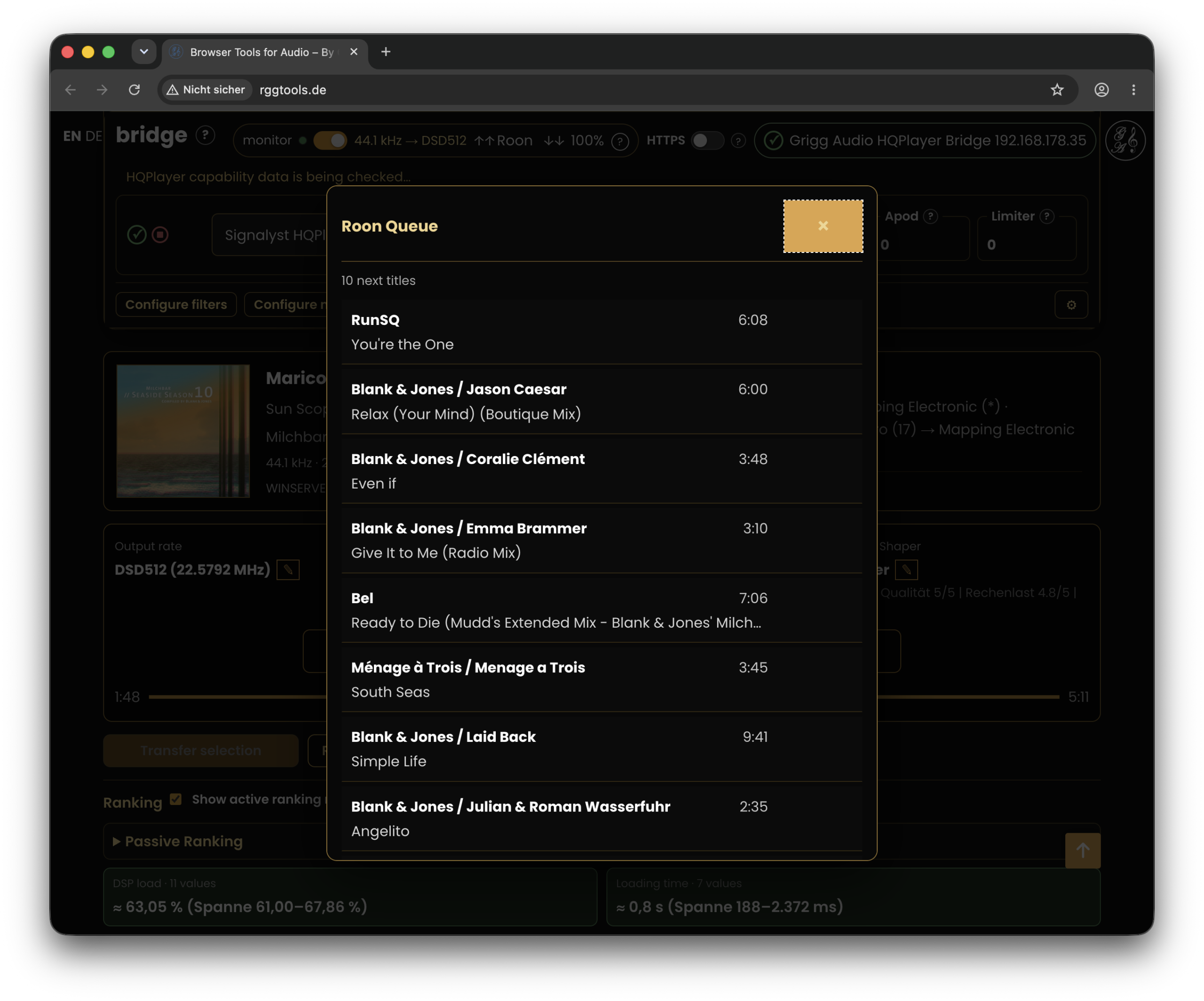
In Roon, I put together a queue and can select it on my player:

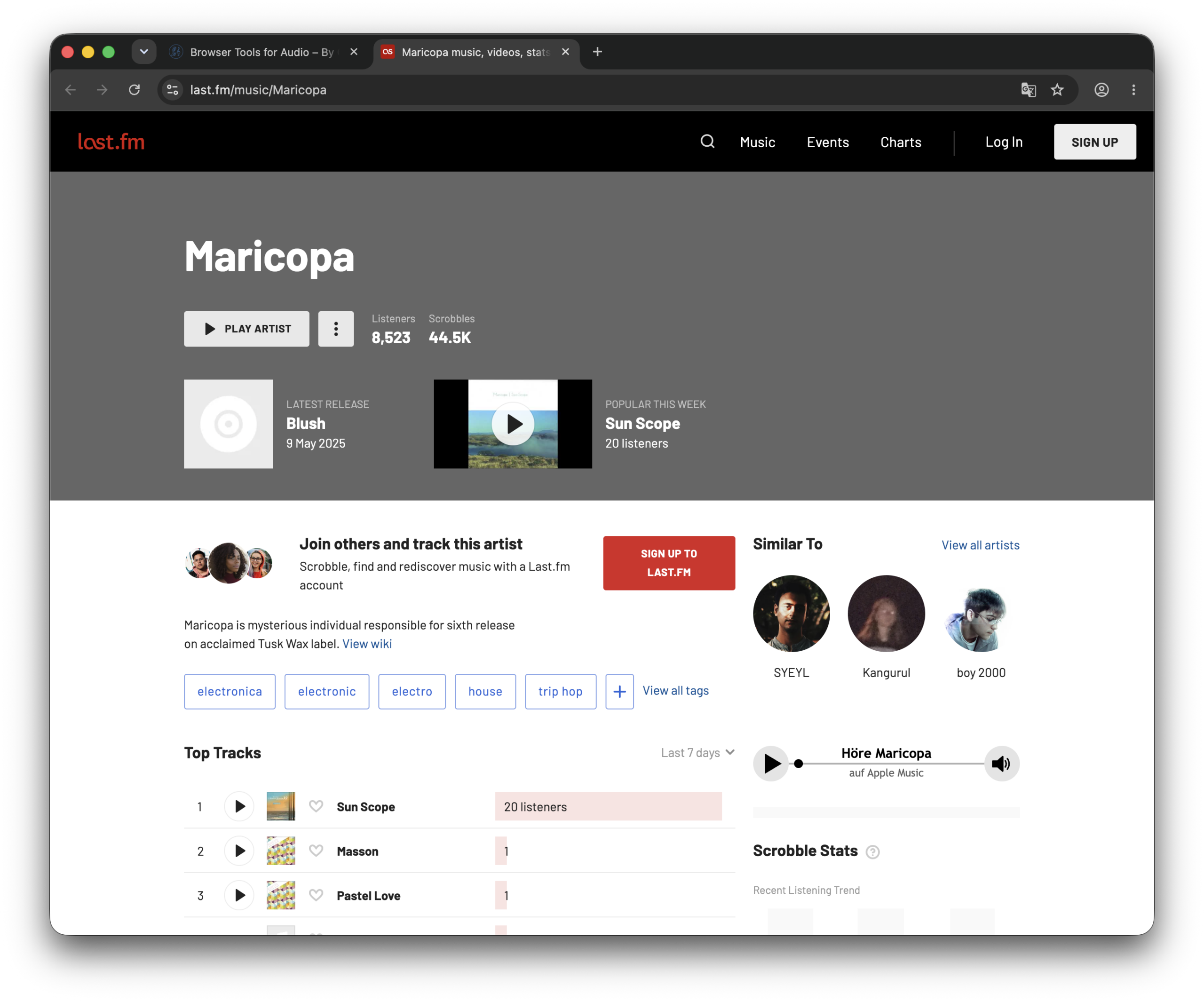
The player was originally intended for a different purpose. I wanted to extract the genres from Roon to use them for my filter configurator. Due to the nested structure (or maybe I just didn’t understand it correctly), I wasn’t able to do that. Instead, I integrated music services: https://musicbrainz.org/ and Last.fm | Play music, find songs, and discover artists . A link opens the original source, where you can also see the genre tags:

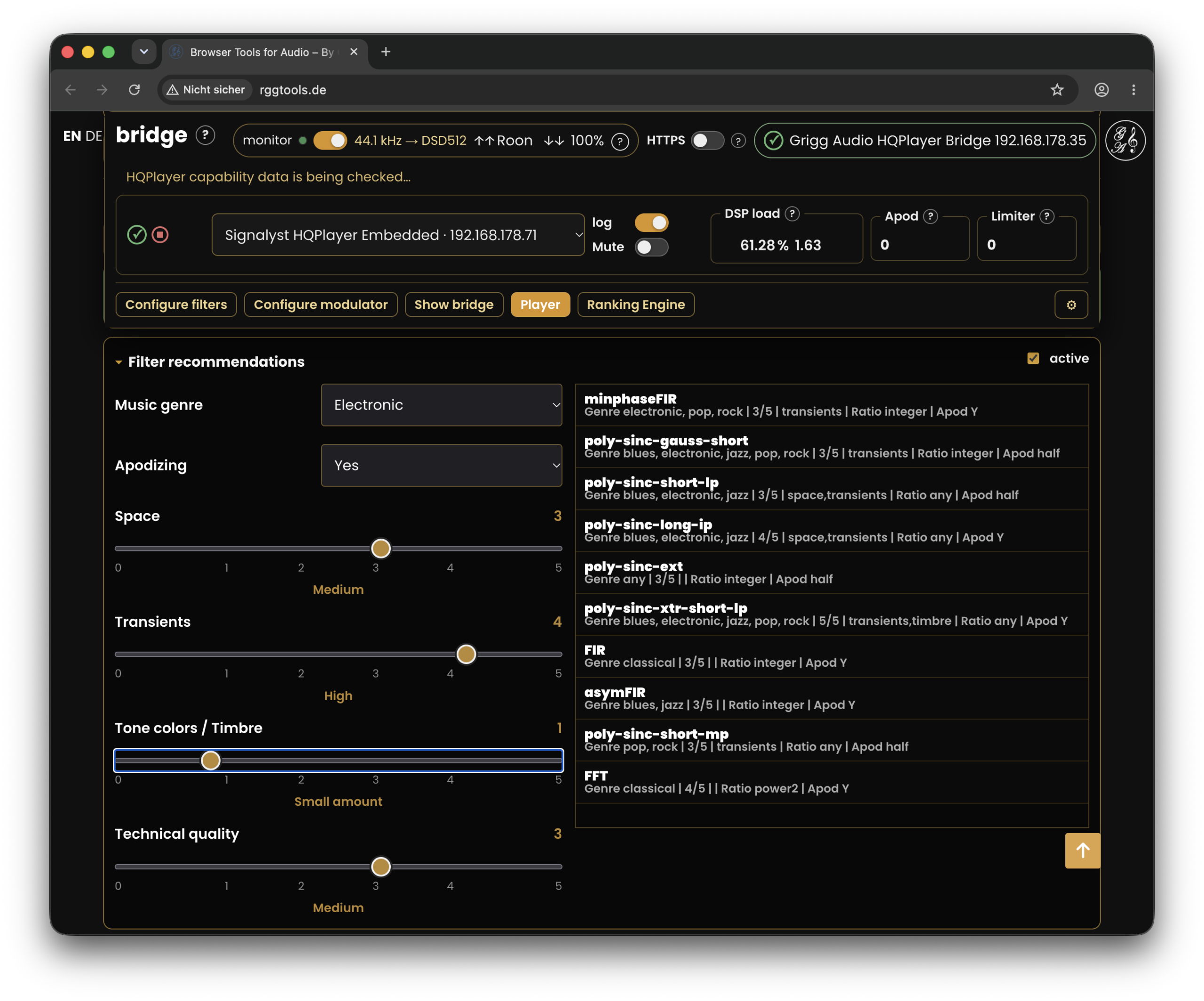
The genre with the highest rating is preset in the filter configurator. In addition, I can provide further details on how I want my filter to be designed. The filters are then displayed on the right side for selection. I can now select a filter and apply it directly to HQPlayer:

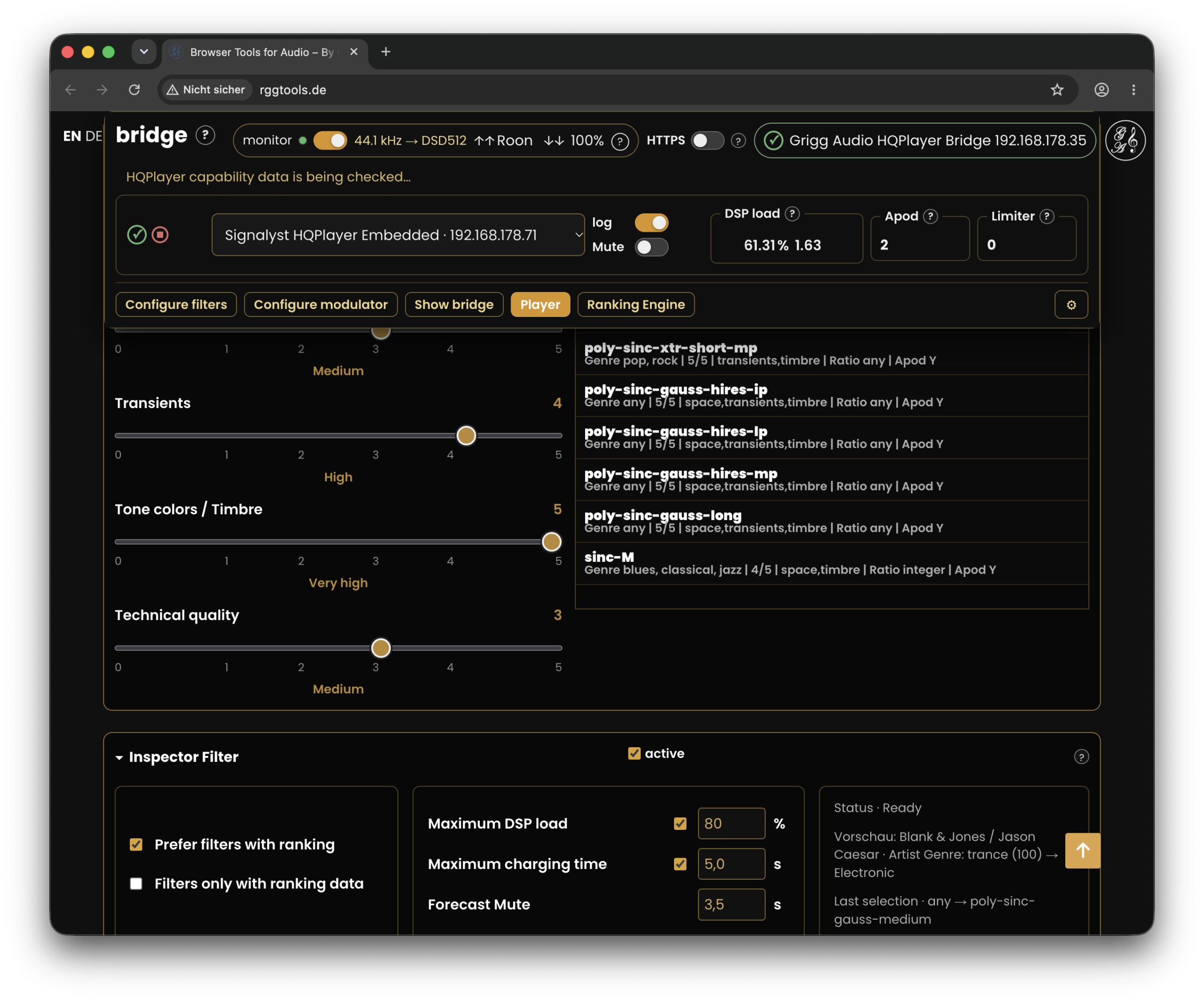
But there’s a better way. I built an Inspector filter. That took a lot of effort. The Inspector can see the next track in the queue. About 5 seconds before the end of the current track, the Inspector queries the genre. That saves time right off the bat. I would have liked to get the input rate for the HQPlayer from the queue as well. Unfortunately, the Roon queue doesn’t provide that. In the Inspector, I can also set the DSP load and the load time. And I can specify when muting should be activated to prevent unpleasant dropouts during music playback:

I’m still in the early stages with the ranking data, so it’s not available everywhere yet. It’s important to me because I don’t want to load filters that take forever, and I also don’t want filters that overload my DSP. I can already run my ranking engine overnight. But why not measure while the music is playing? That’s how passive ranking was born. The measurement takes place completely outside the signal path and doesn’t interfere with music playback.

I think I’ll be able to release the Grigg Audio HQPlayer Bridge to the public soon. It’s free and doesn’t require registration. Stay tuned. :slight_smile:

5 Likes

I went to great lengths to come up with a decent design, and then this: After the initial setup, the Bridge plugin isn’t even needed anymore.:mrgreen: Because the Bridge Server can automatically apply filters in the background—based on genre and personal listening habits—without you even noticing.
Further Development of the Bridge Plugin Player

But I’ll get right to the point. A few minor changes have been made to the Bridge plugin. It’s now possible to integrate the HQPlayer client for music management. The Bridge automatically detects which player is currently playing and switches over. In the image below, it’s the HQPlayer.

Bild

At this point, I’d like to briefly mention my philosophy behind the Bridge plugin once again. The goal isn’t to replace any players, but rather to allow users to select the best possible filter for music playback and stream it online. That’s why an upstream player is still needed to handle music management and selection. I’ve tried to illustrate this in the diagram below.

Bild

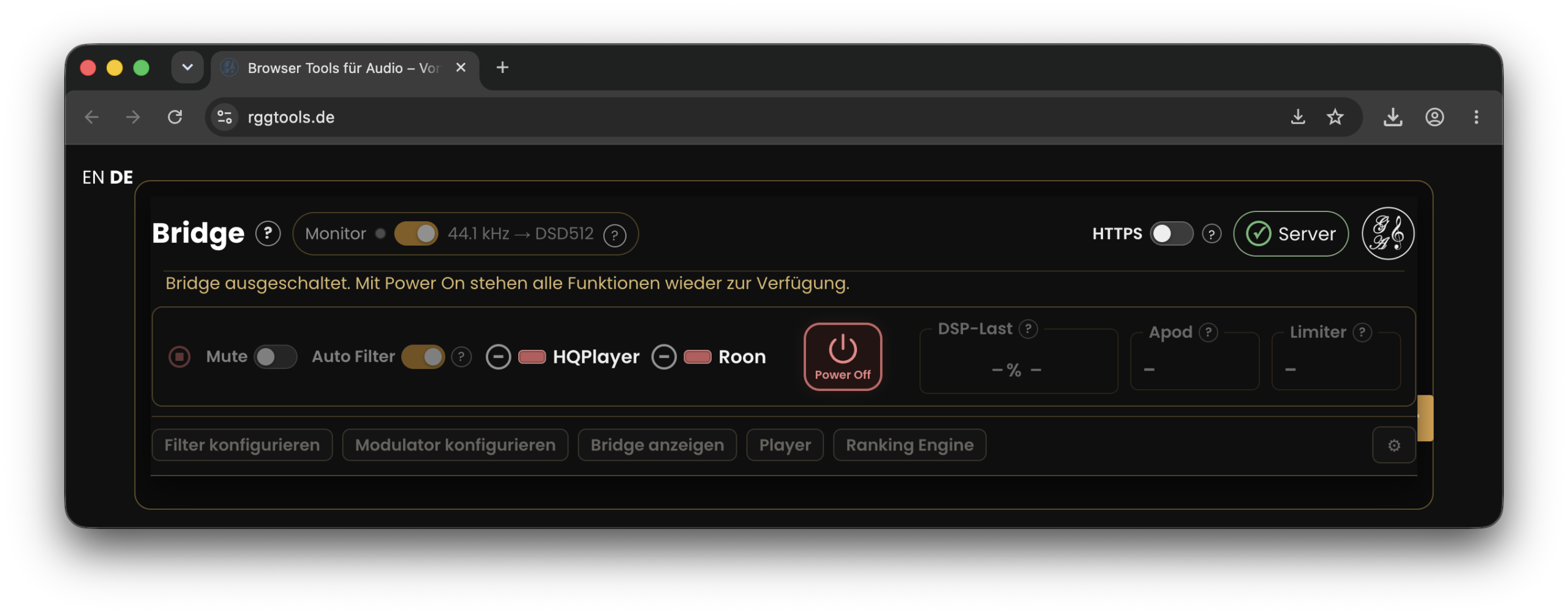
I’ve also integrated the Filter Inspector into the main frame at the top as an “Auto Filter” button. A power button has also been added—and for good reason, though I’ll have to explain that in a bit.

Filter Plugin: Offline and Online

The Filter Configurator is still available offline on my website, Grigg Audio Solutions, under HQPlayer Tools, and I intend to keep it that way. To ensure consistency, I’ve specified in the IT architecture that the same rules apply to the Bridge plugin as well. However, this has always been questionable from a performance standpoint, because the validity checks are then calculated in the browser or via PHP in WordPress. Incidentally, there was also a critical PHP2Shell security vulnerability at one point. I wasn’t affected by it, though, and the vulnerability has been patched by my hosting provider.

Bild

Then I had the idea to make the checks in the filter plugin machine-readable and to create a hash code for version comparison. Initially, the server always loads the latest valid set of filter plugin rules and compares it with the filter plugin’s hash. If both match, the server’s set of rules remains unchanged. Otherwise, it is replaced.

Fully automated filter assignment in the background

Suddenly, this made a completely different Bridge plugin design possible. Until now, the browser and monitor had to remain active. That’s a thing of the past. I can now activate the Filter Inspector and Passive Ranking and close the browser. That’s because the server always remembers the last settings. If I turn off all devices and turn them back on the next morning, the appropriate filter for the music being played will be selected in HQPlayer. Which brings me to the important power switch, glowing bright green:

Bild

Since I’m so forgetful, I might wonder why the filter was changed for no apparent reason the next morning. To make sure I have control over this, I can use the power switch to set the server to “inactive” the night before so that doesn’t happen. When I restart it, I turn the power switch back on.

Bild

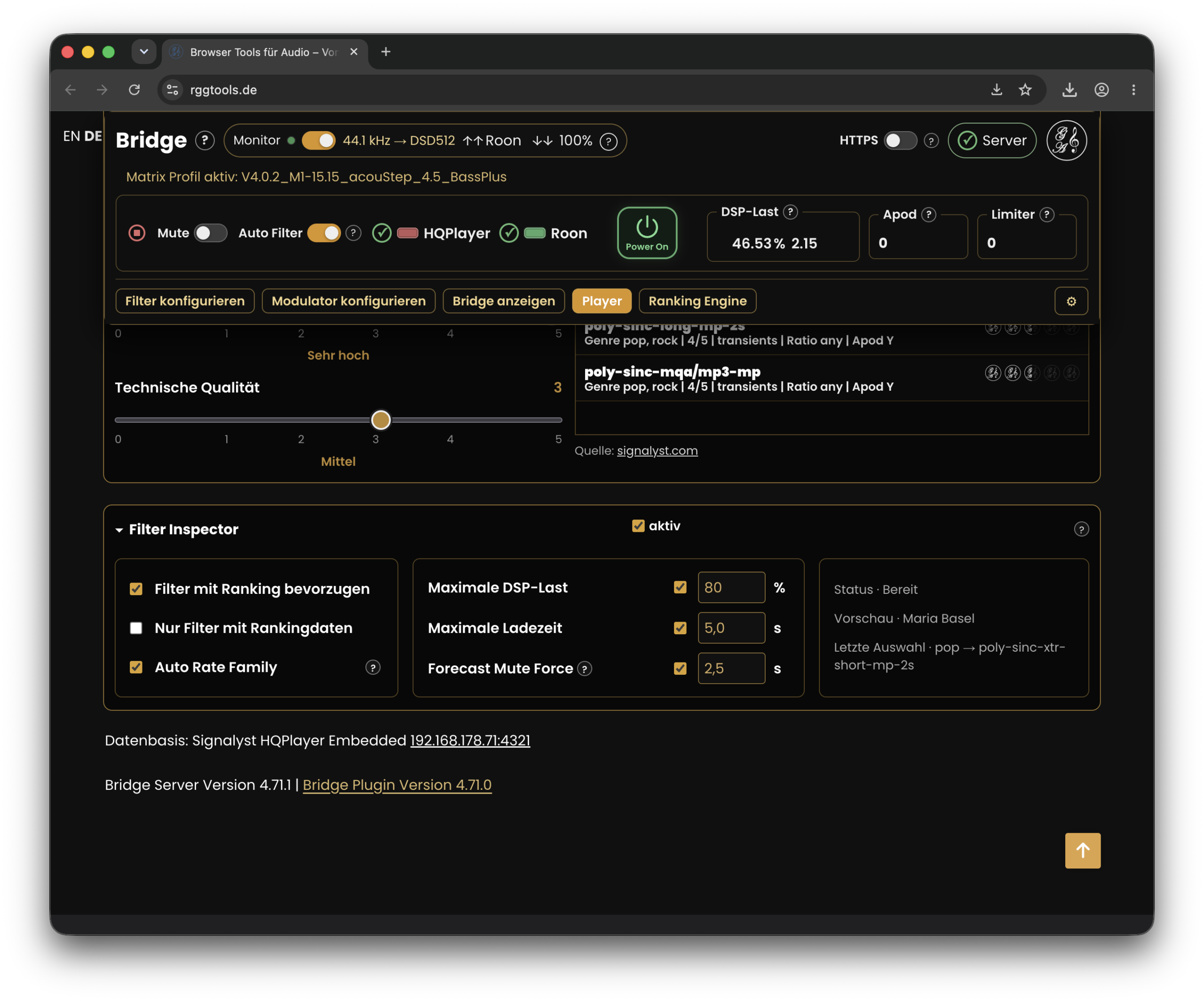
I had to do a bit of experimenting with the Filter Inspector. Some additional settings have been added there as well. For example, “Forecast Mute Force.” A quick bit of background: Every transaction triggers a brief interruption in the music in HQPlayer. This is, of course, very disruptive during music playback. That’s why I can activate muting shortly before the end of the current track. The Filter Inspector then checks whether a filter needs to be changed and subsequently turns the mute back off. How many seconds of lead time are needed depends on the hardware and the upsampling settings. This actually varies between my two listening rooms. It works best when I’m listening to an entire album, because then the filter setting applies to the whole album (assuming the same artist). By the way, muting only works if “Fixed volume (dBFS)” isn’t enabled in the HQPlayer configuration.

Another new feature is “Auto Rate Family.” This setting ensures that filters that only support integer ratios (conversion ratios expressed as whole numbers) switch to the appropriate output rate. It is important to disable this feature in the HQPlayer configuration; otherwise, competing transactions will occur.

Bild

Important: The Bridge never permanently changes the HQPlayer settings. If something goes wrong, I just restart HQPlayer and the default configuration is reloaded.

Anyone can use this now

If you’re interested and use HQPlayer, you can download the Bridge Server for free:
Downloadsite Grigg Audio HQPlayer Bridge Server

There are no hidden subscription fees; the Grigg Audio HQPlayer Bridge is intended to remain free for personal use. There’s also no requirement to register. Get started and have fun.

The only requirements are:

  • You’re using HQPlayer

  • You have a Windows computer on which the Bridge Server can be installed.

The Bridge Browser itself is operating system-independent. The easiest way is to use Opera or Google Chrome for an unencrypted HTTP connection. For other browsers, you may need to install a CA certificate for an HTTPS connection, which the Bridge Server provides.

2 Likes

It’s not like I’m running out of ideas. :grinning_face_with_smiling_eyes:

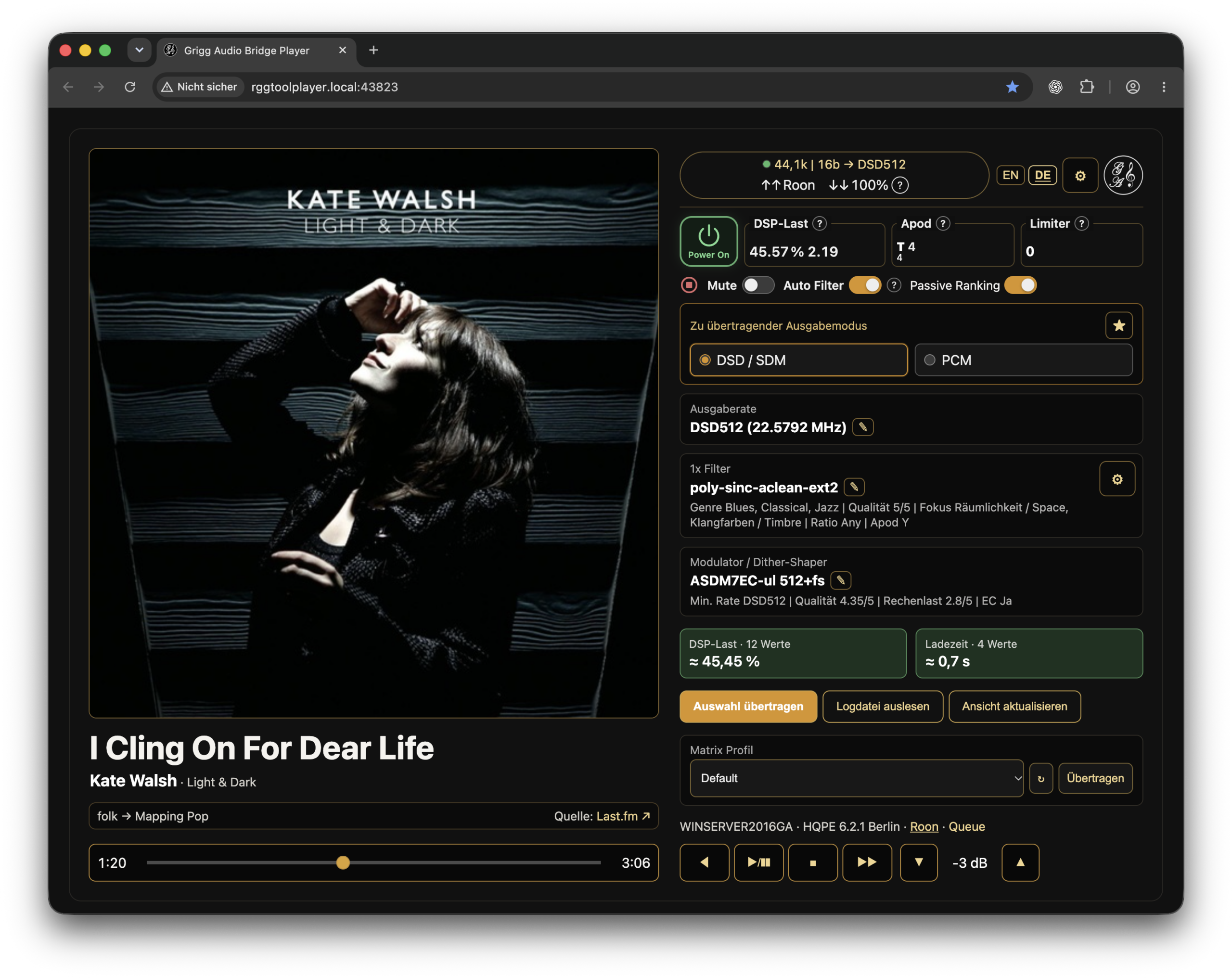
I’ve now designed a new player that puts the musician more in the foreground on the left while still making all HQPlayer settings accessible on the fly on the right. The interface is optimized for tablets and smartphones, but can also be accessed from any PC via a browser.

Bild

The interface comes directly from the Windows computer on the home network where the Bridge Server is running. There, Kestrel—the built-in web server in ASP.NET Core—handles the requests. Kestrel delivers the interface using HTML, CSS, and JavaScript. The browser then uses this to build the view, which includes the cover, timeline, and controls. That’s why it takes a few seconds to load.

2 Likes