What is the operating system of your Roon Server host machine?
· Roon Optimized Core Kit (ROCK)
What kind of device are you using to perform the login?
· Android
Where are you trying to login?
· I can't log into Roon
Please try to restart your Roon Server by closing the Roon Server app in the taskbar (MacOS), task manager (Windows) or rebooting your Roon Server machine.
· No, the issue remains the same
Different device
· I am able to switch to the diffrent device
Are you still facing the issue on the different device
· No, the issue remains the same
Record the timestamp
· Where exactly am I supposed to see a timestamp?
Describe the issue
Roon remote on android 16 as well as on Windows 11 PC attempting to connect to ROCK installed on Asus NUC 15 Pro + (u7). Login link opens browser (all cookies and browsing data already cleared on both devices), then it loops back to the login page whether I click my account or re-enter my info manually. If your free trial isn't worth what I paid for it, why would I pay you?
Describe your network setup
Frontier fiber internet, netgear ax2400 router, netgear prosafe gigabit switch. ROCK connected via ethernet, PC and android on wifi through same router.
Thank you for reaching out. We are sorry to hear you are having trouble logging in.
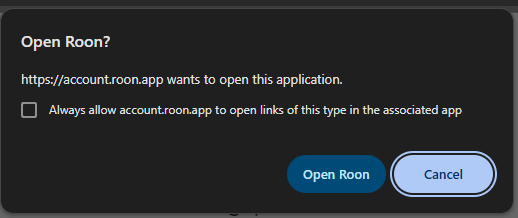
When you click the login link in your browser and it redirects back to the Roon app, do you see a pop-up dialog asking “Open Roon?” — similar to the screenshot below? If so, you would need to click “Open Roon” to complete the login and return to the app.
If you do not see this dialog, it may be blocked by your browser or system. Here is what to try:
On Windows:
In your browser, look for a blocked pop-up notification in the address bar (usually a small icon on the right side) and allow the redirect to account.roon.app
If using Chrome, go to Settings → Privacy and Security → Site Settings → Pop-ups and redirects and add account.roon.app to the allowed list
On Android:
In Chrome, tap the three-dot menu → Settings → Site settings → Pop-ups and redirects and make sure it is allowed for account.roon.app
If you have any ad blocker or browser extension active, try disabling it temporarily and attempt the login again
After making these changes, try the login process again. Let us know if the issue persists.
Thank you for trying to help,Vadim. I made the pop-up exception you suggested on both Windows and Android, but there has been no change. After I login on the browser, it redirects to the app login screen again.
Thank you for the update. Since the browser is redirecting back to the app but landing on the login screen again, the issue appears to be with the login token not being passed back correctly to the Roon app.
To help isolate whether this is a browser/redirect issue specific to your devices, could you try the following on your Windows PC:
Open Roon
On the server selection screen, choose “This PC” instead of your ROCK
Attempt to log in from there
Can you please use the directions found here and send over a set of logs to our File Uploader? Once logs have been uploaded, please let us know so that we can check the server for your files, thanks!
I was able to login to the RoonServer on the PC, but am still unable to login to my ROCK through PC or Android. I uploaded my log files. Looking forward to next steps!
Thank you for the additional information. After reviewing the server logs you shared, I can see the actual cause of the login loop — and it is not a browser or pop-up issue at all.
What is happening: When you complete login in the browser, the Roon app correctly receives the authentication code and passes it to your ROCK server. However, the ROCK server then needs to call Roon’s servers (go.roonlabs.com) to exchange that code for an account token — and this step is failing because your ROCK has no internet access. The error in the logs is Name or service not known — the ROCK cannot even resolve DNS. As a result, the login attempt is discarded and the app loops back to the login screen.
This problem appears to have started on June 2. Your ROCK had working internet on May 31.
Steps to diagnose:
Check the ROCK web interface — open a browser and go to http://192.168.1.39 (your ROCK’s IP). Look under Network settings for the gateway and DNS server values. They should point to your router (192.168.1.1).
Bypass the ProSafe switch — connect the ROCK’s ethernet cable directly to your Netgear AX2400 router and reboot the ROCK. If internet access returns, the managed switch has a configuration issue (a common culprit is a loop protection or VLAN setting that started blocking traffic).
Check the router’s DHCP client list — log into your router admin page and confirm the ROCK (192.168.1.39) has a valid entry with a correct default gateway assigned.
Check if anything changed on June 1–2 — any router reboot, firmware update, or change to switch settings around that time would be relevant.
Once the ROCK has internet access again, the login should complete on the first attempt without any changes to your browser or devices.
I got it fixed! Thank you for all your help, and sorry about my tone in my OP. What ultimately resolved the issue was changing the ROCK’s networking mode back to DHCP from Static IP. I had read that Static would make it easier for clients to find the server, but it was clearly interfering in other ways.