Logitech PRO X2 Wireless causes tracks to skip

Greetings I’ve been experiencing this issue with my setup where by having the Logitech Pro X2 Wireless connected to the computer Roon will start skipping tracks.

I went through the forums and I found out about the option specific to Logitech and similar devices that miss report the amount of channels, but here the problem is different.

Problem

(Consistent)
My theory is that when Roon is cold booted and the Logitech device is defaulted on Windows (Comm and Playback), the System Output is not able to recognize the correct PCM, thus the tracks starts skipping.

I think this is because Logitech does not support any other format on their drivers. And Roon is not able to set the correct PCM automatically causing it to skip due to a mismatched PCM.

(Inconsistent)
I’ve also gotten it to skip tracks when switching audio sources but this is always due to the Logitech headset being connected to the computer.

Workaround

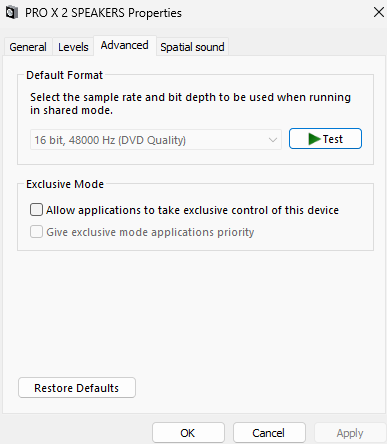
  • Default a Device that correctly detects the PCM, and set the System Output to 16Bit 48KHz. For example, switching to my Fiio K9 Pro ESS.
  • There are occasions where I need to restart the software, because setting up Audio devices gets stuck and I cannot do the workaround.

Peripherals (Audio)

  • Fiio K9 Pro ESS
  • Logitech Pro X2 Wireless

Hardware

  • OS: Windows 11
  • CPU: AMD Ryzen 9 7950X3D
  • RAM: 64GB
  • GPU: RTX 4090

Roon is just running locally, and the server is on the same machine.

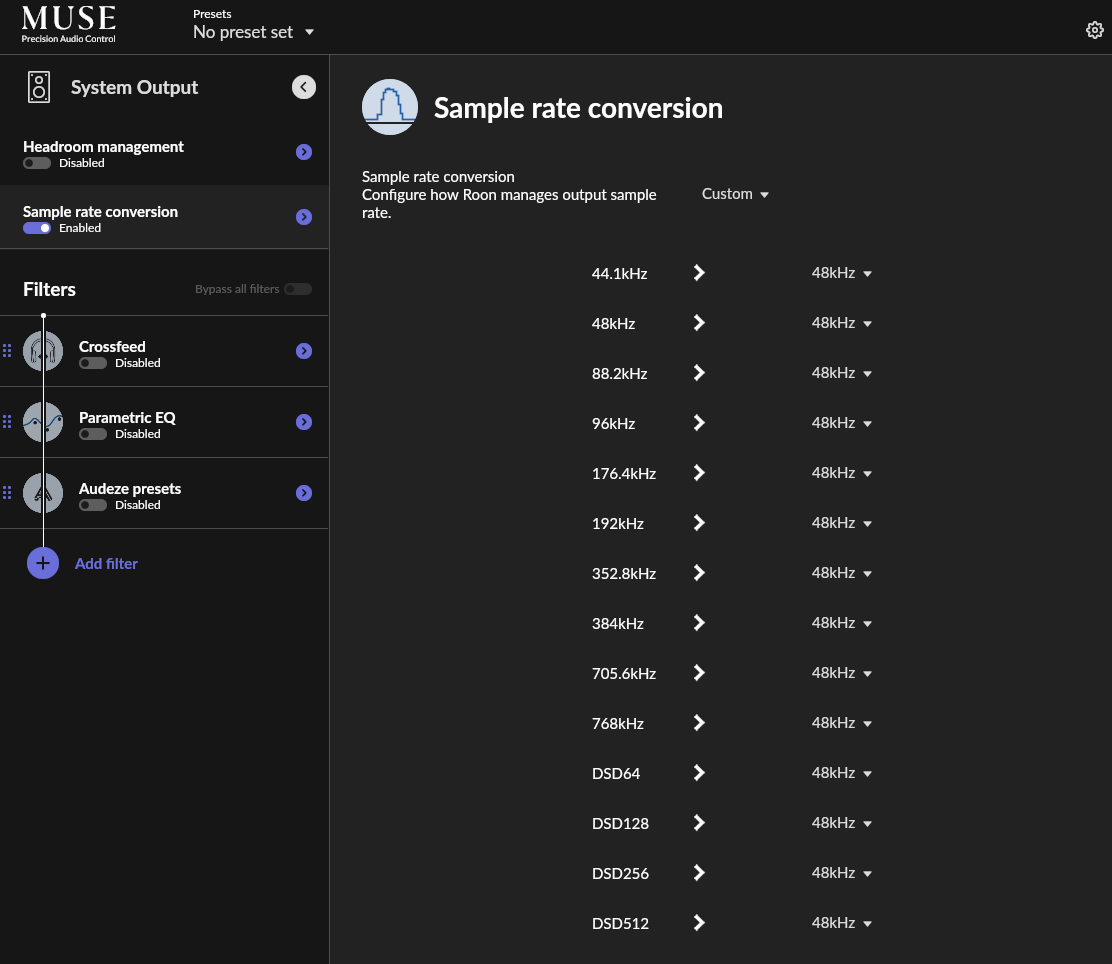
Roon is seeing System Output (because this is the output you enabled) not the headphones, so it won’t know its capabilities. Therefore, create a Muse (DSP) filter to convert everything to 48 kHz PCM.

Alternatively, setup the device using exclusive mode.

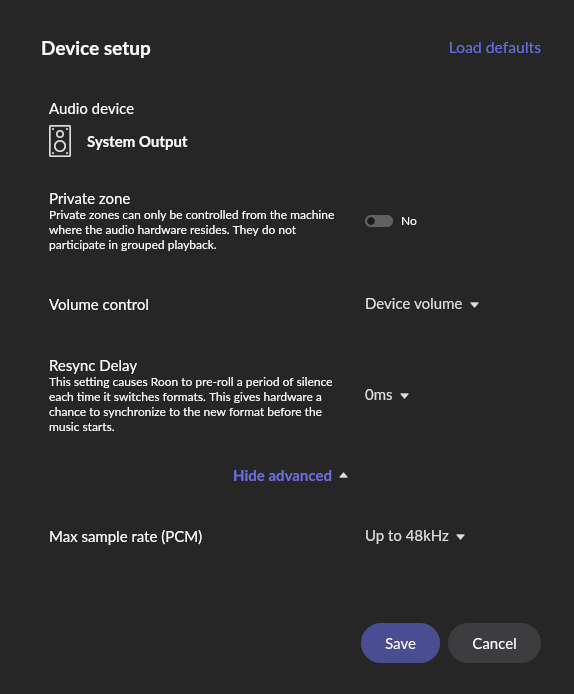
This is the UI when I default (On Windows settings) to my K9 Pro ESS, System Output does in fact show PCM settings. Which I lower intentionally to 16Bit 48KHz make the headphones work.

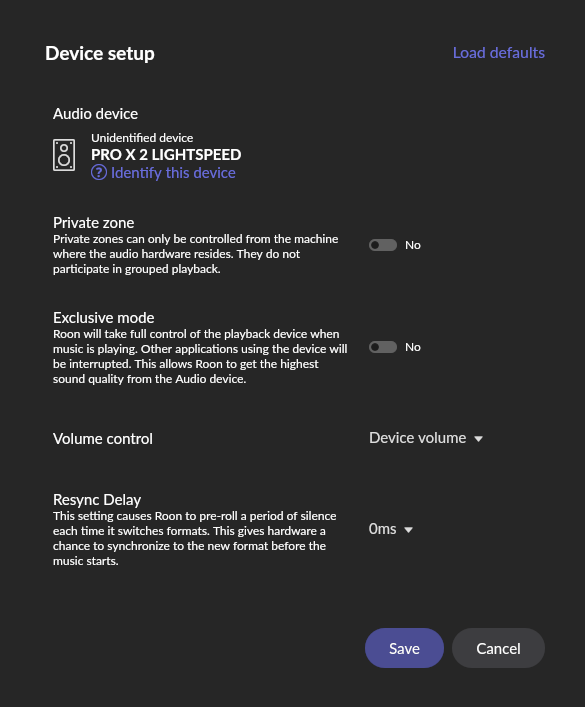
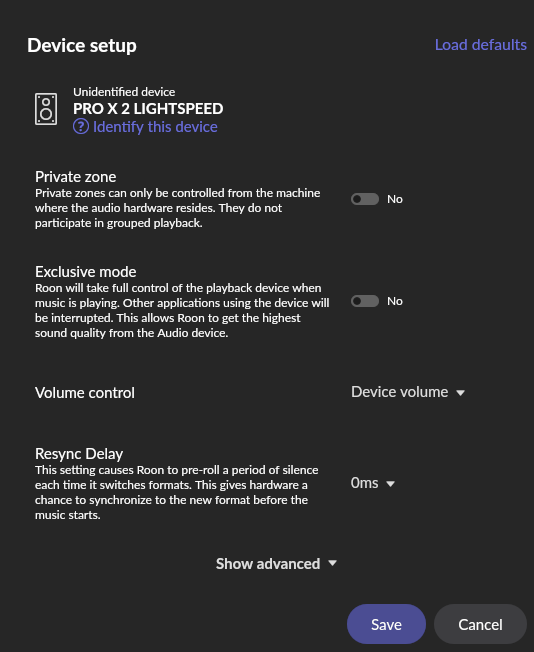
They are missing when using the headphones, I blame the Logitech drivers complete here but I think some data should be at least displayed. I do not use exclusive mode, as I mostly use Roon as a music player, and I need to hear other applications such as Discord and games.

@mjw I would like to try the DSP filter I just dont know where in the UI or if I need to get an extension for it.

I found the filter, I’ll leave it on for a couple of days to see if this fixes the problem. Thanks!

Hi @Isaac_Kuri,
Thanks for writing in to ask about this issue. We look forward to hearing back from you about the results of using the filter!

I just recently encountered the issue again, cold booting Roon with the headset defaulted still results in tracks skipping even when using the MUSE filter. This is after a fresh restart of Windows 11.

The workaround still functions, change to an audio source that Roon can actually tell the PCM, I tried with the TOSLink out of my PC now. Set the PCM to 16Bit 48KHz, then switch back to the Logitech headset.

Hi @Isaac_Kuri ,

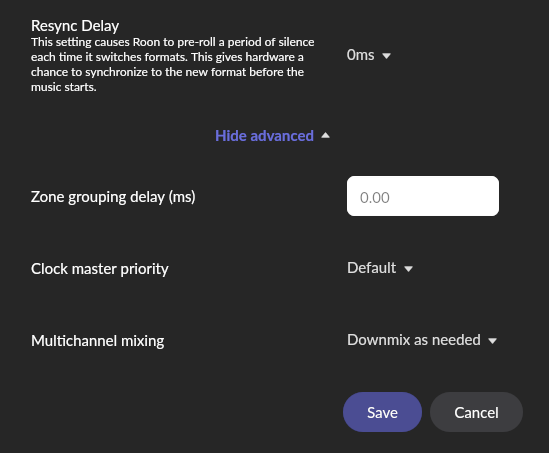
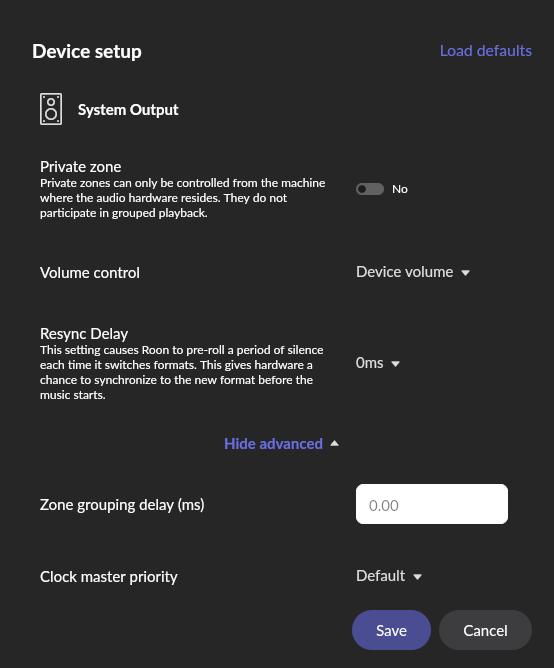
If you scroll down in this view, do you see the channels being mentioned? It should be visible even in the System Output view, and it is the most common cause of similar issues. I think your workaround likely forces them into two channel mode?

I do not see the channels in there.

This is System Output with my TOSLink out defaulted (Realtek Drivers)

For more context this is the Headset’s device setup. I do not use exclusive mode.


image

Also while taking the screenshots for this, I did not only needed to swap the audio sources. I had to change a setting first on the System Output audio source.

For example hanging the PCM from 48KHz → 96KHz and then Back to 48KHz.

Hey @Isaac_Kuri,

Thanks for the detailed follow-up!

Could you reproduce this and share the specific date time, and name of track skipped? We’ll enable advanced diagnostics on your Roon Server to take a closer look. :+1:

Thank you!

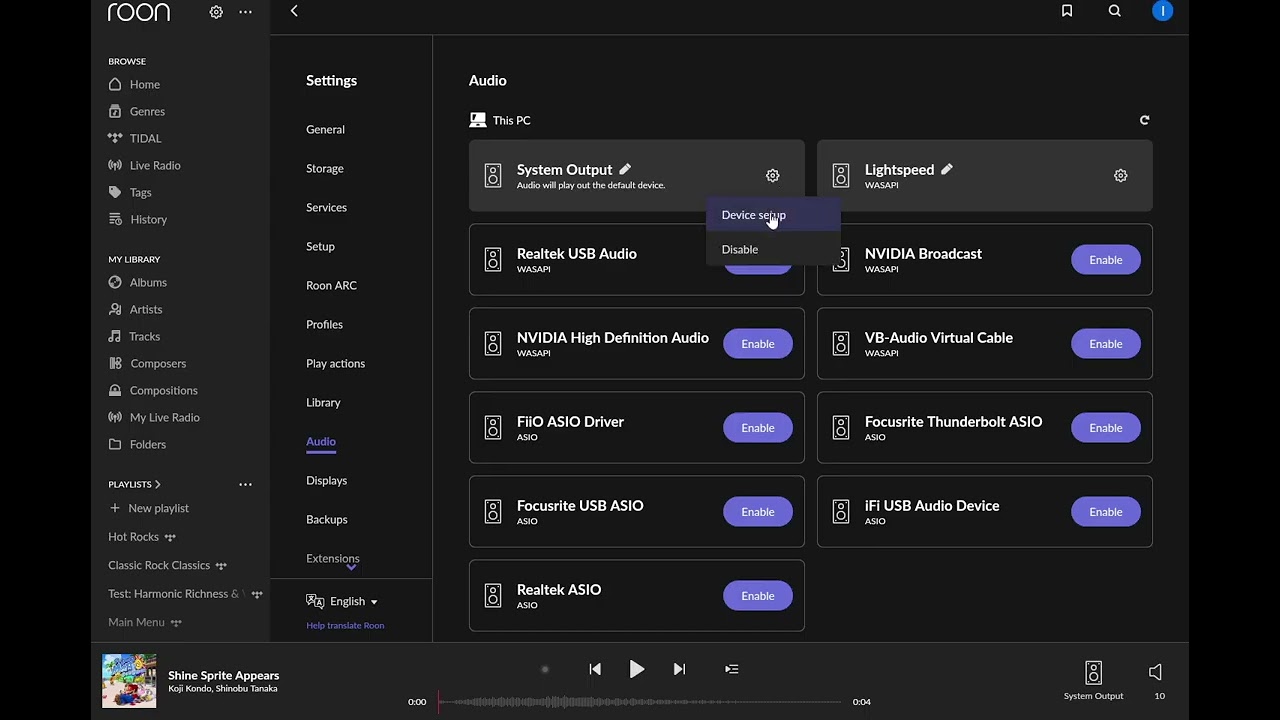
Hello, I had a busy week but here it is, I also recorded a video showing the problem, and the workaround.

  • Roon is freshly booted with the Logitech headset defaulted.
  • All tracks skip.
  • I then default to another source which displays the PCM. Saved and swapped back to the Logitech headset.

Video is muted on purpose.

I reproduced,

  • Album: Let The People Sing, by Wolfe Tones.
  • All tracks skipped.
  • First Track of Album: Snowy Breasted Pearl.
  • 9/5/2024, Around 8PM GMT-6.

Let me know if you require more information.

Hi @Isaac_Kuri,
Thank you for putting all of this together. It should be very useful. We’ve initiated a diagnostic on your Roon server. If you could leave your server on for a few minutes to allow the request to complete we can continue troubleshoting. If you prefer you can also send us the logs yourself using the directions found here and send over a set of logs to our File Uploader.

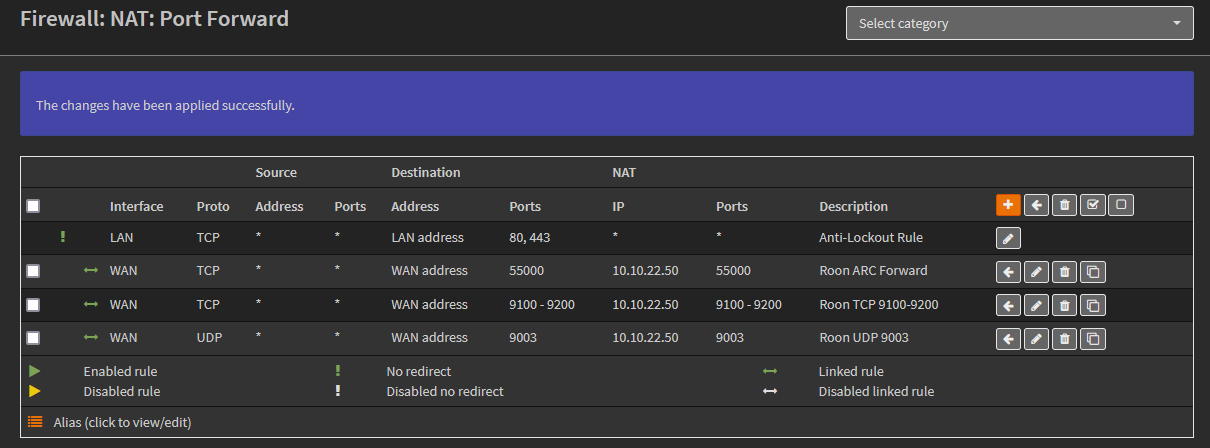
Hi Daniel, I just noticed today that my Roon ARC server was having issues passing all my networking due to my OPNSense Firewall. I just setup the NAT rules today so thats no longer an issue.

Where you able to download the logs or port forwarding was necessary for it?

Hey @Isaac_Kuri,

Thanks for sending the specific timestamp over! From the diagnostic report of your Roon Server, we saw the same issue occurring for each track that was skipped on your end.

Basically, the system successfully started downloading and preparing the track for playback, but when it tried to stream the audio to the output device, it encountered an error stating that the audio format (PCM, 16-bit, 44.1kHz) was not supported by the system output, which is odd considering its a common format.

Perhaps refreshing your RAATServer database may help in this case. You can generate a new RAATServer instance on your device by following these instructions, but please be aware that this will reset your Roon Settings → Audio Tab to factory settings and I would advise making a backup of any custom DSP settings you have:

  • Create a Backup of your current Roon database
  • Exit out of Roon
  • Navigate to your Roon’s Database Location
  • Find the folder that says “RAATServer”
  • Rename the “RAATServer” folder to “RAATServer_old”
  • Restart the Roon App to generate a new RAATServer folder

I tried doing the reset however after two restarts Roon started doing the same thing, I decided to check the JSON that this generates before and after the workaround.

This is the before,

{"volume": {"type": "wasapi", "device": "default"}, "unique_id": "dfdd6168-7f2b-92b5-e1f8-195ad704cdb0", "output": {"type": "wasapi", "device": "default", "name": "System Output"}, "external_config": {}}

And this is the after,

{"volume": {"type": "wasapi", "device": "default"}, "output": {"type": "wasapi", "device": "default", "name": "System Output"}, "unique_id": "dfdd6168-7f2b-92b5-e1f8-195ad704cdb0", "external_config": {"max_bits_per_sample": 16}}

I can share the whole RAATServer folder if its of any use. I zipped both the before and after.

Hi @Isaac_Kuri ,

We were able to enable diagnostics mode for your account and it looks like you were getting errors when trying to play back content at a 48kHz as well. When I’ve seen error messages like yours in the past, it was usually attributed to networking issues/complexity. Are you able to simplify your network setup? I would also try to limit the network interfaces that Roon can see to just one.

Hello, I went through a myriad of network changes and experiments not necessarily trying to fix this issue but hopping it would.

I reduced the amount of NATs that happen in my network by moving all the Routers into AP mode. Now everything is handled on OPNSense. I’ve exposed the ports on both OPNSense and my ISP router, I sadly cannot use it on bridge mode (I tried), maybe I’ll get a better ISP router soon.

Let me know if should forward more ports, so you can debug

I attempted to move to a dedicated Roon Server under Ubuntu 24LTS on my Proxmox server, but I was having issues with audio devices getting randomly stuck on Enabling.... or not shown at all. After reading the documentation I discovered that different ip ranges are not supported, and my server is hosted on 10.10.23.0/24 rather than 10.10.22.0/24 like my home network. Im guessing that was causing the issues with device discovery.

But well I sorta managed after random restarts of Roon Remote and reducing the network complexity of my main machine. I discovered that the Hyper-V virtual network switch can confuse Roon Remote in some situations and cause it to scan only in that IP range. Which was very odd.

I deleted my VPN software and Hyper-V.

I reinstalled Roon Remote locally, removed all the settings manually and from the AppData folders, and using the Roon Server on my Proxmox machine the issue was still present. As soon as I connect the Logitech Headset headset to the computer I get the same error I reported.

Aftermath

I scrapped all of that and returned to my original Roon Server host which was my Windows PC but I left the new network configuration. I have another Windows PC that now is able to communicate with my Roon Server.

  • The new PC Runs Windows 11 Pro, its a fresh install so nothing cluttering it, less variables.
  • The Roon server is running on the original Windows 11 PC where I first encountered the issue.
  • Is notable that this issue appeared even when the Roon Server was hosted on the Linux VM, so its something happening at the Client side.

So I tried connecting the headphones, at first everything worked fine but after a restart of the PC the problems reappeared.

I also did some experiments with the Logitech software, I tried installing it, uninstalling it probing around to see if that was the ultimate cause of this problem, but I dont think so at this point.

All the logs are coming from the New PC
I saw the RAATserver logs. I think I found the errors mentioned before.

09/22 18:31:09 Trace: [RAAT::System Output] [lua@0000000026DB1138] [10.10.22.50:60706]  GOT [6] {"request":"setup","format":{"sample_type":"pcm","sample_rate":44100,"bits_per_sample":16,"channels":2,"sample_subtype":"none"}}
09/22 18:31:09 Trace: [RAAT::System Output] [output/wasapi] output setup: format is pcm 44100/16/2
09/22 18:31:09 Warn: [RAAT::System Output] [lua@0000000026DB1138] [10.10.22.50:60706]  setup failed: RAAT__OUTPUT_PLUGIN_STATUS_FORMAT_NOT_SUPPORTED
09/22 18:31:09 Trace: [RAAT::System Output] [lua@0000000026DB1138] [10.10.22.50:60706]  SENT [6] {"status":"UnexpectedError","message":"RAAT__OUTPUT_PLUGIN_STATUS_FORMAT_NOT_SUPPORTED"}
09/22 18:31:09 Trace: [RAAT::System Output] [lua@0000000026DB1138] [10.10.22.50:60706]  GOT [7] {"request":"setup","format":{"sample_type":"pcm","sample_rate":44100,"bits_per_sample":16,"channels":2,"sample_subtype":"none"}}
09/22 18:31:09 Trace: [RAAT::System Output] [output/wasapi] output setup: format is pcm 44100/16/2
09/22 18:31:09 Warn: [RAAT::System Output] [lua@0000000026DB1138] [10.10.22.50:60706]  setup failed: RAAT__OUTPUT_PLUGIN_STATUS_FORMAT_NOT_SUPPORTED

I’m somewhat out of clues on what to provide in order to help the dev team diagnose and solve this issue. Its quite consistent with this Logitech model.

Fresh install of Windows 11, plug the device. Reboot the computer. And it should start happening.

I have the logs from the RAATServer of the PC, where I did all this new testing. Maybe that can help.

Let me know if I can facilitate the debugging.
Hey @Isaac_Kuri,

Thanks for all the troubleshooting you’ve done so far, and I’m sorry to hear your issues still persist.

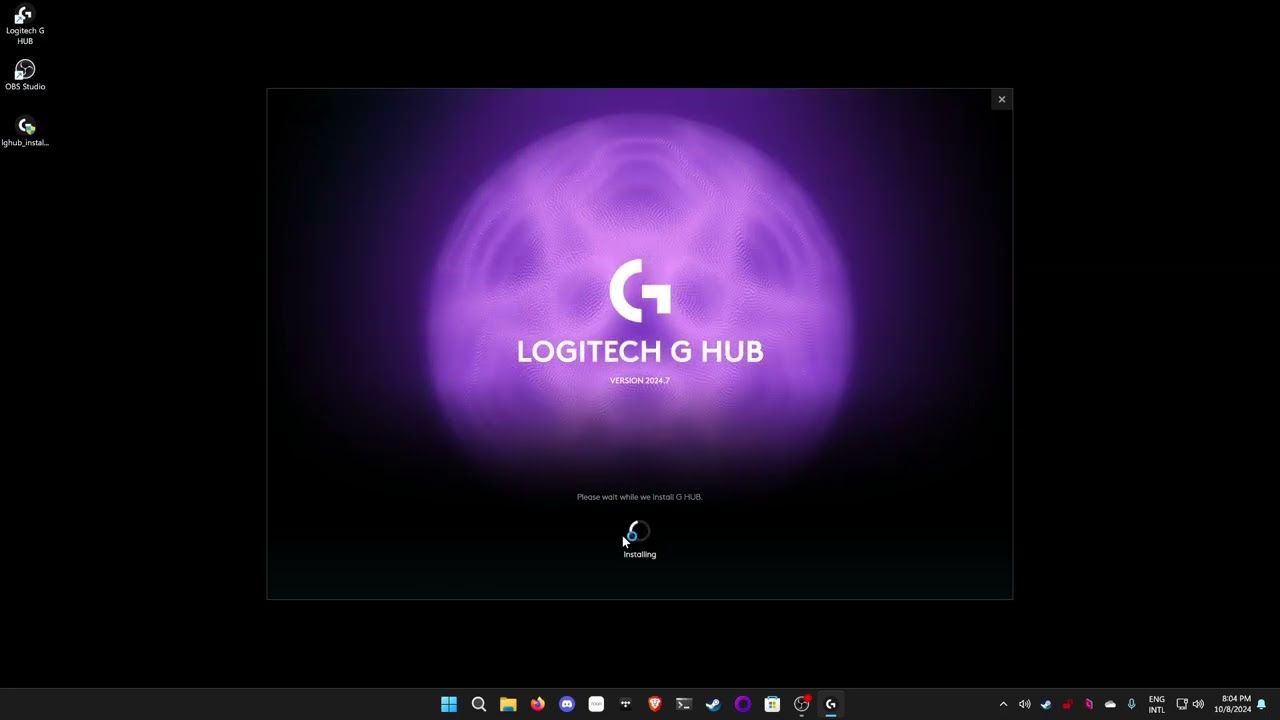
Do you happen to use the G Hub software with your device? Do you have any issues getting the device to show up there?

I do use the G Hub software on my main PC, I have a mouse I need to have the software on for.

The device is detected in the G Hub software. On both machines.

The newest testing I’ve done has been performed under the new PC
I noticed I never shared the details of that PC,

OS: Windows 11 Pro 23H2
CPU: AMD Ryzen 7 5800X
RAM: 64GB
GPU: RTX 3080Ti

This Windows install is as fresh as it gets, I formatted the PC because I needed to migrate to Windows 11.

On the new PC I installed the G Hub software just to check if that was the root cause.

  • I checked the before and after and the driver that the Receiver uses remains the same.
  • I tried uninstalling the software but that did not seem to change the behavior.
  • I tried other players like Tidal but this seems to be very particular to Roon.

Some constants that I’ve noticed with this problem.

  • The device’s receiver has to be plugged in.
  • The device’s must be the default on windows (communications and normal default).
  • Once the device’s receiver is removed Roon works normally.
  • The device where Roon Server is hosted does not matter. It will happen at Roon’s client.

Just in case I uploaded the Logs of the new PC, on the Zoho File Uploader URL that was provided to me a while ago.

Feel free to request specific testing, logs, conditions that might help find the root cause. This seems very niche and I appreciate the follow up.

1 Like

Hi @Isaac_Kuri,

Thank you again for your diligent and thorough reporting. We’re escalating the case with development. In the meantime, can you please confirm whether you’ve taken the Sept 17 driver update from Logitech?

Hello, I did testing once again. And reinstalled G Hub from scratch.

This can be seen here in this video.

This is done in the Ryzen 7 5800X PC. Which is only a client, the server is hosted on my main PC.

Versions

  • G HUB: 2024.7
  • Headset Firmware: 1.1.2
  • Lightspeed receiver: 1.1.2

I’m under the assumption that G HUB should update and install drivers on demand.