Thanks connor for your quick reply, it works great on my laptop. The problem is with my Geekom IT15 mini Pc, I use a 55-inch TV with it, and both use Windows 11.
Thanks for the additional information! It’s frustrating when you have a massive 4K canvas and the app acts like it’s running on a postage stamp. The problem here isn’t your physical resolution; it’s your effective resolution after Windows applies scaling.
On a 55-inch TV, Windows 11 often defaults scaling to 300% or higher so text isn’t microscopic. If your scaling is set to 300%, Roon “sees” a vertical resolution of only 720 pixels, which is below its minimum requirement (usually 768px).
Before messing with the compatibility settings, check your main display settings:
Right-click your desktop and select Display settings.
Look at Scale. If it is set to 300% or 350%, try lowering it to 250% or 200%.
Relaunch Roon. If it opens, you’ve found the limit.
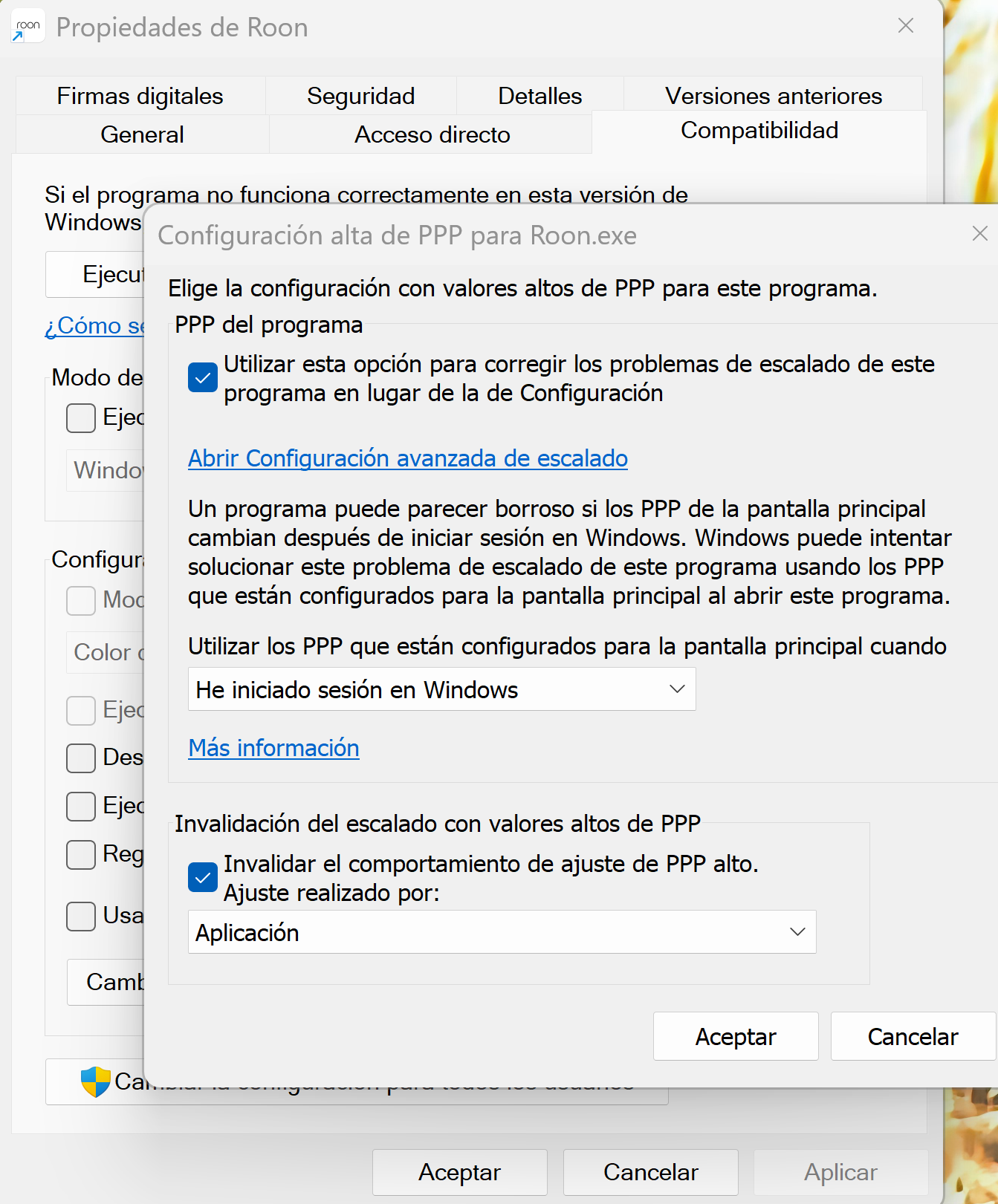
With that. in your screenshot, you have the override set to "Aplicación" (Application). This tells Windows to let Roon handle the scaling, but Roon is clearly struggling.
Go back to that same menu in your image.
Change the dropdown under "Ajuste realizado por:" from Aplicación to Sistema (Preferido) or Sistema.
Click Aceptar and try opening the app again. This lets Windows "lie" to the app about the screen size to keep it from complaining.
And lastly, if your issue persists: Since you’re on a Geekom IT15 (Intel-based), the Intel graphics driver might be trying to "help" with display scaling.
Open the Intel Graphics Command Center.
Go to Display.
Ensure the Scale is set to "Maintain Aspect Ratio" rather than "Centered" or "Stretch."
Hi benjamin, I have lowered the scale to 125% and still doesn’t work (wouldn’t be able to read nothing either ). Changing to System didn’t work either. Scale is set to “Maintain aspect ratio”. When I right click the Roon icon, Toggle fullscreen mode and Quit roon are available but they don’t work, I have also chosen “Open in fullscreen” in Properties but still get the small screen resolution message,thanks anyway…
Move the contents of the /Cache folder elsewhere, like your desktop
Try restarting Roon and verify if the issue still occurs
If your Windows Firewall or the Movistar router is blocking the specific handshake that happens after the initial connection, the UI can “freeze” in a low-resource state, triggering that resolution error.
Action: Temporarily disable the Windows Firewall entirely (Private and Public) and try to connect.
Why: If it works, we just need to add specific "Exceptions" for Roon.exe and RoonAppliance.exe rather than messing with scaling.
Lastly, if you’d like to try, since “Open in fullscreen” via properties didn’t work, we can try to force the window size via a command-line argument.
Right-click your Roon desktop shortcut and select Properties.
In the Target field, go to the very end of the text (after ...Roon.exe").
Add a space and then type: -scalefactor=1
It should look like: ...\Roon.exe" -scalefactor=1
Click Apply and launch from that shortcut. This forces Roon to ignore Windows scaling entirely and run at a 1:1 pixel ratio.
Thanks benjamin for the effort. I tried all of them with no success, even uninstalled with settings and all included, started from scratch but still failing . At least now I have an opportunity to see how many playlists are imported , have a great day…
Could you please provide an update on your situation? Did adjusting the Windows display scaling, changing the compatibility override to ‘System’, or tweaking the Intel Graphics Command Center help resolve the “small resolution” error?
If you are still seeing the message, please let us know what happened after you tried those steps. It would also be very helpful if you could share a screenshot of your current Windows Display settings (showing the Scale percentage) so we can see exactly what Roon is working with.
Thanks vadim, as I told you before, I have tried all your solutions but none of them worked. I can see it working only when the server is disconnected….
Also tried to lower the scale percentage but even with 125% it didn’t work. I understand my case is very particular and really don’t mind if it is not solved as long as I can manage Roon from my tablet, cheers…
I completely understand if you’re happy just sticking to the tablet—it really is the best way to browse Roon from the couch anyway!
However, I did want to mention one final, crucial detail about Windows 11 scaling, just in case you ever decide to try fixing the mini PC display in the future.
When you change the scale percentage in Windows (like dropping it to 125% or 200%), Windows often does not actually apply this change to applications like Roon immediately. To force Windows to register the new resolution for all apps, you must completely Sign Out of your Windows account and sign back in, or fully Restart the PC.
If you previously changed the drop-down percentage and just reopened Roon without signing out, Windows was likely still feeding Roon the old, zoomed-in resolution behind the scenes.
There is absolutely no pressure to try this now if you are perfectly content with the tablet experience!
Would you like me to go ahead and close this thread, or do you want to give that sign-out/restart trick one last try?*
That was it! I didn’t close the session in my previous attempt and that’s why it didn’t work. Credits to @benjamin who was the first one to suggest it, only the closing session instruction missing. Have it on 250% and working, thanks everyone for your help…

 ). Changing to System didn’t work either. Scale is set to “Maintain aspect ratio”. When I right click the Roon icon, Toggle fullscreen mode and Quit roon are available but they don’t work, I have also chosen “Open in fullscreen” in Properties but still get the small screen resolution message,thanks anyway…
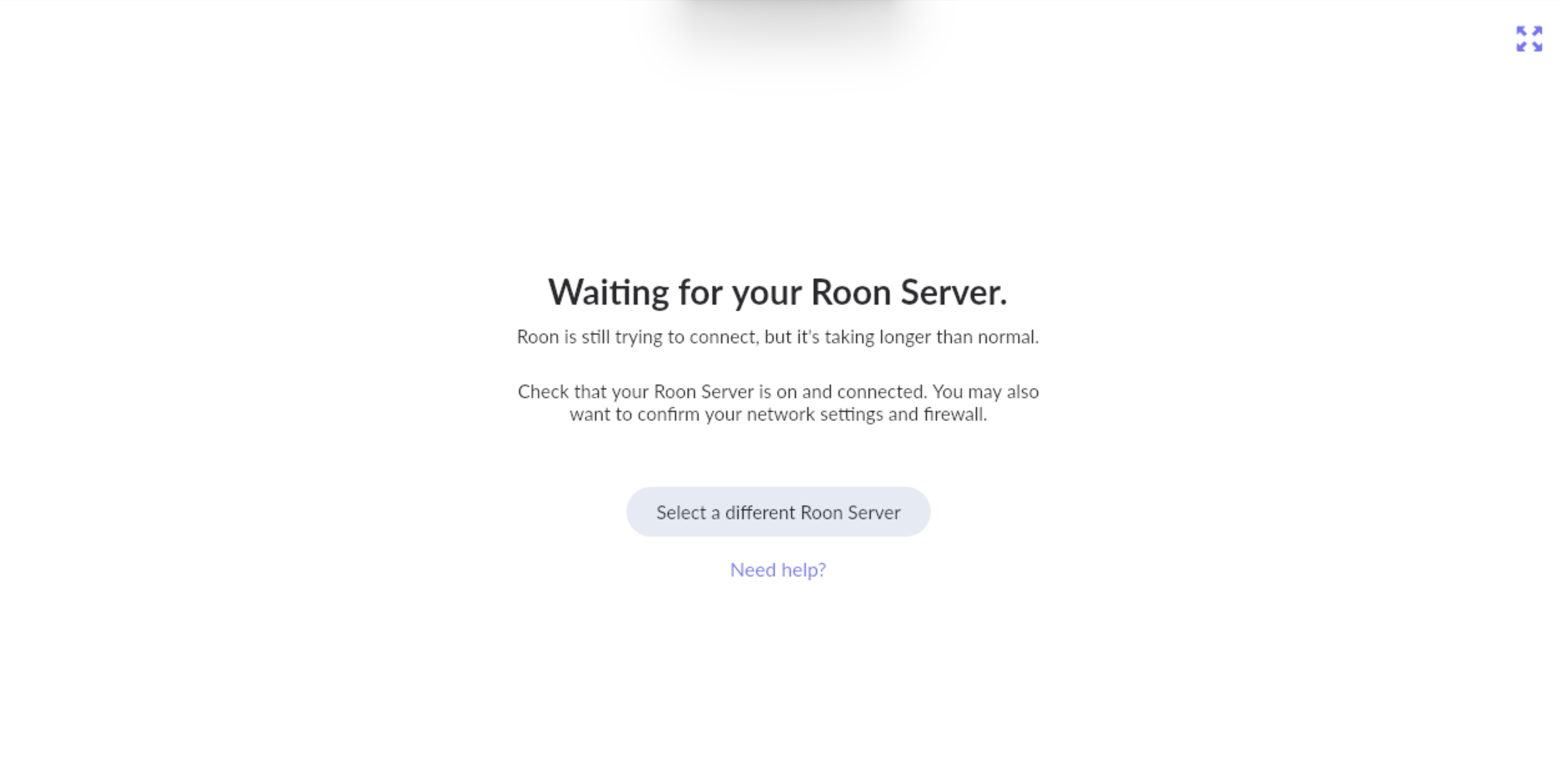
 . At least now I have an opportunity to see how many playlists are imported


 I didn’t close the session in my previous attempt and that’s why it didn’t work. Credits to