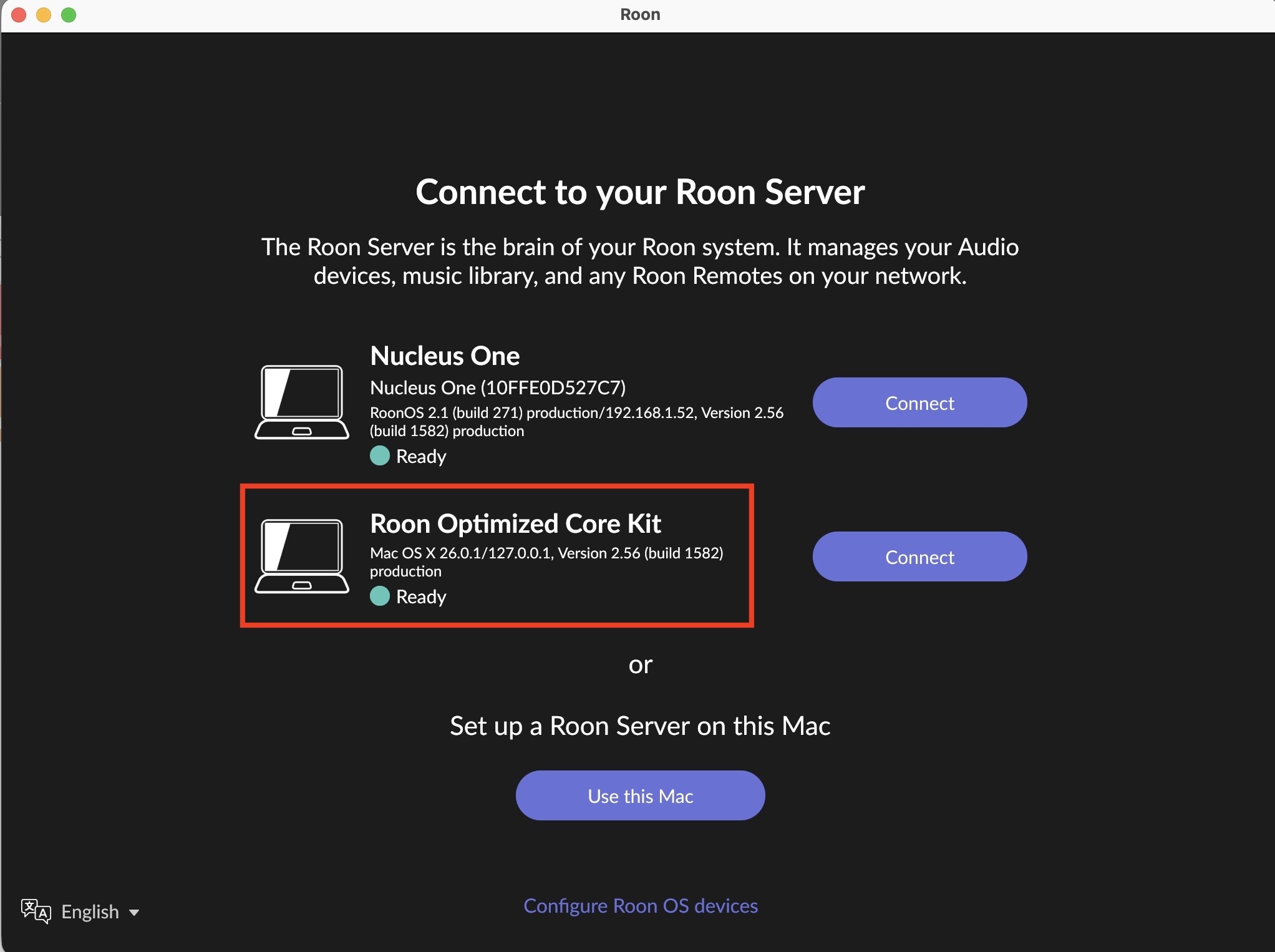
Can you still see Roon on your menu bar on the mac? If so, can you “stop” that server from the menu bar? You also may need to tell it not to start when you start Roon server your MAC?
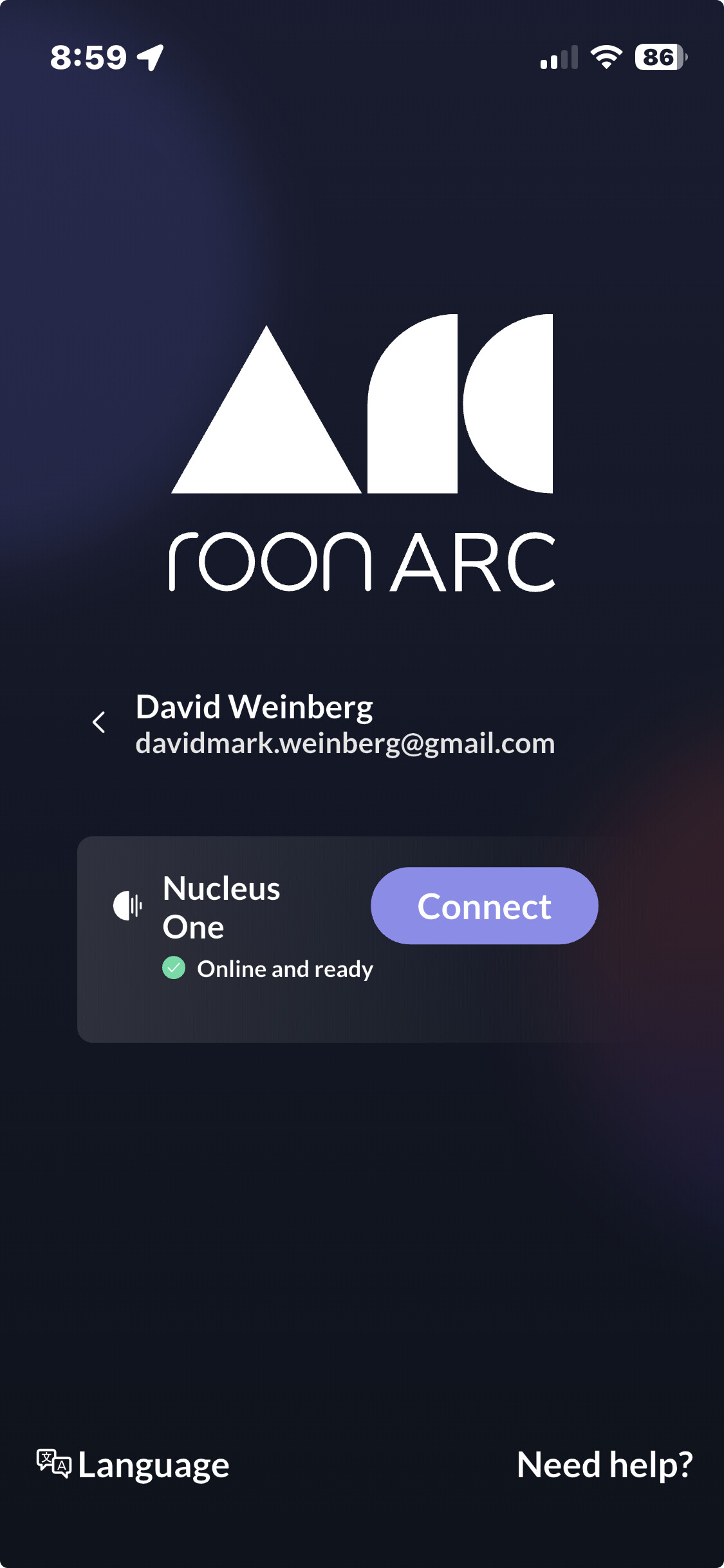
For the ARC issue, I would try re-installing ARC after you fix the issue with the old server showing up on the first screenshot?
You may need to reboot everything after you shut down the old server?
How are you running ROCK on a MAC? ROCK is not a program which is installed on MacOS, that would be RoonServer. ROCK is it’s own operating system and if installed on a Mac would replace the MacOS. Unless, you are somehow running a VM or Docker ROCK image.
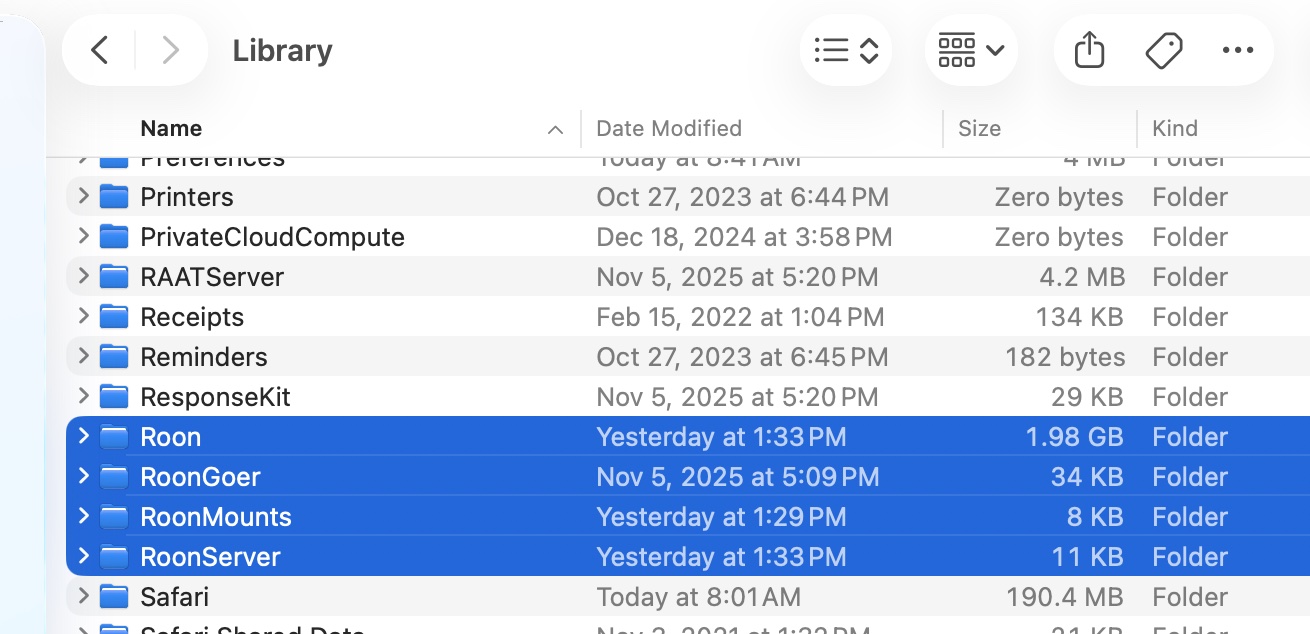
I can quit Roon Server, but when I rebooted the Mac, it returns. As I want the Roon app but not the Roon Server, I previously attempted to remove all Roon components and did a fresh installation of the app. Here is a screenshot from my library after the reinstallation of Roon:
I did the same on my phone- delete and reinstall before I submitted yestersday’s post.
@Rugby - A year or so ago, I wanted to test my NUC and attempted to install the Roon Server on my Mac as an alternate. I tested it a few times but never really used it after that. However, whenever I attempted to log into ROCK, I always had a choice- the NUC or the Mac. I rarely peak under the hood so I didn’t anything radical or download from a questionable site. In fact, while I’d like to think I’m pretty up on most technology that I use, I couldn’t tell you what a VM or Docker image is…
And like Roon ARC, I think now launching Roon (not Roon Server) on the Mac goes straight to the Nucleus One. So maybe all I needed was a few days for everything the shake out. Nevertheless, it seems that Roon Server (on the Mac menu bar) still seems to be lurking there.
It’s an executable file that’s saved on the disk and doesn’t execute as long as it isn’t started, like thousands of others are. Wouldn’t call that “lurking”.
To find it, if for some reason you want to, go to Finder > Applications, find the Roon app and right-click it to open the context menu, click Show Package Contents in the menu, go to the Contents folder.


 Just the Nucleus One