… I can see version 0.5.5 is available - how do I get my system to detect the update please? I have tried restarting a few time and leaving it on for days in a row.
The way I do it is to download the image and flash it directly to the micro sd card
I think I tried the ‘update’ in Eunhasu but it didn’t work
Hi Chris,
I always have been able to upgrade my SOtM sMS 200Ultra from the Eunhasu-website.
Go to “System Setup” and then click on the icon in the middle (an arrow upwards). If it has the yellow, the system knows a newer version is available. When the icon is white, then the system doesn’t know a new version is available.
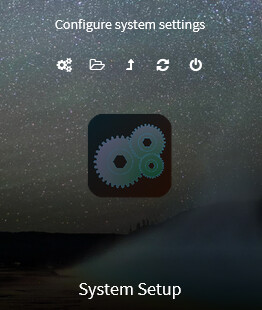
But even when it is white, click on the upgrade-icon.
Then you can click on “Upgrade now” if a new version is available.
It is also whise to check if a new Kernel is available. To do that, click on “Kernel Check”. This will take a longer time, but then your kernel and frimware will be upgraded. Perhaps the reason that you don’t see an upgrade, is that you have the latest firmware for that Kernel-rivision. I am not sure, but you can always try this way.

Kind regards, Frank.
1 Like
In addition to Frank’s advice, quick thought, are you still using the original SoTM branded 8GB SD card?
If so, it’s not actually big enough for the ‘8GB’ image
I was advised by May at SoTM to get a larger one, which worked
Then you might want to fall into the different cards sound different hole, Ho Ho
1 Like
The upgraded arrow has not changed from white to yellow.
May responded …
That’s odd, there should be upgrade indicators available, you’d better to use the upgrade button in the System upgrade page or just download the latest image file and update it directly, en:eunhasu:burn_sdcard_image [SOtM docs]