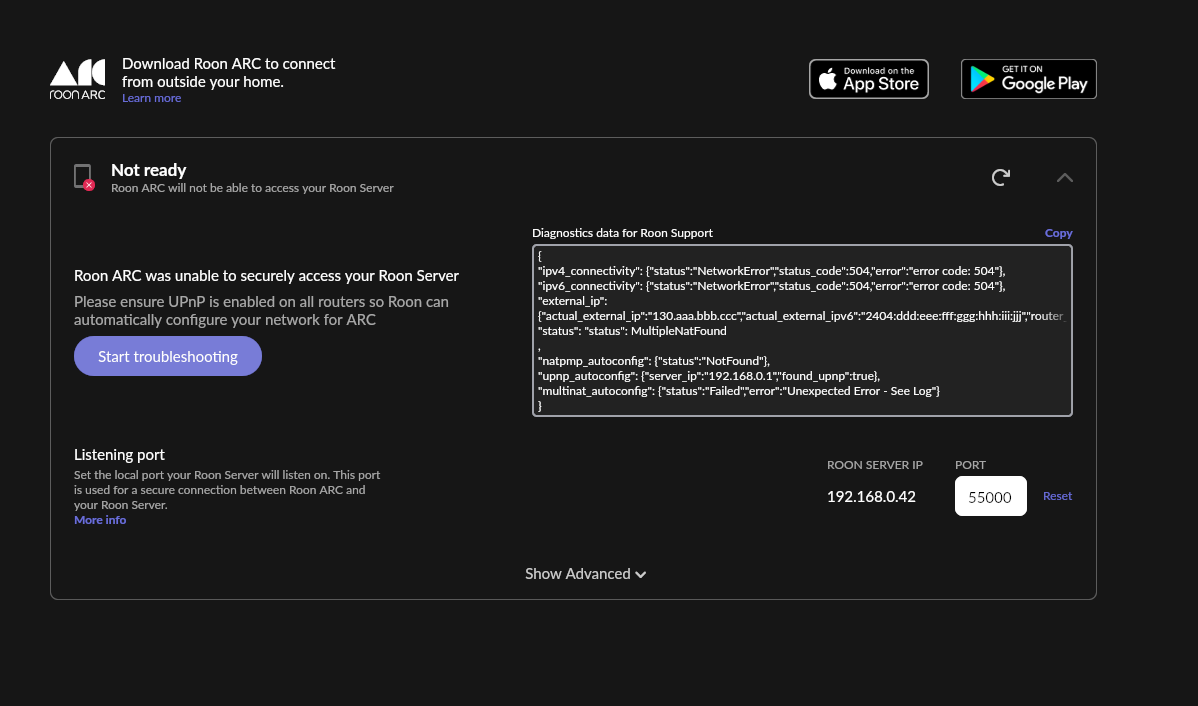
MultipleNatFound means that there are two layers of Network Address Translation in you internet connectivity path which in turn means that uPNP will not be able to configure adequate port forwarding.
Additional layers of NAT can be caused either by your ISP ( when using CG-NAT) or by the use of multiple routers on your home network.
This part of the status text is saying that the Roon Cloud servers are seeing connections from your Roon Server as coming from the public ip address 130.aaa.bbb.ccc (where the aaa.bbb.ccc parts are obfuscation) which is the internet address associated with you account and granted to the gateway with the most remote NAT layer but that the router that your Roon Server is connected to (and is configuring using uPNP) has a WAN side ip address of 10.32.30.215. This latter WAN address is in a private non-routable address range (which is why it is not obfuscated) which means that there is another router in your home network dishing out addresses somewhere in the 10.0.0.0/8 address space (or more likely in the more restricted 10.31.30.0/24 address space).
The fact that this text clearly indicates that you have two routers on your network is probably a good thing because it means that there is no defiinite indication that your ISP is using CG-NAT and thus a resolution is most likely within your control.
So, it looks like you have two routers - one managing the ISP connection and offering a 10.31.30.0/24 subnet and another connected to that first router (and being given the 10.31.30.215 ip address) managing a 192.168.0.0/24 subnet. You Roon Server is connected to the second of these two routers.
Given this situation, there are three ways that you could possibly fix the port forwarding assuming that your ISP is not using CG-NAT:
Put the router managing the ISP connection to your home into bridge mode (sometime called Modem Only Mode). This will make that router transparent to the network such that the ISP allocated ip address gets allocated directly to the second router and a layer of NAT is ellimintated. This in turn will mean that the uPnP port forwarding rule requested by your Roon Server will likely be adequate. In this case, all network security and router functionality will be handled by the second router.
Leave the first router alone and set the second router to WiFi access point mode. This will cause the second router to stop doing NAT (or any other router functionality) and it will thus be have like a small network switch with a WiFI access point. As with the first solution above, since there will only be one NAT layer remaining (in the first router), this will likely mean that the uPnP port forwarding rules will start working (assuming that the first router supports uPnP - if it does not, then a manual port forwarding rule will have to be set up). With this solution, all routing functionality and network security is provided by the first router - the one connected to the ISP line.
Set up double port forwaring manually. In the first router (managing the ISP line) set up a port forwarding rule to forward TCP connections on port 55000 (the ARC port) to the WAN side ip address of your second router (10.31.30.215). On the second router, setup a manual port forwarding rule to forward TCP connections on port 55000 to the ip address of your Roon Server (192.168.0.42). In this situation, there is no point in having uPnP enabled on either router because uPnP will be not work. Further, because the manual port forwarding rules explicitely reference the destination ip addresses, steps should be taken to ensure that these ip addresses do no change because, if they do change, then the port forwarding rules would have to be updated. Normal DHCP allocated ip addresses can change if, for example, the device to which is allocated is powered off for a long enough period such that, when it is powered back on, the previous ip address lease has expired. The best way to ensure that ip addresses do not change is to use DHCP reservations. In the first router, set a DHCP ip address reservation for the WAN connection of the second router. In the second router, set a DHCP ip address reservation for your Roon Server.
As mentioned previously, provided your ISP is not using CG-NAT, any one of the three solutions above should work when applied correctly. However, if your ISP is using CG-NAT, then, unfortunately, none of them will work. In this latter case, you have two possible solutions:
Approach your ISP and ask them to allocate an ip address that supports port forwarding (usually a static ip address and usually at an additional monthly cost) at which point one of the three solutions above should work.
Use Tailscale. Tailscale will allow ARC to work as if your mobile device is connected to you home network even when your are away from home. The Roon Setting page will continue to indicate a connectivity problem because port forwarding is not set up but that does not matter because you will not need port forwarding and ARC should work regardless. The general description of the use of Tailscale can be found at:
Be sure to follow the links to the specific setup instructions that relate to your paritucular Roon Server solution (ROCK/Nucleus, Linux, Windows, Mac, RoonOnNas).
Unfortunately, early ROCK installs and the Nucleus and Nucleus Plus devices do not support Tailscale by default.