For Roon connectivity to work properly, both Roon Server and Roon Remote need to be turned on.
· Roon Server is on, but I'm still having trouble connecting.
What do you see on your screen?
· "Looking for your Roon Server"
Please try to restart your network setup by unplugging, waiting 30 seconds and then replugging in your networking gear.
· No, the issue remains the same
Please select how you've connected your Roon Server to the internet
· Roon Server is connected by *Ethernet*
Have you checked your firewall settings to ensure that Roon is allowed through?
· Roon still won't connect even after checking this aspect
Have you verified that Roon Server is on the same subnet as your Remotes?
· My Remotes and Server are on the same subnet and I still can't connect
Sometimes the issues can be resolved with a reinstall of your Roon Remote app. Let's try to perform a reinstall and see if it helps.
· I've reinstalled the Roon Remote but it did not help
What is the operating system of your Roon Server host machine?
· *Nucleus*
Select any of the following components that are present in your local network setup
· None of the above
Describe the issue
Hello. Over the last few days, I have made numerous attempts to connect to Nuleus (via the Roon app on my smartphone and laptop). The device suddenly stopped playing and it was no longer possible to connect to Nucleus (it was also no longer visible—neither in the app nor on the laptop). I then reinstalled the app several times and deleted the cache and everything else. Without success. I tried restarting, disconnecting from the internet, rewiring, restarting, etc. None of this worked. I unscrewed the Nucleus and disconnected it from the internal battery for 20 minutes (according to your instructions on the internet). That didn't help either. When I run Roon on my laptop, I can see my laptop in the Roon app. However, I can no longer find the Nucleus (the device is powered on, the LED is lit, and so is the LED on the Wi-Fi cable). I then connected a monitor to the Nucleus' HDMI cable and the word “ROON” appeared on the screen. I could move the mouse, but I couldn't reboot or do anything else. It seems as if it can't connect to the network/is no longer recognized. The serial number is SN54B**38B9***. I hope you can help me, because I would like to enjoy music again.
Describe your network setup
Just fiberglass point from the provider in my home to my WiFi device, ethernet cabel to nucleus
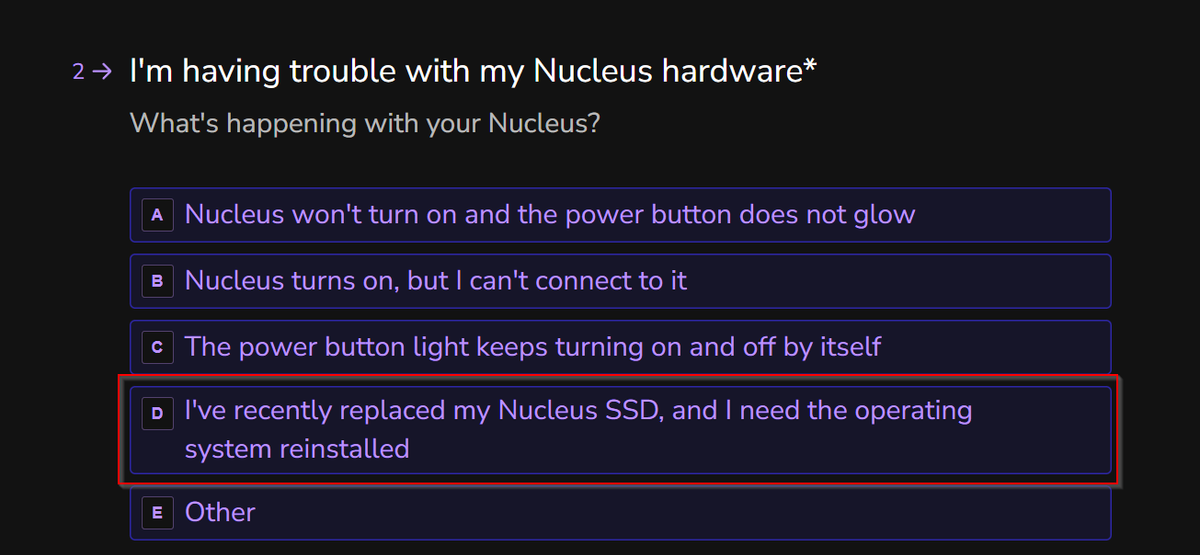
Thanks for reaching out. Seeing just the Roon logo on HDMI output typically indicates that the M.2 SSD has failed and needs to be replaced. We can help walk you through an SSD replacement and operating system reinstall and that would be the simplest option, or depending on your location you may be able to get serviced by our US based service center or a Roon distributor in your country. Would you be willing to replace the SSD yourself? Let us know how you’d like to proceed?
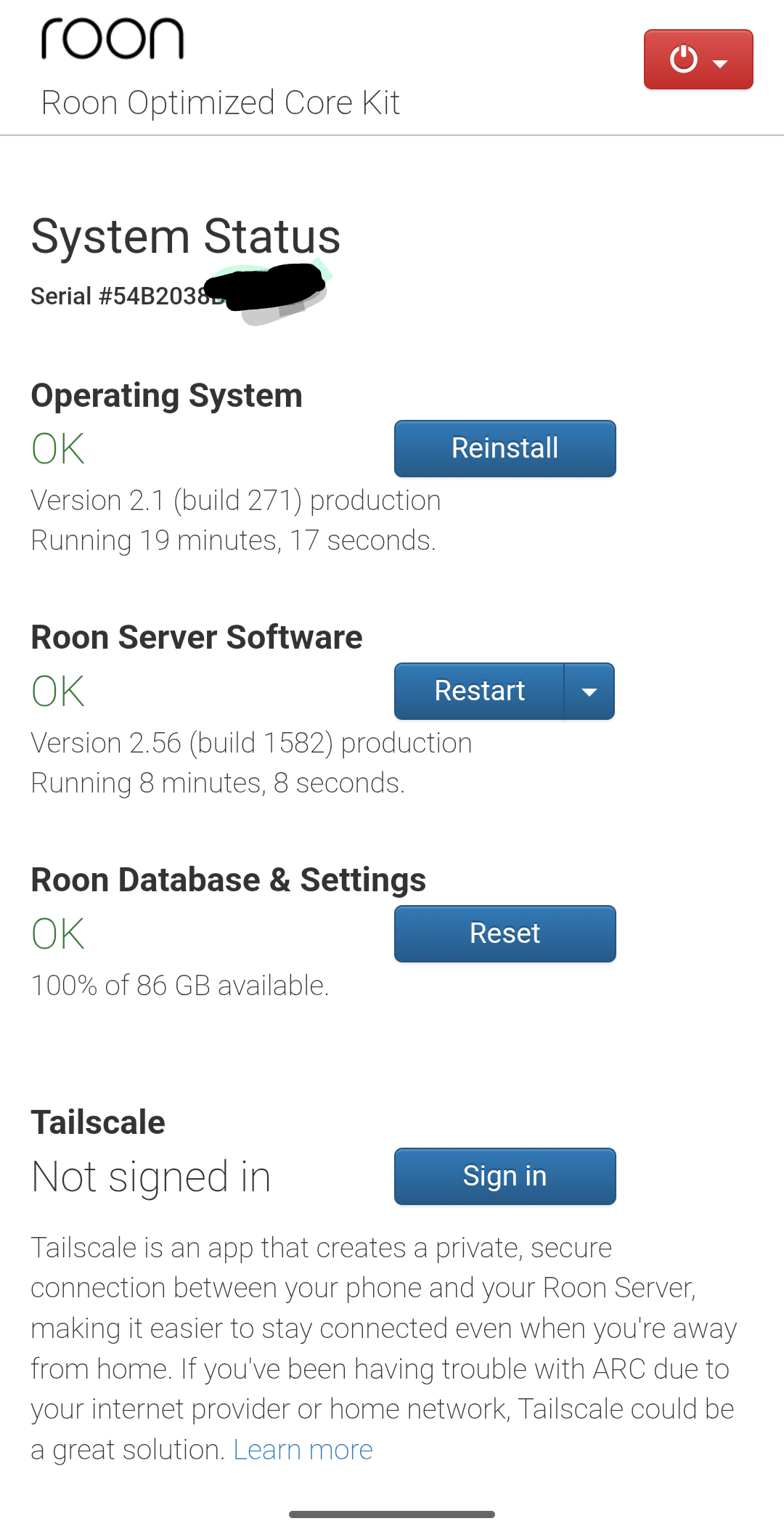
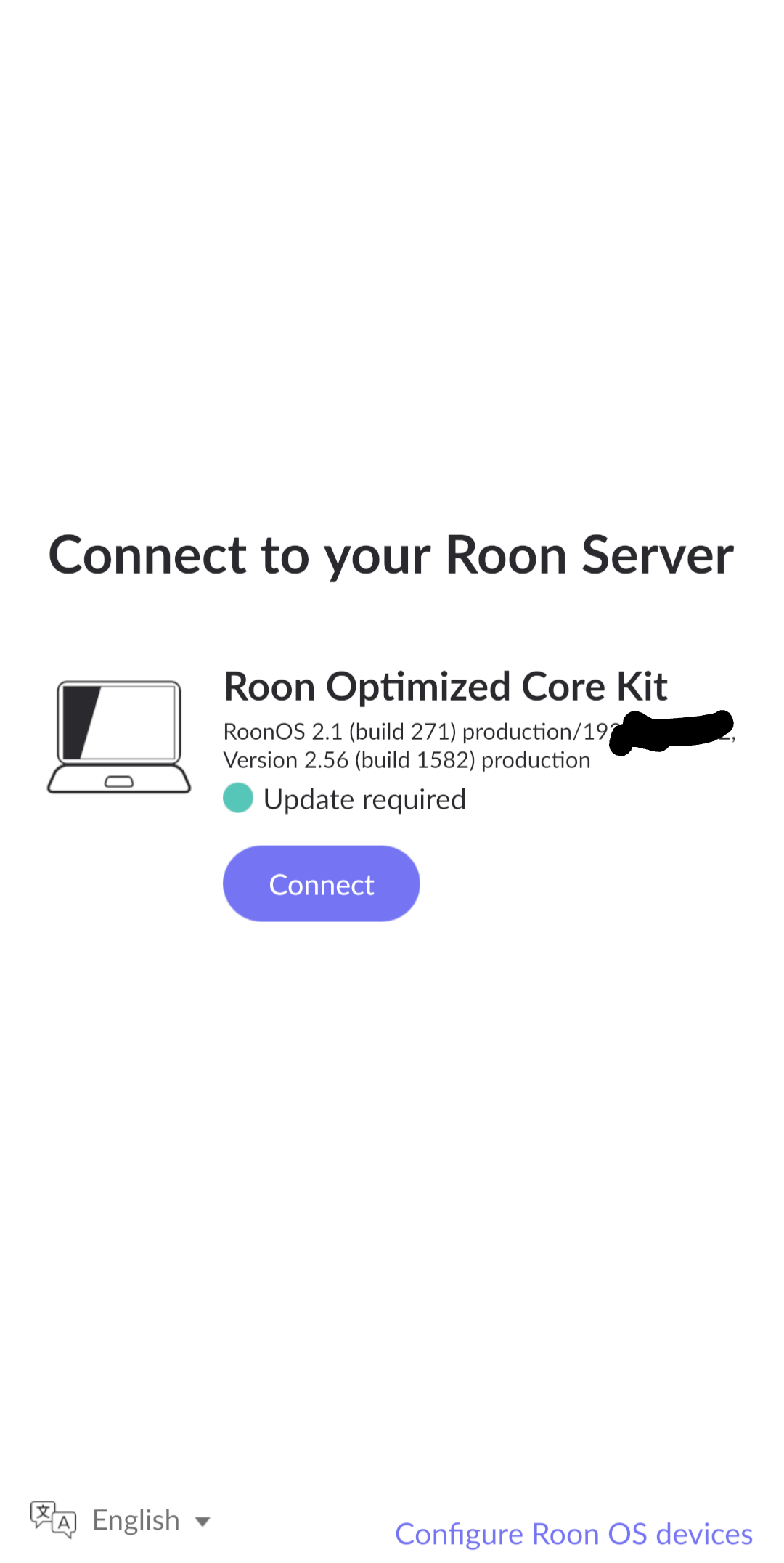
That’s weird because the version numbers on the screenshots are up to date. (And also weirdly, this „Update required“ text wasn’t there in the first screenshot you had posted previously.)
One thought: Is your Android app the regular version, i.e., not the Beta version? If it’s the Beta, switch back to the regular one.
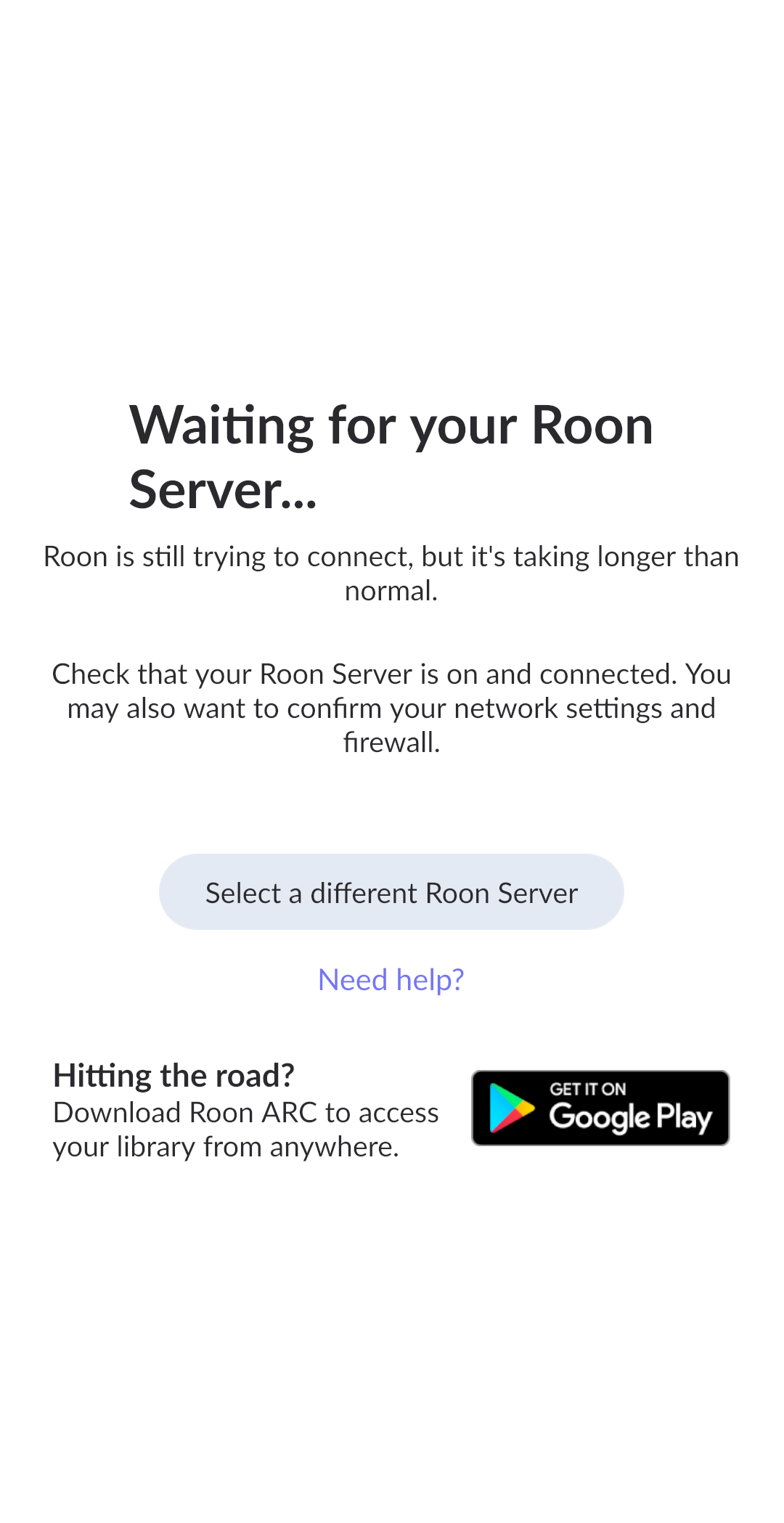
If your Android does have the regular version, you can try „Select a different Roon Server“ in the second picture, it should list all Roon servers it can find, including the ROCK again. Maybe then it lets you connect.
If not, I suggest waiting for official Roon support when they come back from Thanksgiving next week.
Thanks for your patience as we returned from Thanksgiving break. @Suedkiez appears to be correct, it looks like you are running Early Access on your Roon remote devices. To be able to connect to the Nucleus, please try to uninstall the current version and reinstall the latest Roon version avaliable from the Play store. And if you haven’t already, please submit a request to our team to flash the Nucleus back to Nucleus OS, as the specific thermal heat management capabilities is tied to the Nucleus OS and is needed to ensure long-term stability.