Playback issues with TEAC AI-101DA after Roon Core migration to Windows 11 (ref#OL0CVK)

Hi! What’s not quite right with Roon?

· None of the above quite fits

None of the above quite fits

· None of these quite match

Tell us what's going on

· Hi,
I migrated my Roon Core from a QNAP NAS to a new Windows 11 mini PC. Since then, my TEAC AI-101DA DAC (connected via USB to a separate Windows PC) started having constant playback issues.
The DAC works perfectly in Windows itself (plays 24/192 without problem), but in Roon I get the error “Too many failures, stopping playback” and the track skips every few seconds.
The device appears as MLC3700 USB Audio 2.0 (WASAPI). It worked perfectly when the Core was on the QNAP. The problem started the same day I moved the Core to Windows 11.
Already tried:

Disabling/enabling the device in Roon
Turning Exclusive Mode on and off
Changing USB ports on the DAC’s PC
Restarting everything

Tell us about your home network

· I have a standard home network: ISP router (Movistar) with WiFi 6. The Roon Core runs on a wired Windows 11 mini PC connected directly to the router by Ethernet cable.
The DAC is connected via USB to a separate Windows 11 PC that is also wired via Ethernet. No switches, no extenders, no VPN, no powerline adapters.
Everything is on the same local network, same subnet.
Hello @J.A

Thank you for reaching Roon support.

I think the next step here is to enable some diagnostics on your account so our technical staff can get some more insight into what’s going on here.

However, before I enable this feature, I’d like to ask for your help ensuring we gather the right information.

First, can you please reproduce the issue once more and note the time at which the error occurs. Then respond here with that time, and I’ll make sure we review the diagnostics related to that timestamp.

Hi vadim,

I just reproduced the issue. The error “Too many failures, stopping playback” occurred exactly at 13:42.

The exact message shown is “Demasiados fallos. Deteniendo reproducción.”

Additionally, I switched the DAC to analog input and to Toslink, and both work perfectly. The problem only happens when using the USB input.

Hello @J.A

I have gone ahead and enabled diagnostics mode for your account and what this action will do is next time your Roon Server is active, a set of logs will automatically be generated and uploaded to our servers for analysis.

I’ve been keeping an eye on our servers, waiting for the aforementioned diagnostics report.

For some reason it is not reaching our servers, even after I tried re-enabling diagnostics on your account. I also ran a quick test and I was able to submit a similar report from my setup here, so something else is going on.

So we can move forward, I was hoping for now you could use the directions found here and send them to our Logs Uploader Service and let us know after, thanks!

I have uploaded the logs from my QNAP Container Station setup.

File name: Javi_webADHD_TEAC_logs_14mayo_22h.zip

I generated them right after trying to play to the TEAC AI-101DA via USB (it failed again, no sound).

Thanks!

It’s been several days since I raised this issue, and I believe it’s reasonable to receive a response by now. Could you please provide an update or address the issue before the thread is closed?

@J.A,

Thanks for sharing the logs with us.

We have reviewed them and can see why the playback is dropping.

When Roon attempts to play to your device, the Windows audio subsystem returns a FORMAT_NOT_SUPPORTED error, which forces Roon to give up and stop the playback.
This is happening due to a combination of two things:

  1. Exclusive Mode is disabled: Your DAC (which appears in the logs as MLC3700 USB Audio 2.0) is not running in Exclusive Mode. Because of this, the Windows OS mixer dictates the sample rate restrictions. If Roon sends a track with a sample rate or bit depth that doesn't perfectly match the Windows mixer settings, the stream gets rejected by the OS.
  2. Zone Confusion: You are currently playing music to a zone you named TEAC (digital), but the logs show this zone is actually routed to your motherboard's built-in sound card (Realtek(R) Audio), not your actual TEAC DAC over USB.
To fix this and get stable playback, please follow these steps:
  • Install the official drivers: First, we highly recommend downloading and installing the official TEAC USB audio drivers for Windows. This will ensure proper communication with the device and bypass generic Windows driver limitations. You can download them here: [url=https://teac.jp/int/product/ai-101da/download]https://teac.jp/int/product/ai-101da/download[/url]
  • Enable the correct device: Go to Roon Settings -> Audio and look for your TEAC DAC connected via USB (it might show up as TEAC ASIO, or MLC3700 USB Audio 2.0). Enable it.
  • Turn on Exclusive Mode: Click the gear icon next to the correct USB device, go to Device Setup, and ensure that Exclusive Mode is turned ON.
  • Switch your zone: Select this newly enabled USB zone for your playback. We also recommend disabling or hiding the old TEAC (digital) (Realtek) zone in the Audio settings to avoid any future confusion.
Let us know how it goes after making these changes!

Hi Alex,

I think there is still some confusion here, so let me clarify the setup.

Roon Core is currently running on my QNAP through Container Station.

The TEAC AI-101DA USB DAC is not connected to the QNAP. It is connected by USB to a separate Windows PC, which is the Roon audio endpoint.

Windows can play through the TEAC USB DAC without any problem outside Roon. If I select the TEAC USB DAC in Windows and play audio from another app, it works.

The problem only happens in Roon.

Roon sees the device as “MLC3700 USB Audio 2.0”, but when I try to play through that endpoint, it always stops with:

“Too many failures. Stopping playback.”

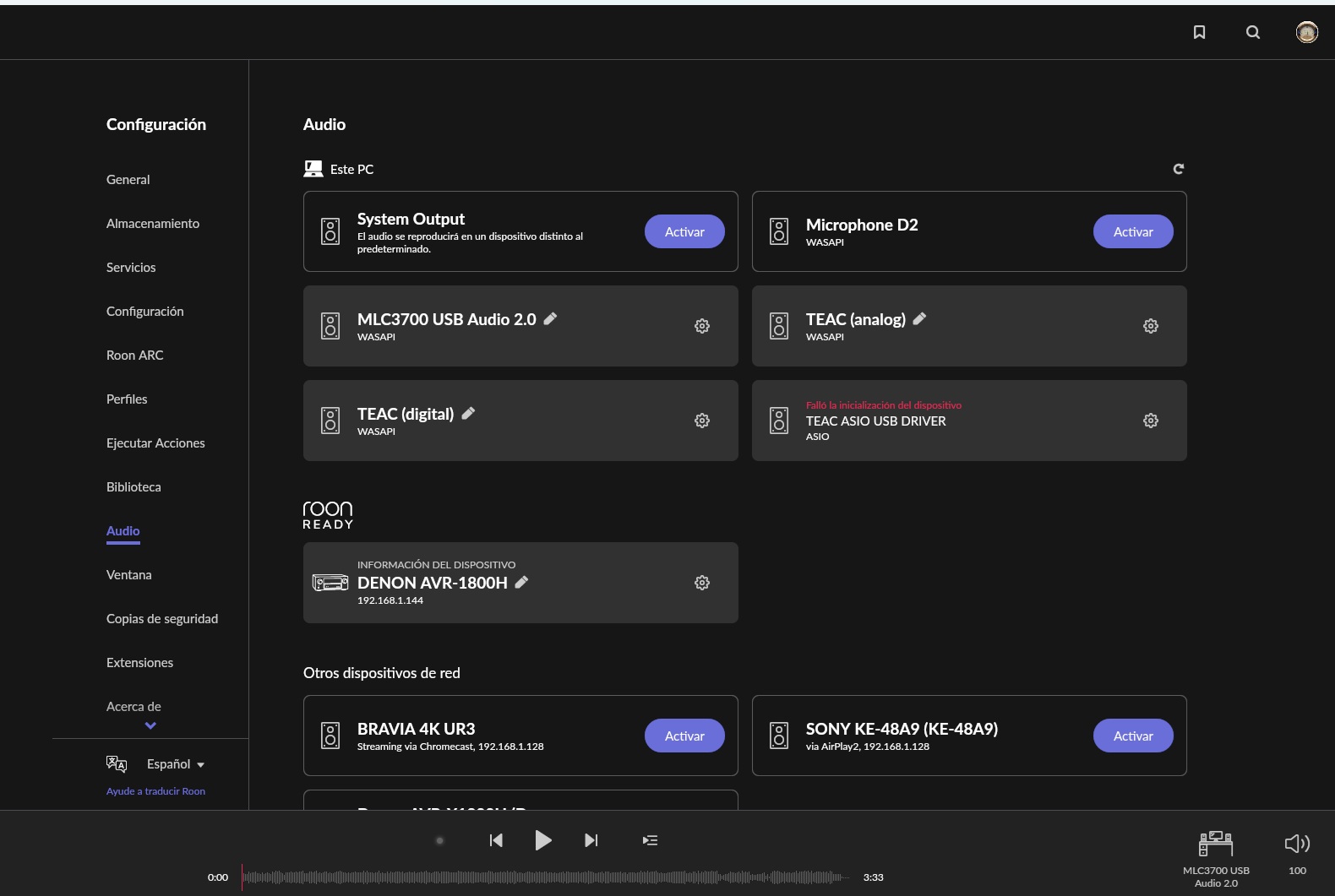
I am attaching a screenshot showing that the TEAC USB device is enabled in Roon.

Also, the “TEAC ASIO USB Driver” appears in Roon and fails to initialise, even though I installed and later uninstalled that driver. I had never seen that TEAC ASIO entry in Roon before.

So this is not a Realtek/Toslink/digital output problem. That is a different route. The issue is the TEAC over USB.

I have supported and recommended Roon for years, and I would like to continue doing so, but honestly this support experience is becoming quite frustrating.

I am not asking for a generic explanation. I need help with this specific case: Windows can play through the TEAC USB DAC, but Roon cannot play through the same endpoint.

Could you please check the logs again focusing on the Windows Roon endpoint, “MLC3700 USB Audio 2.0”, and the “TEAC ASIO USB Driver”? And if needed, please escalate the case, because this has been going on for too long.

Thanks.

Hello @J.A,

Thank you for providing the logs. Looking at the SignalPath in your trace, the issue is immediately clear:

--[ SignalPath ]---------------------------------------------
SignalPath Quality = HighQuality
Elements:
    Source Format=Flac 96000/24/2 BitRate=3403 Quality=Lossless
    UpgradeBitDepth FromBitsPerSample=24 ToBitsPerSample=64 Quality=Lossless
    ParametricEQ
    Truncate FromBitsPerSample=64 ToBitsPerSample=24 Quality=Lossless
    Raat Device=Realtek(R) Audio
    Output OutputType=Local_SharedMode_Wasapi Quality=HighQuality SubType= Model=Realtek(R) Audio
------------------------------------------------------------`

The logs show that Roon is not connecting to your TEAC USB DAC at all. Instead, it is routing the audio to Realtek(R) Audio, which is the internal motherboard sound card of your Windows PC.

The “Too many failures” error occurs because Roon is trying to send a high-resolution 24/96 stream to a Realtek output that the Windows audio mixer is likely rejecting or misconfiguring because it doesn’t support Exclusive Mode in the same way a dedicated USB DAC does.

Can you try clearing your endpoint cache? You can do so using the following steps:

  • Create a fresh backup
  • Stop Roon (or RoonServer)
  • Find and open your Roon or RoonServer folder
  • Navigate to /Roon/Database/Registry/Core/
  • Delete all the endpoint_ files in this directory.
  • Restart Roon
  • Please let us know if this helps

Note: Deleting these files will

  • Delete your audio device information

If this doesn’t help, please restore the backup you made before trying these steps.

After this, please enable your TEAC again and send us the timestamp again when you will try the playback

Roon Server is currently running in Docker / Container Station on a QNAP NAS.

The TEAC AI-101DA is connected by USB to a Windows PC, which acts as the Roon endpoint.

The TEAC works correctly outside Roon. I have already renamed the RAATServer folder on the Windows endpoint, so Roon recreated the audio zones from scratch. However, playback still fails with “Too many failures” and skips all tracks.

Since Roon Server is running inside a Docker container on QNAP, I am not comfortable manually moving or deleting database files without very specific instructions for this setup.

Can you please confirm the exact path I should use inside the QNAP/Docker setup, and whether you want me to move only the endpoint_ files from the active Roon Server database used by the container?

I want to avoid touching an old Roon installation folder or damaging the current database.

Hi @J.A,

Thanks for the follow-up! Let’s see if the below helps:

Step 1: Fix the MLC3700 empty supported_formats (the TEAC WASAPI issue)

This is the most likely reason you can't get audio through the TEAC in WASAPI mode. The empty format list means Roon can't negotiate a stream.

On the Windows PC, do the following:

  1. Open Windows Sound Settings → Manage sound devices → find "MLC3700 USB Audio 2.0"
  2. Go to its Properties → Advanced tab and manually set the default format to something specific (e.g., 24-bit, 96000 Hz)
  3. Make sure "Allow applications to take exclusive control" is checked
  4. In Roon's endpoint settings for MLC3700, try toggling Event Driven Mode off, the logs show it was flipping between event_driven_mode: true and false across sessions, suggesting instability

Step 2: Fix the TEAC ASIO driver DeviceInitFailed

The ASIO path (which would be ideal for bit-perfect playback) is failing to initialize. This usually means:
  • Another application has locked the ASIO device (check if TEAC's own software or any DAW is running)
  • The TEAC ASIO driver needs a reinstall, go to TEAC's site and download the latest AI-101DA driver package for Windows and reinstall it cleanly

Step 3: Fix the Windows endpoint connection instability

The PC drops its RAAT connection to Roon Server every 20–40 minutes. This is likely a Windows power/sleep setting:
  • On the Windows PC: Device Manager → Network Adapters → your NIC → Properties → Power Management tab → uncheck "Allow the computer to turn off this device to save power"
  • Also check: Windows Settings → System → Power & Sleep — set network to stay active when plugged in

Step 4: Clarify which zone you're actually using

In Roon's Settings → Audio, check what device is assigned to the zone you're trying to play through. If you want to use the TEAC AI-101DA, the zone should show either "MLC3700 USB Audio 2.0" or "TEAC ASIO USB DRIVER" as its endpoint, not Realtek(R) Audio.

To directly answer your question: you do not need to touch any database files at this point. The RAATServer rename you already did was the right move. The issue is at the Windows audio driver and network stability layer, not the Roon Server database.

I hope this helps! :+1: