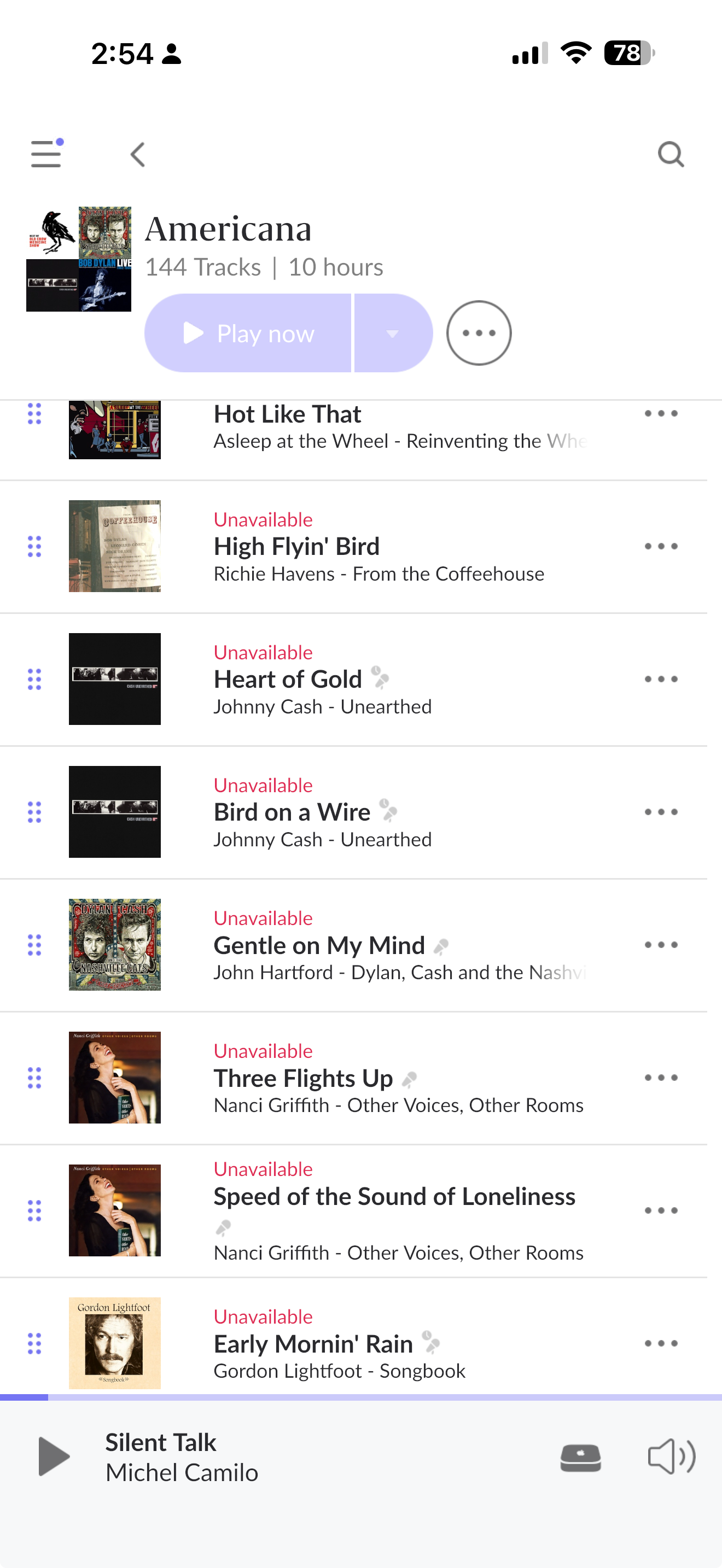
· Moved Roon installation from a QNAP to a Synology NAS. Everthing works on the Synology, we were even able to set up ARC. Playlists do not work. Customer said he moved the music files from the QNAP to the Synology using an external USB drive. Yesterday I copied the music files from the QNAP to the Synology using File Station. I chose the file overwrite option. Playlists still show as 'unavailable'.
Thanks so much for taking the time to write in and share your report! When moving from QNAP to Synology, the underlying operating system paths change significantly (e.g., QNAP often uses /share/CACHEDEV1_DATA/… while Synology uses /volume1/…).
Even though the files are physically there, Roon’s database is likely still looking for the music at the old QNAP address. Because the paths don’t match, Roon considers the files “missing” from the library, which causes the playlists to show tracks as unavailable.
The most common mistake during a migration is adding the new Synology folder as a new storage location in Roon, rather than editing the old QNAP location to point to the new drive.
If you Add: Roon scans the files as brand new content. It imports them, but it doesn't know they are the same files that were in the playlists.
If you Edit: Roon understands that the storage location has physically moved. It updates the database paths, preserving play counts, "Date Added" timestamps, and Playlists.
You need to tell Roon that the "Old QNAP Folder" is now the "New Synology Folder."
Check Roon Settings > Storage:
Go to the Roon remote and navigate to Settings -> Storage.
You’ll either see the old QNAP folder listed (possibly with a red error or “Disconnected”) AND the new Synology folder listed separately, or you’ll only see the old QNAP folder (disconnected).
You’ll want to edit the existing storage folder path to reflect your new folder directory.
Let me know if this helps and makes sense, thank you!
The Roon installation was also on the QNAP, but we disabled Roon there and installed it on the Synology. Can we modify the metadata in the playlist files so that they reflect the new location? If yes, where are the playlist files stored and what program would we use to modify them?
Hi Norris, we decided to delete the installation from the Synology NAS, format it and start from scratch. At this point we are now running Roon from the original location on the QNAP. Please provided a detailed step-by-step guide on how to move the Roon installation from the QNAP to the Synology. The ‘Migration’ page on the Roon support website isn’t working, also, the roononnas.org website isn’t working. The customer also reports that the playlists now say “unavailable” on the QNAP, and previously they would work from the QNAP. The QNAP is also showing up with the correct IP address, but with the previous name of the Synology NAS(the Synology NAS was reformatted and Roon re-installed but Roon isn’t runing right now). It appears that the Roon software is holding on to old metadata and that is causing our issues. I need to know how to manually edit the metadata in the database(file name, editing tool(s) etc, Thanks
To keep it brief: Roon’s database cannot be edited manually without causing corruption. To fix your playlists and complete the move, you must use the Backup and Restore method.
The Solution:
Backup: On the QNAP, go to Settings > Backups and create a fresh backup.
Restore: On the Synology, select “Restore a backup” on the initial setup screen and point to that QNAP backup.
Relink: Once restored, go to Settings > Storage. Click Edit (3 dots) next to the old QNAP path and Browse to the new Synology folder. This specific “Edit” step is what repairs the “Unavailable” playlists.
Note: Ignore the server name mismatch for now; rely on the IP address to identify the correct NAS. We are aware of the roononnas.org outage and are investigating.
Hi, thanks for the reply, I have added some subsections to your answers, please let me know if my answers are correct or correct me as you see fit.
The Solution:
Backup: On the QNAP, go to Settings > Backups and create a fresh backup.
Restore: On the Synology, select “Restore a backup” on the initial setup screen and point to that QNAP backup. [My customer has a Mac laptop running the Roon application, do I stop the Roon service on the QNAP, start it on the Synology and then do the restore to the Roon shared folder on the Synology?
Relink: Once restored, go to Settings > Storage. Click Edit (3 dots) next to the old QNAP path and Browse to the new Synology folder. This specific “Edit” step is what repairs the “Unavailable” playlists. [Is this done while Roon service is stopped on the QNAP and running on the Synology?]