I’ve been running Roon on a ROCK for years without issues. Intel NUC running RoonOS 1.0 build 259. Feeding my main audio system and my Sonos speakers. Over the past year, it began crashing with increasing frequency. In October, it pretty much immediately crashed and became unusable. I have sought help on the community previously and based on that opened the NUC and renewed the heat sink paste and cleaned the fan, but that did not fix the issue.
In frustration, I simply shut it down in October. I’m now trying to get it working again. When I open the app on Android, it simply shows the graphic Looking for your Roon Server. When I click on Configure Roon OS devices, it shows ROCK ver 1.0 build 259 and an IP address. But that’s it. Never finds the server in that initial screen.
Today I attached a monitor and keyboard to the NUC and started it. The screen booted to a listing of the model, OS, serial# and hostname. But also, Searching for network access. I thought the NUC had wifi, but in my normal setup it is hard wired Cat6 to an access point. Don’t have that option at my computer, so maybe it wasn’t connecting to my wifi.
I’ve exhausted my very limited skills and don’t know how to proceed. My renewal is in a few weeks and at this point I’m about ready to move on. Can you help
A photograph of the display on the NUC when you have the monitor attached would help.
However, it looks like the NUC is booting to RoonOS correctly based on the details of what you see on the monitor. The only thing that I don’t see is the ip address. That should normally be shown.
Whilst the NUC does have WiFi, RoonOs does not usually use WiFi. Roon’s advice is to use a wired Ethernet connection for your Roon server and thus the NUC running RoonOS is configured to use a wired connection by default. Thus you should make sure that you have a wired connection to your network.
If you do see an ip address on the monitor, then there are three possibilities:
-
It shows an ip address in the correct range for your local network - usually starting with 192.168
-
Is shows a self assigned ip address in the 169.254.0.0 to 169.254.255.255 range. This means that RoonOS has not been able to get an ip address from the DHCP server in your router and it has thus fallen back onto a self assigned address. Unfortunately, this renders it unreachable in your network.
-
There is a ip address assigned statically which is not in the ip address range of your local network - possibly because you have changed routers or at least changed the configuration of the router to use a different subnet to the one in use when the Nucleus’s ip address was setup.
Since you state that you have connected a keyboard, you could try resetting the network back to ‘automatic ip assignment from DHCP’. This can be done by performing the following steps once your NUC has booted with the monitor and keyboard connected:
- Press ENTER
- Type resetnetwork
- Press ENTER
You should then definitely get an ip address in the DHCP range for your local network. If you don’t, then you have a network connectivity issue which could be for a number of reasons:
-
The network interface on your NUC has failed. If this is the case, the only option that you will have is to try to obtain a USB ethernet adaptor which works. Unfortunately, I can’t tell you which ones will work and which ones won’t. RoonOS has a limited set of device drivers available so it is quite possible that some USB to Ethernet adaptors will not work.
-
The port on the switch or access point to which the NUC is connected has failed. Try a different port.
-
The network cable used to connect the NUC to the switch or access point has failed. Try a different cable.
If, on initial boot or after resetting the network interface on the NUC, you see an ip address in the range that you expect, then you can use this to access the WebUI from a web browser on a computer, tablet or phone. Simply enter either
- http://<ip address> where <ip address> is the ip address shown on the monitor
- http://<hostname> where <hostname> is the hostname shown on the monitor - be defautl this is http://ROCK
If you successfully see the WebUI, it should tell you the status of your Roon server (whether the Roon Server is running or not, whether the database is good. Whether any internal storage space present can be seen etc).
Is the ip address shown in the Android Roon app the same one that appears on the monitor attached to the NUC? If so that is what I would expect. However, I can’t remember what the subsequent screens look like so maybe a screenshot image would help here.
Hello @Rex_Noel !
Thanks for bringing the problem here.
You are right about the connection: ROCK is only Ethernet device.
Please connect it via Ethernet to your master router and please make sure it is in the same LAN as your other target devices (Remotes and endpoints).
After that please try to open a ROCK Web UI and let us know please if it is working or indicating any issues.
Also, we would appreciate if you could grab Logs from your ROCk and upload it to our Logs storage so we could review them.
Thanks!
Regards
I don’t currently have anywhere I can take the NUC to get screen and keyboard and wired access. Those are on my desktop in the office and only have wifi in there. I don’t find a way to grab the Logs as in my app (phone and iPad) I never get past the Looking for Roon server message. I only see the IP address when I click on Configure Roon OS device, but don’t see any other options. No IP address when I had the screen attached, but almost certainly because it needed the wired connection.
Hi @Rex_Noel,
My apologies here - are you able to connect your ROCK directly to your primary router?
You don’t need to use Roon itself to gather Roon Server logs. Here’s info from the link @alex_h shared above:
- Using a Windows machine, open File Explorer and navigate to \\ROCK\Data and use Guest as the username and password. You should then see the RoonServer folder.
- Using a Mac, open Finder and navigate to smb://ROCK/Data and use Guest as the username and password. You should then see the RoonServer folder.
Then:
- Find the folder called
Logs- This folder generally contains Roon_log.txt , Roon_log.01.txt, ect. or RoonServer_log.txt, RoonServer_log.01.txt, ect. (if making use of RoonServer)
- Zip up the entire
Logsfolder- On macOS: Right Click -> choose Compress Logs
- On Windows, Right Click -> choose Send To -> Compressed Zipped Folder
- Please do not send individual log files
- Rename the zip file to include your Community username, name, or your email address
- Please don't send your logs over as
logs.zip
- Please don't send your logs over as
- Send us a link to the zip file
- The easiest way to do this is to upload the logs to our [url=https://workdrive.zohoexternal.com/collection/8i5239cc05950ac07456889838d9319545a82/external]Logs Upload Server[/url] and let the support staff know you did so.
Thanks, Rex! 
Wade thanks. I tried connecting to screen and keyboard again today. This time I arranged an ethernet connection. Tried the resetnetwork command several times with not luck. Still showing “searching for network”. Tried same with two other cables, same result. As background, the only desktop in the house with monitor etc is in my office upstairs. House is wired back to a home director system. I normally use that desktop NUC on wifi, but there is an outlet for ethernet. I was able to plug that outlet at the home director into the primary router directly. Then in the office into that outlet. Since the NUC didn’t find a network, I’m guessing that wiring is suspect in the wall or at the home director. Don’t have any other system to try.
So, I’m back to its normal location at the main audio system. Plugged into that ethernet cable and rebooted. Now the app is finding the Roon OS and appears somewhat normal, but… it remembers my music library on the network, but clearly isn’t finding it as there is no content in the library according to the app. Also, it isn’t finding any of my Sonos speakers and when i go to setting/manage audio devices, it is all blank, nothing there. That is new. It does have my Qobuz account live and logged in. When I try Home on the menu, I get a setup screen for Add some music and Play some music, but the first takes me to my usual library on the NAS but again that isn’t functional.The Play some music box is dead, doesn’t go anywhere.
So I just added back the DAC to my main audio system, then came back to the app to see if I could add that audio device and try playing from Qobuz. But the app froze while I was gone. Closed and reopened the app and get the same old message “issue loading your library”. This exactly the kind of constant crashing that I’ve been having for much of the year.
Before this latest crash I had taken the IP address from the app the first time and was able to see the webui. It showed OS, database and Roon software all ok and IP set to DHCP. I just did a restart from the webui and it did so and now show all ok again. Tried a force stop on the roon app (on android) and then reopened the app and still issue loading library.
So basically I don’t know what is happening. Webui suggests the ROCK installation is working, but the app doesn’t seem to have access and when it did, a lot was missing.
Benjamin, just tried to access the logs from File Explorer. It will not accept Guest as the password.
Hi @Rex_Noel,
Thanks for including this bit of information - we were able to ping your ROCK and request a fresh Roon Server diagnostic report, and saw the following:
load status: DatabaseCorruptThe primary issue you’re dealing with is that your Roon database has become corrupt. Your best option, if possible, would be to attempt to restore an older backup, ideally one that predates any of the issues you’ve been experiencing.
If you don’t have any available backups, you’ll unfortunately need to completely refresh your Roon Server database - you can do so from the webUI. It would essentially feel like starting Roon from scratch. This is far from ideal - I’m sorry that this is the situation. 
Let me know if you have any additional questions here!
Benjamin, the saga continues. I rebooted the NUC, opened the webUI from my laptop. Did the database refresh there and it appears to have worked. However is came back with the Missing Codecs message with a link. Followed the link and followed those instructions. Downloaded the tar file. Then opened File Explorer and navigated to my network. Entered \rock\data as instructed and it asks for username and password. Instructions say to use guest and guest. I did so and says the password is not correct and denies entry. Organizations security settings etc. I’m stuck there, not enough of a PC or network guy to have any idea what to do from here.
Hey @Rex_Noel,
Thanks for letting us know! The guest/guest login failing is common now because modern Windows blocks insecure guest SMB by default. You’re not doing anything wrong.
See if this article helps:
Thank you!
Followed the procedure in the Group Policy Editor. All went well through step 5. In step 6 I don’t have the SMB Client under Network.
Ok, stopped at step 5 and went back to the Codecs procedure. Was able to open \rock\data this time without a login. Copied the Codecs and am now in the app on Android. It couldn’t find the Roon server so chose a different one and shows my Rock. I was able to log in and now need to set up the network path to my NAS for the music library. I gather I’m starting all over. When I get there I’ll check if I can add my Sonos system, and also see if I can recover a backup. Thanks for the help so far.
Ok, so the Android app appears to be functioning normally now. I was able to add my Sonos speakers and my Qobuz login and play some music from Qobuz. I went to the backups section and tried to access a backup but it wants a path and I have no idea where to look for my old backups. Perhaps I lost those with the total reset??
And my problem but it won’t access my NAS without login credentials and I’ve had no luck finding those… haven’t needed them in years. Know you can’t help with that part
So I’m functional but hobbled and still debating the value and hassle factor and whether to renew. Thanks for your help.
I suspect that the Help article is not showing you the correct steps for the Group Policy Editor. This Microsoft article is a better bet:
Hello @Rex_Noel,
Thank you for the detailed update — that helps clarify where things stand.
Just to make sure we’re on the same page: at this stage it sounds like the issue is with ROCK accessing your NAS as a network share, rather than Windows accessing ROCK.
To help us see exactly where it’s failing, could you please do the following on your next attempt:
- Try adding the NAS path again in
2.Settings → Storage → Add Folder* on ROCK. - Note the exact timestamp (date, time, and timezone) when the connection attempt fails.
- Share screenshots of:
- The storage path you’re entering
- Any error message or prompt you see when ROCK tries to connect.
With the screenshots and timestamp, we can correlate your attempt with the server logs and confirm whether this is an authentication issue, a protocol mismatch (SMB version), or something else.
Once we have that, we’ll be able to advise on the correct next steps.
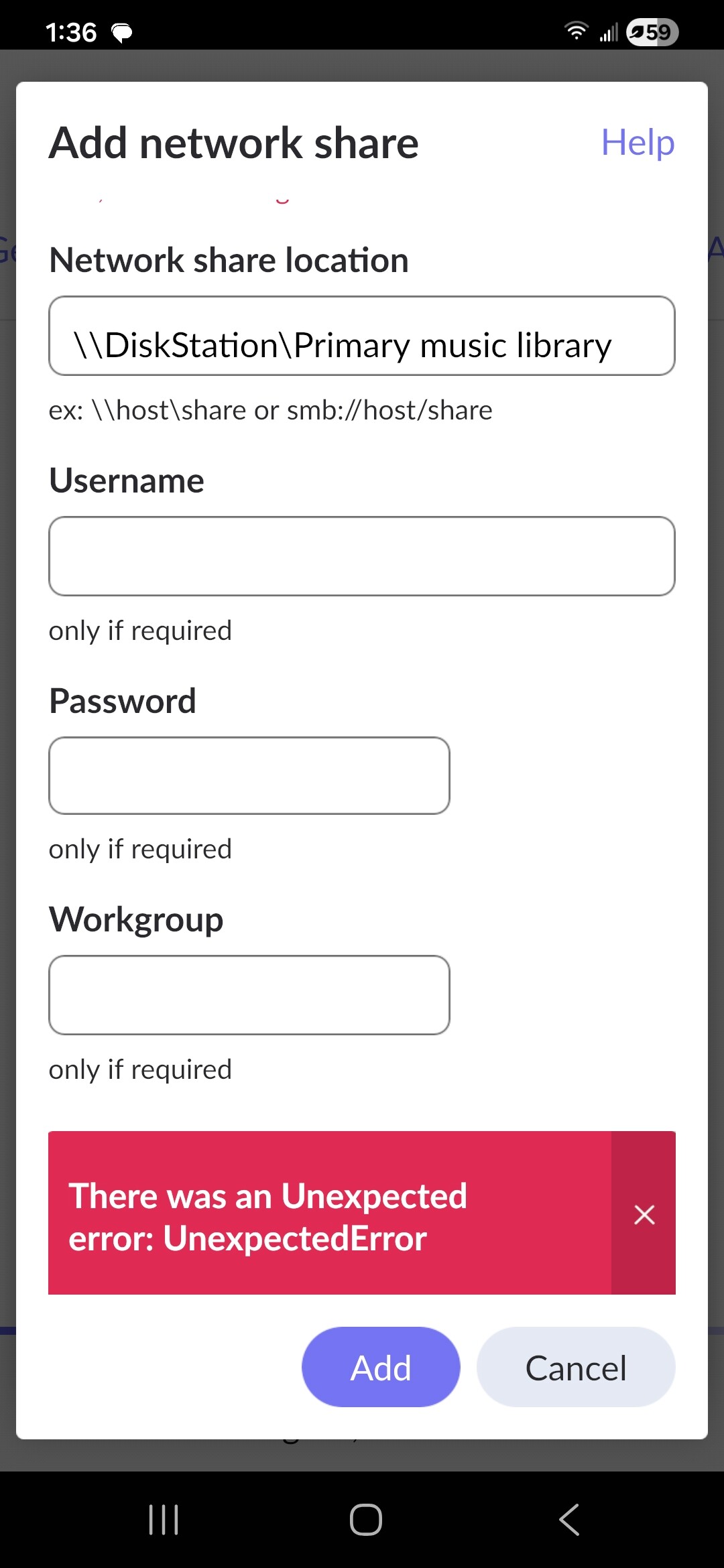
Had never previously needed the username and password to add this to Roon. But I did try same action with my administrator credentials and got the same result and message
Hi @Rex_Noel,
What happens if you try inputting the IP address instead of the file name?
For example:
\192.168.0.100\DiskStation\PrimaryMusicLibrary
(Replace 192.168.0.100 with your ROCK’s actual IP address).
No luck same error message, with or without my login credentials
In your example is it “Primary Music Library” with the spaces as the actual share name?