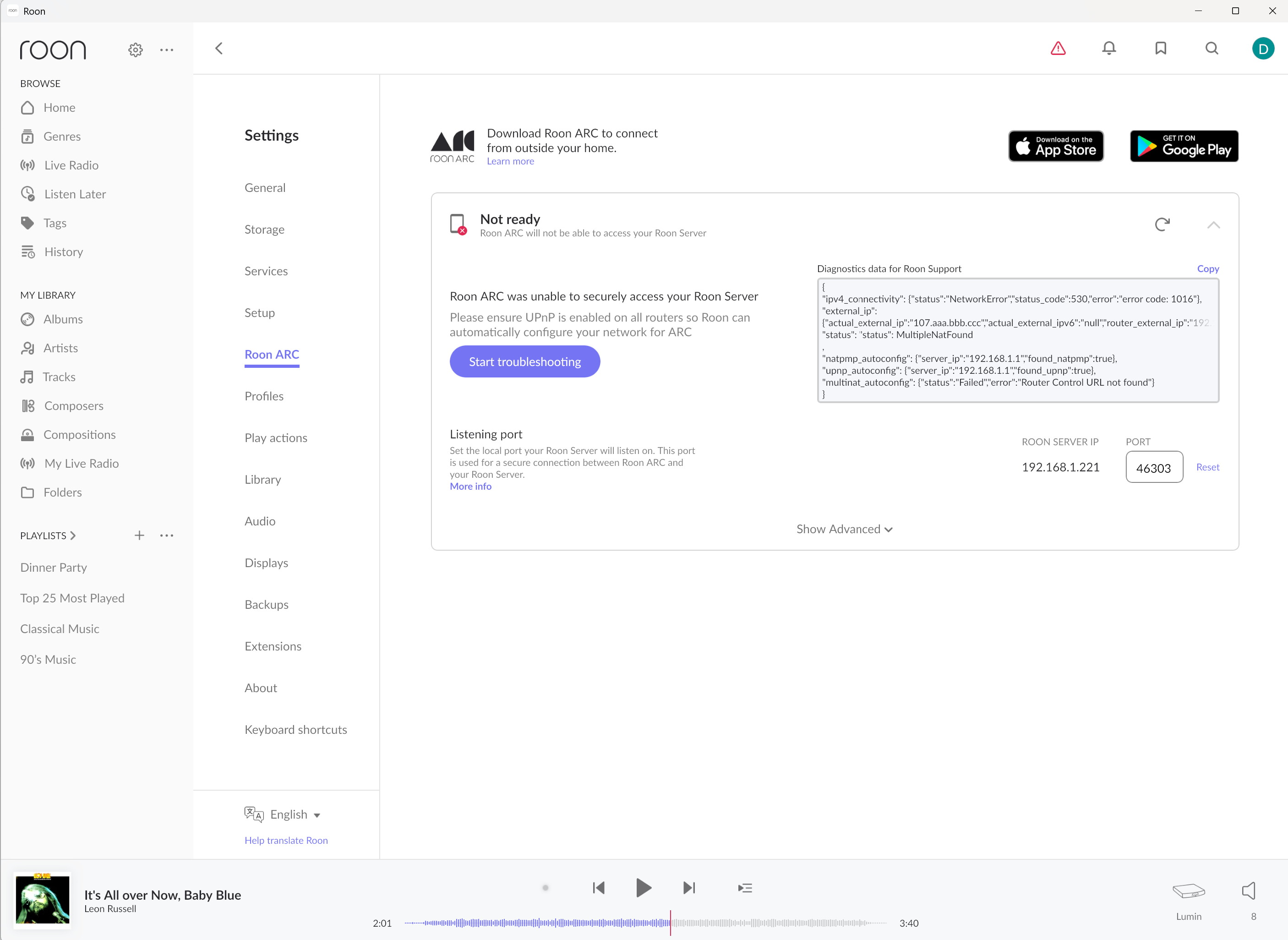
· My Arc setup has been working fine for about two years. As recently as Saturday it was working. Today I was away from home and could not connect. I am back home now and in Roon Remote-Setings-Arc I see "Not Ready". the diagnostics says: { "ipv4_connectivity": {"status":"NetworkError","status_code":530,"error":"error code: 1016"}, "external_ip": {"actual_external_ip":"107.aaa.bbb.ccc","actual_external_ipv6":"null","router_external_ip":"192.168.0.65"}, "status": "status": MultipleNatFound , "natpmp_autoconfig": {"server_ip":"192.168.1.1","found_natpmp":true}, "upnp_autoconfig": {"server_ip":"192.168.1.1","found_upnp":true}, "multinat_autoconfig": {"status":"Failed","error":"Router Control URL not found"} }
Tell us about your home network
· My home has two routers. Internally, I use a TP-Link Archer AXE300(US) Ver: 1.6. Internal IP 192.168.1.1, My Roon Server is Roon on NAS (Synology) address 192.168.1.221. I have port forwarding open on port 46303. The external address of my TP-Link is 192.168.0.65. It connects to my ATT fiber router which is set up for passthrough. The external address is 107.212.40.200. The external address has not changed for years. Again, everything has been working fine for a long time until today
There are two significant parts of the diagnostic text above which confirm that the issue is with your two router setup.
First, the mention of MutlipleNatFound. This indicates that there are two or more NAT layers which means that UPNP on its own cannot correctly set port forwarding. The second is that the router to which your Roon Server is attached is reporting a 192.168.0.65 external (WAN) ip address. Since this is still in a private ip address range, it means that your ATT fiber router must be performing NAT.
There are potentially four ways of resolving this. Choose one, and only one. It should be noted that if your ISP (ATT) uses CG-NAT, on your service, the first three methods will not work unless you first talk to ATT and get them to issue you an ip address that supports port forwarding (if they are prepared to do so). The diagnostic text that you have provided does not suggest that this is the case but it doesn’t rule it out either.
Put the ATT fiber router into bridge mode (sometimes called Modem Only Mode) if it supports it. In bridge mode, the ATT fiber router will not perform NAT and DHCP and Wifi will be disabled so that it simply converts incomming optical signals to ethernet and vice versa on outgoing signals. This will mean that the ATT fiber router will not contribute to the security of your network (that will be left to your TP-Link Archer) and the TP-Link will provide WiFi access. In this mode, only one of the LAN ports of the ATT Fiber router will be active so you will need to make sure that you are using the correct port to connect to the TP-link.
Put the TP-Link Archer into Access Point mode. This means that the TP-LINK only provides WiFi. All other router functionality (NAT, DHCP, DNS etc) is left to the ATT Fiber Router which is thus solely responsible for network security. The only advantage that this has when compared to simply using the ATT router without the Archer is the better WiFi and, likely, the increased number and speed of the ports.
Set up double port forwarding. Unfortunately, this can not be done using UPnP or natPMP. Instead you have to setup a manual port forwarding rule on each router and, because, manual port forwarding rules use explicit ip addresses for the destination devices, the ip addresses of these devices should not change. The best way to do this is to use a DHCP reservation (such that the DHCP server in the upstream router always allocates the same ip addess to the device in question.
Thus there are four steps to setting this up:
a. In the ATT Fiber Router, set up a DHCP address reservation for the TP-LINK Archer (currently on 192.168.0.65)
b. In the ATT Fiber Router, set up a manual port forwarding rule to forward TCP connections (UDP is not required) on port 46303 (the ARC port) to port 46303 on the WAN side ip address of the TP-Link Archer (currently 192.168.0.65).
c. In the TP-Link Archer, setup a DHCP reservation for your Roon Server (currently 192.168.1.221).
d. In The TP-Link Archer, setup a manual port forwarding rule to forward TCP connection on port 46303 to port 46303 at the ip address of your Roon Server (192.168.1.221).
Abandon the use of port forwarding and just use Tailscale to to give local network access to your Roon ARC devices. There is a general description of the use of Tailscale at:
And specific setup instructions for setting up Tailscale in a Roon-On-NAS server at:
With Tailscale, the ARC connectivity report in Roon → Settings → Roon ARC will continue to report ‘Not ready’ and you will continue to get the diagnostic text but this does not matter because this connectivity report pertains only to port forwarding connectivity and using Tailscale means that you are not using port forwarding.
While Wade has provided an excellent and comprehensive guide on how to handle Double NAT environments, there is a specific detail in your diagnostics that suggests a different cause for this sudden failure.
You are seeing “status_code”: 530 and “error code: 1016”.
As you correctly noted, your setup has worked fine for two years. These specific errors indicate a temporary service disruption with the cloud infrastructure provider (Cloudflare), which is preventing our services verifiying your Core’s connectivity status. This is affecting many users today, regardless of their network configuration.
My recommendation: Please do not change your router settings or reconfigure your network just yet. Since your setup was working perfectly yesterday, it is highly likely that it still works, and the error you see is just a false positive.
Once the incident is resolved, try refreshing the ARC tab. If you are still seeing “Not Ready” after the outage is cleared, then we can look into Wade’s suggestions, but for now, this looks like a cloud check issue.
Same issues and same error codes here (Spain). Arc stopped working yesterday and still not working now. Tidal through room didn’t work yesterday (couldn’t connect), now works with some hiccups.
Thanks for your reply. FYI, as of right now, my Arc access is still down. FWIW, No-IP is able to maintain communication with the NAS that Arc is running on through the same setup. I’ve tried shutting down and restarting the NAS, as well.
If the ‘Not Ready’ status is accompanied by status code 530 and Error Code 1016, then this is an ongoing issue with the cloud services that affects the connectivity test.
I have some good news! The infrastructure issues with Cloudflare have been resolved, and our internal systems are showing that the diagnostic reporting is back to normal.
In your Roon Settings under the ARC tab, you should now see a green “Ready” status instead of the previous error codes. This confirms that your long-standing port forwarding configuration is once again being correctly verified by our servers.
Since everything is back in order and your mobile connection is restored, I will go ahead and mark this thread as resolved.
Thank you for your patience while the cloud services were being stabilized. Happy listening!