Can't get ARC to connect consistently. Will connect when on the LAN but not from outside the LAN
Describe your network setup
ATT BGW320 modem to Eero Pro 6E to ROCK nuc
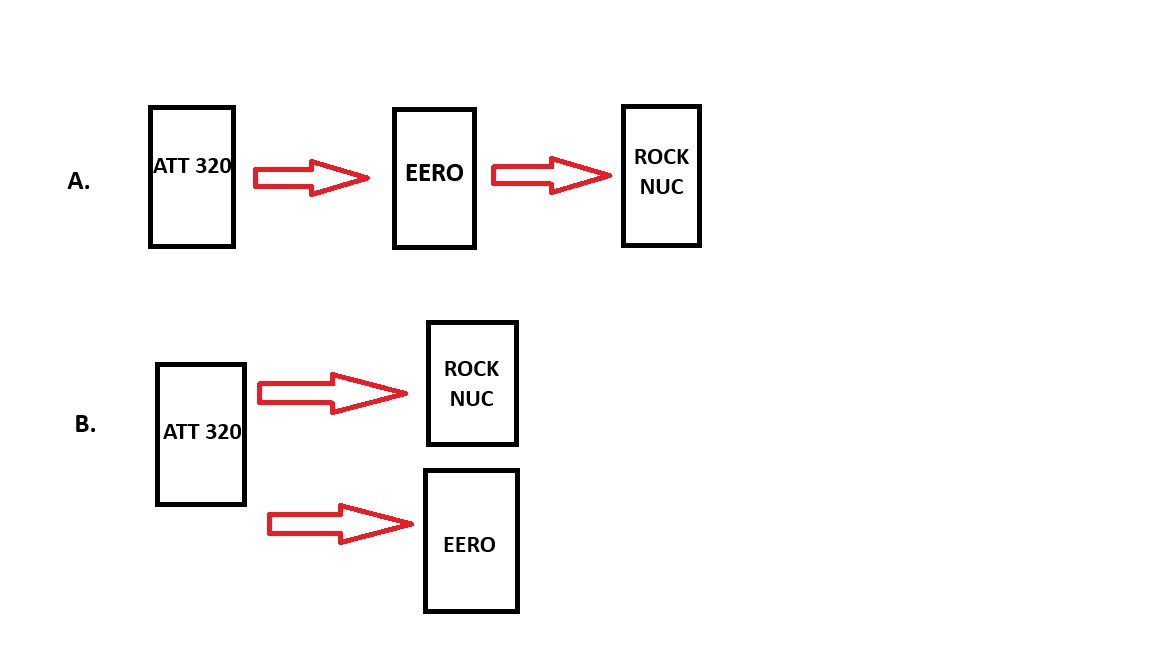
Here’s what I need clarification with. In the helpful thread from Vlad describing the connections with the ATT 320 here:(Arc port-forwarding solution: ATT BGW320 and Asus AX-88U). he appears to be describing what I charted in the diagram as “A”. The ATT modem passes through to the Eero router, and the Eero router is set to passthrough to the Roon nuc on port 55000.
Other methods I’ve seen described where Roon is running separately on a nuc seem to me to be as I have drawn on “B”. The IP passthrough at the modem passes to Roon at port 55000 but another passthrough is set for passthrough to the router.
Which is correct - or am I misunderstanding this completely? I’ve recently switched to fiber ATT and had things configured so they worked with ARC, but some component must have updated because now ARC can’t get through.
If both the ATT32 and the Eero are configured as routers (the default) then, as you suspect, you almost certainly have a network configured like A in the diagram above.
I you have one like B, then all the other Roon associated devices (Endpoints, and remotes) would also have to be connected to the ATT320 because they all have to be on the same subnet and each router manages a different subnet.
The situation in A is often referred to as “double NAT” because each router (the ATT320 and the Eero) provides Network Address Translation services and manages it’s own subnet. In the case of the subnet managed by the ATT 320, the only device present should be the Eero.
Double NAT makes port forwarding more difficult but not impossible. Alternatively, you could try to eliminate the Double NAT.
Thus there are three possible ways to get port forwarding working (and a further way to bypass the need for port forwarding completely which I will briefly cover at the end of the post). The first two methods eliminate the double NAT and should allow automatic port forwarding using UPnP and/or natPmP to work. Even if automatic port forwarding does not work, then you would only have one manual port forwarding rule to manage.
Eliminate Double NAT by setting the ATT 320 to bridge mode (also sometime called Modem Only Mode). If this is possible (a quick search didn’t find a description of the way to do this), this will change the way that the ATT 320 works so that it behaves more like a piece of wire and does not provide router functionality (NAT, DHCP). In this mode, the Eero is 100% responsible for managing your network and it’s security.
Put the Eero router into Access point mode. This means that all that it does is provide WiFi access (as the name implies). All network management (except WiFi) and security is done by the ATT 320.
Setup double port forwarding: As the diagram A implies, you can set up the Att 320 router to port forward to the Eero and the Eero to port forward to the ROCK NUC. To do this, the ATT 320 router must be manualy set to forward TCP connection on the ARC port (55000) to the WAN side ip address of the Eero router (ie the ip address of the Eero router as it appears in the device list on the ATT 320). Then the Eero router must be set to forward TCP connections on port 55000 to the ip address of your ROCK NUC.
Note: Whenever you setup a manual port forwarding rule, it is also advisable to make sure that the destination device (the WAN side of the Eero Router and/or the ROCK NUC in your case) never change their ip address. The best way to do this is to configure a DHCP port reservation for the device in question. This will need to be done in the ATT 320 router DHCP settings to reserve an address for the WAN side of the Eero router and it will have to be done in the Eero DHCP settings to reserve an ip address for the ROCK NUC. Alternatively, you could set static ip addresses which will achieve the same thing but can cause issues later on when, for some reason (e.g. a router change) the subnet managed by the router is changed such that the static ip address is no longer within the subnet. Such issues can make the device unreachable with normal network operations.
Finally, if this all sound too much, then you might be able to bypass the need for port forwarding entirely using Tailscale:
The specific instructions for setting up Tailscale on a ROCK/NUC roon server (assuming RoonOS build 271 or later) are at:
Note: The Nucleus/ROCK instructions above assume that your ROCK/NUC installation is using UEFI boot. If your installation goes back far enough it is possible that it is using BIOS boot instead. This limits the version of RoonOS (the OS installed by ROCK) to build 259 which, does not support Tailscale on the ROCK/NUC itself. It is still possible to use Tailscale but it is more complicated and requires a second computer (maybe something with low power consumption like a Raspberry Pi) to run Tailscale as a subnet router. This computer must also be left on 24 hours a day to provide external ARC access.
The use of Tailscale as a subnet router is described at:
What @Wade_Oram said is an absolutely correct thing.
I personally would stick to his second advice - put the Eero mesh to the access point mode and not deal with double NAT since most likely you just need it to cover the home area.
Wade_Oram and all - thanks for a most complete description of the process. I can see how I will be spending the afternoon. This gives me more than enough to find out what works. I will report back when I’ve cleared this up.
I didn’t mention earlier that I had already set the ATT 320 to “modem only” mode and set the passthrough to the Roon nuc on the Eero. But this gives me two other options to try.
I’m not sure where the connections went off-track, as it had been working before. Various pieces of software and hardware in the chain have installed updates recently, and it often seems that this process is like watching a group of soldiers marching in step. If one soldier loses step it takes a few group steps forward before the whole platoon starts marching together again.
If ARC is working for you I would leave things as they are for now. Ie don’t enable IPv6 unless you have another reason to do so (not ARC related).
If you do enable IPv6, and do nothing else, ARC will not be able to use it.
In order to allow ARC to work with IPv6 you will have to create IPv6 firewall exceptions (sometimes called pinholes) wherever you have an IPv4 port forwarding rule.
For the IPv6 firewall exception, you will need to ‘accept’ TCP connections to port 55000 from any source address and with a destination address set to the IPv6 address of your Roon Server (visible in the ‘advanced’ expansion on the Roon ARC settings page of the normal Roon client application).
You may have to set the same rule on both the ATT 320 and the Eero (I’m not familiar with the ATT so I don’t know). If so you still use the Roon Server IPv6 address for the firewall exception because, for IPv6, there is no NAT address translation.
With IPv6, there are a couple of ways that your Roon Server can be allocated an IPv6 address. DHCPv6 and SLAAC. If you are using DHCPv6, then just as with IPv4, you should create a DHCP address reservation so the IPv6 address of your Roon Server does not change. This is not necessary if SLAAC is used because SLAAC always allocates the same address.
In some cases, both DHCPv6 and SLAAC can be used at the same time to allocate two different public IPv6 addresses to a device. In this case it would probably be best to create firewall exceptions that accept connections to either address - I don’t know whether Roon ARC tries connections on all available IPv6 addresses or just one of them - and if the latter, I don’t know which one of the two would be chosen.
You do not need to add a firewall exception for any link local IPv6 address associated with your Roon Server. Link local ip addresses can be easily identified because they all have an ‘fe80::’ prefix.