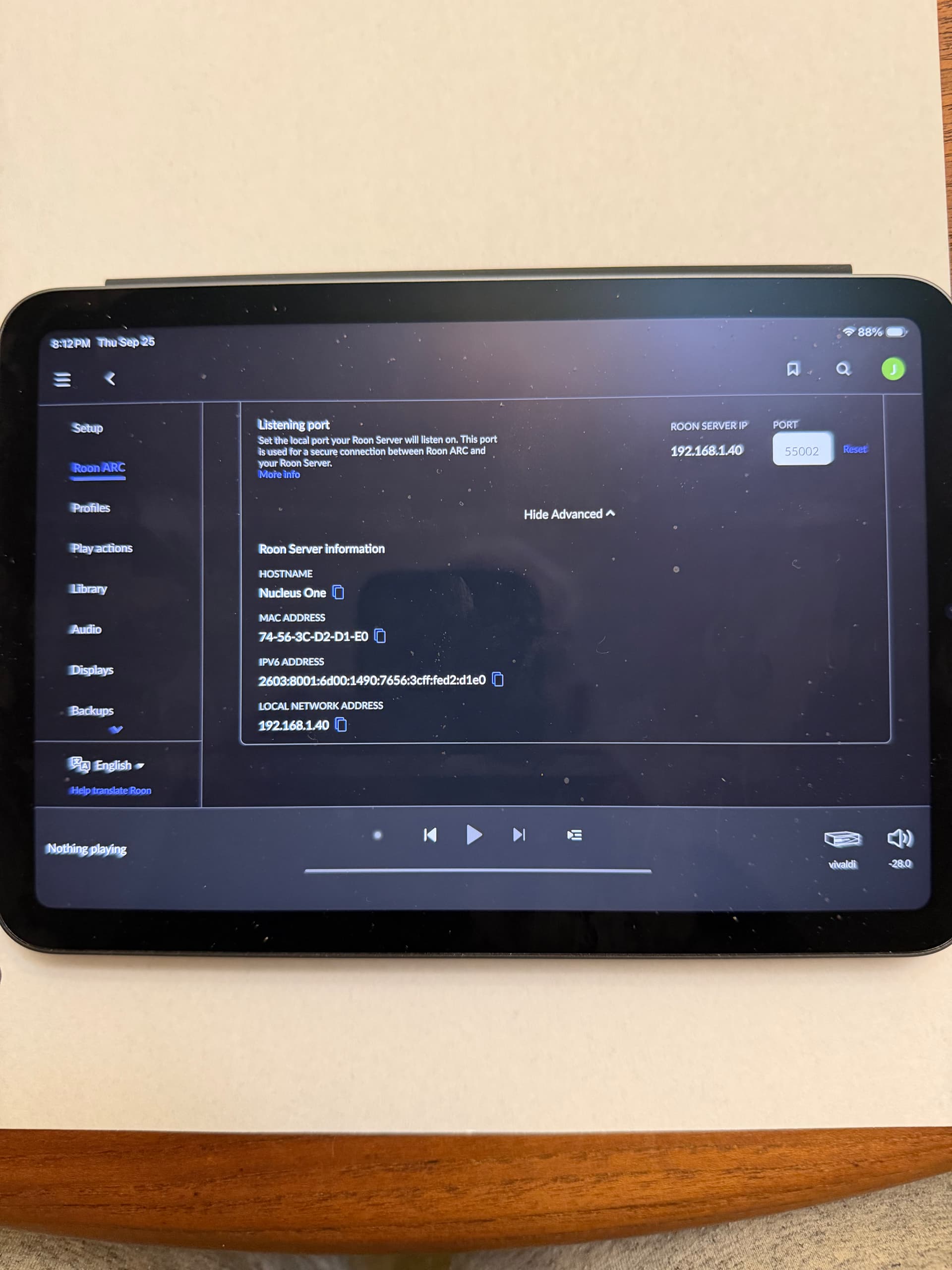
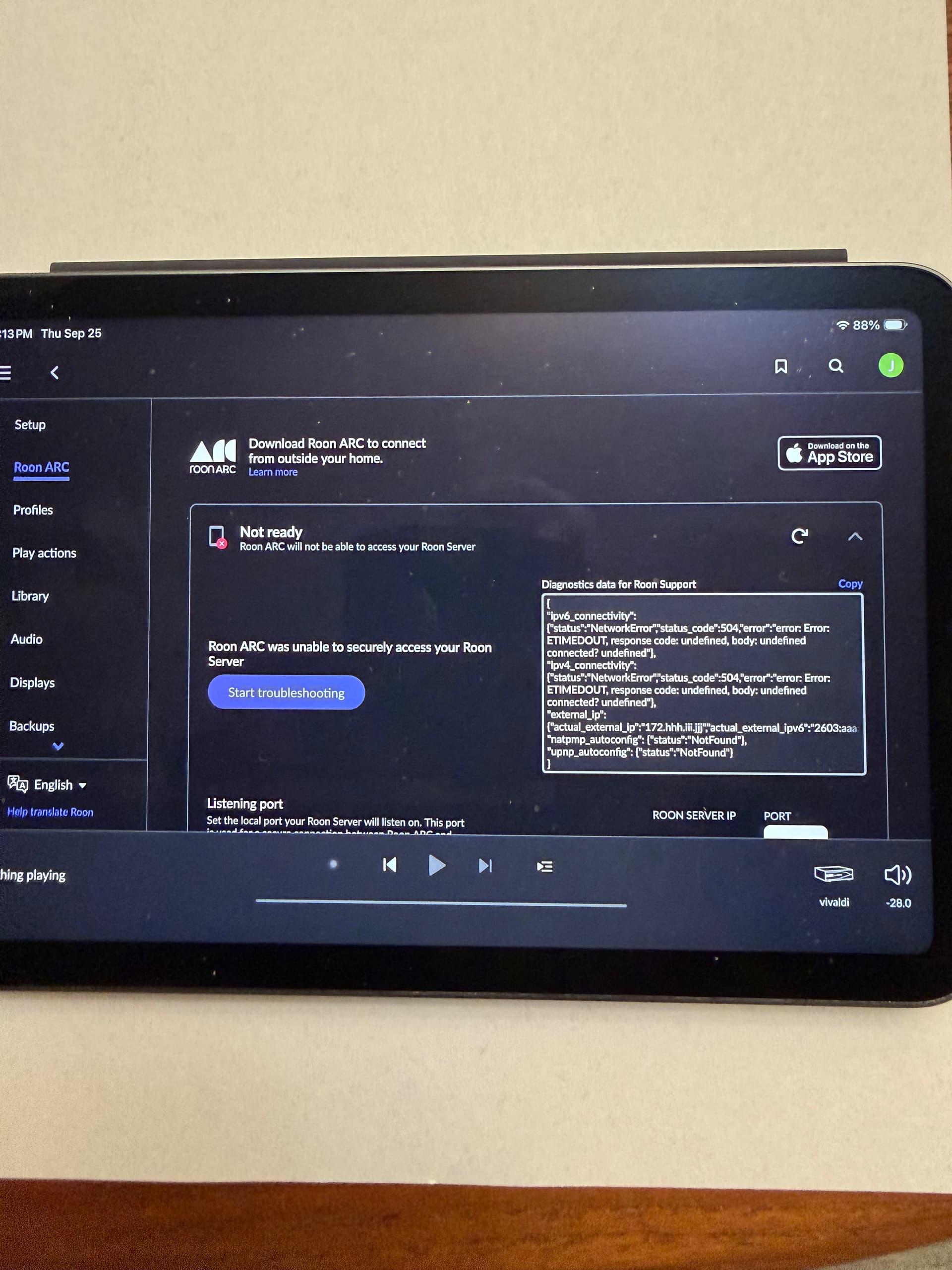
· None of these are listed. It simply says "TIMEDOUT" or similar.
System or third-party *firewalls *or *antivirus software* can sometimes block RoonServer from reaching ARC.
· Try adding RoonServer and its associated processes to the whitelist of any firewalls or antivirus software you have installed, including the Windows system firewall, if applicable. [You can learn more about firewall exceptions with Roon here.](https://help.roonlabs.com/portal/en/kb/articles/firewall)
Has the status in Roon -> Settings -> ARC changed after adding exceptions in your firewalls and antivirus software for Roon? ARC is still *Not Ready*
Don't give up yet.
· I'm stuck. I'd like to create a post to ask Roon Community for help.
Describe the issue
I get a message that says not ready on Roon Arc. There is a diagnostic box with lots of stuff in it next to the message that is too technical for me to figure out. One of the terms in the error diagnostic says timed out. I use an Apple IPad and it doesn’t allow for firewall modification. I am not very technical. Roon arc used to work fine but it hasn’t recently. When I am home my IPhone appears to be connected to RoonArc. But when I try it in a car or remotely, it won’t connect. I can send you a photo of the screen with the diagnostic information if that would help. Thank you for any assistance.
Describe your network setup
ISP is Spectrum. The modem is model et2251. The router is a WiFi 6e router. The router is connected to Roon Nucleus via cable plugged into Ethernet port on router. The system runs on iPad mini (6th generation) with iOS 26.0 and my phone is iPhone 17 pro with iOS 26.0
Thanks for the details! A couple of quick questions and suggestions:
Have you made any recent changes to your network or router settings?
The issue you’re seeing can sometimes happen if UPnP is not enabled on your router. Roon ARC needs to open a port automatically to communicate with your Roon Server.
Another possible cause is Carrier-Grade NAT (CGNAT) from your ISP, which can prevent ARC from connecting remotely. If that’s the case, you would need to use Tailscale to connect without port forwarding.
Here are some helpful links with more information:
[url=https://help.roonlabs.com/portal/en/kb/articles/getting-started-with-arc#Overview]Getting Started with ARC[/url]
[url=https://help.roonlabs.com/portal/en/kb/articles/arc-port-forwarding]ARC Port Forwarding[/url]
[url=https://help.roonlabs.com/portal/en/kb/articles/arc-and-tailscale-connect-to-roonserver-without-port-forwarding]ARC and Tailscale (connect without port forwarding)[/url]
If possible, please also send a screenshot of the diagnostic box from ARC—it can help pinpoint the exact issue.
I will try to post a screenshot.


indicates that the UPnP/NAT-PMP service on the router is not activated, so Roon could not use it to automatically set up port forwarding on the router.
Your options:
Enable UPnP in the router settings.
Alternatively, configure a port forwarding rule on the router manually.
Depending on your ISP, it may or may not work after you chose either way. If the ISP implements CG-NAT, then it won’t work even after setting up the port forwarding, and you will then get a different error message in the box, mentioning “MultipleNatFound”
Your third option is to install Tailscale on the Windows machine, which a) means you don’t need to bother with the port forwarding and b) will work even if your ISP implements CG-NAT.
Much to my surprise, I was able to change the settings on my router to enable UPnP, whatever that is, lol. Roon Arc works fine now. Thanks for everyone’s help.