Hi @Phillip_Reeves,
Thanks for that last screenshot, it’s the most useful thing you could have sent, and it changes where we’re looking.
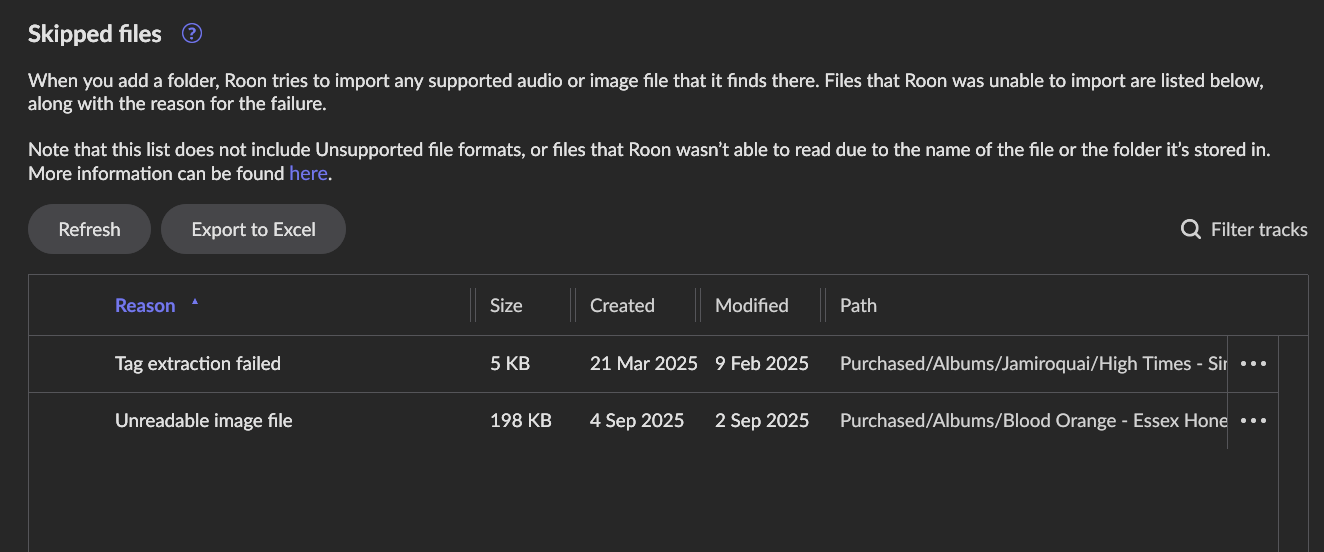
Those red Corrupt labels in the track list aren’t coming from your Skipped Files. Your Skipped Files list only has two entries in it, and it’s had the same two since the 10th. So something else is setting those flags, and I think your logs show what it is.
Your watched folder is M:\Music, a Windows drive letter mapped to your NAS. On the 12th, your server logged close to a hundred network state changes per hour, and in the middle of that window:
[streammediafile] error reading stream: An unexpected network error occurred.
[zoneplayer] Corrupt Media Detected
That’s Roon opening a perfectly good FLAC, having the network read fail partway through, and reporting the result as corrupt media.
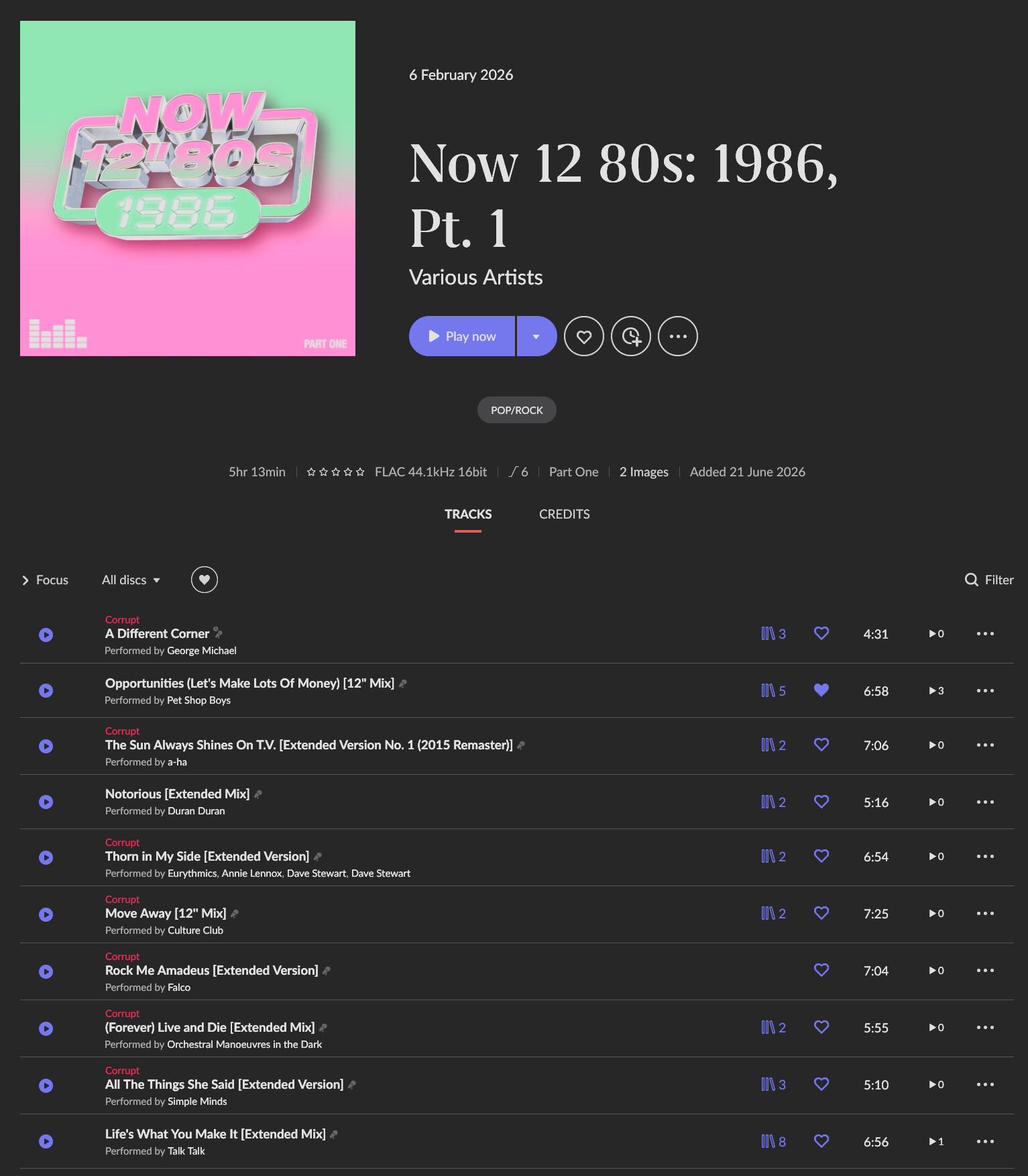
During normal playback that’s a single skipped track. But during a full library re-import, which is exactly what your PC reinstall triggered, the same thing happens at scale: whichever files happen to be mid-read when the connection hiccups get flagged. That’s why tracks from one source end up with different statuses. It isn’t a property of the files, it’s which read attempt got unlucky. And once a track carries that flag, Roon doesn’t go back and re-check it.
So I don’t think your rips are the problem. I think the path Roon is reading them over is.
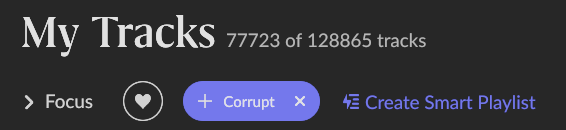
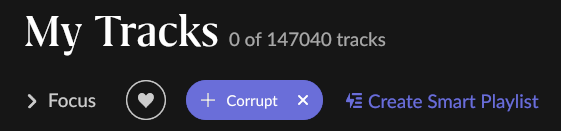
Go to Tracks → Focus → Corrupt. That isolates every flagged track in your library into one view.
Please post a screenshot with the count at the top. That number is the thing we measure against after the steps below, and it tells us whether we’ve actually solved it or only part of it.
Then, try:
1. Change how Roon reaches the NAS.
Instead of the mapped M: drive, add the share to Roon directly: Settings → Storage → Add Network Share, using the UNC path (\YOUR-NAS\Music) and your NAS credentials. Mapped drive letters are tied to your Windows login session and can drop out from under Roon in ways a direct share won’t.
While you’re at it, is this PC on Wi-Fi or wired? Your logs show a lot of network adapter churn, and if the NAS is being reached over Wi-Fi, moving that machine to a wired connection will make a real difference to everything above.
2. Then force a clean re-scan so the stale flags get re-evaluated:
- Settings → Storage → remove the old
M:\Music folder
- Settings → Library → Clean Up Library
- Add the network share from step 1
Your edits, playlists, favourites and play history are all preserved through this.
One file that genuinely is broken
While you’re in there, this one really is corrupt, it’s a 5 KB truncated file:
Purchased\Albums\Jamiroquai\High Times - Singles 1992-2006\Little L.flac
If it arrived on the NAS at that size, it’s worth spot-checking whether anything else was truncated when your library was copied across. Sorting a few album folders by file size will surface any obvious stragglers in a few seconds, a FLAC that’s a fraction of the size of its neighbours didn’t copy completely.
Thank you!