@Don_Gilbert
On what for hardware is your Roon Core running? Is it on a NAS, or on a Linux server. In any case, the minimum requirments of Roon Core has been changed, so check if your system meets the new minimum requirments. If not, than you can use a Docker container in which Roon Core is running.
Kind regards, Frank.
Roon not loading after an update usually points to either the Roon Server machine itself or a compatibility issue with the system it is running on.
Could you tell us what the affected Roon device is running on, for example Windows, macOS, Linux, Nucleus, ROCK, or a NAS? Is it the Roon Server that is affected, or one of your Roon remotes?
Also, what do you see when you try to open Roon: does it fail to launch entirely, get stuck on a loading screen, or open and then quit? If anything changed on the machine around the same time, that would be useful too.
Once we know the platform and the exact failure mode, we can point you at the right next step.
Thank you for clarifying that you are using Windows 11 as your Roon Remote while your server is running on the NUC with Roon ROCK. Since your NUC server appears to be online, the issue is isolated strictly to the Roon app on your Windows PC failing to launch.
When the blue Windows loading circle spins but the app never actually opens, it almost always means the local Roon configuration files or the local UI cache on that specific PC have become corrupted during the update.
To fix this, we need to perform a clean wipe of the Roon installation on that Windows machine. Don’t worry—this will not delete your music library or your main database, as those are safely stored on the NUC ROCK.
Please follow these steps exactly:
1. Uninstall Roon
Open Windows Settings > Apps > Installed apps.
Find Roon in the list, click the three dots, and select Uninstall.
2. Clear the Leftover Data (Crucial Step)
The standard uninstaller leaves hidden cache and configuration folders behind. We must delete these manually to ensure a completely fresh start.
Press the Windows Key + R on your keyboard to open the Run dialog.
Type %localappdata% into the box and press Enter.
In the folder that opens, look for any of the following folders:
Once it finishes, try opening Roon. It should now launch correctly and ask you to connect to your ROCK server. Let us know if the app successfully opens!
We have analyzed your full server log, and there is some good news: your NUC Server is actually up and running stably, and its network ports are open.
However, due to the update glitch, the server has put itself into a “Not Ready / Not Logged In” state. It is waiting for account authorization, which is why your Windows Remote sees it but gets stuck when trying to connect.
Let’s get this sorted out with two steps:
Step 1: Refresh the NUC System Files
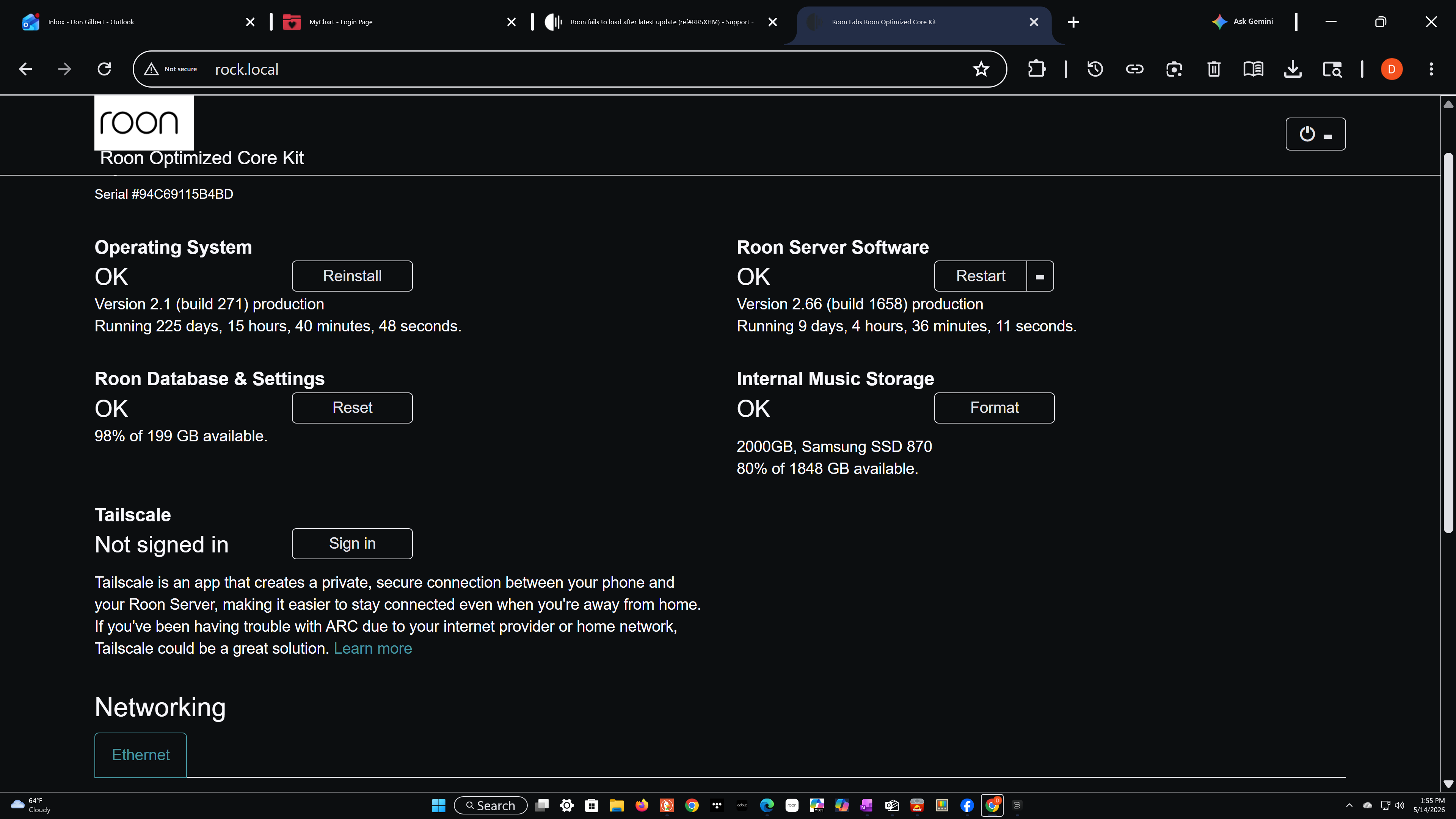
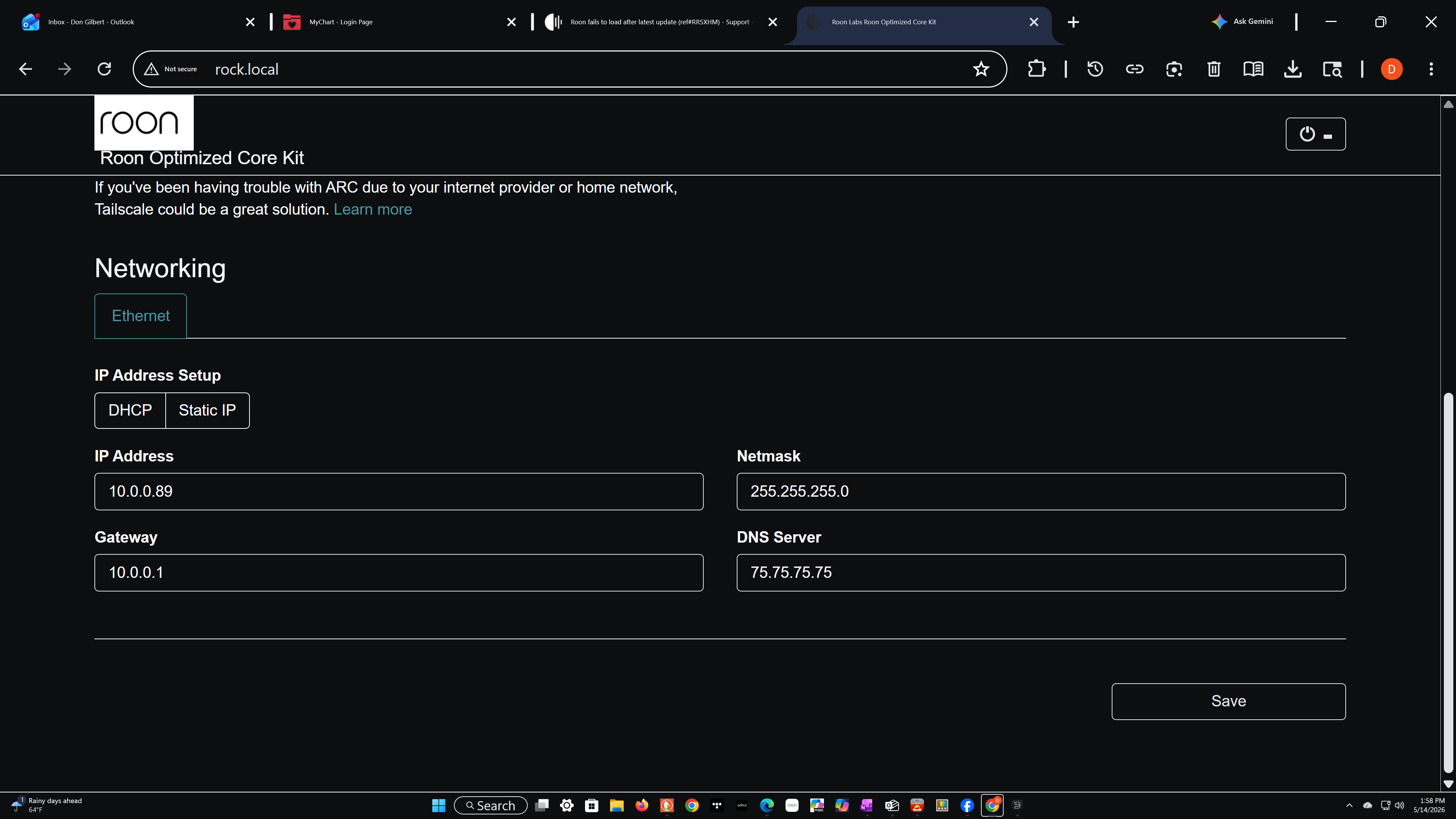
Open your web browser and go to the ROCK webUI (rock.local).
Click the "Reinstall" button in the Operating System section. This will replace any broken components from the last update and make sure the core is healthy.
Step 2: Force Re-authorization from your Windows PC
Once the NUC finishes reinstalling and reboots, open Roon on your Windows 11 PC.
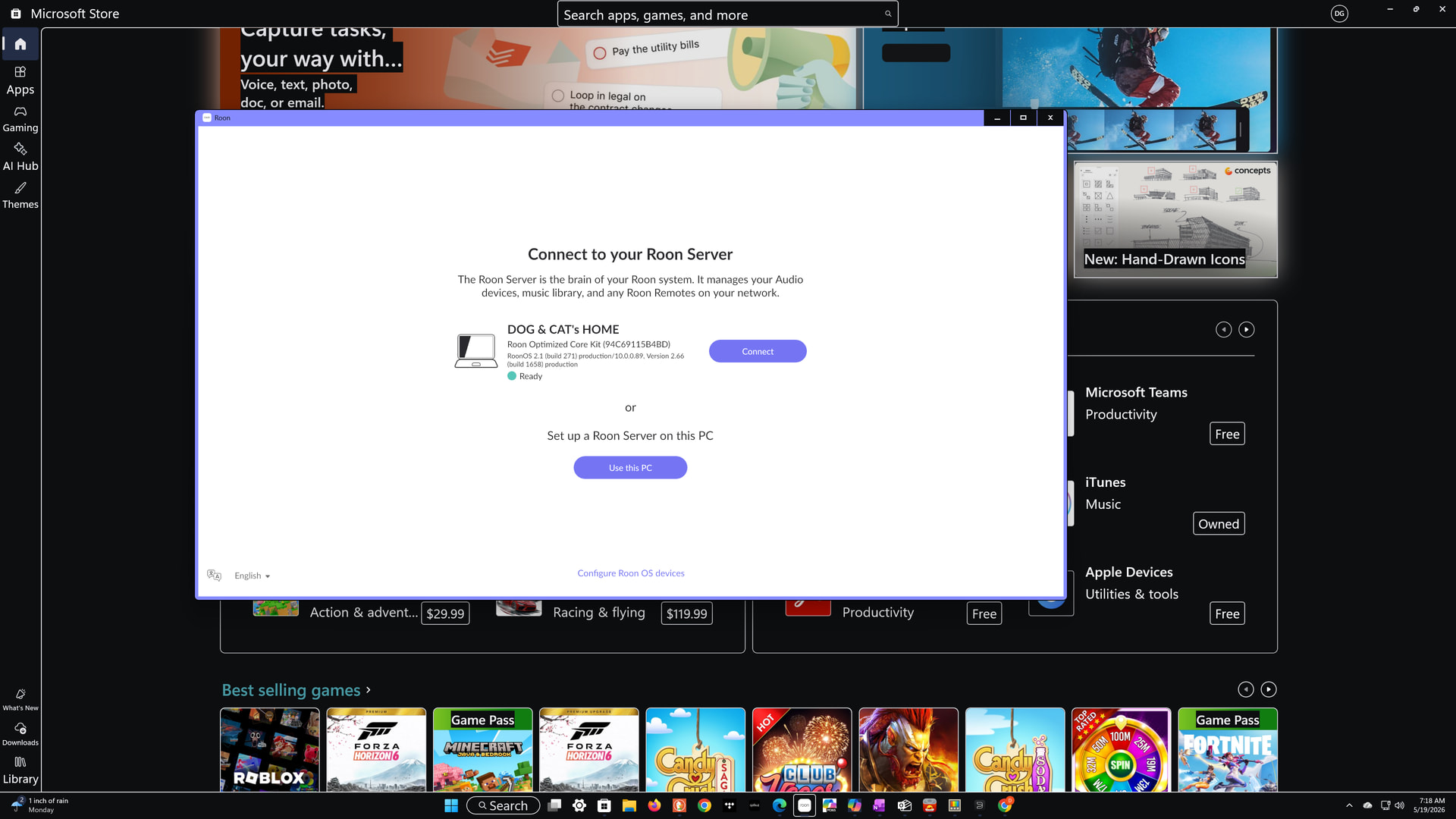
On the screen where you see "Dog & Cat’s Home", if clicking "Connect" still doesn't work, look for a "Go Back" button or an option that says "Find a different Roon Server" / "Switch Cores".
We want to get to the main Roon login screen. If prompted, enter your Roon account email and password. This will log your NUC back into Roon Labs services and wake the server up.
Let us know if you manage to get to the login screen or if it successfully connects after the NUC reinstallation!
P.S. Do you happen to have a recent Roon database backup saved on a USB drive or cloud storage, just in case we need it later?