Roon node not functioning on Windows 11 after update (ref#BQ670R)

Hi! What’s not quite right with Roon?

· None of the above quite fits

None of the above quite fits

· None of these quite match

Tell us what's going on

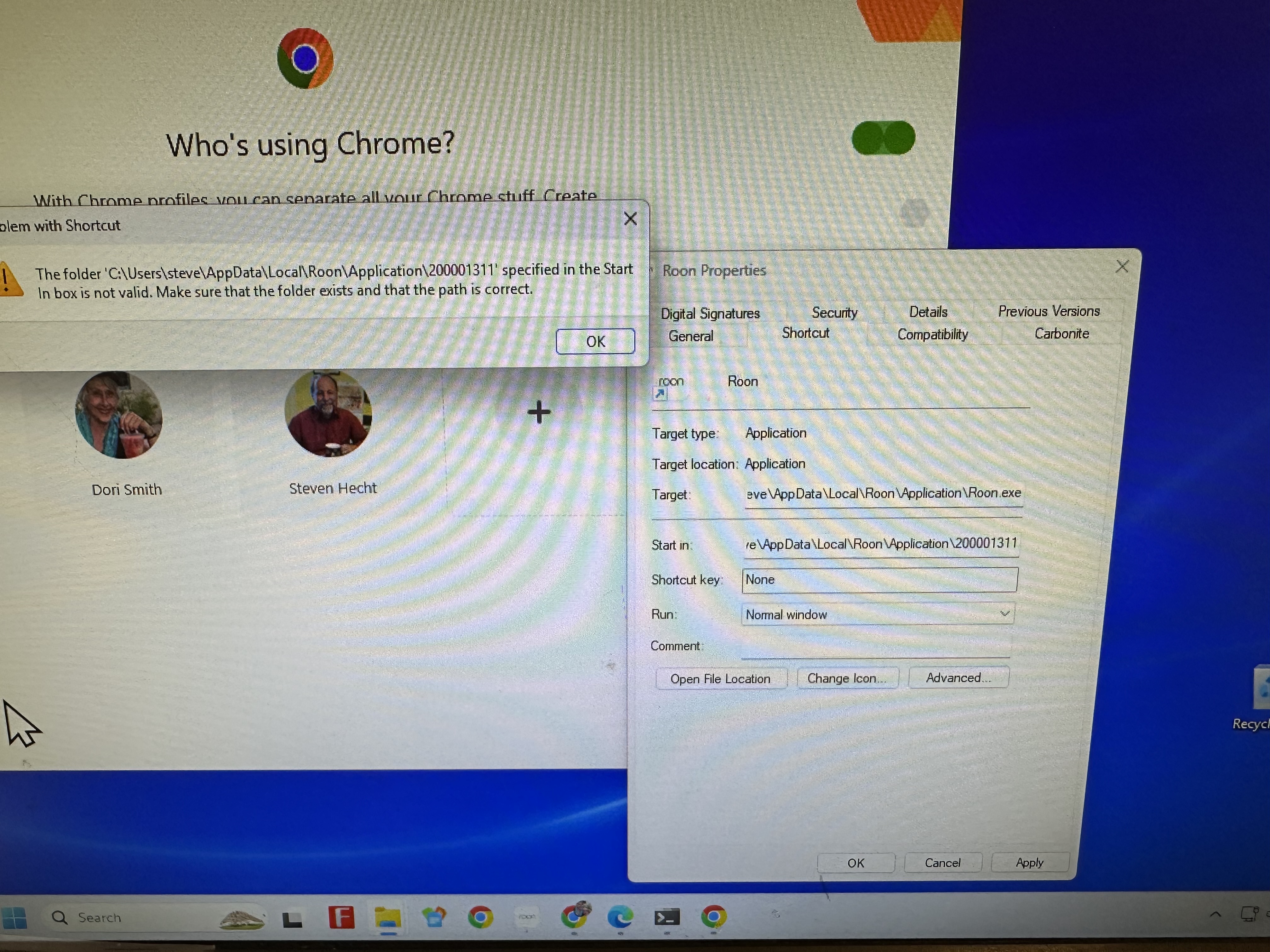
· On Windows PC 11, roon node does not function since latest update. error message path not valid : \200001311 should be \roon.exe ???

Roon still runs fine from my IPhone. Note, I'm not a techy. Dori not Steven

Tell us about your home network

· Network /modem is working fine. Should be a private network.

Hello @Steven_Hecht

Thank you for providing that clear photo of the screen! It tells us exactly what is happening, and you are absolutely right to question that path.

When Roon updates, it changes its internal folder names to match the new version number. If a shortcut was manually created or pinned to the desktop in the past, it gets “left behind” looking for the old version folder (which is that 200001311 you see).

Since you already have the Roon Properties window open in your screenshot, the absolute easiest way to fix this is to just correct the text in those two boxes:

  1. In the Target box, please delete what is there and paste in this exact path: C:\Users\steve\AppData\Local\Roon\Application\Roon.exe
  2. In the Start in box, please delete what is there and paste in this exact path (it’s the same, just without the Roon.exe at the end): C:\Users\steve\AppData\Local\Roon\Application
  3. Click Apply at the bottom right, and then OK.

Your shortcut should now be fixed and will open Roon normally! Please let me know if that gets the music playing again for you.

Hi Vadim, I did what you suggested, and it did not work. I changed the paths both in the taskbar and the desktop icon. Still does not open. I also restarted the computer. No luck. ??? The path you specified is correct, I find the Roon icon in Apps but it does not open either. :worried:

Reinstall Roon / Qobuz? if so, how? – Dori

The actual path is OS (C:) , I tried adding the OS but no luck again.

Hello @Steven_Hecht

Thank you for following up! If fixing the shortcut did not get things running smoothly, it sounds like the recent update might not have installed correctly or some files were blocked.

Before we do a fresh install, do you have any third-party antivirus or firewall software running on this Windows PC? (For example: McAfee, Norton, Bitdefender, Avast, etc.). Sometimes, these security programs can accidentally block Roon from updating or opening its application files. If you do have one, please try temporarily disabling it or adding an exception for Roon.

If no antivirus is blocking it, the quickest and cleanest solution is to simply reinstall the Roon application.

Please do not worry—reinstalling the software will not delete your Roon database, your playlists, or your settings. Your data is stored safely in a completely separate folder on your PC.

Here is how to do a quick reinstall:

  1. Uninstal the app from the Windows app manage.
  2. Download the latest Roon installer for Windows directly from our website here: Roon Software Downloads
  3. Run the installer.
  4. Try opening Roon again.

Please let us know if this fresh installation gets everything back to normal for you!

Hi @Steven_Hecht,

Diagnostics show that this Windows Roon Remote might not still have launched properly in the last few weeks. We want to reach out to ensure this is resolved.

As a next step, please deeply uninstall the Roon GUI itself:

  • Navigate to your Roon Database Location
  • Find the folder that says “Roon”
  • Rename the “Roon” folder to “Roon_old” or delete it
  • Reinstall the Roon App from our Downloads Page to generate a new Roon folder

This will regenerate the Roon Remote portion without affecting your Roon database. Let us know if this helps.

This thread is now closing due to lack of response, but we wanted to equip you with instructions for safelisting Roon in third-party and OS firewalls moving forward:

If you require further assistance, you can reopen this topic thread by submitting a new tech support request here. We’ll respond promptly. Thank you!

I need to restore a node called Office. (The system was set up by my late husband, so I struggle to grasp the architecture and fixes)

I had a severe power outage that zinged my computer. I have Windows 11, Smart Green Computer i5 Sonic Tranporter, Sonore optiRendu Lite, Sugden First Class Amplifier. There is a Denefris Aries II DAC linked in, and use Arris/CenturyLink router.

I had re-installed Roon for another problem; rebooted the computer; rebooted the modem. No luck with the node. The Denefrips is set on “Monitor.” The OptiRendu is all plugged in, and always warm. Yesterday I went to sonicorbiter to check if OpticalRendu is in Roon Ready mode (from a previously reported glitch) I could not tell that, but I was able to update it in the software manager. The error messages regarding metadata went away, but this node is still not back.

[Request: could you create - or point me to – a stepwise way to restore nodes? I have to search all over for instructions. Losing a node seems to be an irregularly regular issue. Or is it just me ???]

(By the way: your AI directed me to a previous long conversation of my own in 2024 (under Steven Hecht user), which did not seem to be resolved. Or is it just me ???)

Thanks, Dori

Hi Dori,

I have merged your most recent post from Roon Software Discussion with your last Support request. This was automatically closed because no responses were received.

Nonetheless, this is the correct place to get support, and Roon will respond soon.

Hey @Steven_Hecht,

Thanks for the follow-up! I’m sorry to hear you’re still having issues with your node.

To triple confirm, you are referring to a Bluesound Powernode, correct?

Before anything else, can you look at the light on the top or front of the Bluesound Powernode:

  • Solid Blue: It is connected to the network and ready.
  • Solid Green: It is in "Hotspot Mode" (it has lost your Wi-Fi settings).
  • Flashing Red: This often indicates a power-related error or a system failure after a surge.
  • Solid Red: The device is in "Upgrade Mode" or is stuck.
Let us know what color it’s showing.

With that, can you check the BluOS Controller app on your phone or computer and confirm the node is alive on your network?

We’ll await your reply before anything else, thank you Dori! :folded_hands:

hi Benjamin, I don’t use the BlueSound currently, so I’m letting it go for now. The one that’s fritzed that I REALLY want back is one with the configuration I detailed. Thanks.

Hey @Steven_Hecht,

Got it, thanks for the clarity - we’ll focus on the opticalRendu in that case.

Power surges are notorious for causing IP address conflicts or even corrupting the small software instructions that tell these devices how to talk to each other.

In network audio, the order in which devices turn on matters. A surge often leaves “ghost” IP addresses in your router’s memory.

  1. Shut everything down: PC, SonicTransporter, opticalRendu, and your Arris router.
  2. Power on the Router first: Wait a full 5 minutes for the internet and local network to fully stabilize.
  3. Power on the SonicTransporter: Wait 2 minutes for the Roon Server to boot.
  4. Power on the opticalRendu: Give it a minute to grab a fresh IP address from the router.
  5. Power on your Windows 11 PC (your controller).

If the node doesn’t appear in Roon, we need to see if the network sees it at all.

  • Go to a web browser on your PC and type http://sonicorbiter.com.
  • You should see both your SonicTransporter and your opticalRendu listed there.
  • If the opticalRendu isn’t listed: Check the Ethernet cable and the port lights on your router. If there are no lights, the surge may have damaged the network port on the router or the opticalRendu itself.
  • If it is listed: Click on it, go to Manage, and then Settings. Ensure the "Active App" is set to Roon Ready. Even if it looks correct, toggle it to something else (like AirPlay) and back to Roon Ready to "refresh" the service.
The opticalRendu will often refuse to show up as a "Roon Ready" device if it doesn't detect a valid USB handshake from your Denafrips Ares II.
  1. Ensure the Denafrips is set to the USB Input (it may have defaulted to a different input after the power loss).
  2. Unplug the USB cable between the opticalRendu and the Denafrips, wait 10 seconds, and plug it back in.
  3. Check the sonicorbiter.com interface again to see if the DAC is recognized under the hardware info.

Let me know if any of the above help Dori, thank you! :folded_hands:

Thanks, Benjamin, for getting back to me. Let’s start with the first phase of your instructions. The issue is with the OFFICE setup, not the LIVING ROOM which is working fine:

  1. How do I shut down SonicTransporter which is local on my computer? It is not listed in SonicOrbiter.com at this stage. Then How to power on? I can’t find instructions for a LOCAL app. It is from Small Green Computer, Version: 2.8 Model: sonicTransporter IP Address: 192.168.0.172 MAC: 50:A4:D0:91:66:BB Serial Number: 2090996

  2. I have opticalRendu’s both in Office and Living Room. The only one listed in sonicorbiter.com is clearly the living room, as it is associated with the Gustard amplifier. (Office is Sugden).

  3. These OpticalRendus have no on/off switches. There are 3 cables in back. How do I tell which?

  4. The office Optical Rendu has no DAC associated as does the living room.

As of now (I haven’t started your process) the Arris Router has a green port light on. It works for everything else in the apartment, so I expect its cable is fine.

And, at this point, the Denafris is set to “monitor.” (If I press the button, red lights come on for USB, 44.1K, and 1K.

AND – I think there is something wrong with the USB cabling in the office, because I get USB error messages from my printer which refuses to scan.

That’s all I can say for Phase 1. THANKS again, Dori

have I worn you out, Benjamin? I only have 2 more days on this query.

One step at a time. :worried: Dori

Hi @Steven_Hecht,

Thanks for your patience so far! After another fresh diagnostic review, we can see:

The Office opticalRendu is completely invisible to Roon. The logs show only one opticalRendu ever appearing — the Living Room one at 192.168.0.yy. The Office opticalRendu never shows up at all. This means it’s either:

  • Not getting power
  • Not connected to the network (bad ethernet cable, or the port on the router it's plugged into was damaged in the power surge)
  • Damaged by the power surge itself

We also see some errors around the system of the PC’s system output. The logs show a repeating error: raat.dat:base.lua failed: Result[Status=InvalidCodeSignature]. This means the Roon app on your Windows 11 PC is corrupted. This is what’s preventing the PC’s own audio output from working, but this is secondary, your main goal is restoring the Office zone via the opticalRendu.

The SonicTransporter runs as a standalone Linux device on your network, not “inside” your Windows PC, it’s a separate small computer box. Here’s how:

To shut it down:

  1. Open a web browser on any device on your network
  2. Type http://192.168.0.172 in the address bar and press Enter
  3. You should see the sonicTransporter web interface
  4. Look for a Power or Shutdown button (usually under a Settings or System menu)
  5. Alternatively: it is safe to simply unplug its power cable since it's a music server (not a database that writes constantly)
[quote="Steven_Hecht, post:17, topic:315896"] These OpticalRendus have no on/off switches. There are 3 cables in back. How do I tell which? [/quote]

The Sonore opticalRendu has these three connections:

  1. Optical (fiber) input — a small square port, usually with a plastic dust cap. This carries the network signal via fiber.
  2. USB output — a standard USB-A port. This is the cable that goes to your Denafrips Ares II DAC.
  3. Power input — a small round barrel connector (DC power supply).
To power cycle it, you unplug and replug the power cable (the round one). There is no on/off switch.

This is the core problem. The Office opticalRendu is simply not on the network at all right now. It’s not a software setting issue,

can only see devices that are connected and communicating. Since it doesn’t appear there at all, something physical has failed.

Some additional troubleshooting steps to consider:

  1. You mentioned USB errors with your printer too. This strongly suggests the USB hub or ports on the PC itself may have been damaged by the power surge. Before touching the opticalRendu:
    • Try plugging your printer into a different USB port on the PC
    • If the printer still fails on multiple ports, the PC's USB controller may be damaged and needs repair/replacement
  2. Check the ethernet cable to the Office opticalRendu. Look at the back of your Arris router:
    • Find the cable that runs to the office opticalRendu
    • Look at the router port it's plugged into — is there a green or amber light blinking on that specific port?
    • If no light: the cable or that router port is dead. Try moving it to a different numbered port on the router.
  3. Power cycle the Office opticalRendu. Unplug its round power cable, wait 30 seconds, plug it back in. Then wait 2 minutes and check http://sonicorbiter.com again.
  4. Check the Denafrips USB input. On the Denafrips Ares II, press the input button until the USB light is lit (not just the monitor light). Then unplug and replug the USB cable between the opticalRendu and the Denafrips.
  5. If the Office opticalRendu still doesn't appear in [url=http://sonicorbiter.com]sonicorbiter.com[/url] after all the above, the unit itself may have been damaged by the power surge and need replacement. This is the most likely scenario given that it has been completely invisible since the surge.

Regarding the Windows PC “System Output” error: Once the opticalRendu issue is resolved, the Windows Roon app also needs a clean reinstall (as @connor suggested previously). But tackle the hardware problem first, since Roon’s actual job is to send audio to the opticalRendu → Denafrips → Sugden chain, not to play through the PC’s own speakers.

Thank you, Steven! :+1: