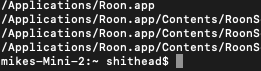
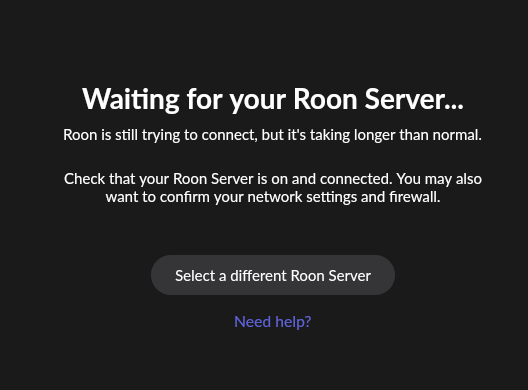
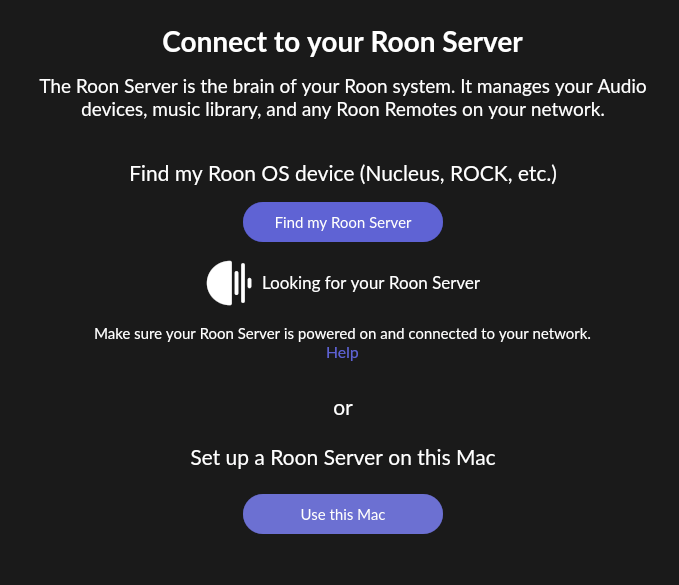
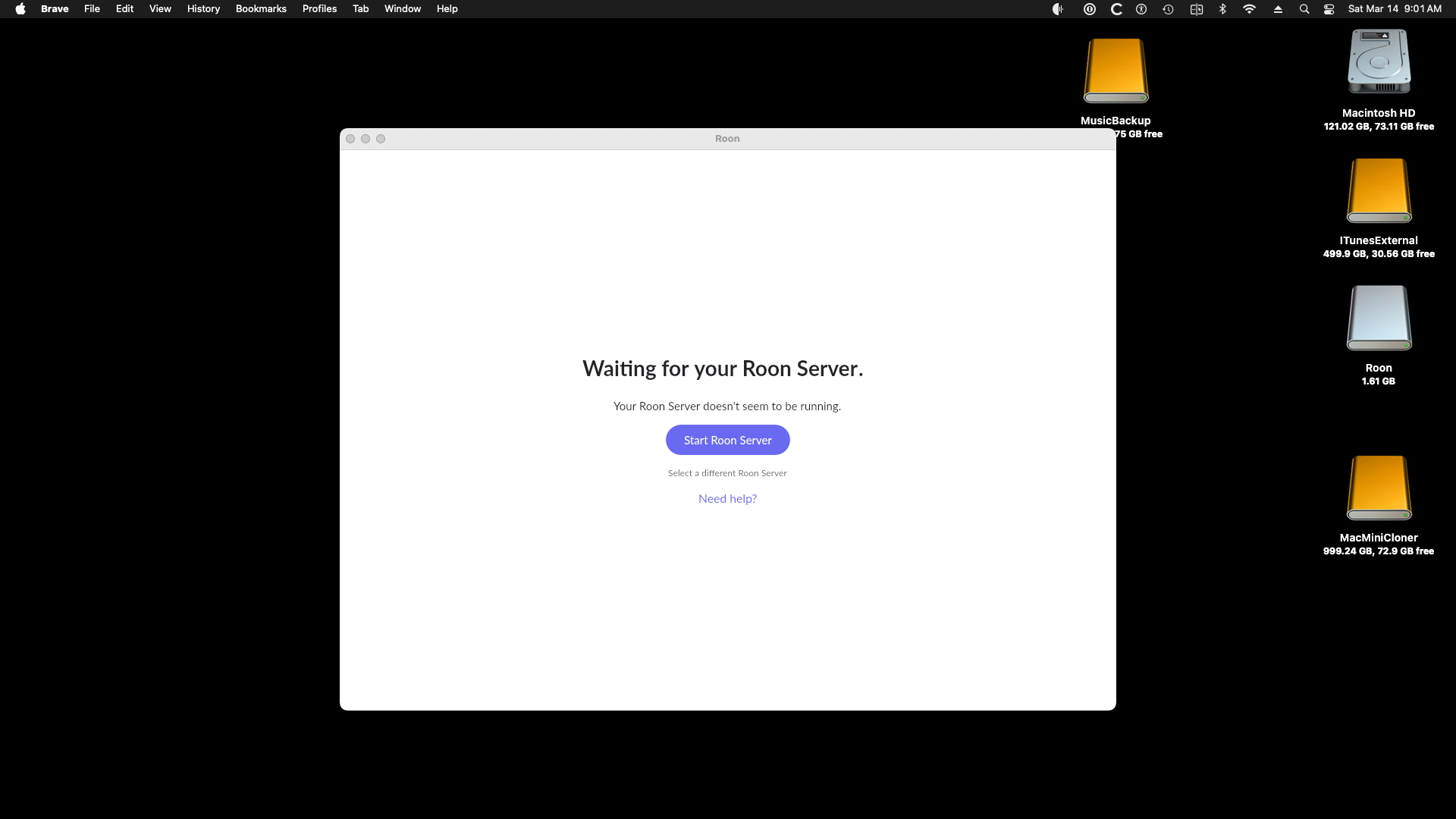
· Roon would not open on mac. I deleted roon and downloaded a new download from roon site. It won't open either. mac is wired to router via ethernet cable. network is functioning properly.
Tell us about your home network
· Asus router. no vpn, extenders or switch.
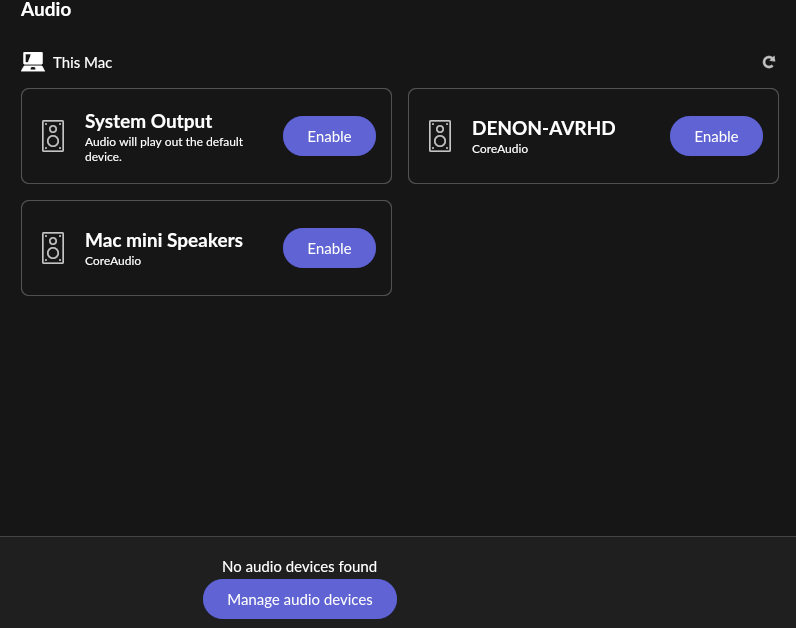
EDIT: After reinstalling roon from backup, it opens but can't hold a connection to my PS Audio Lens. It briefly shows up (greyed out) in audio setting but quickly dissapears.So far I've tried:
*Toggling local network setting in mac local network settings
*Reset router and modem and mac
*Made sure airlens is up to date (it is)
None of this helped.
Since you are running macOS, the missing audio devices behavior you are seeing is often tied to the strict Local Network permission controls in recent macOS releases, or a stale endpoint cache in your Roon database.
Please try the following two steps to get your audio devices to reappear.
Step 1: Refresh macOS Local Network Permissions
Open your macOS System Settings > Privacy & Security > Local Network.
Make sure both Roon and RoonServer are enabled.
Even if they are already enabled, please toggle them off and then back on to force a system refresh.
Fully quit Roon Server from the macOS menu bar (near the clock icon).
Reboot your Mac.
Launch Roon again and check if your devices are available.
Step 2: Clear the Roon Endpoint Cache
If refreshing the macOS permissions did not resolve the issue, resetting the internal audio device cache usually does the trick. Note: Deleting these files will clear your customized audio device settings.
Create a fresh manual backup of your Roon database via Settings > Backups.
Vadim, neither of these suggestions worked. When I open Roon, it briefly shows my PS Audio Airlens (greyed out) and then Airlens quickly disappears from the audio screen.
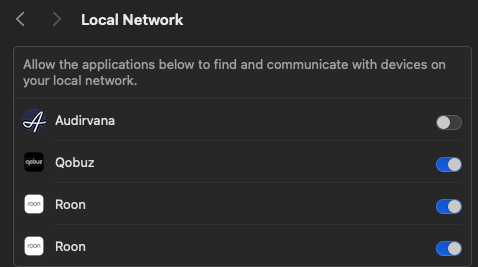
Btw, when I go to “local network permissions” setting, it shows Roon twice. Before, it used to show “Roon” and “Roon server”. Now it just shows two “Roon”.
Sorry to hear the above didn’t help! From a fresh diagnostic report, we can see that Roon does properly identify the device, but as you’ve mentioned, quickly fails to connect:
In networking terms, “No route to host” means Roon can see that the AirLens exists (it found its IP address: 192.168.50.86), but when it tries to actually send music data to it, the door is slammed shut.
Let’s see if cleaning up the Mac “Local Network” Permissions may help. The double entry could be causing the “No route to host” error.
Go to System Settings > Privacy & Security > Local Network.
Toggle both "Roon" entries to OFF.
Restart your Mac.
Go back to the same setting and toggle both back to ON.
Better yet: If you can, select one and use the minus (-) button to remove it entirely, then let Roon ask for permission again when you launch it.
If that doesn’t helo, try refreshing the AirLens IP (Address Reservation)
The log shows the AirLens at 192.168.50.86.
Power cycle the AirLens by flipping the back switch (don't just standby).
If your router has "Address Reservation" (Static IP), assign a specific IP to the AirLens. Sometimes Roon loses the "route" because the device shifted IPs during the reinstall/reboot cycle.
If that still doesn’t make a difference, let’s fully refresh your RAATServer database.
You can generate a new RAATServer instance on your device by following these instructions, but please be aware that this will reset your Roon Settings -> Audio Tab to factory settings and I would advise making a backup of any custom DSP settings you have:
*toggling Local Network permissions and restarting did not help. Further I still see two “roons”. I can’t toggle one off because when I toggle one of them the other toggles along with it. I still don’t see “roon server” in permissions. Before this all happened there was “roon” and “roon server” showing in permissions. Now it is two “roons” that for some reason can’t toggle off without toggling the other. This seems like strange behavior. There is no way to minus toggle to remove them. I can only turn them off.
*power cycleing the Airlens only results in briefly seeing it in roon devices but quickly disappearing.
*Generating a new RAATServer didn’t help.
*I did not assign a specific IP to Airlens because:
I have no idea how to do that.
I wouldn’t know what to change it to and I’m afraid of screwing up something in the router admin settings.
I’m old and a tech dunce .
I don’t know if this matters but Qobuz Connect app has no trouble finding the Airlens and is fully functional.
I’m puzzled by the appearance of the two “roons” in network permissions.
Thanks for sharing those screenshots. After reviewing the new installation logs, it appears your Roon installation on Mac is being assigned two IP addresses.
Please close both Roon and Roon Server, then disable one of your IP interfaces on your Mac (either 192.168.50.160 or 192.168.50) before running it again.
 EDIT: After reinstalling roon from backup, it opens but can't hold a connection to my PS Audio Lens. It briefly shows up (greyed out) in audio setting but quickly dissapears.So far I've tried:
*Toggling local network setting in mac local network settings
*Reset router and modem and mac
*Made sure airlens is up to date (it is)
None of this helped.
EDIT: After reinstalling roon from backup, it opens but can't hold a connection to my PS Audio Lens. It briefly shows up (greyed out) in audio setting but quickly dissapears.So far I've tried:
*Toggling local network setting in mac local network settings
*Reset router and modem and mac
*Made sure airlens is up to date (it is)
None of this helped.