Roon not playing multi-channel audio on M4 Mac Mini via HDMI to Anthem AVM 60 (ref#JI3DNM)

Hi! What’s not quite right with Roon?

· None of the above quite fits

None of the above quite fits

· None of these quite match

Tell us what's going on

· Trying out Roon but can't get multi-channel to work. Running everything on a new M4 Mac Mini 16GB/256GB attached, via HDMI, to Anthem AVM 60 processor. I set up Audio MIDI Setup correctly for 7.1 / 48KHz. Playing 5.1 FLAC files in VLC works perfectly but Roon is only using left/right front channels. Sound Output is set to System Output as is Setup->Audio->This Mac.
How do I get Roon to work correctly?

Tell us about your home network

· Mac Mini running Roon on same Eero 6e LAN as Mac Mini with external USB drive holding all the media files.

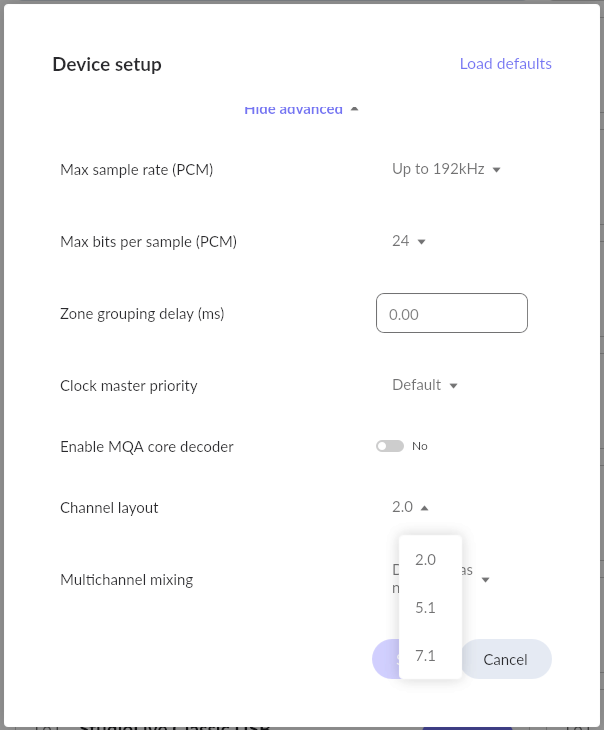
Have you set up multichannel in Roon’s Audio device settings? It’s in the Advanced section of Device Setup (click on “Show advanced” and scroll down…)

Hello @david8

Thanks for the detail, and for testing with VLC first. That test confirms the Mac mini, the HDMI connection, and the AVM 60 all handle multichannel correctly, so the chain itself is fine.

We looked at your logs and the picture is clear. You already have two zones set up in Roon: System Output, and a separate zone for the AVM 60 itself. Roon sees the AVM 60 correctly and reports eight channels available from it. However, every playback session in your logs went to System Output, and every one of them was two channels.

On macOS, System Output is a stereo path. Roon sends audio through the system default output there and will not send more than two channels, which is exactly what you are hearing. The AVM 60 zone you already created is the one that can carry all your channels.

Please try this:

  1. In the zone picker at the bottom right of Roon, select the AVM 60 zone rather than System Output.
  2. Open Settings, then Audio, click the gear next to the AVM 60 zone, and open Device Setup.
  3. Turn on Exclusive Mode, and set the channel layout to match your system, 5.1 or 7.1.
  4. Play one of your 5.1 FLAC files to that zone.

Once it is playing, please click the Signal Path indicator next to the volume control and check the channel count it reports. If it still shows two channels, please send us a screenshot of the Signal Path and of the Device Setup screen for the AVM 60 zone.

Hi again. Some success and a real brain-teaser!

The main issue appears to have been in the Output Device config for the Anthem. First, it didn’t work right if I had Exclusive Access enabled. This caused Roon to switch from 7.1 to stereo every time I hit play. And, I had to set it to 7.1 under Advanced Settings. With this, it kind-of works…

I have a few small 5.1 FLACs that each play white noise to one channel/speaker. Again, from VLC, they each work perfectly and Audacity shows the expected noise for each in a single channel. And Roon? Left/Right Front work fine. Left/Right Surround work fine. Center and Sub are reversed!!! Where is this happening? I don’t see any Roon settings about channel mapping. Are there any that I can use to debug/fix this? I’m so close but it’s totally unusable right now. I t think I have a week left of the Roon trial so there better be a solution soon if the Roon folks want my money!

Thanks!

David

ps - I have lots of screen shots of all the various MacOS and Roon setting windows if anyone wants to see them.

Hello @david8

Good progress. A correction to something first: Roon does have channel controls, we pointed you in the wrong direction.

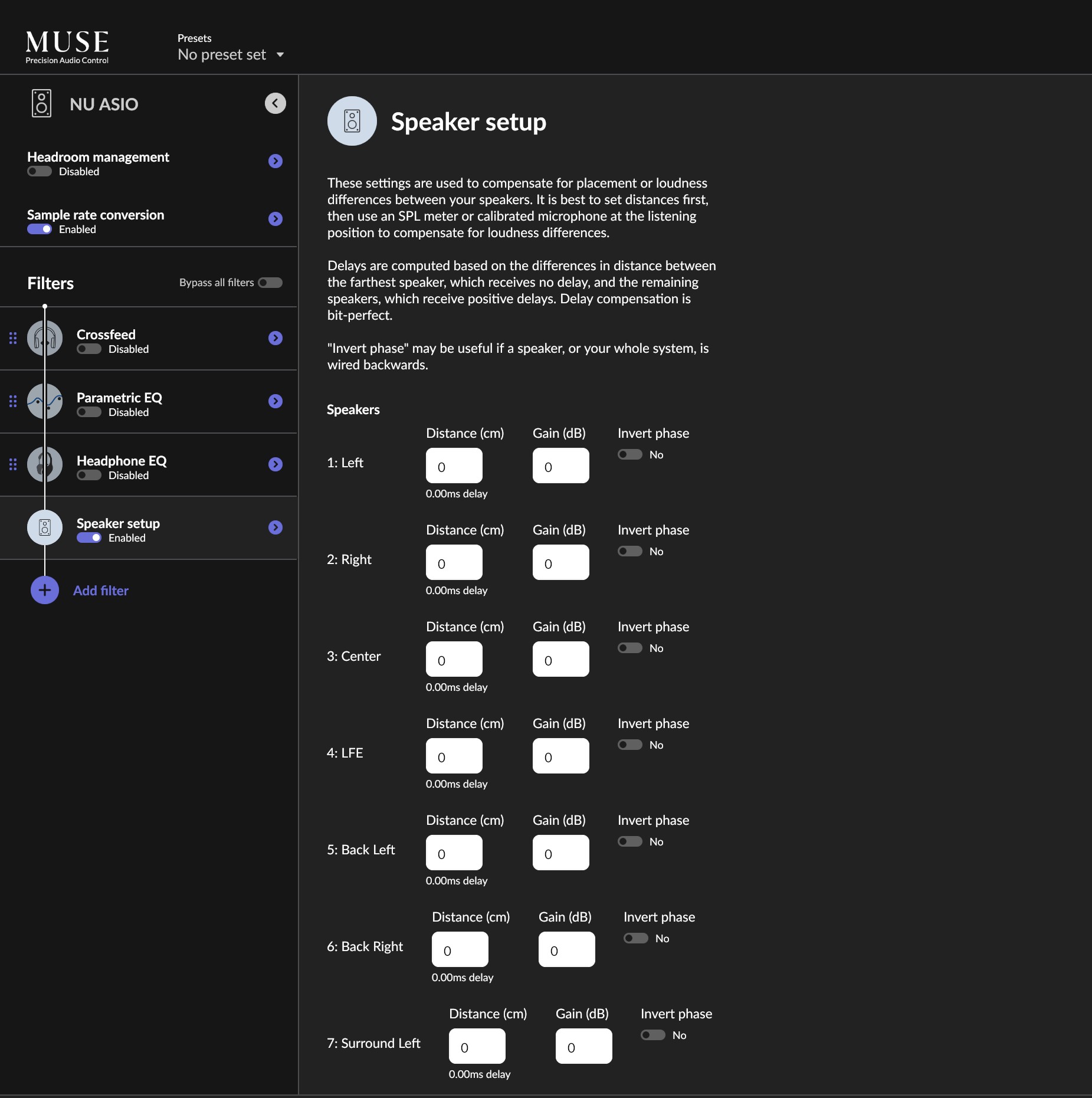
In Device Setup there is a Swap rear and surround channels toggle, though that affects the rear and surround pair rather than Centre and LFE, so it is not your fix. More useful is DSP, then Speaker setup, which lists the channels Roon is working with. You will see them numbered: 1 Left, 2 Right, 3 Centre, 4 LFE. That is the standard order for WAV and FLAC, and it confirms what Roon is sending.

Here is a test that will tell us exactly where the swap happens, and it takes a minute.

  1. Open DSP, enable Speaker setup, and set the Gain for 3: Centre to -60 dB. Leave everything else at zero.
  2. Play one of your test files and listen.

If your centre speaker goes silent, Roon’s channel 3 is reaching the centre correctly, and the swap is happening before that, in how the file’s channels are being read.

If your subwoofer goes silent instead, then Roon’s channel 3 is arriving at the sub, and the swap is happening after Roon, in macOS or in the Anthem.

Please then set Centre back to 0 and repeat with 4: LFE at -60 dB to confirm.

One thing to change before testing: in Device Setup, please turn off Send stereo/mono content as 7.1. It is currently on, and it pads stereo material out to all channels, which can muddy what you are hearing during a test like this. You can turn it back on afterwards if you want it.

Depending on the result, the fix will be in one of two places:

If the swap is after Roon, open Audio MIDI Setup, select the AVM 60, click Configure Speakers, set it to 7.1, and check the Centre and Subwoofer assignments. Also check the speaker and channel configuration for that HDMI input on the Anthem itself, since Anthem processors allow per-input assignment.

If the swap is before Roon, we will look at the files and your Signal Path.

Please send the screenshots you offered along with the result of the test, particularly Configure Speakers from Audio MIDI Setup and the Signal Path while a 5.1 file is playing.

Separately, we still want to come back to Exclusive Mode dropping the zone from 7.1 to stereo. That is not correct behaviour and we would like to look at it once the channel question is settled.

Hi. Where is the DSP menu you’re talking about? Im running Roon 2.71. When I go into Device Setup for zone Anthem, I see the following items:

Private Zone - no

Exclusive mode - yes

DSD playback strategy - convert to PCM

MQACapabilities - no

Volume control - Device volume

Resync delay - 0ms

(advanced)

CLock master priority - default

Enable MQA core decoder - no

Enable integer mode - no

Use max buffer size - no

Use power-of-2 buffer size - yes

Channel layout - 7.1

Send stereo/mono content as 7.1 - no

Swap rear and surround channels - no

Multichannel mixing - Downmix as needed

Where is DSP??? Also, I don’t think I just changed anything but now the device setup is stuck on 2.0 instead of 7.1! Im thinking about going back to JRiver. Roon looks much nicer but that’s meaningless if it won’t play my music correctly. How much simpler can I get having all 3 parts of Roon on one box?

DSP can be in a couple of places depending on what DSP you are talking about. Currently, Vadim is suggesting this.

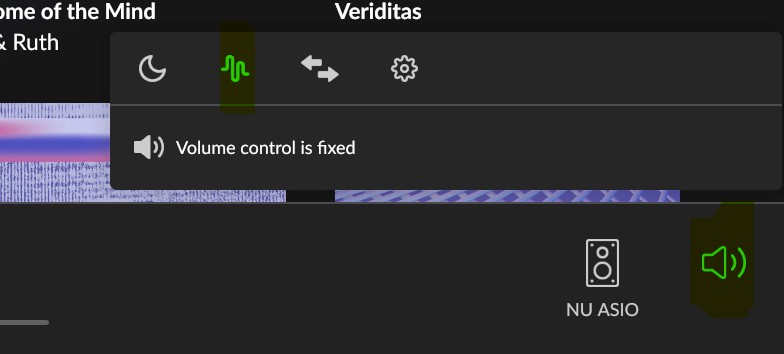
With the zone selected, click on the volume icon at the bottom, then on the waveform icon, I’ve highlited both in green.

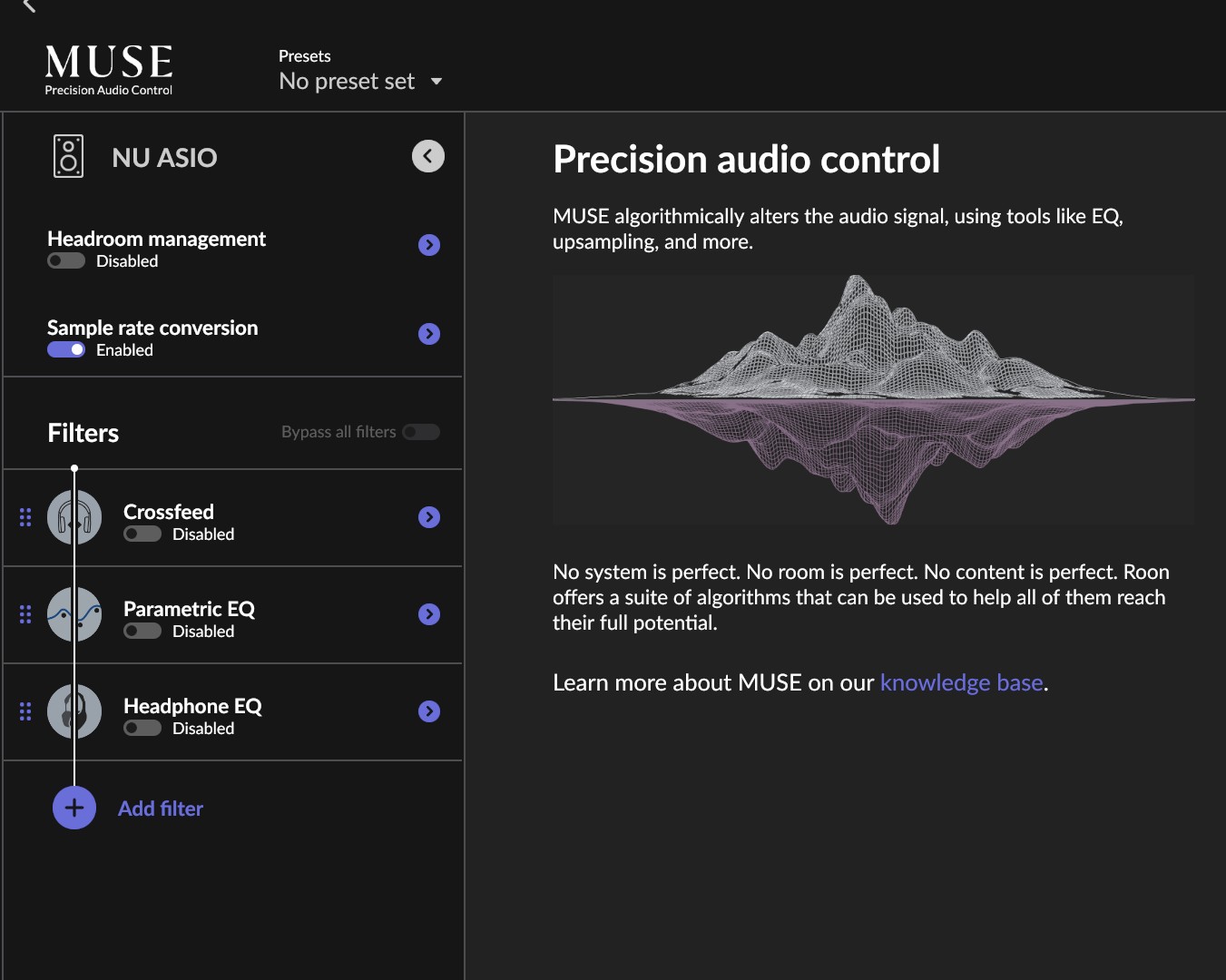
That waveform Icon is called Muse and is the DSP options for THAT specific output. It will bring you to a menu like this…

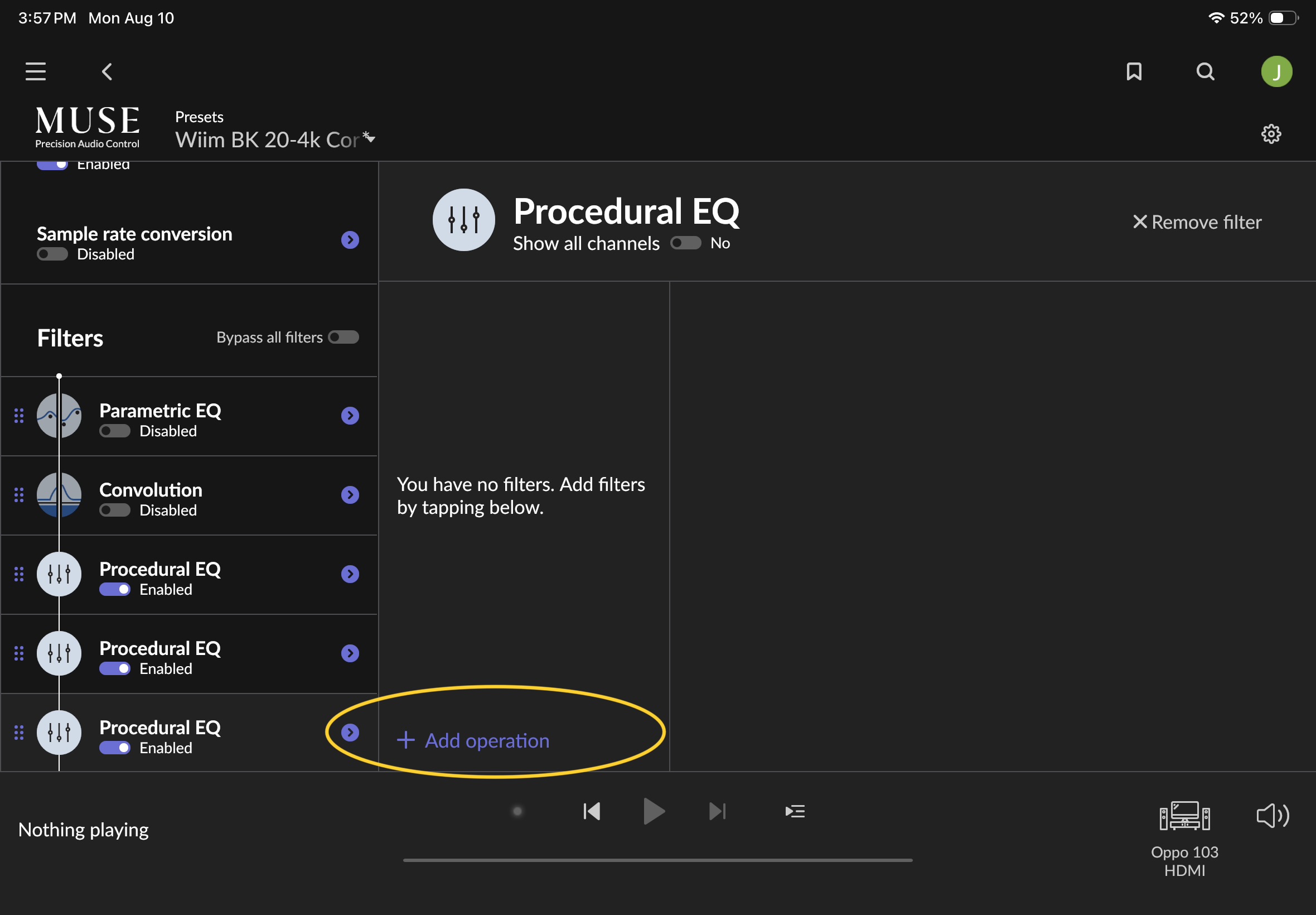
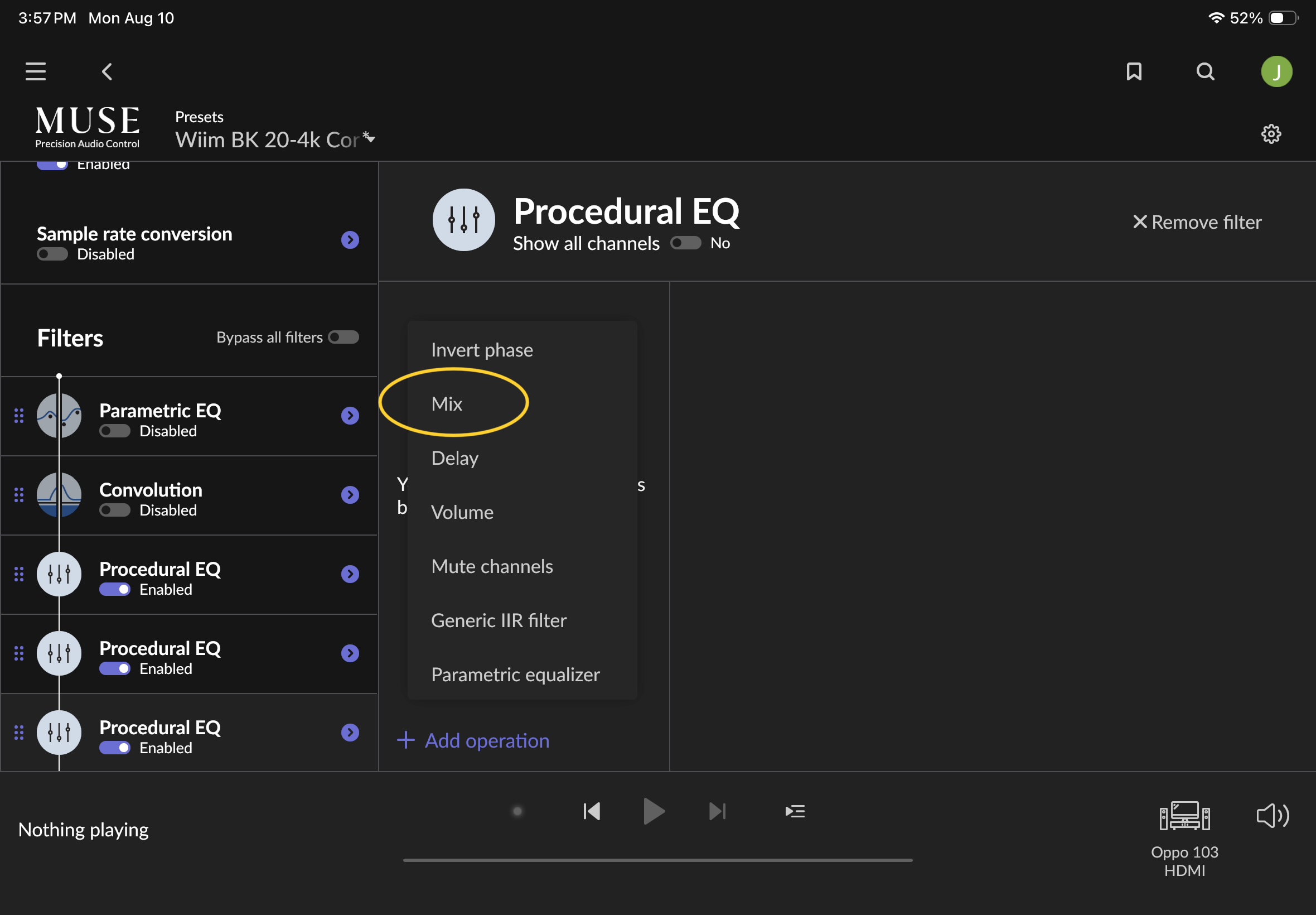
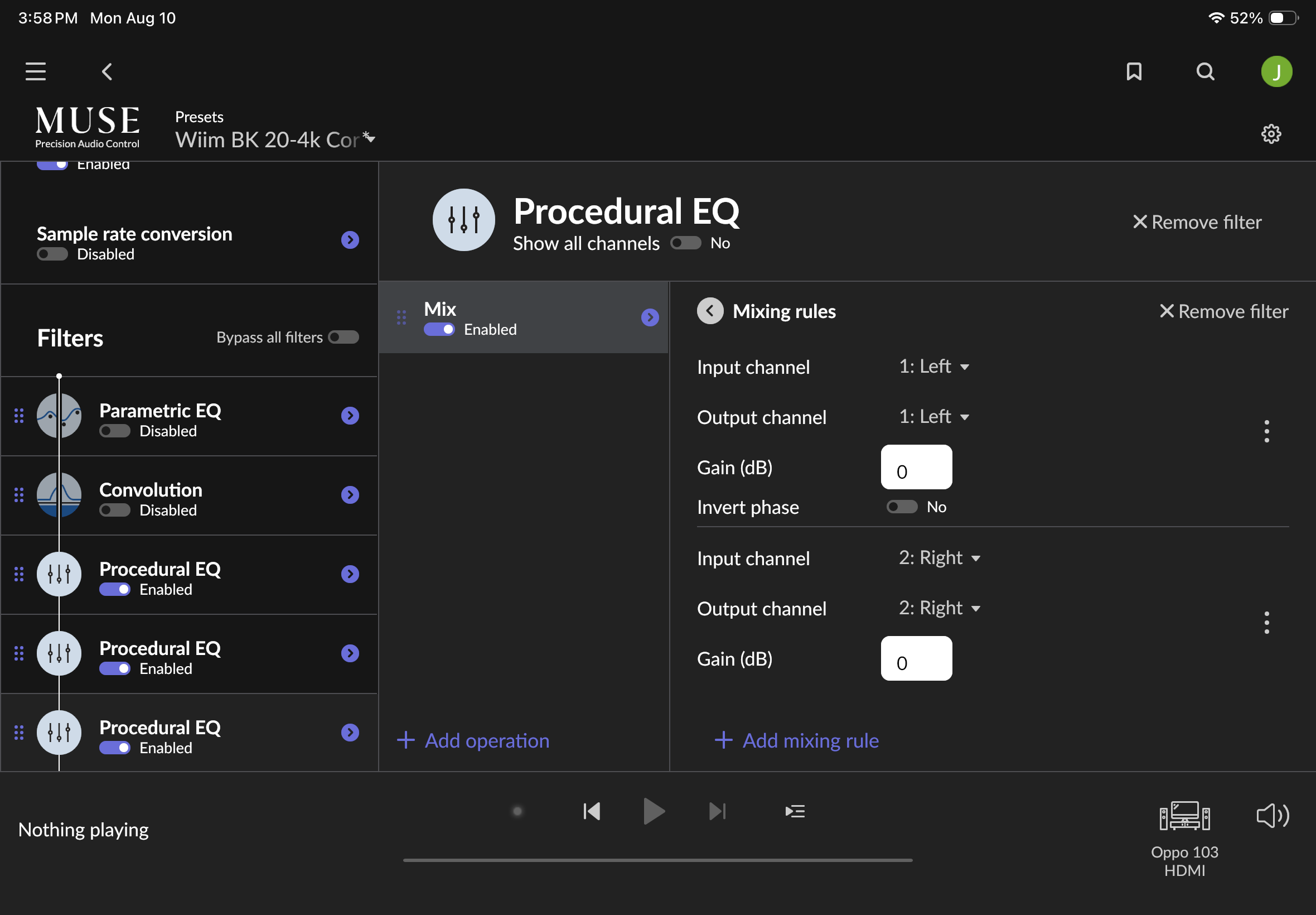
If you don’t see Speaker Setup, then click The ADD Filter button and Choose Speaker Setup. It should add it to the Filter list with it enabled. Doing so, got me to this …

At this point, you should be able to follow the suggestion Vadim posted.

Hey @david8,

We couldn’t have said it better than @Rugby, thank you Rugby!

Let us know how the above goes, and if you have any trouble along the way. :+1:

It’s just getting worse. I found the DSP menu and had to add the speaker module but now the Anthem setup is stuck on 2.0 greyed-out and the MUSE speaker setup also only shows two speakers. The Mac Audio-MIDI setup shows 7.1 and, again, playa fine in VLC.

I thought Roon was a mature, professional system but I guess not. Menu settings are scattered in multple, random places. The FAQ for setting up on a Mac doesn’t even talk about multi-channel. Trying to get it to work on a pretty standard 7.1 home-theater system with a brand new dedicated Mac Mini is turning into a Masters thesis. Even Vadim’s help message sent me off looking for some DSP menu but didn’t tell me how to find it! I was really looking forward to using Roon in my home theater and using Arc, but its looking more and more like it’s a ton of hacks that are not reliable. Can anyone give me a reason not to just delete it all and go for a competing product?

Hey @david8,

I’m sorry, this has been a rough first week, and I understand why you’re out of patience. You bought a dedicated Mac Mini for this, the hardware is fully capable of what you’re asking, and you should be listening to music by now instead of hunting for menus. Let me get you across the line.

First, the greyed-out 2.0 is a handshake problem, not a Roon setting.

When Channel layout is greyed out at 2.0, it’s because macOS is currently reporting your Anthem as a two-channel device. Roon only offers the layouts CoreAudio says the device supports, so when the HDMI link renegotiates down, the dropdown collapses and locks. Over HDMI this happens any time the AVM 60 is off or in standby, is on a different input, or the link re-handshakes after the Mac sleeps. A headless Mac Mini is especially prone to it, because there’s no display on that port holding the link up.

Do these in order, the order matters:

  1. Power on the AVM 60 and select the HDMI input the Mac Mini is plugged into. Leave it on and on that input for everything below.
  2. Open Audio MIDI Setup on the Mac and select the Anthem device. The Format line should read 8 ch. If it reads 2 ch, we’re chasing HDMI, not Roon, reseat the HDMI cable at the Mac end (Anthem still powered on), then check again.
  3. Once Audio MIDI Setup shows 8 ch, quit and restart Roon Server, the whole thing, not just the remote window. Roon reads a device’s capabilities when it takes hold of it, so it needs to look again now that the Mac is seeing eight channels.
  4. Settings → Audio → Device Setup on the Anthem zone. Channel layout should now be selectable. Set it to 7.1.

To stop it recurring: set the Mac to never sleep (System Settings → Lock Screen, and Energy), and get in the habit of having the Anthem powered on before Roon Server starts.

Second, delete the Speaker Setup module and add it back.

You added Speaker Setup while the zone was stuck at 2.0, so it captured a two-channel layout. That’s why Muse is only showing you two speakers, it’s faithfully reflecting what the zone claimed to be at the moment you created it.

Once step 4 above shows 7.1, remove that module and add it again. It’ll come back with all eight channels.

Getting there: select the Anthem zone → click the volume icon at the bottom right → click the waveform icon (that’s Muse) → Speaker Setup.

Third. the Center/Sub swap:

Now that you have a real 7.1 layout in Muse, fix the swap there rather than in macOS. Speaker Setup lists every channel Roon is working with and lets you reassign them, put Center back on Center and LFE back on the subwoofer. Fixing it in Roon means it survives macOS updates and HDMI renegotiations; the Audio MIDI Setup speaker map does not.

Worth understanding why this happened at all, because it’s not a bug: VLC plays through the macOS mixer, which applies the speaker map from Audio MIDI Setup’s Configure Speakers page. Roon in Exclusive Mode deliberately bypasses that mixer so nothing in the OS touches your audio, which also means it doesn’t inherit the OS’s remap. That’s exactly why VLC sounded right and Roon didn’t. It’s a tradeoff we make on purpose, and Speaker Setup is where you correct for it, once.

On the menus:

There is a logic to it, and I think it’ll click quickly. Roon keeps two categories deliberately apart:

  • Settings → Audio → Device Setup, what the hardware is and what it’s capable of. Set once, then forget it exists.
  • Muse, per zone, what you want done to the music in this room. Changes with the room, the material, and your mood.

Every setting sits on one side of that line, consistently, everywhere in the app. We don’t collapse them into a single page the way JRiver does because a Roon system is usually many zones and many endpoints, and per-device facts and per-room preferences don’t travel together. It’s one concept to learn instead of a page to memorize, and once you have it the app stops feeling random.

The other half of that design is worth seeing for yourself once this is running: start a 5.1 track and click the signal path light. You’ll get every step between the file on disk and your speakers, and whether anything altered it along the way. I don’t know of another player that will show you that, and it’s the reason a channel mapping issue in Roon is diagnosable in three clicks rather than guesswork.

Run steps 1–4 and tell me what Audio MIDI Setup reports at step 2. That one number tells us whether we’re chasing Roon or chasing an HDMI link. If the layout is still greyed out while the Mac is reporting 8 ch, say so here and we’ll pull fresh Roon Server logs for additional diagnostics. :+1: