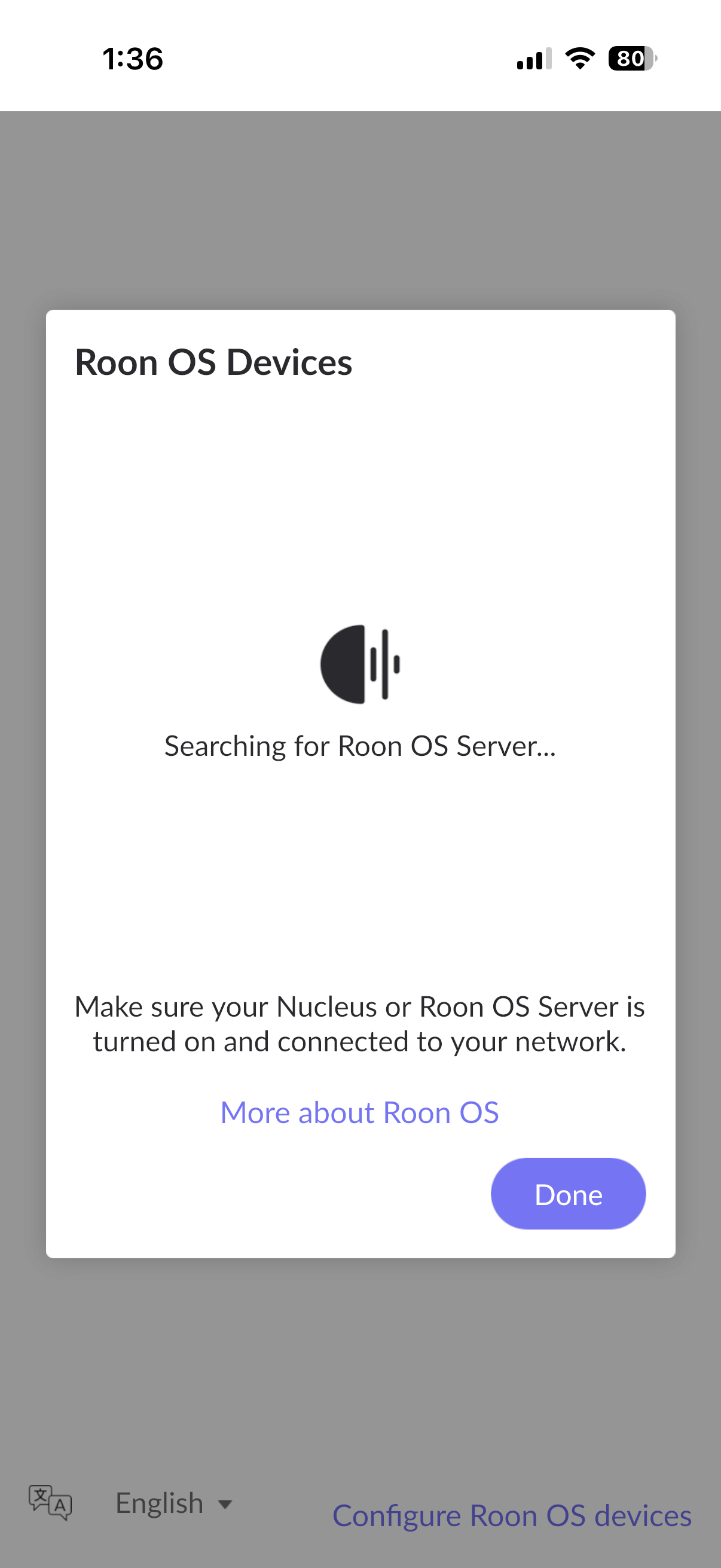
Please try to restart your network setup by unplugging, waiting 30 seconds and then replugging in your networking gear.
· No, the issue remains the same
Please select how you've connected your Roon Server to the internet
· Roon Server is connected by *Ethernet*
Have you checked your firewall settings to ensure that Roon is allowed through?
· Roon still won't connect even after checking this aspect
Have you verified that Roon Server is on the same subnet as your Remotes?
· My Remotes and Server are on the same subnet and I still can't connect
Sometimes the issues can be resolved with a reinstall of your Roon Remote app. Let's try to perform a reinstall and see if it helps.
· I've reinstalled the Roon Remote but it did not help
What is the operating system of your Roon Server host machine?
· *Windows*
Select any of the following components that are present in your local network setup
· *Mesh networks*
You mentioned a mesh network in your setup. Certain common mesh networks might require slight reconfiguration to support Roon.
· None of the above
Describe the issue
My Roon Nuecules will not connect to my app or the Roon on my PC.
Describe your network setup
I have a Linksys Mesh Network. The Nuecules is plugged into the main router. I am using the same WiFi network on my app and on my computer. I can not identify the IP address of my Nuecleus . My data File was and has been at 102.168.254.199. That does not work either. I have scanned on the netowork for the Roon IP but it does not come up.
This is unlikely because it is a public, routable IP address and using it or any subnet that includes it would have the potential to cause issues sooner or later.
It is much more likely that the IP address is actually 192.168.254.199. This IP address is in a range (192.168.0.0 to 192.168.255.255) that is reserved for local network use such as the one that each of us runs.
Note: it could also be 10.168.253.199 because that is within the range 10.0.0.0 to 10.255.255.255 which is also reserved for local networks but:
This range is not usually used by default on home routers.
The second number being 168 strongly suggests that the first should be 192.
With regards to your wider issue, has your network changed recently? Have you got a new router? If so all the subnet in use may have changed and any device that is configured to use a static IP address will become unroutable.
Have you tried plugging a monitor or TV into the HDMI port of you Nucleus? If you do it should tell you on the screen what IP address the Nucleus is using. If it does, then that IP address should be similar to the IP address of other devices on your network likely differing only in the last of the four number.
If the Nucleus’s IP address starts with 167, then that means that it failed to get an IP address via DHCP and you likely have a physical network issue.
If there is no address displayed or if no text appears on the monitor/TV connected to the Nucleus, you may have a hardware issue. It there is any text it may indicate the nature of the fault.
So I connected my nucleus to a HDMI monitor. It does not have any video output. I reset the nucleus by holding the power button for 5+ seconds and re started it with the same response.
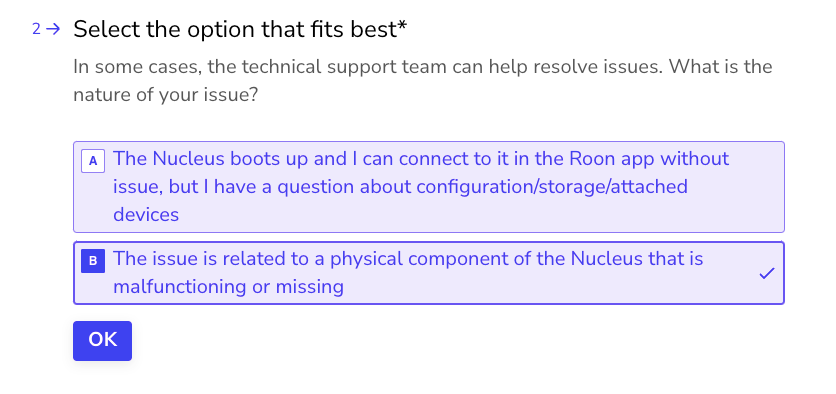
Based on your last reply and the fact that you do not see the video output, you’ve hit some hardware issues with your Nucleus. The best next step here is to get in touch with our RMA department directly, as they’re in charge of all hardware-related Nucleus issues. To do so, open the Typeform link below and select ‘Other’ followed by 'This issue is related to a physical component".