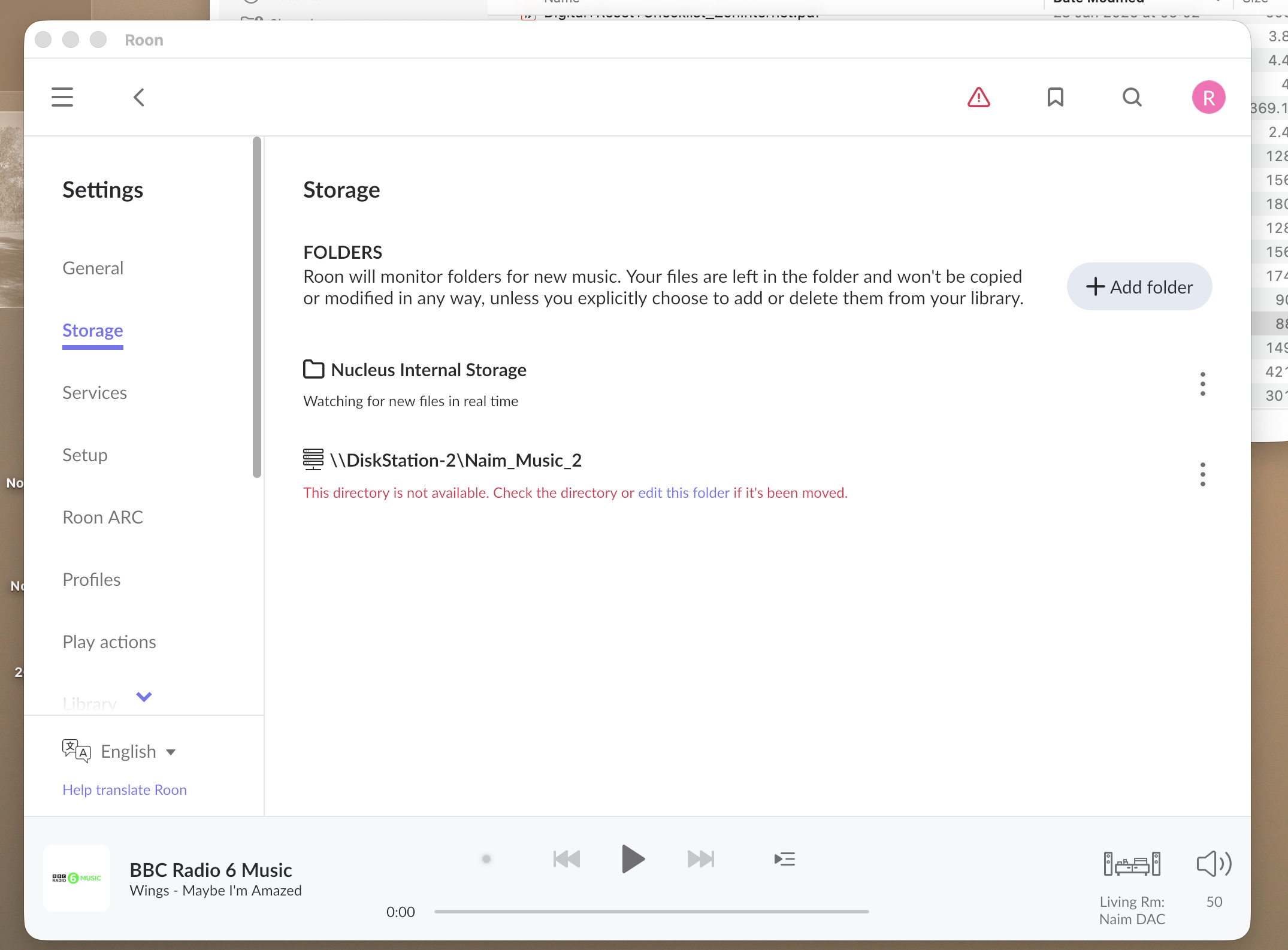
My Roon Nucleus server and/or Macbook Roon app no longer connects to the three shared folders on my Synology NAS where my music library is stored; I get the message: 'This directory is not available. Check the directory or edit this folder if it has been moved'.
One of the folders was set up for Roon backups so I am also getting the message 'Scheduled backup failed'. The folders have not been moved and I am easily able to open them in Finder on the Macbook. I am able to play music from the same folders on the NAS using the Naim server that I use to rip CDs, controlled through their app on the iPad that I normally use to select and play music but I prefer to work through Roon as it integrates my library with what is available via my Qobuz subscription.
I checked the permissions on the NAS using the Synology DSM and then tried deleting and re-adding the folders in the Roon app but without success. Help ! I hope you can tell me how to fix this. Thanks & regards, Richard.
Tell us about your home network
· We have a Gigabyte fibre internet connection to a Nokia router. The Roon Nucleus server is connected via cat.7 cables, a Netgear router and a specialist HiFi router, as is the Synology NAS, and the Naim server. The iPads and my Macbook connect via the 5G wireless network provided by the Nokia server.
Welcome to the forum! I noticed that you are using hostname to connect to the share. Hostname can sometimes be unreliable, does the same issue occur if you try to use an IP address connection method? If the IP method works, I would suggest setting up an Address Reservation in your router settings to ensure the NAS (and perhaps the Roon Server) IP address does not change. Let us know if that works, otherwise we can do move on to do more advanced troubleshooting, thanks!
I have been using the hostname to connect to the shares for many years without problem, both for Roon and many other applications, so I am surprised that this could sometimes be unreliable. There are about ten shares on the Synology NAS of which I have given Roon access to three (Roon is registered as a user with a password in the Synology DSM. Could you please provide an example of an IP address format for me to enter in the Roon ‘Add folder’ dialogue, thanks.
Using a Static IP address is the gold standard for stability in high-end audio streaming because it gives Roon a permanent, unchangeable map to your music.
In a home network, an IP address is a string of four numbers separated by periods. Based on your Nokia router, it will almost certainly look like one of these:
192.168.1.15 (The most common format)
192.168.0.20
10.0.0.5
To fix the connection in Roon, follow these steps:
Find the IP: Log into your Synology DSM via your web browser. Go to Control Panel > Info Center > Network. Look for "IP Address" under the LAN interface.
Update Roon: * In the Roon "Storage" settings (where you see the red error), click the three dots next to the failing folder and select Edit.
Replace \\DiskStation-2\ with \\ followed by the IP address.
Example: If your NAS IP is 192.168.1.50, the new path would be: \\192.168.1.50\Naim_Music_2
Check SMB Settings: Since you mentioned checking permissions, ensure that in Synology DSM (Control Panel > File Services > SMB), the "Maximum SMB Protocol" is set to SMB3 and the "Minimum" is set to SMB2. Roon can sometimes struggle if the NAS tries to use the older, less secure SMB1.
Let us know if this helps and if you have any additional questions along the way. Thank you! 🙌
I opened the Synology DSM and looked in File Services. Under SMB - Advanced Settings I found that the Maximum and Minimum SMB protocols were both set to SMB1. I changed these to SMB3 and SMB2 as suggested and as soon as I saved this change, and while I was trying unsuccessfully to create a connection in Roon using the IP address, Roon connected to Naim_Music_2 using the unchanged address (\\DiskStation-2\Naim_Music_2) and is still busy reading all the albums stored there - currently at around 1,000 albums, so a little way to go.
When Roon has finished reading this share I will try reconnecting the other two shares. There was a another software update that came up while I was doing this - I don’t know if that contributed to the successful reconnection or not. There seem to have been a lot of updates recently.
I have just noticed that Roon also successfully connected to the Share I set up for Backups (\\DiskStation-2\Music_Backup) and reports having completed a backup yesterday ?!
Today I attempted to reconnect Roon to the other two network shares on the Synology NAS. I realised that I may have inadvertently changed the Roon’s user password in Synology DSM and wasn’t sure to what exactly so I carefully changed it again, keeping a record. I was then able to successfully connect the …/HiRes_Music and …/Other_Music shares.
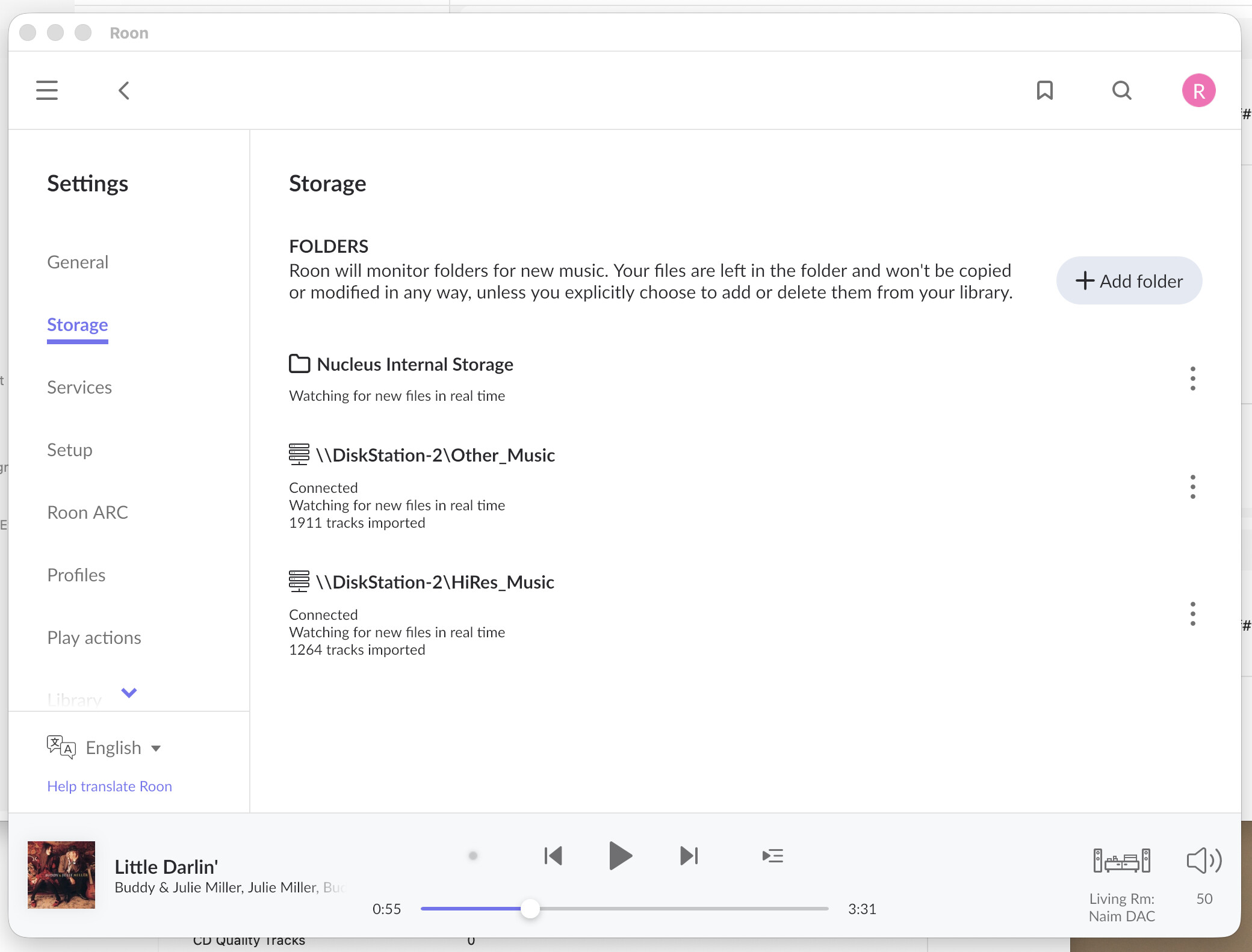
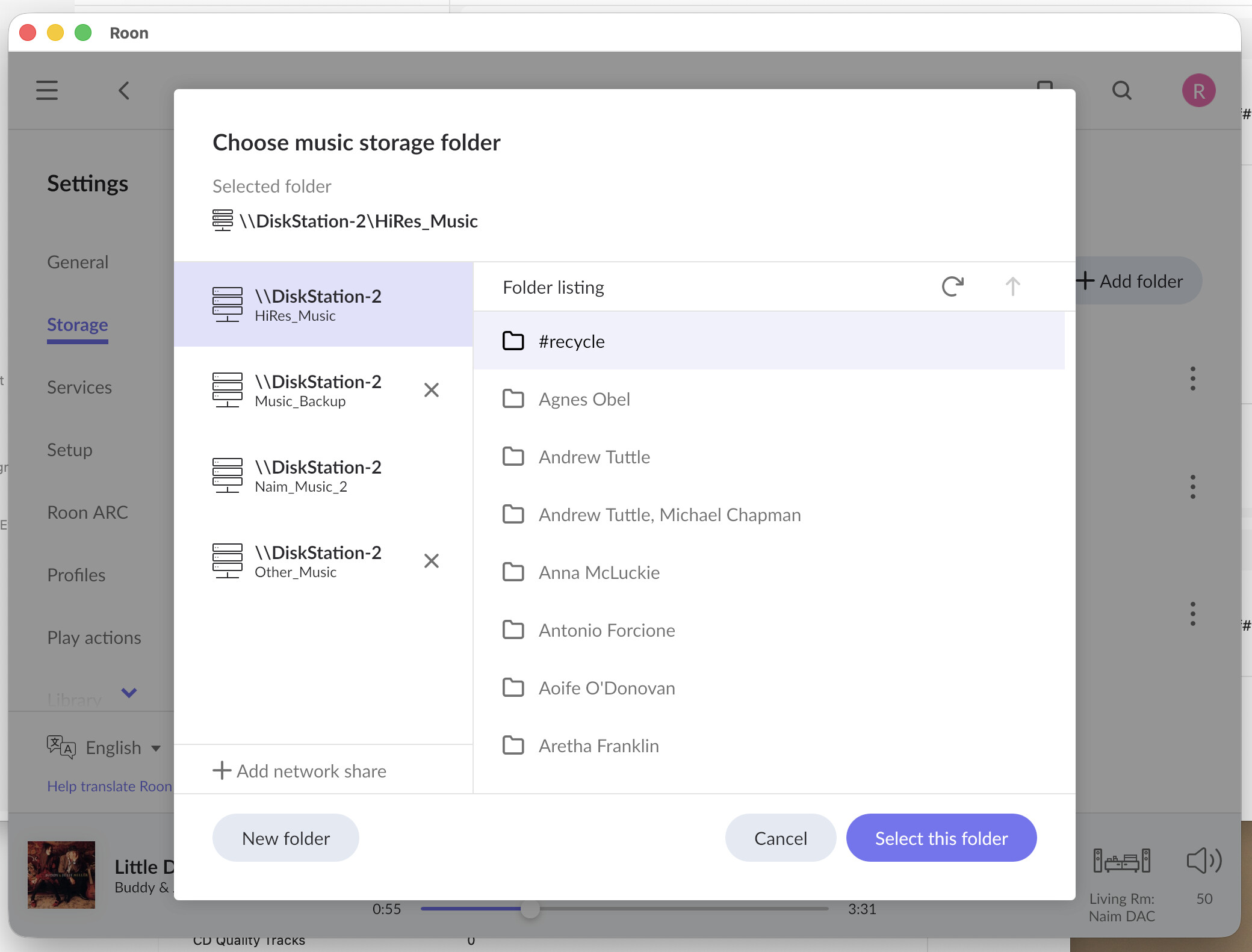
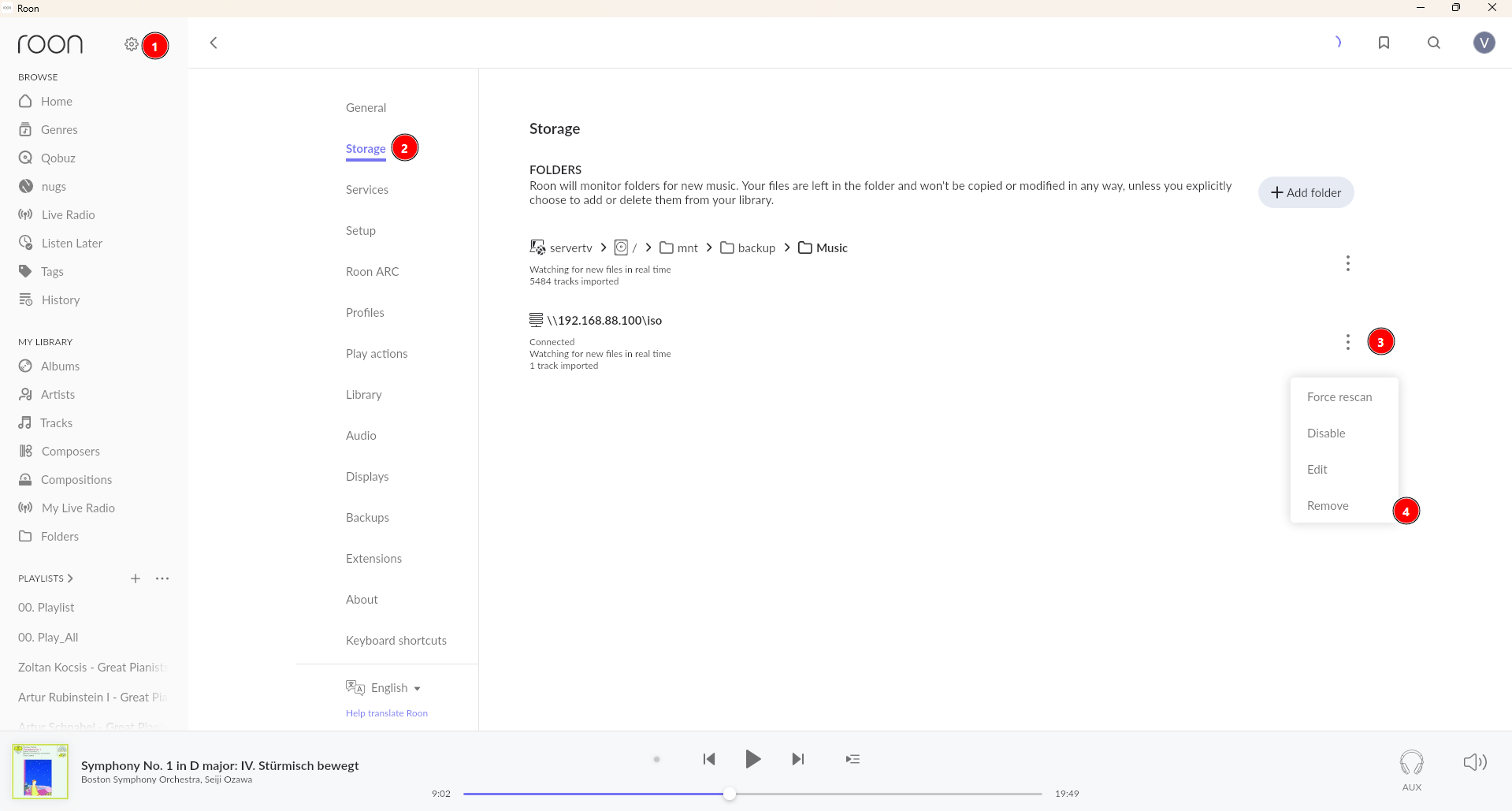
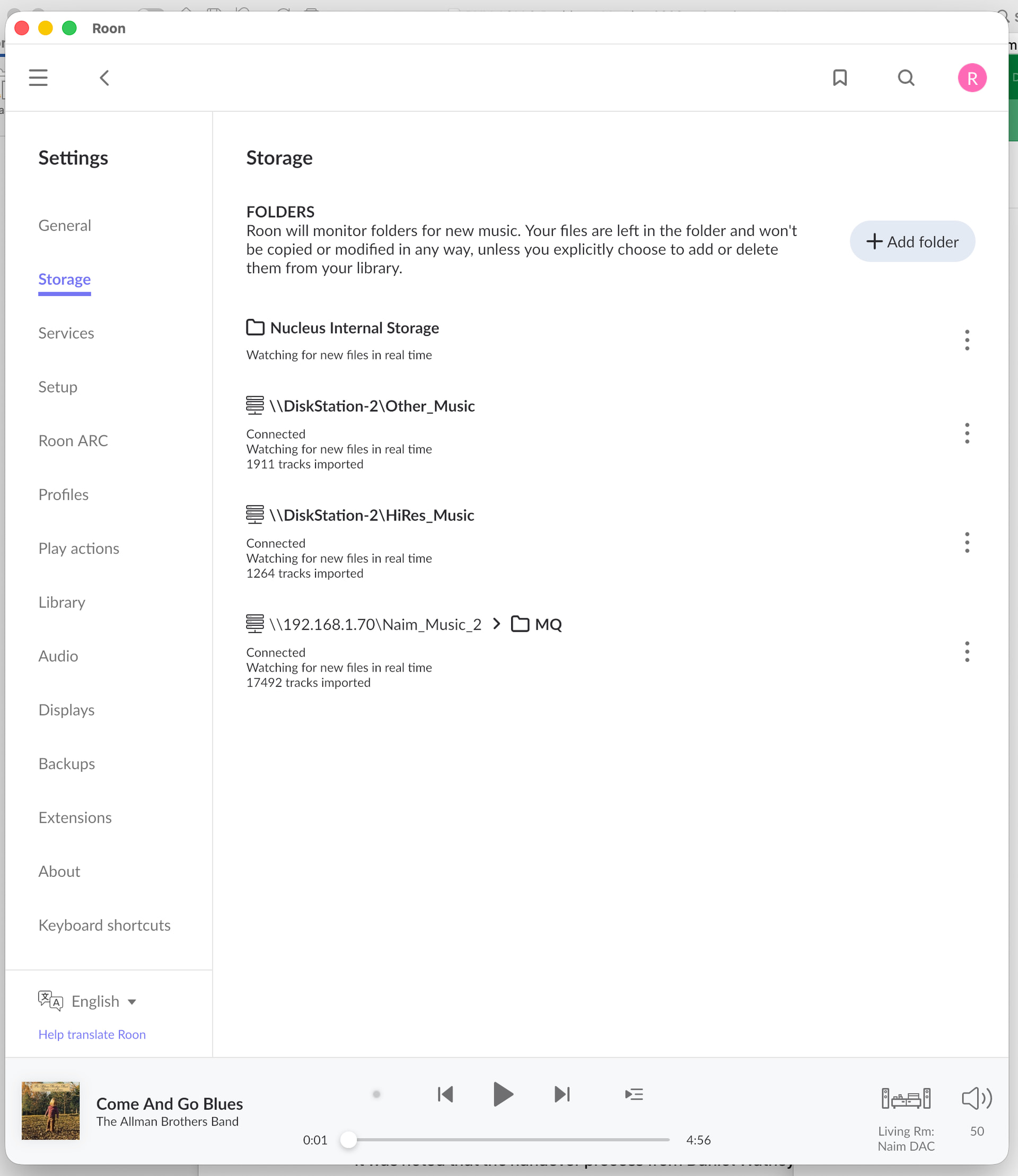
My problem now is that I can’t reconnect the …/Naim_Music_2 share as I can’t seem to remove it and then reconnect as a new network share. When I go to the Settings/Storage page in the Roon app on this MacBook it shows me the two connected shares (see attached screenshot) but when I click the ‘+ Add folder’ button the next screen shows four shares, these two plus the share for Roon backups and …/Naim_Music_2 (see second screenshot):
There is no ‘X’ next to the …/Naim_Music_2 share so I can’t remove it before re-adding. If I click on it the Folder listing shows ‘Error loading folder / NotFound’. If I try ‘+Add network share’ and enter the correct details it just comes back to the same ‘Error loading folder / NotFound’ message despite the username and password being identical to those successfully used for …/HiRes_Music and …/Other_Music.
I have tried using the IP address in the path instead of DiskStation-2 but it seems to make no difference.
Thanks for the reply! I can tell we’re close to success here.
From a recent Roon Server diagnostic report, your server sees the drive as “available,” but immediately marks the backend as DirectoryNotReady and eventually gives up.
Let’s see if any of the below help:
Keep HiRes_Music pointing to \DiskStation-2\HiRes_Music.
But, try changing the Naim_Music_2 path to use the DiskStation’s IP address: \DEVICE_IP\Naim_Music_2.
If that doesn’t help, log into your DiskStation and check:
Control Panel > File Services > SMB > Advanced Settings.
Look for "Allow multiple connections from the same IP address" (if available in your DSM version) and ensure it is enabled.
Ensure "Enable Opportunistic Locking" is ON, as many music servers require this for the DirWatcher to initialize properly.
Ensure that the username and password used to access HiRes_Music are identical to the ones used for Naim_Music_2. If the server tries to swap users mid-stream to access the second folder, the first connection will often “reset” or block the second one.
Thanks for your further advice. I checked the SMB setting in the Synology DSM and can confirm that ‘Enable Opportunistic Locking’ was enabled on the ‘General’ tab. I then found, on the ‘Others’ tab, a box for ‘Disable multiple connections from the same IP address’ which wasnot ticked.
I had to reset the minimum SMB protocol to SMB1 as this was necessary to fix the connection issue for my Naim UnitiServe, despite the security vulnerabilities warning. That proved successful and the UnitiServe is now up and running normally again.
Returning to the Roon app on my MacBook I went back to Settings\Storage and, per your advice, entered the path ‘\\IP address\Naim_Music_2’ and was very careful about the password. Bingo, I got the folder list and selected MQ which is where the 17,492 wav files ripped from my CDs are stored. These have been imported by Roon and so my full music library is accessible again.
Since the ‘\\DiskStation-2\Music_Backup’ location was also showing as ‘Error Loading/NotAvailable’, and the Backups tab showed the last attempt to backup had failed, I went through the process of adding ‘\\IP Address\Music_Backup’ which was successfullyand then did a ‘Backup Now’.
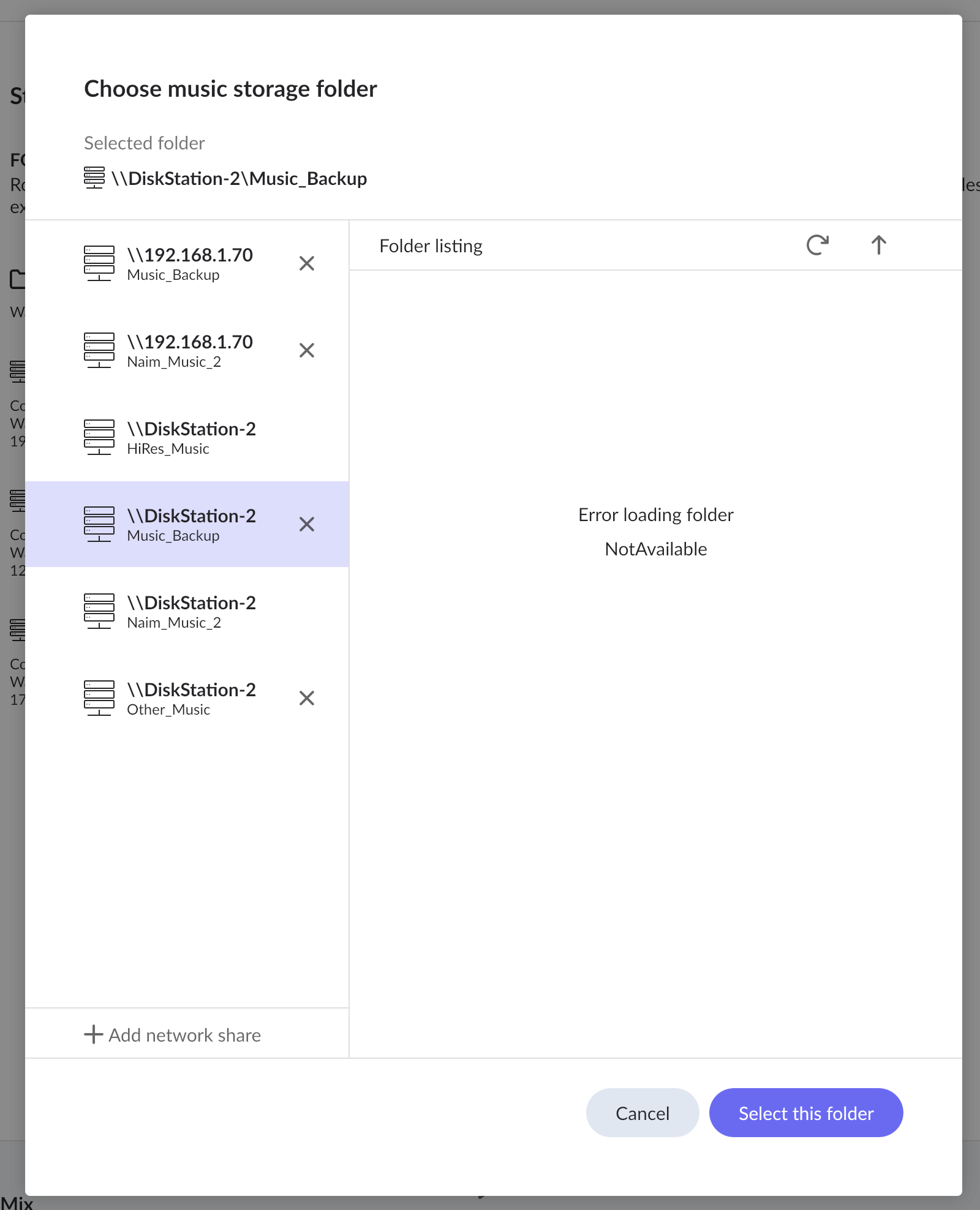
What I notice is that the ‘\\DiskStation-2\Naim_Music_2’ is still listed on the ‘Choose music storage folder’ page, and as ‘Error Loading/NotAvailable’, but still without an ‘X’ to remove it whereas the ‘\\DiskStation-2\Music_Backup’ location does have an ‘X’. Is this something that needs to be addressed in a future software update ?
Thanks for the response, however the non-available locations do not appear on the ‘Storage’ page (see below), only on the ‘Choose music storage folder’ page that one gets to by clicking on the ‘+ Add folder’ button, as shown by the screenshot in my previous post. Perhaps it does not matter that they are there ?
That sounds a bit drastic as, apart from a couple of redundant ‘mounts’, everything I need is working as expected. You refer to ‘reinstall(ing) the OS from the Web UI’ - which Operating System ? Do you mean the Roon app on my MacBook or the Roon Nucleus’ OS ? Is the ‘Web UI’ different from the App and is this all to remove the redundant ‘mounts’ ?
Thanks as always to you and the team for your very diligent support. Kind regards
We actually meant that we would like you to reinstall Roon OS. You can find instructions on how to access the web interface here, with more details about the Nucleus Web Administration Interface available here.
Reinstalling the OS only takes a few minutes and will not affect your database or settings, so it is completely safe to do.